Direct Assignment
Direct assignment lets you allocate a specific license to a set of computers, overriding the engine's affinity-based choice. This page covers the workflow with screenshots and the tips for making it operationally sustainable.
When to Use Direct Assignment
The conceptual page Concepts: Direct Assignment covers when this is the right tool. In short:
- A specific machine must be covered by a specific license (contractual, audit-driven)
- VIP allocations — guaranteeing a particular user gets a particular pool
- Test or dev environments with dedicated licenses
- Forcing the engine's hand on a particular case where affinity is not picking what you want
It is not the right tool when the same preference applies to many machines — that should be expressed in affinity rules instead. See Customizing the Calculation.
Workflow: Assign Computers to a License
Step 1: Open the License
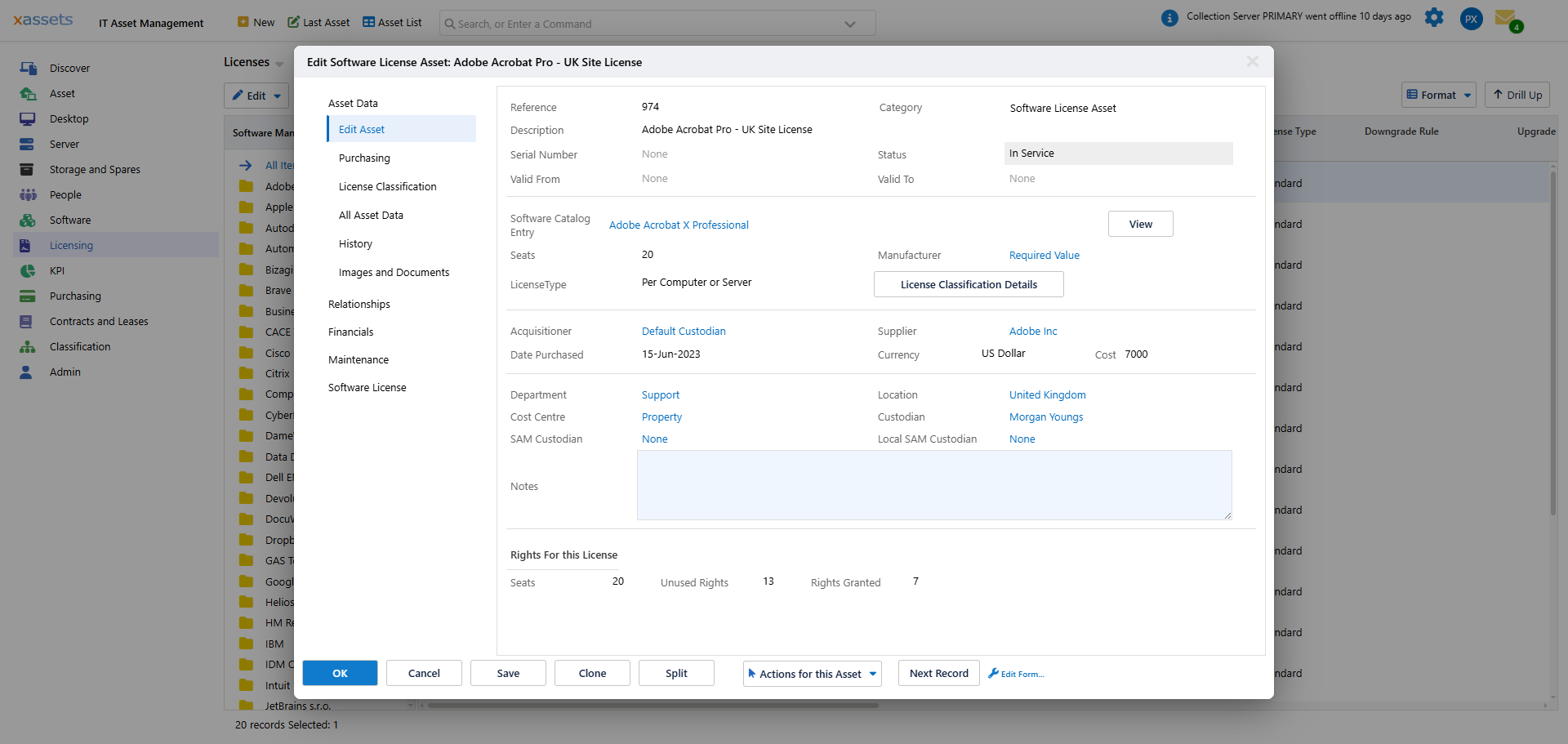
Navigate to Licensing > Licenses and open the license. The list shows each license with its type, seats and product, grouped by product in the tree on the left:
Step 2: Open Assigned Computers
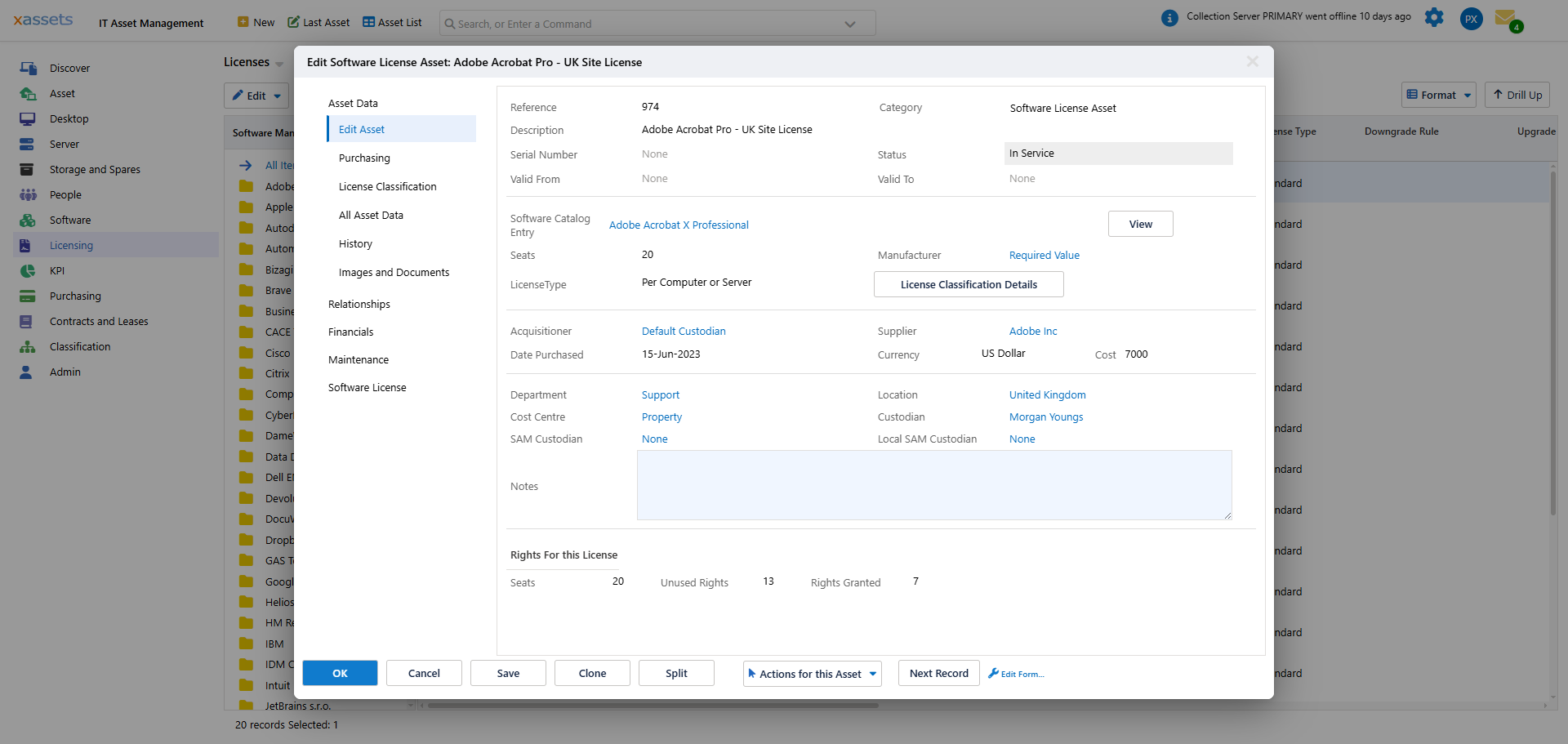
In the editor choose Assigned Computers (listed under Asset Data, and again under Relationships). The grid lists every computer currently assigned to this license with the start and end date of the assignment and any notes. The buttons underneath are Add Computer, Paste Computer(s) and Remove Computer(s):
Step 3: Add the Computers
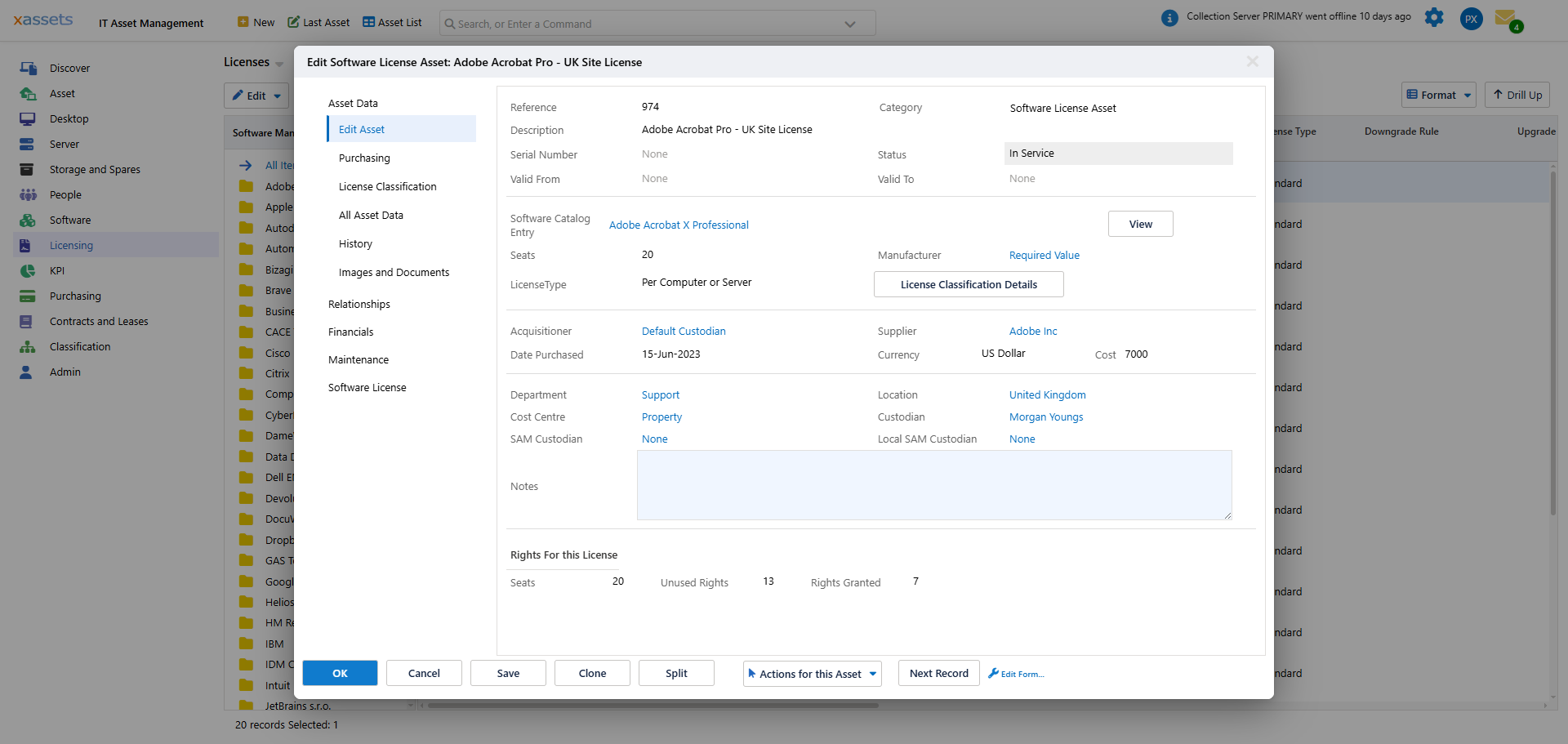
- Click Add Computer. The New Child Asset Relationship dialog opens with the license as the parent and the Relationship Type already set to Has priority License allocation for -- the dependency type the engine recognises as a direct assignment.
- Click Find or Create Record next to Child Asset(s) and pick the computer(s). Ctrl-click selects several at once.
- Leave Start Date as today unless the assignment should take effect from another date, and set an End Date if it is temporary. Assignments whose end date has passed are ignored by the calculation.
- Add a Notes entry saying why the assignment exists, then click OK.
Tip: To assign many machines at once, select them in any asset query, choose Copy from the query's Edit menu, then use Paste Computer(s) on the Assigned Computers section.
Click OK to close the license.
Step 4: Recalculate
Run Licensing > Calculate Licensing Position to make the direct assignments take effect. The engine processes them first, before affinity-based allocation.
Reading the Result
After the recalculation:
- Every current assignment becomes an allocation from the assigned license. If the seat was previously held by a machine the engine had chosen by affinity, that machine is displaced and re-allocated elsewhere on the same run -- an assignment always wins over an affinity choice.
- The license's Allocated to Computers section (under Software License) shows the direct allocations alongside any affinity-based ones within the remaining capacity, and the Explain Allocations tab on the product names each computer as Directly Assigned.
- The Licensing Position for the product reflects the combined direct + auto allocations.
- An assignment that could not be honoured -- for example because the license is not active on the calculation date or does not cover the installed edition -- is reported on Explain Allocations as Failed Direct Assignment, with the reason.
Assignments to a person work the same way for per-user licenses, through Assigned Users -- see Assigning Licenses to Users.
Removing a Direct Assignment
To unassign:
- Open the license.
- Go to Assigned Computers.
- Tick the computer and click Remove Computer(s) -- or open the row with Edit and set an End Date if you want to keep the history.
- Recalculate.
The next calculation drops the explicit grant and opens the consumption back up to affinity-based allocation.
Tips
- Start with critical or audited products. Microsoft, Adobe, and Oracle products are common direct-assignment targets because of audit risk.
- Document why. A direct assignment with no documented reason is hard to justify in 18 months when no one remembers why it was set. Use the license's Notes field or an attached document.
- Review periodically. Direct assignments to disposed assets waste capacity. Quarterly cleanup keeps the assignment list accurate. See Reallocating After Disposal.
- Check Explain Allocations first. The not covered rows on the product name the machines that have it installed but hold no allocation - a good source for which machines to direct-assign.
Related Reading
- Concepts: Direct Assignment — when to use vs alternatives
- Auto-Allocation — what direct assignment overrides
- Customizing the Calculation — when policies should be in rules instead
- Reallocating After Disposal