Specification Data
This page explains how to create and manage specification data fields (custom fields) in xAssets. Specification fields let you capture data that the built-in database fields do not cover, without modifying the underlying database schema.
Prerequisites
- You must have Administrator permissions in both xAssets and SQL Server to create or modify specification fields.
- Plan your field names, data types, and category associations before creating fields, as some properties cannot be changed after creation.
When to Use Specification Fields
Use specification fields when the standard asset fields do not capture the data you need. Common examples:
- Fleet management: Tax Renewal Date, Odometer Reading, Registration Plate
- IT hardware: Rack Position, BIOS Version, MAC Address
- Facilities: Floor Number, Room Capacity, Fire Safety Rating
- Financial: Insurance Policy Number, Replacement Cost
Where Specification Fields Appear
- Single-valued fields (text, number, date, lookup, yes/no) can be added directly to asset editor forms alongside built-in fields, making them indistinguishable from standard fields.
- Multi-valued fields (text arrays, lookup arrays) are edited in the Specification Data tab of the asset entry screen and can be queried from left-side menu links.
- All specification fields are visible in the Specification tab of the asset editor, regardless of whether they appear on the main form.
Managing Specification Fields
Navigate to Admin > Data > Custom Fields (Specification Data) to see the list of all specification fields:
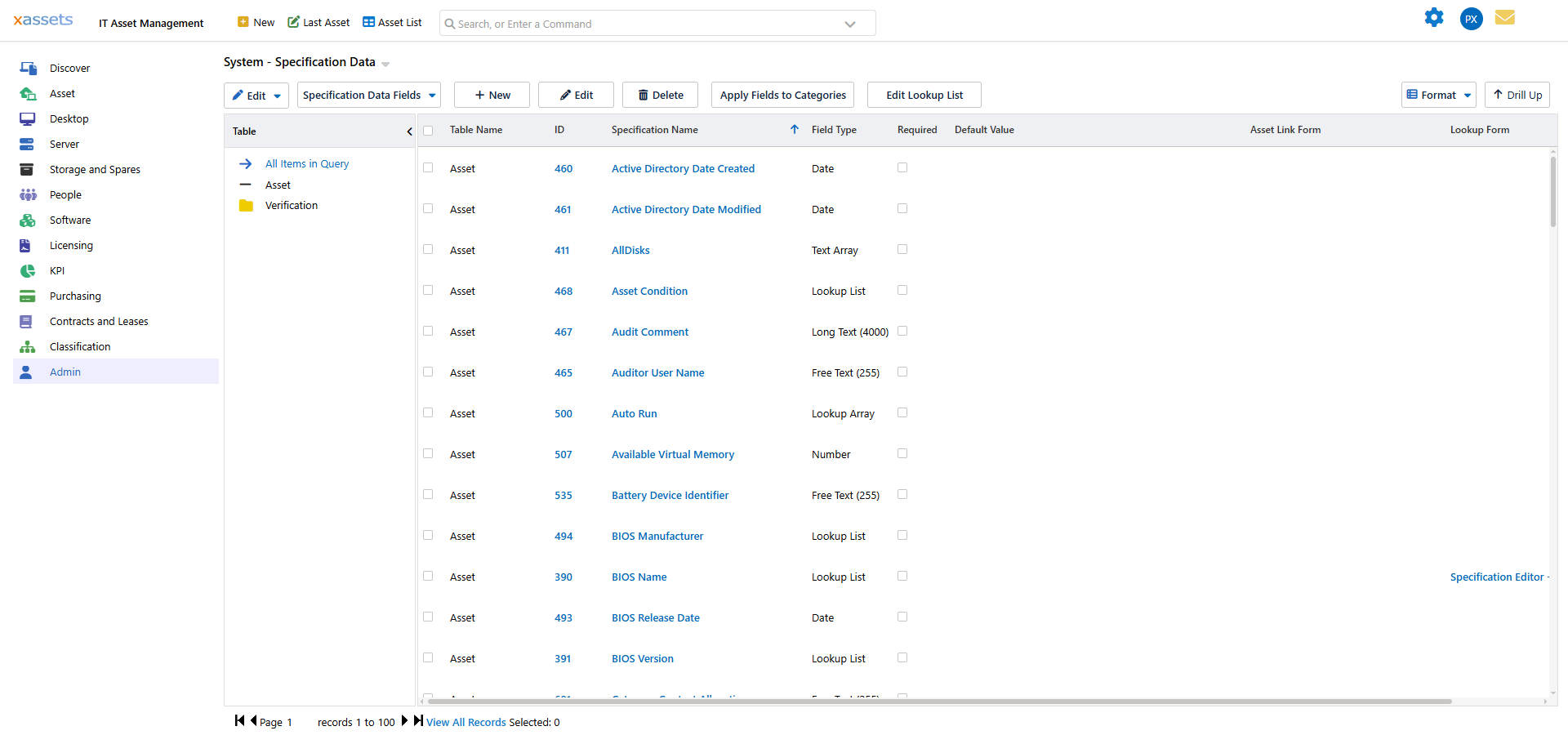
From this screen you can:
- Edit a field by clicking its name in the list, or by selecting a record and clicking
 .
.
- Create a new field by clicking
 .
.
Creating a New Specification Field
- Click the New button to open the Specification Data Field Editor.
- Enter the Field Name using proper capitalisation and spaces (e.g., "Tax Renewal Date"). This is the name users will see.
- Select the Table Name -- typically "Asset" but can be other tables.
- Choose the Data Type (see the data types table below).
- Optionally set a Default Value for new records.
- Check Required if the field must be filled in before saving.
- For Lookup List fields, optionally set Depends On and Use Lookup Data From (see below).
- Save the field.
Specification Field Editor
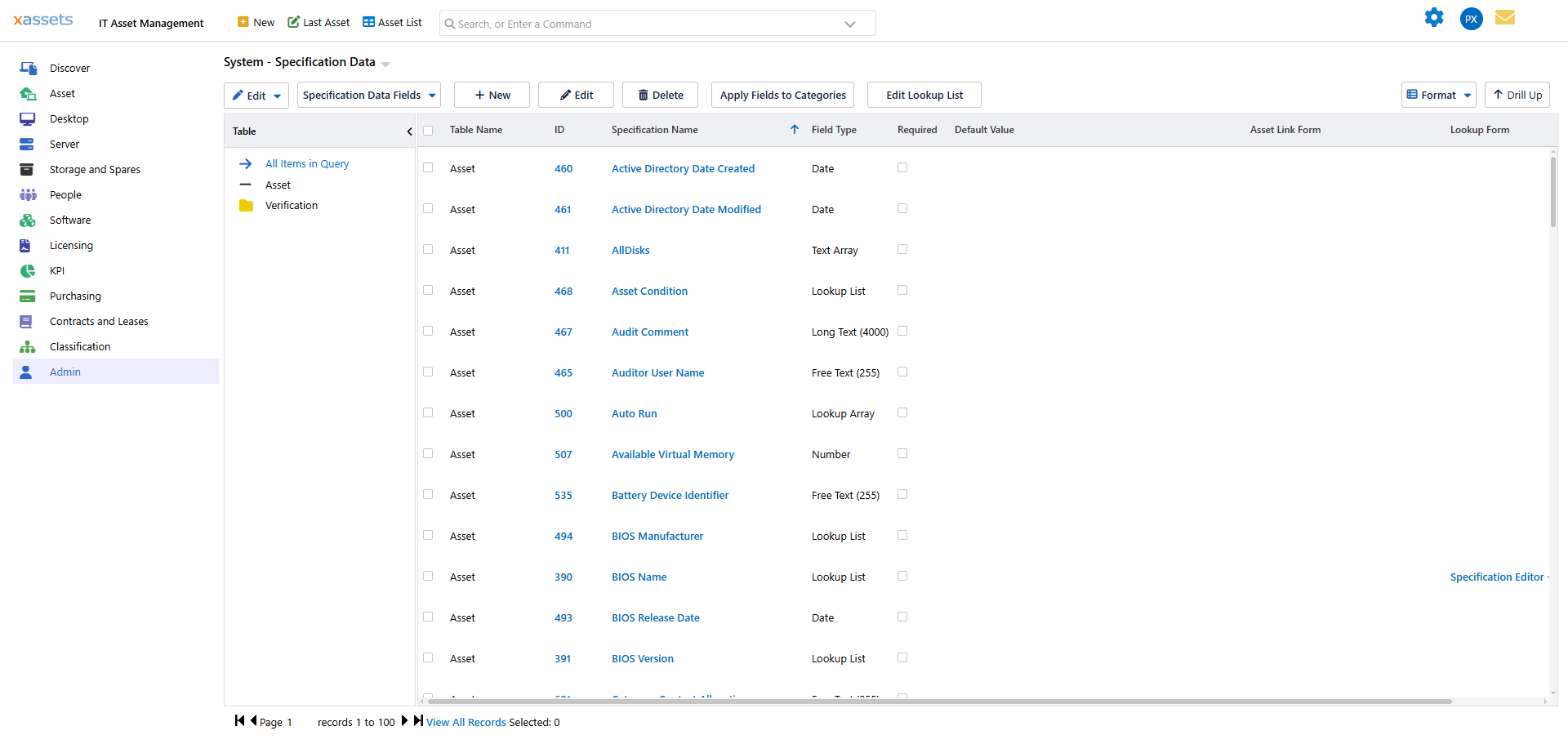
| Field | Description |
|---|---|
| ID | A unique number generated by the system. Cannot be changed. |
| Field Name | The display name for the field. Use capitalisation and spaces as users will see this name on forms and in queries. |
| Table Name | The database table this field extends (usually Asset, but can be other tables). |
| Data Type | The type of data the field stores. See the data types table below. Cannot be changed after creation. |
| Default Value | The value automatically assigned when a new record is created. |
| Required | When checked, the field must be filled in before a record can be saved. |
| Depends On | For Lookup List fields, specifies another lookup field that this field depends on. For example, "Model" can depend on "Manufacturer" so that only models from the selected manufacturer appear in the dropdown. |
| Use Lookup Data From | Allows the field to share its dropdown values with another lookup field, avoiding duplicate lookup list maintenance. |
Data Types
| Type | Values | Example Use |
|---|---|---|
| Number | Single integer or decimal value | Weight, quantity, rack position |
| Free Text | Single text value up to 255 characters | Computer name, registration number, serial number |
| Yes/No | Single boolean checkbox | "Email Sent" flag, "Approved" checkbox |
| Date | Single date value | Invoice date, renewal date, warranty expiry |
| Long Text | Single text value up to 4,000 characters | Service description, notes, maintenance log |
| Calculated | Value computed by a SQL Server function | Memory rounded to nearest GB, formatted CPU speed |
| Lookup List | Single value selected from a dropdown list | Domain name, building floor, condition rating |
| Text Array | Multiple text values per record (non-recurring) | IP addresses, MAC addresses |
| Lookup Array | Multiple values per record selected from a shared lookup table (many-to-many) | Installed software titles, device drivers |
| Asset Custodian | Multiple links to custodian records per asset | Service managers, approvers, deployment managers |
Warning: The Data Type cannot be changed after the field is created. If you need a different data type, you must create a new field and migrate the data. Choose carefully.
Tip: For fields where users should choose from a controlled list of values, use Lookup List rather than Free Text. This ensures data consistency and makes reporting more reliable.
After Creating a Field
After creating a new specification field, you typically need to:
- Add it to forms -- use the Forms tab to add the field to the appropriate asset editor forms.
- Set category restrictions -- use the Category tab to limit which asset categories the field appears on.
- Populate lookup values -- for Lookup List or Lookup Array types, add the dropdown values using the Lookup Lists editor.
- Add it to queries -- add the field as a column to any queries where it should be visible.
Related Articles
- Specification Data Category — restricting fields to specific asset categories
- Specification Data Forms — adding fields to asset editor forms
- Queries — viewing which queries include a specification field
- Lookup Lists — managing dropdown values for lookup fields
- Forms — creating and editing forms