Data Mapping
This page explains how data mapping works in xAssets. Data mapping provides a rules-based recognition and translation system for cleaning incoming data during imports. It is most commonly used during network discovery data loads to standardise raw discovery data into consistent, usable values.
What Data Mapping Does
A data mapping record is essentially a rule that says "when this value is found, replace it with that value." For example:
- A discovered operating system string "Windows NT 5.1 (Build 2600)" is recognised as Microsoft Windows XP with manufacturer Microsoft.
- A discovered model string "HP ProLiant DL380 Gen10" is standardised to HPE ProLiant DL380 Gen10 with manufacturer Hewlett Packard Enterprise.
- An SNMP Object ID "1.3.6.1.4.1.2636.1.1.1.2.31" is mapped to manufacturer Juniper Networks, model EX2200.
The core xAssets application does not use data mapping directly in the user interface. Instead, data mapping is used by transformations that process data imports, most commonly the network discovery data loader.
Data Mapping Types
Each data mapping rule belongs to a Data Mapping Type that defines the category of recognition being performed. Data mapping types are managed from Admin > Data > Data Mapping Types:
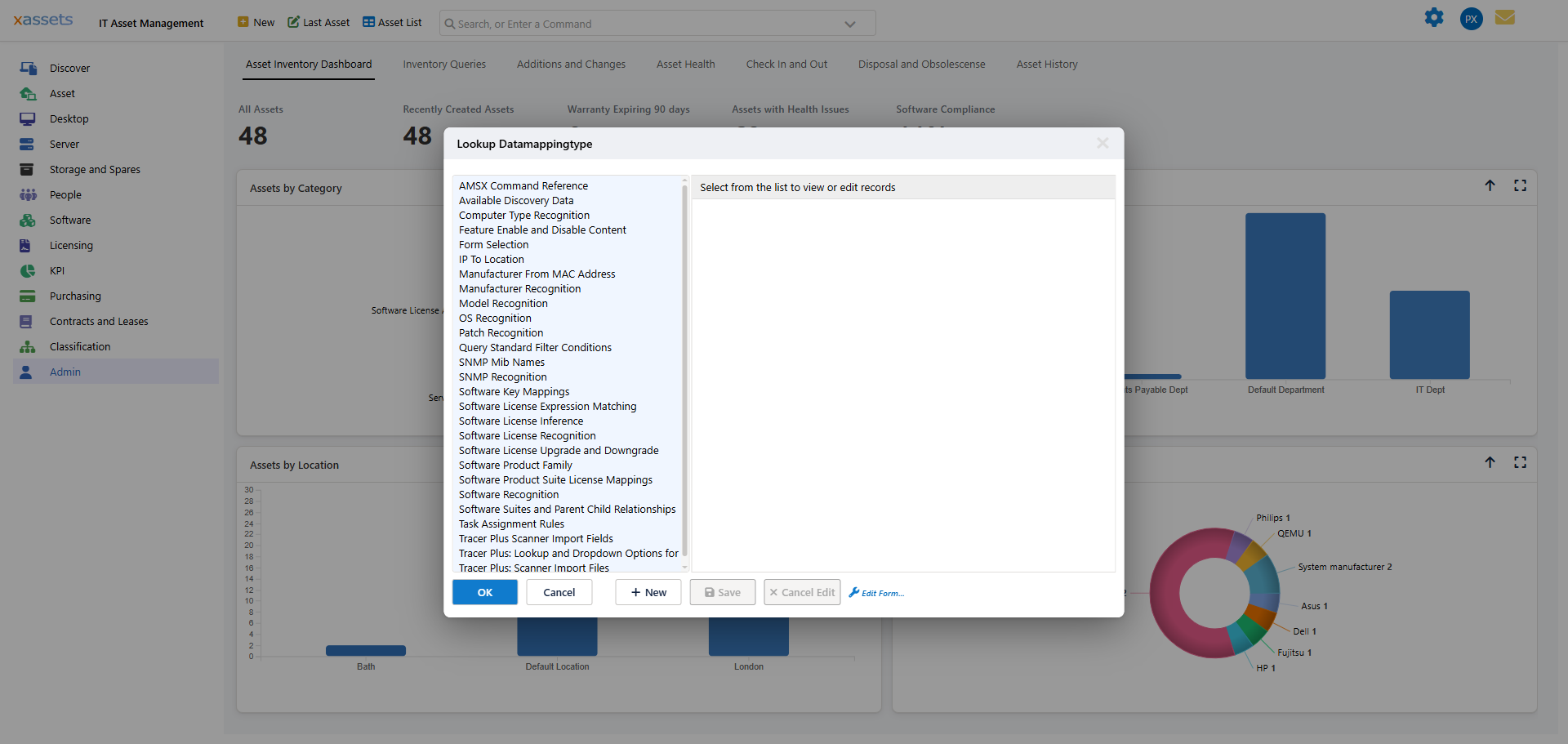
The main data mapping types used in network discovery are:
| Data Mapping Type | Purpose |
|---|---|
| Software Recognition | Translates raw software installation strings into standardised product names |
| Operating System Recognition | Maps detected OS strings to standard OS names |
| Patch Recognition | Identifies installed patches and hotfixes |
| Manufacturer and Model Recognition | Standardises hardware manufacturer and model names |
| Manufacturer from MAC Address | Identifies the manufacturer from the network adapter MAC address prefix |
| SNMP Object ID | Maps SNMP OIDs to manufacturer, model, model code, and asset category |
| Location from IP Address | Identifies the physical location based on IP address ranges |
| Custom Recognition | User-defined mapping types for other data standardisation needs |
How Data Mapping Works
Each data mapping type has a set of mapping records. Each record contains:
- Source values -- the incoming raw data to match against (supports exact and wildcard matching).
- Target values -- the standardised values to replace the source data with (e.g., manufacturer name, model name, category code).
When a transformation runs, it applies the mapping rules to the incoming data. For each field being mapped:
- The transformation reads the raw value from the source data.
- It looks for a matching rule in the data mapping table.
- If a match is found, the raw value is replaced with the target values from the rule.
- If no match is found, the raw value passes through unchanged.
Editing Data Mapping Records
The data mapping screen adapts to the data mapping type being edited. In the example below, SNMP Object IDs in the source are mapped to manufacturer, model, model code, and asset category in the target:
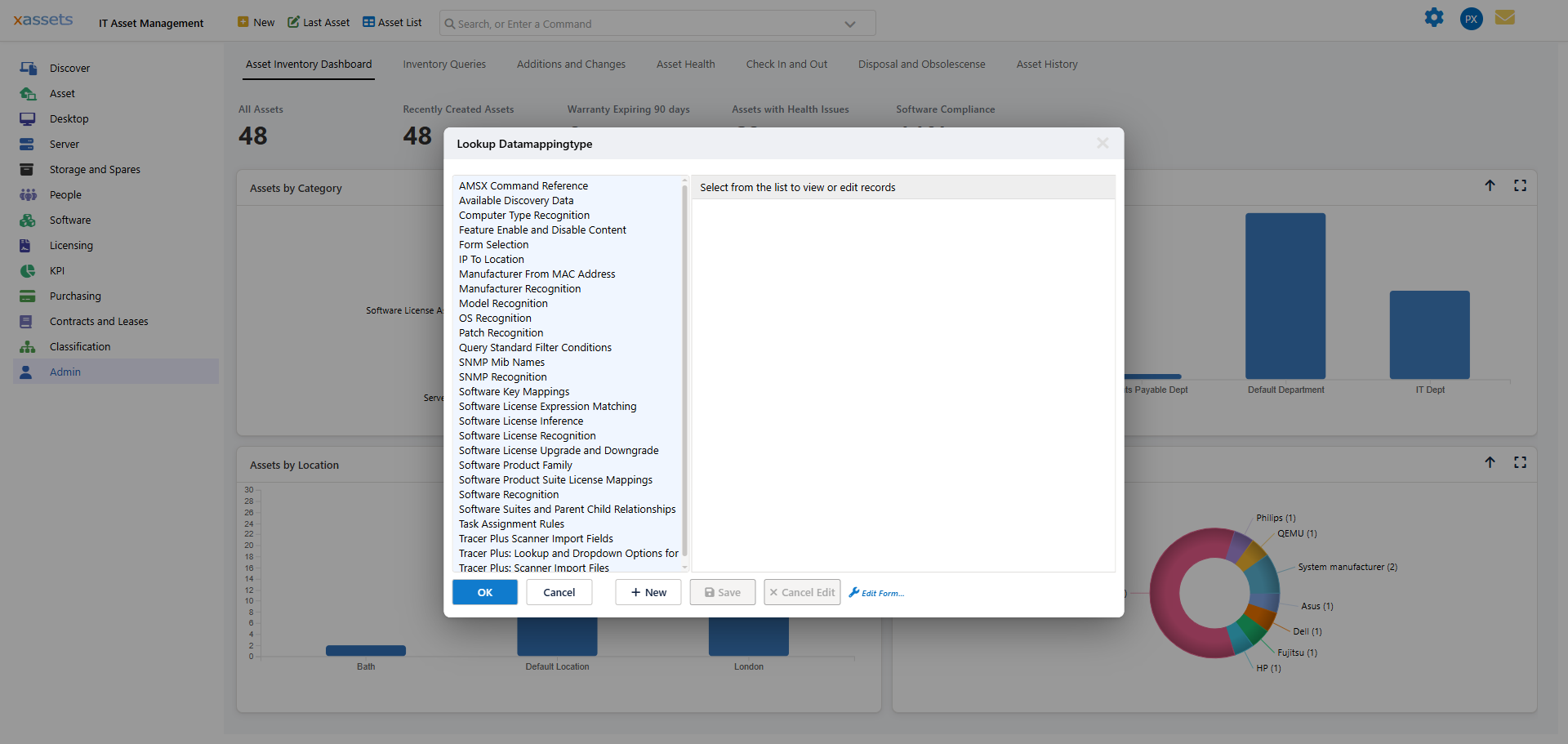
To add a new mapping record:
- Navigate to Admin > Data > Data Mapping Types.
- Select the mapping type you want to add a rule to.
- Click New or Add to create a new mapping record.
- Enter the source value(s) to match.
- Enter the target value(s) to map to.
- Save the record.
Software Recognition Rules in Detail
Software Recognition is the most heavily used data mapping type — it is the rule set that turns raw installed-software strings from discovery into standardised software titles in the product catalog. It has some additional structure beyond the general source/target model described above.
Matching and Title Fields
| Field | Purpose |
|---|---|
| Source (Add/Remove name) | Wildcard pattern matched against the raw title as it appears in "Programs and Features" |
| Source (On-disk name) | Wildcard pattern matched against titles found by scanning executable file headers, used when Add/Remove data is not available |
| Title | The canonical, standardised software title to record |
| Manufacturer | The manufacturer to record against the title |
| Product | A version-independent product key — every version of a product should share the same Product value so they are treated as one family in the software catalog |
Title Placeholders
The Title field supports placeholders that pull the matched detail out of the raw string, so a single rule can cover every version of a product instead of needing one rule per version:
| Placeholder | Extracts |
|---|---|
{v} |
Version number |
{y} |
Year |
{e} |
Edition |
{s} |
Service pack |
For example, a rule with source pattern Foxit PhantomPDF % and title Foxit PhantomPDF {v} recognises Foxit PhantomPDF 9.7.0.29570, Foxit PhantomPDF 2023, and any other installed version, producing a correctly versioned title from one rule rather than a separate rule per release.
Recognising Versions Not Present in the Title
Some products report an Add/Remove (or on-disk) name with no version in the text at all — for example "Adobe Acrobat Reader" — even though discovery separately captures a version number for the install. In this case {v} has nothing to extract from, since there is no version text in the matched name to pull it out of. Use one of these placeholders in the Title field instead:
| Placeholder | Substitutes |
|---|---|
%re-version% |
The install's discovery Product Version |
%re-fileversion% |
The install's discovery File Version |
Author two rules together:
- A rule matching the bare name, with a title such as
Adobe Acrobat Reader %re-version%. This rewrites the title with the real version number substituted in from discovery data, then automatically re-checks the rewritten title against your other Software Recognition rules. - An ordinary
{v}-templated rule (titleAdobe Acrobat Reader {v}) that the rewritten, now-versioned title matches — producing a correctly versioned catalog title exactly as if the version had been in the original name.
Tip: If discovery has no version recorded for a particular install, the placeholder is simply dropped rather than appearing literally in the catalog — you will not see a raw
%re-version%in software titles.
Classification Fields
Every Software Recognition rule sets a Class and a Licensing flag, using the same vocabulary as the manual recognition record described in Creating Software Titles Manually:
- Class — Primary, Secondary, Banned, or Unknown.
- Licensing — Licensable (
LIC), Free (FREE), Sub Component (SUB), Assumed Licensable (AUTO), Banned (BANNED), Client Access License (CAL), Per Processor (PRO), Per User (USR), or Unknown.
Edition and Version Licensing Overrides
Some products need different licensing treatment for different editions or versions, even though one rule (using the {v}/{e} placeholders above) covers the whole product family. For example:
- A product's Community edition is free while its Professional and Enterprise editions are not.
- A product's licensing terms changed at a specific version — free before that version, licensable (or something you want to actively ban) from it on. This is a real situation for Oracle Java SE, which became licensable for commercial use from a specific update.
Rather than authoring a competing rule per edition or version (which is unreliable — competing rules can shadow each other unpredictably), a single rule can carry an Edition Licensing Override, a semicolon-separated list of exceptions layered on top of the rule's normal Licensing value:
| Clause form | Meaning | Example |
|---|---|---|
Edition=Code |
Overrides Licensing when the matched edition equals Edition |
Community=FREE |
Version:<threshold>=Code |
Overrides Licensing when the matched version is at or above <threshold> |
Version:8.0.2020.10=LIC |
Code uses the same vocabulary as the Licensing field (LIC, FREE, SUB, AUTO, BANNED, CAL, PRO, USR, UNKNOWN). Selecting a code sets both Licensing and Class together, so you do not need to set them separately. An edition or version with no matching clause falls back to the rule's normal Licensing value, unchanged.
Multiple clauses can be combined, separated by ; — for example Version:8.0.2020.10=BANNED;Version:9.0.0.0=FREE. You do not need to list Version: clauses in threshold order — xAssets always evaluates the highest qualifying threshold first, regardless of the order you type them in.
Tip: A Version override changes the Licensing/Class of only some installs of a title, so xAssets automatically creates a separate product catalog entry for the affected range (shown with a suffix such as "(>= 8.0.2020.10)") so compliance reporting can tell the two groups apart, while still treating them as one product family for upgrade/downgrade purposes. An Edition override does not need this — the
{e}placeholder already puts the matched edition word into the title, so "Visual Studio Community 2022" and "Visual Studio Professional 2022" are already distinct catalog entries without any extra suffix.
The override is typed into the Edition Licensing Override field on the Software Recognition rule form (Admin > Software Recognition, open the rule). Rules shipped by xAssets cannot be edited directly: use Clone to make your own copy, which takes precedence over the shipped rule, and set the override on the copy -- see Your Own Recognition Rules.
A worked example: to have every Java 8 install at or above update 8.0.2120.10 reported as banned software while earlier updates stay free, clone the Java {v} Update% rule and set the override to Version:8.0.2120.10=BANNED. The matched installs land on their own catalog title, Java 8 Update (>= 8.0.2120.10), classified Banned, which is what the Computers with Banned Software query and its subscriber email report.
As with any Data Mapping change, an Edition or Version Licensing Override only affects titles recognised after the rule is saved — it does not retroactively reclassify software that was already recognised. Re-run the discovery data load (or wait for the next scheduled Load Now) for it to take effect.
Using Data Mapping in AMSX Scripts
The AMSX scripting language supports applying data mapping rules programmatically using the ApplyDataMappingLike command. This is used in transformation scripts that load discovery data.
For example, the following AMSX command applies the "Model Recognition" data mapping type to the "NetworkDiscovery" table:
ApplyDataMappingLike "NetworkDiscovery", "Model", "SourceValue1", "Model", "TargetValue1", "Model Recognition"
This translates the value in the "SourceValue1" field into the "TargetValue1" field using the "Model Recognition" mapping rules, with "like" (wildcard) matching enabled.
Tip: When discovery loads produce unrecognised items, add new data mapping records for those items. Over time, the data mapping tables build into a comprehensive recognition library that handles most incoming data automatically.
Warning: Data mapping rules are applied during import processing, not retroactively. Adding a new mapping rule will not update records that were imported before the rule existed. To update existing records, re-run the discovery data load or manually correct the data.
Related Articles
- Integration and Data Operations with Transformations — transformations that use data mapping
- Specification Data — custom fields that may be populated via data mapping
- Creating Software Titles Manually — manual, single-asset recognition; Software Recognition rules above are the bulk alternative that automatic discovery relies on