Default Values for Asset Fields
This page explains how to configure default values that are automatically applied to asset fields when a new asset record is created. Default values save time and improve data consistency by pre-populating fields with appropriate values based on the asset's category.
How Default Values Work
When a user creates a new asset record, the system applies default values to fields in the following priority order:
- Category-specific default -- if a default value exists for the field for the exact category of the asset being created, that value is used.
- Category group default -- if no category-specific default exists, the system looks for a default defined for the category group that the asset's category belongs to.
- Across-the-board default -- if no category or group default exists, the system uses a global default that applies to all categories.
If no default is found at any level, the field is left blank.
Which Fields Can Have Defaults
Default values can be applied to:
- Standard asset fields -- built-in fields such as Status, Location, Department, Cost Centre, and Company.
- Single-valued specification fields -- custom fields of type Free Text, Number, Date, Lookup List, and Yes/No.
Multi-valued specification fields (Text Array, Lookup Array, Asset Custodian) cannot have default values.
Managing Default Values
Navigate to Admin > Data > Default Values for Asset Fields to see the list of configured defaults:
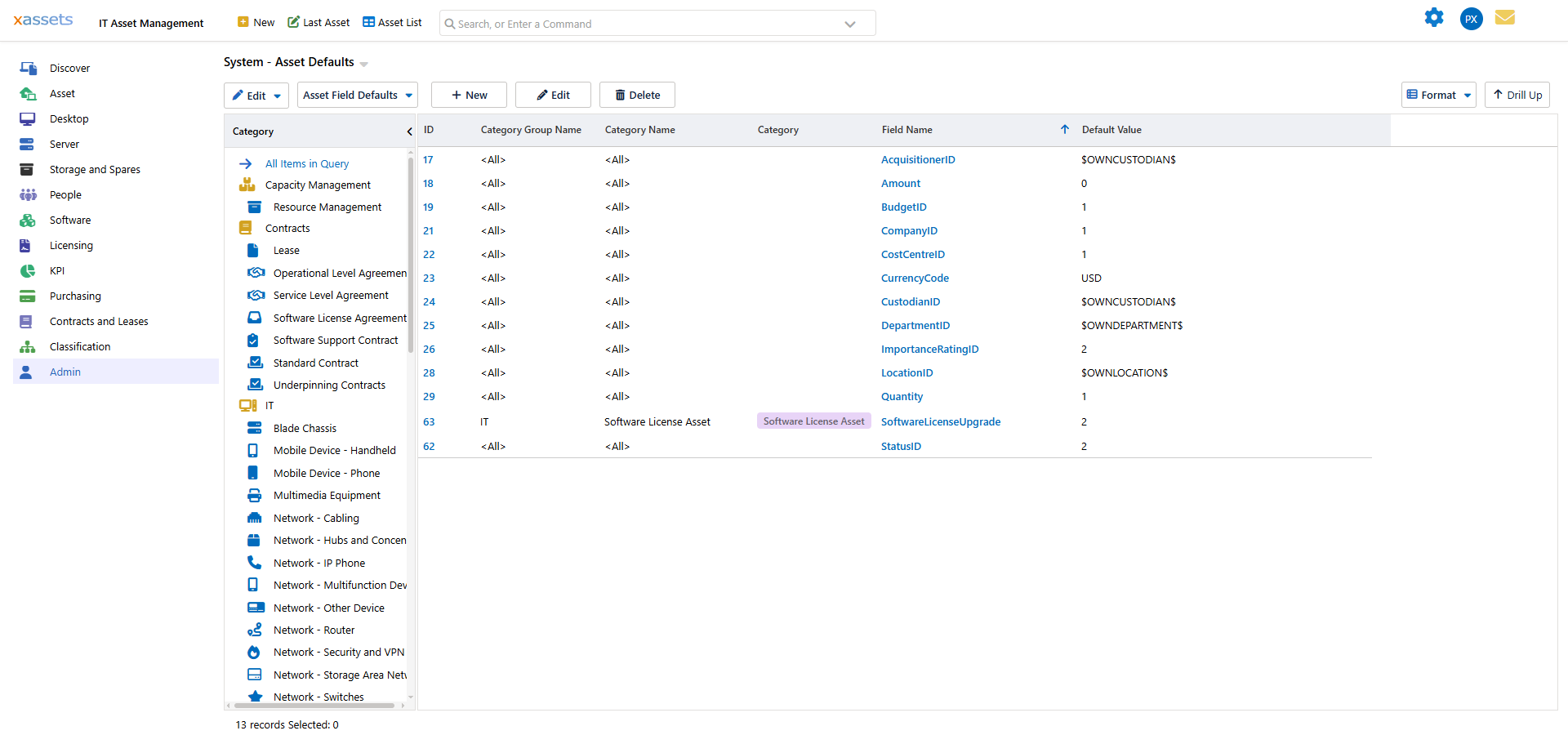
The list shows each default value, the field it applies to, and whether it is category-specific, group-specific, or across-the-board.
Creating a Default Value
- Navigate to Admin > Data > Default Values for Asset Fields.
- Click the
 button to create a new default.
- Select the Field to set a default for.
- Choose the scope:
- Select a specific Category for a category-specific default.
- Select a Category Group for a group-level default.
- Leave both empty for an across-the-board default.
- Set the Default Value. For ID fields (lookup/dropdown fields), use the
 button to select a value from the appropriate lookup or list.
- Save.
Example Configuration
| Field | Category | Default Value | Effect |
|---|---|---|---|
| Status | (all) | Active | All new assets start with Status = Active |
| Location | Servers | Data Centre | New server assets default to the Data Centre location |
| Department | IT Equipment (group) | IT Department | All new IT Equipment category assets default to IT Department |
| Warranty Period | Laptops | 36 | New laptop assets get a 36-month warranty by default |
Common Use Cases
- Status defaulting -- set a global default of "Active" or "In Stock" so new assets always start with a valid status.
- Location defaulting by category -- default server assets to the data centre, office equipment to the head office, etc.
- Financial defaults -- set default depreciation types, books, or nominal codes for specific categories to streamline financial setup.
- Specification field defaults -- pre-populate custom fields with common values (e.g., default warranty period, default operating system for a category).
Tip: Default values are applied only at creation time. Changing a default value does not retroactively update existing records. If you need to update existing records, use a bulk update or transformation.
Warning: Make sure default values for lookup/dropdown fields reference valid lookup values. If a default references a value that has been deleted from the lookup list, new records will have an invalid value in that field.
Related Articles
- Specification Data — custom fields that can have default values
- Forms — the forms where users see and can override default values