The Forms List
The Forms List is the main screen for browsing, searching, and managing all forms in the system. Use it to find forms before editing them, or to get an overview of what forms exist.
Accessing the Forms List
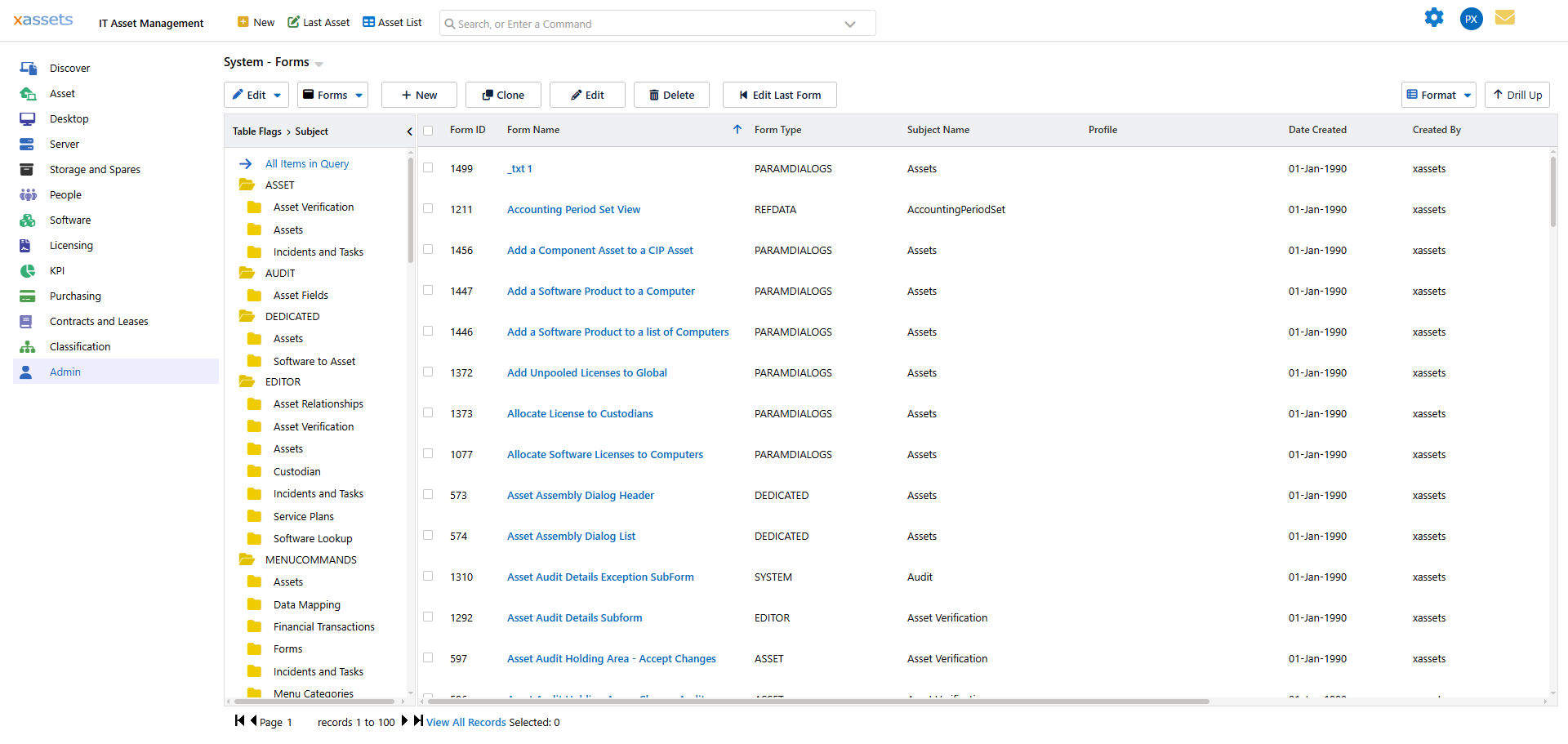
Navigate to Admin > Forms to open the Forms List.
Navigating the List
The screen has two sections:
- Tree on the left -- groups forms by their Form Type (e.g., Editor, Dialog, Subform) and the Subject of data they display (e.g., Assets, Incidents, Reference Data). Click a node in the tree to filter the list to that group.
- List on the right -- shows the forms matching the current tree selection. Click a column header to sort, or use the search box above the list to find a form by name.
When the subject is mixed or not applicable, the form is listed under Assets by default.
Tip: If you know part of a form's name, the search box is the fastest way to find it. The search filters the list as you type.
Form Types
Each form has a Form Type that tells the system where and how to use it:
| Form Type | Purpose |
|---|---|
| Editor | The main editing form for a record (asset, task, custodian, etc.) |
| Dialog | A pop-up dialog used for input or confirmation |
| Subform | A form embedded inside another form via a Form Container field |
| Lookup | A form used for reference data maintenance screens |
| Page | A full-page form, typically used for dashboard containers or special pages |
Category-Specific Forms
When an asset or incident form is opened, xAssets can automatically select a form that is specific to the type of asset. This means that when editing a fleet vehicle, fleet-related fields such as "Tax Renewal Date" and "Registration Plate" are displayed, and when editing an IT asset, fields such as "Computer Name" and "Domain Name" are shown instead.
How the System Selects a Form
When the asset editing screen is opened (and the opening command did not specify a particular form, which is the usual case), the system follows this selection logic:
- Look for a form whose Category matches the exact category of this asset. If found, use that form.
- If no exact category match exists, look for a form whose Category Group matches the asset's category group. If found, use that form.
- If no match is found, use the generic form named "Discovery", if it exists.
- If no "Discovery" form exists, fall back to the default "MainFields" form.
Tip: To create a category-specific form, clone an existing editor form, then set the Category or Category Group field in the Form Editor to the desired asset type. See Editing a Form for details on these fields.
Warning: If you rename or delete a category-specific form, assets of that category will fall through to the next match in the selection logic above. This is safe but may display a more generic form than intended.
Related Articles
- Creating a Form — how to create new forms, including by cloning
- Editing a Form — the Form Editor and its header fields
- Forms Overview — what forms are and what they can contain