Editing a Form
This page explains how to open a form for editing and describes each field in the Form Editor. The Form Editor controls the form's identity, sizing, profile assignment, and category linkage.
Opening a Form for Editing
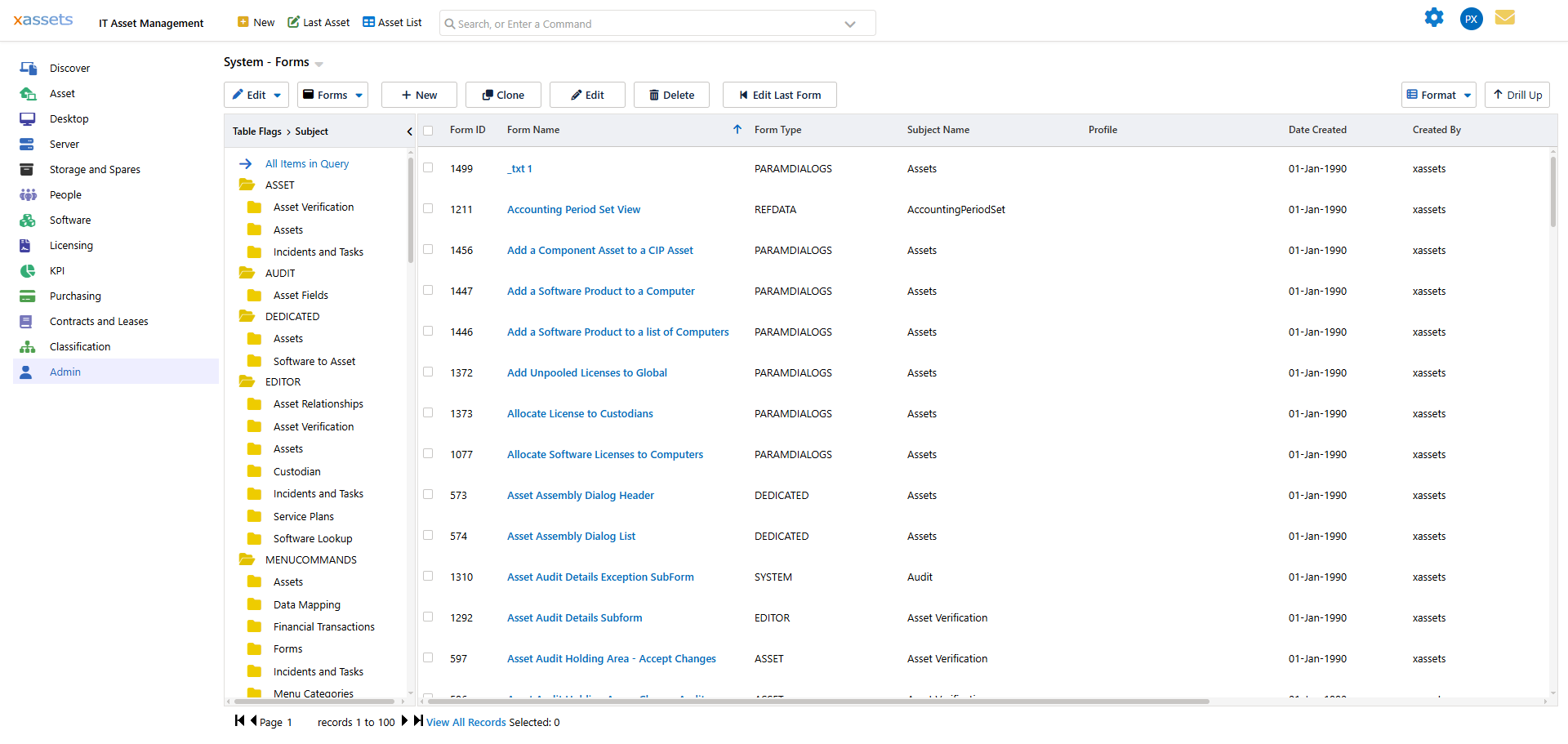
There are several ways to open the Form Editor:
- Click the form name in the Forms List -- the most direct method.
- Select a form in the list and click

- Use the Find dialog -- click

- Edit the last form -- click

- Ctrl-click a field on screen -- while viewing any page, hold Ctrl and click on a form field. This opens the Field Editor for that field, from which you can click

The Form Editor
The dialog title reads "Edit Form : <name>". Below the field grid is a row of tabs -- Form Fields, Layout HTML, Stylesheet, References -- and the dialog closes with OK, Cancel, Save, Delete Form, and View Form buttons.
Form Editor Fields
| Field | Description | Notes |
|---|---|---|
| Form ID | A unique number assigned by the system | Read-only. Cannot be changed. Used internally to reference the form. |
| Form Name | The internal name of the form | Not displayed to end users, but used to identify the form in the Admin screens and in subform references. Choose a clear, descriptive name. |
| Width | Width of the form in pixels | Leave blank to let the system size the form automatically based on its content. Set a value only if you need a fixed width (e.g., for dialog forms). |
| Height | Height of the form in pixels | Leave blank for automatic sizing. Only set this for forms that need a fixed height, such as dialogs or embedded subforms. |
| Columns | Number of columns used for automatic field layout | Increase this to lay fields out side by side instead of one per row. |
| Profile | The profile this form belongs to | Links the form to a functional area (e.g., IT Asset Management). If left as "Select a Profile", the form is available across all profiles. |
| Subject | The data subject of the form | Determines which database fields are available to insert. For example, a form with Subject "Assets" offers asset-related fields; a form with Subject "Task" offers task fields. |
| Form Type | The function of the form | Controls where and how the system uses the form, e.g. Editor, Parameter Entry Dialogs, Subform, System, Menu Command. A Create Script / Create Form Loading Script button next to this field generates a starter script for the form. |
| Category Group / Category | The asset category this form applies to | Only shown for Form Types that are tied to an asset category editor. Allows the form to be used automatically when editing assets in that category group, or in the more specific Category. |
| Form Querystring | Advanced configuration parameters | For expert users. Accepts querystring-format parameters. |
Form Fields Tab
The Form Fields tab (shown by default) lists every field currently on the form -- Field Name, Display Name, Field Type, Pos, Width, Height, and SubForm -- with Insert Fields, Insert a Custom Field, Insert Fields from Another Form, Remove Fields, Review Field Names, and Copy Field to Other Forms links beneath the grid. See Managing Form Fields for details. The other tabs -- Layout HTML, Stylesheet, and References -- control the form's raw layout markup, its CSS, and show what other forms reference this one as a subform.
Tips
Tip: The Subject field is the most important setting for a new form. If it is set incorrectly, the wrong fields will be available for insertion and the form may not display data correctly.
Warning: Changing the Form Name of an existing form can break references from other forms that embed it as a subform via a Form Container field. Before renaming, check the Form References tab (labelled References in the Form Editor) to see what depends on this form.
Tip: Leave Width and Height blank unless you have a specific reason to set them. Automatic sizing adapts to the user's browser window and works well in most cases.
Related Articles
- Managing Form Fields -- the Form Fields tab where you add and arrange fields
- Editing a Form Field's Properties -- configuring individual field behaviour
- The Forms List -- finding forms to edit
- Creating a Form -- creating new forms