SSO with DUO Option 2 – Duo Web API
This page provides step-by-step instructions for configuring Duo Security as the single sign-on provider for xAssets using the "Web SDK" (Web API) application. With this option, xAssets collects the username via a form before passing control to Duo for two-factor authentication.
From a security perspective this is acceptable, but the Generic OIDC option (Option 1) is preferred because Duo handles the entire authentication flow in that case.
Prerequisites
- A Duo Security account with administrator access
- The "Web SDK" application available in your Duo plan
- Configuration-level access to xAssets
- The SSOADMIN account created and in the Admins group (see SSO Introduction and Setup)
Step 1: Enable the Web SDK Application in Duo
- Log in to the Duo Admin Panel
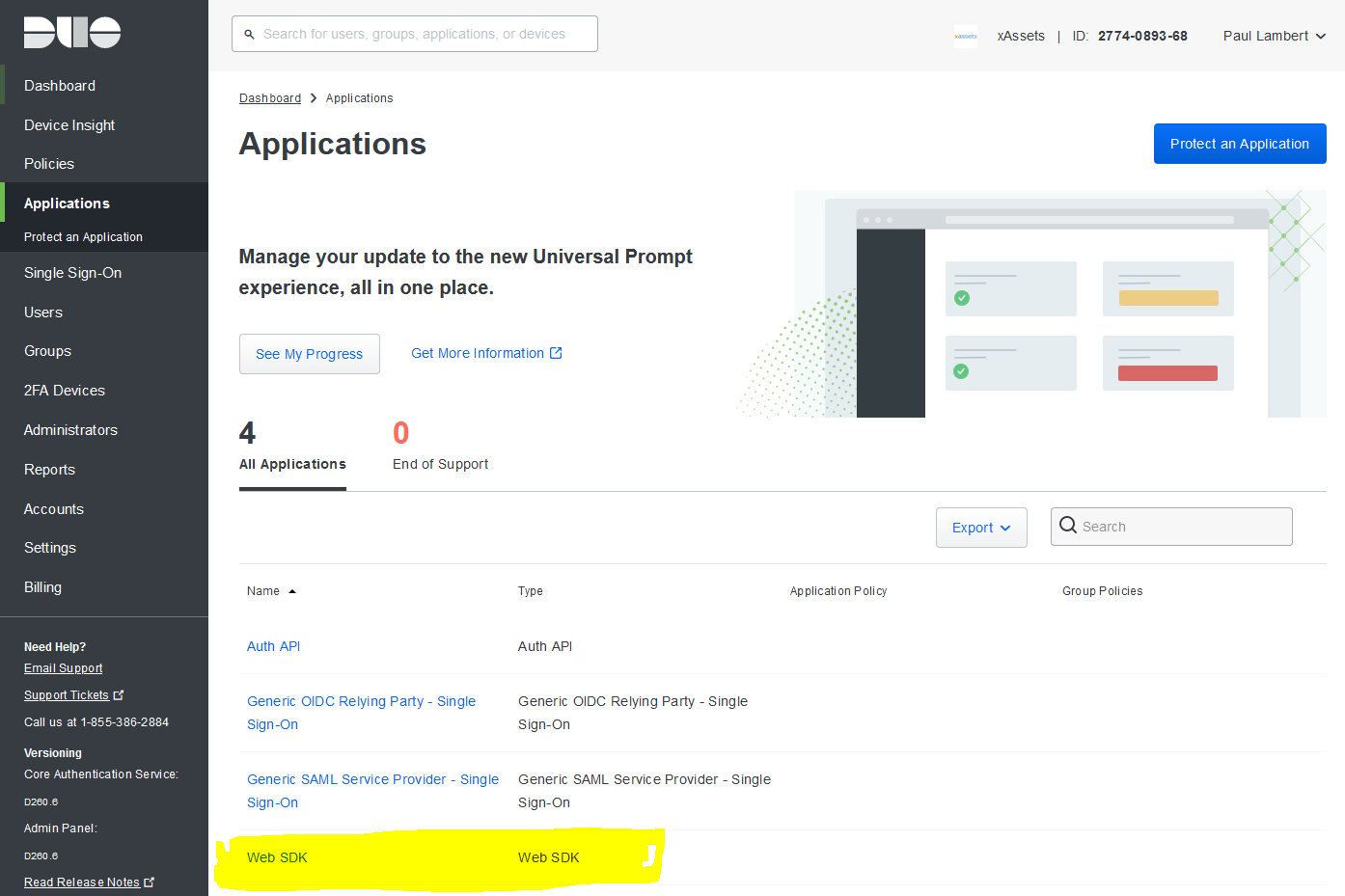
- Navigate to Applications > Protect an Application
- Find and enable the Web SDK application
Step 2: Note the Connection Details
- Click into the Web SDK application
- Record the following values:
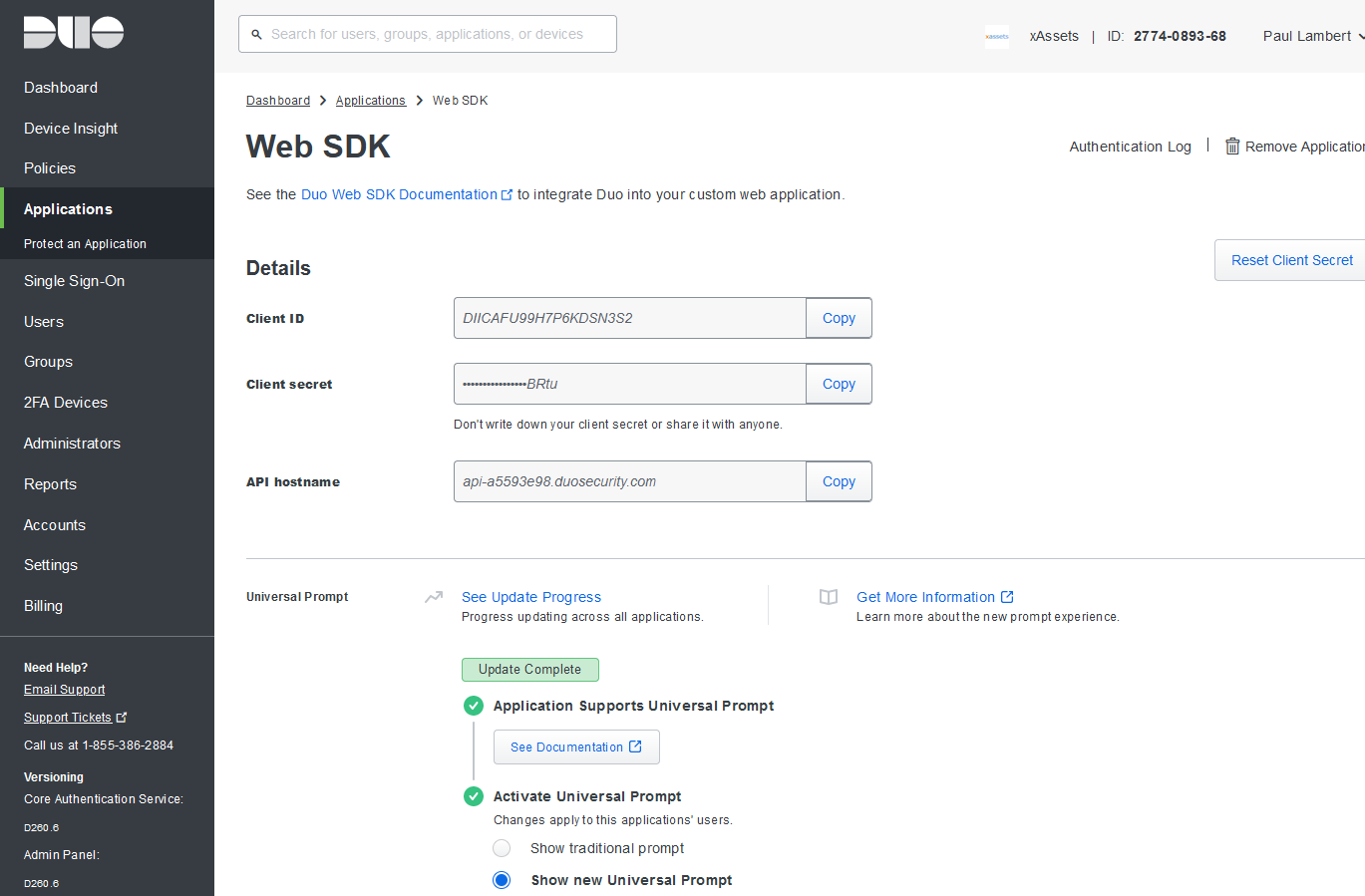
- Client ID
- Client Secret
- API Hostname (in the format
api-xxxxxxxx.duosecurity.com)
- Set Username normalization to None
- Click Save at the bottom of the page
Step 3: Configure xAssets
- Log in to xAssets as a configuration-level user
- Navigate to Admin > Settings
- Set the AUTHENTICATIONTYPE SpecialOption to type 9 -- DUO
Step 4: Create a Credential Pack in xAssets
- Navigate to Discover > Prepare > Credentials
- Click Create Credentials
- Configure the credential pack as follows:
| Field | Value |
|---|---|
| Credential Type | Named Credentials |
| Collection Server | Application Server |
| Pack Name | DUO-SSO |
| Domain Name | The API Hostname (e.g., api-xxxxxxxx.duosecurity.com) |
| Username | The Client ID from Step 2 |
| Password | The Client Secret from Step 2 |



- Save the credential pack and verify it appears when you refresh the credentials list
Step 5: Test the Login
- Open a new private/incognito browser window
- Navigate to your xAssets URL
- xAssets should display a username form
- After entering the username, control passes to Duo for 2FA
- After successful authentication, you should be returned to xAssets and logged in
If the login fails, see Troubleshooting. To log in without Duo for troubleshooting:
https://myinstance.clustername.xassets.net/a.aspx?logondirect=direct
Note: Other options on the Duo configuration page may be changed, but the settings described above represent the tested configuration for the xAssets integration with Duo.
Choosing Between Option 1 and Option 2
| Feature | Option 1 (Generic OIDC) | Option 2 (Web API) |
|---|---|---|
| Username collection | Handled by Duo | Handled by xAssets |
| Password collection | Handled by Duo | Handled by Duo (after username) |
| 2FA | Handled by Duo | Handled by Duo |
| Preferred | Yes | Fallback if Generic OIDC is unavailable |
Related Articles
- SSO with Duo Option 1 — the preferred Duo integration method
- SSO Introduction and Setup — general SSO enablement steps
- Troubleshooting — diagnosing login failures