SSO with OKTA
This page provides step-by-step instructions for configuring OKTA as the single sign-on provider for xAssets. The integration uses PKCE (Proof Key for Code Exchange) authentication, so a client secret is not required.
Prerequisites
- An OKTA account with administrator access
- Configuration-level access to xAssets
- The SSOADMIN account created and in the Admins group (see SSO Introduction and Setup)
Step 1: Create an Application in OKTA
- Log in to the OKTA admin console
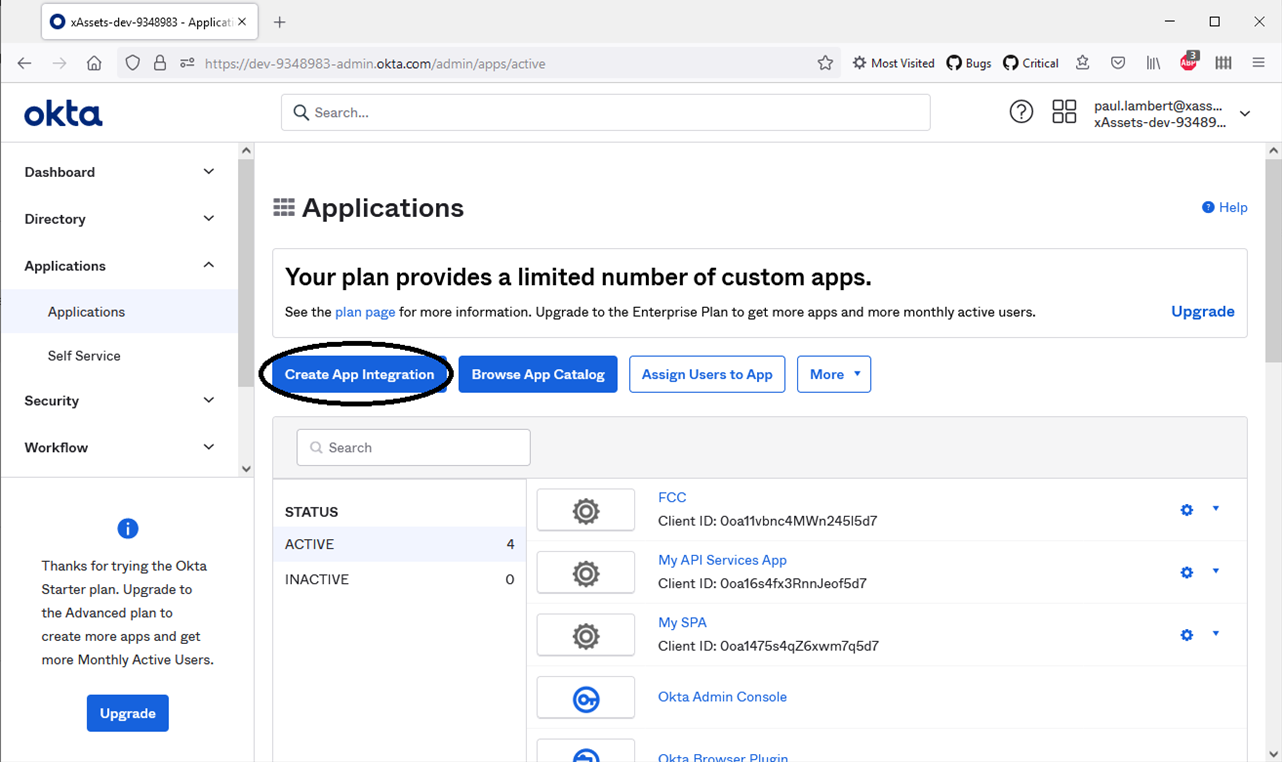
- Navigate to Applications > Create App Integration
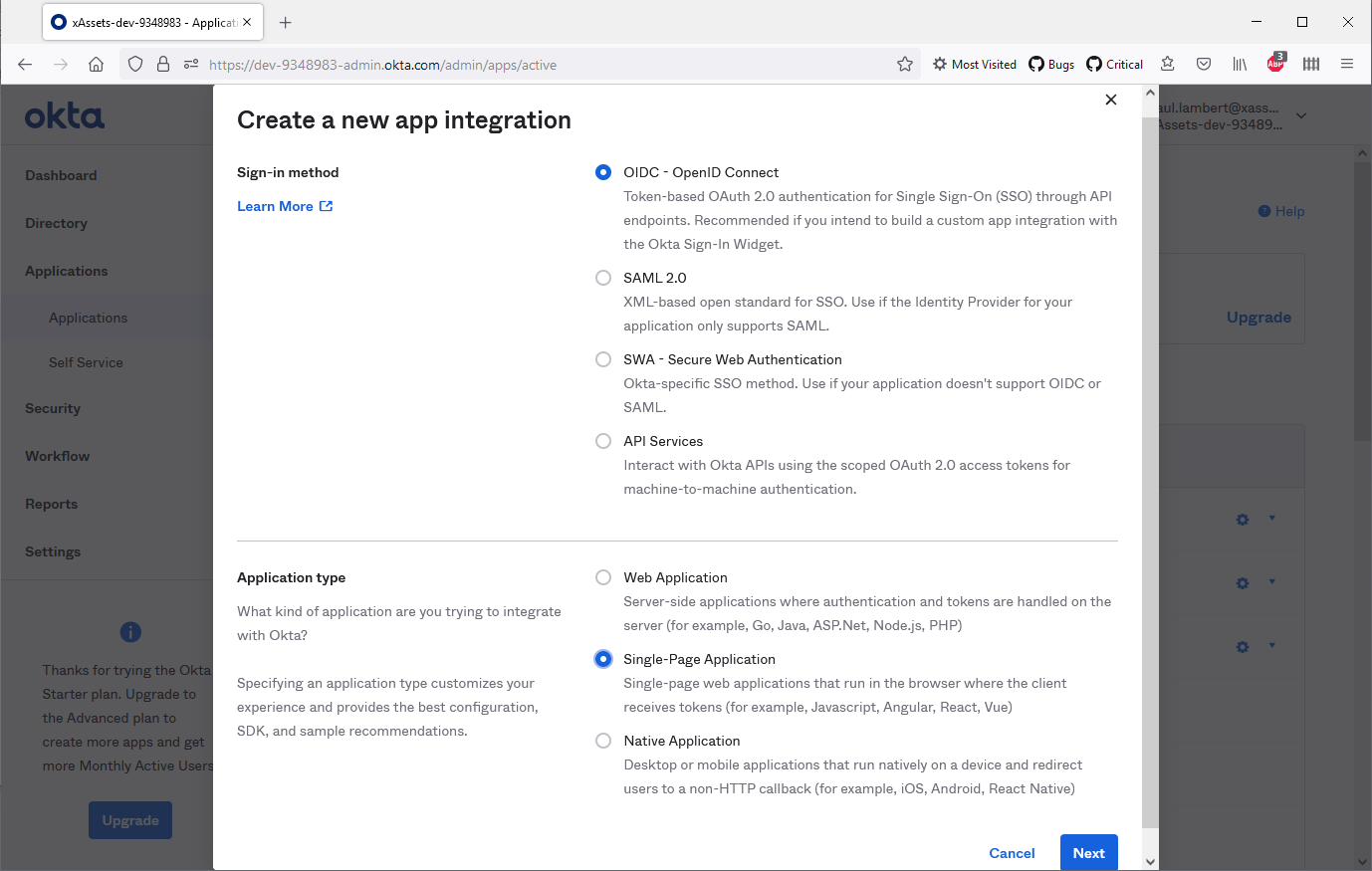
- Choose OIDC - OpenID Connect as the sign-in method
- Choose Single-Page Application as the application type
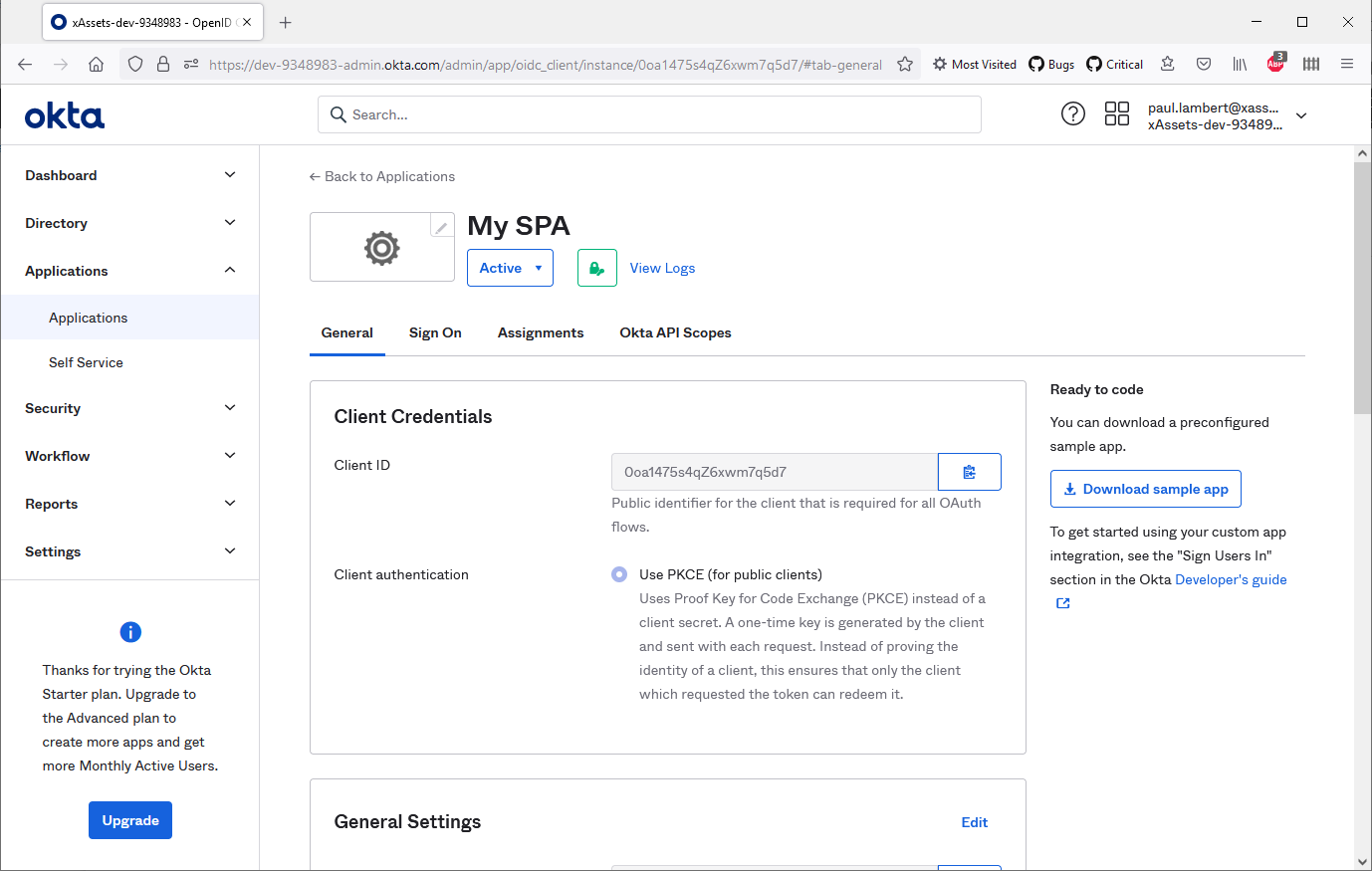
- Configure the application with the following settings:
| Setting | Value |
|---|---|
| Application Type | Single-Page App (SPA) |
| Grant Type | Authorization Code |
| User Consent | Require consent |
| Sign-in Redirect URIs | https://mycompanyname.hostedprefixname.xassets.net/a.aspx (replace with your xAssets URL) |
- Save the application
Step 2: Configure an Authorisation Server
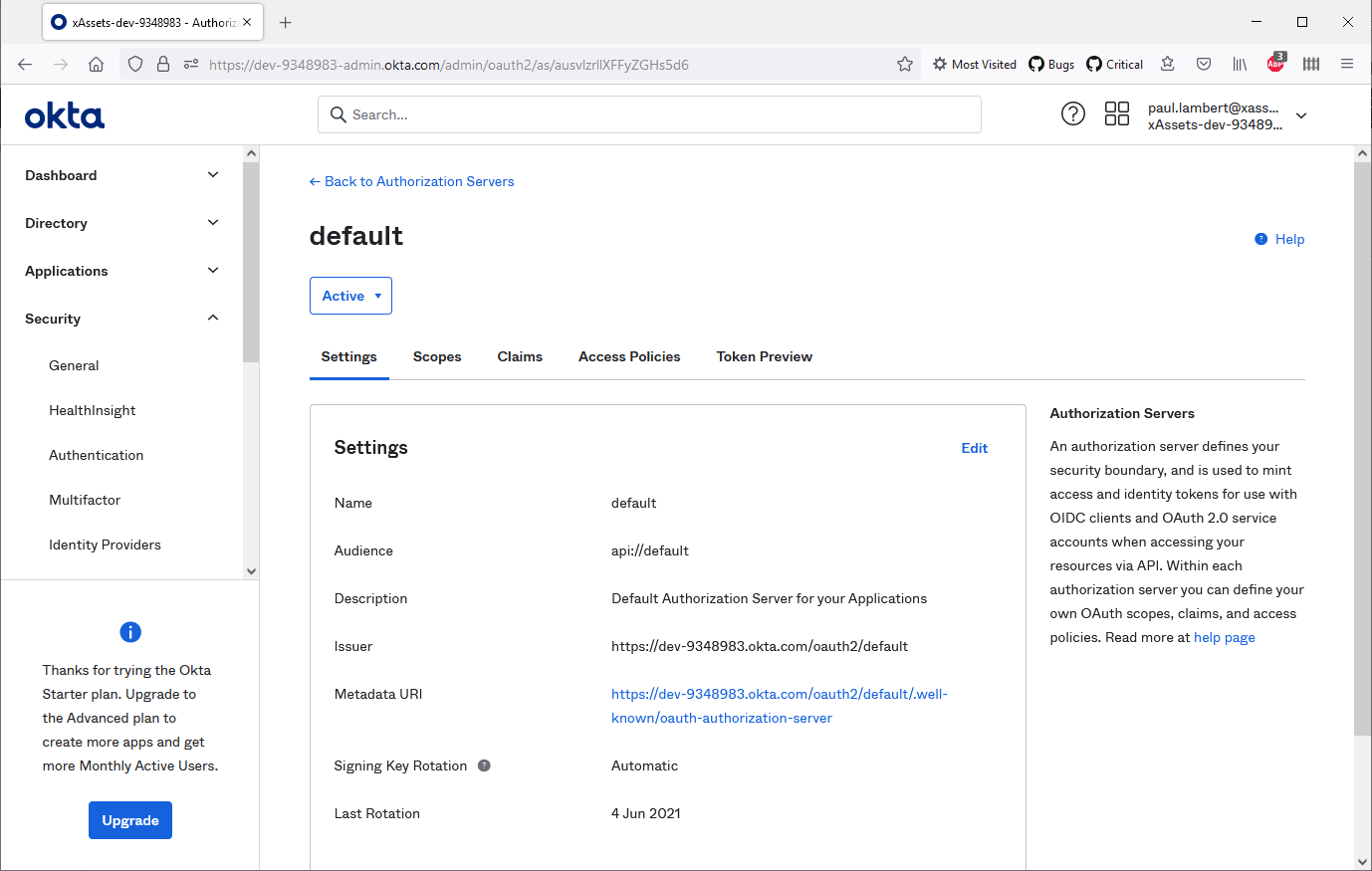
- In the OKTA admin console, navigate to Security > API
- Add an Authorisation Server (or use the default one)
- Ensure the following scopes are enabled: openid, email, and profile
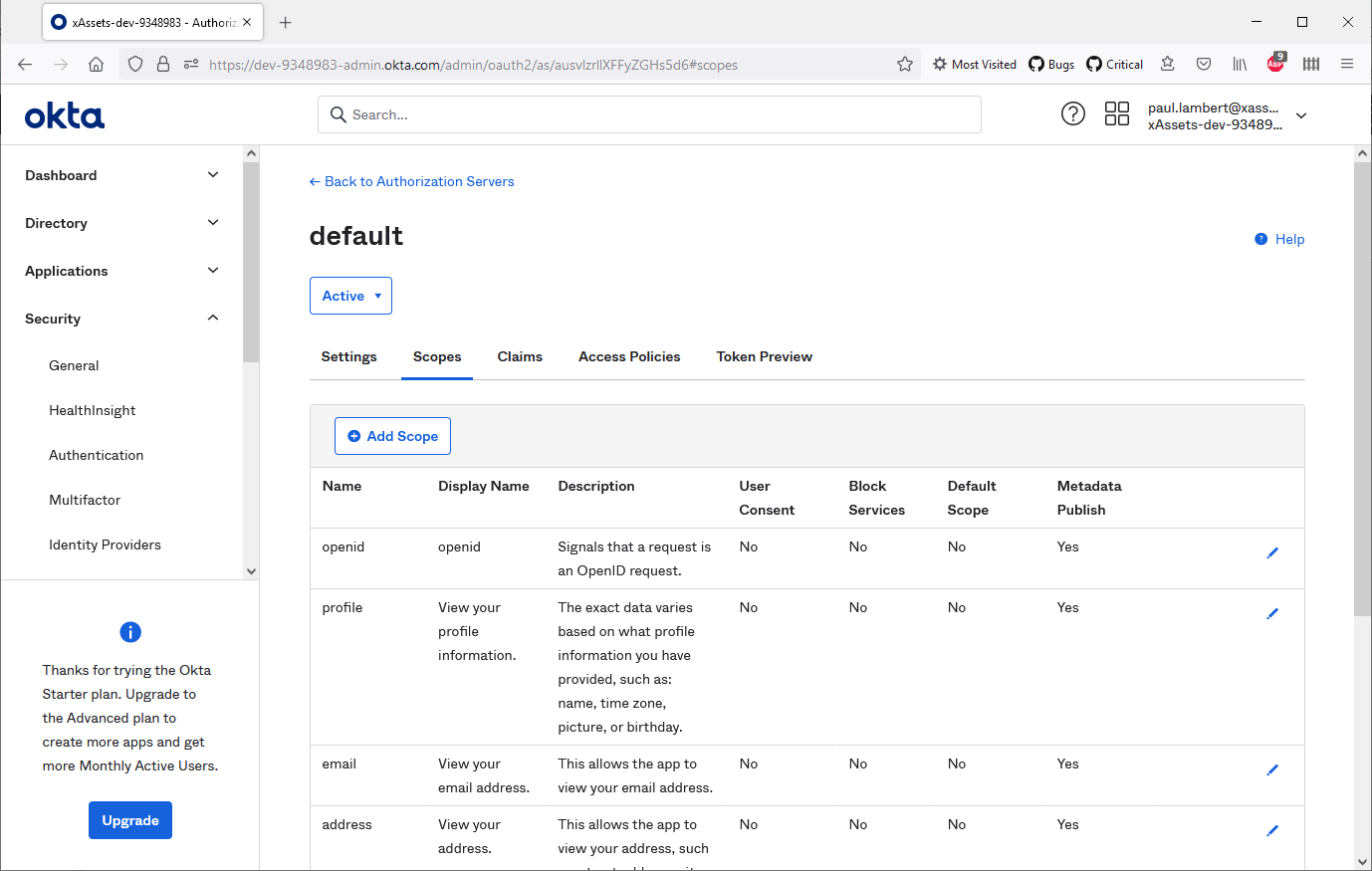
- Add a claim called
userthat points touser.login:
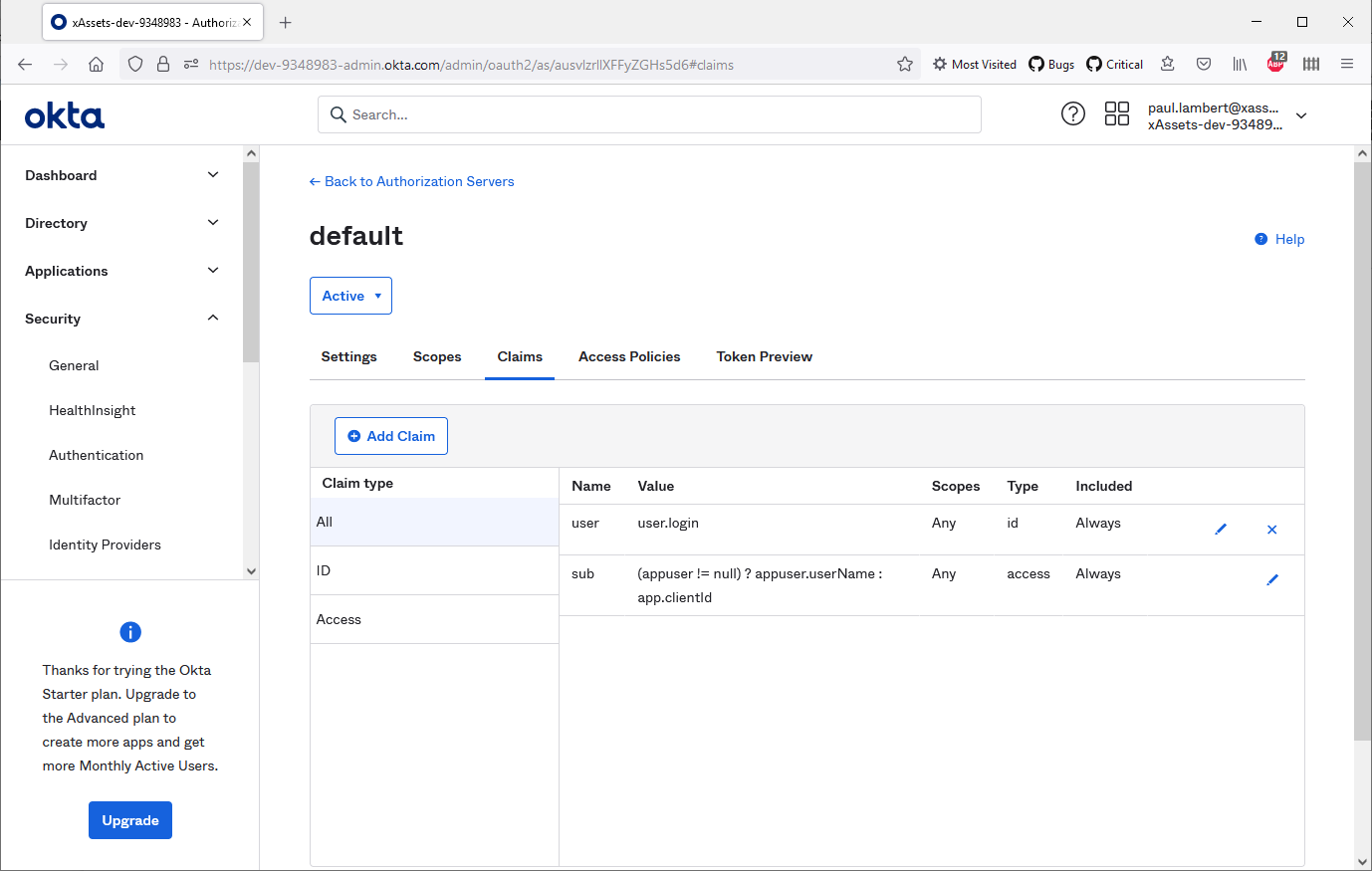
This claim maps the OKTA username to the token, which xAssets uses to identify the user.
Step 3: Create a Credential Pack in xAssets
- Navigate to Discover > Prepare > Credentials (or Settings > Credentials)
- Click Create Credentials
- Configure the credential pack as follows:
| Field | Value |
|---|---|
| Pack Name | OKTA-SSO |
| Domain | Your OKTA domain (e.g., dev-xxxxxxxx-admin.okta.com) |
| Username | The Client ID from the application's General tab |
| Password | Any random value (this field is not used with PKCE authentication, but must not be blank) |
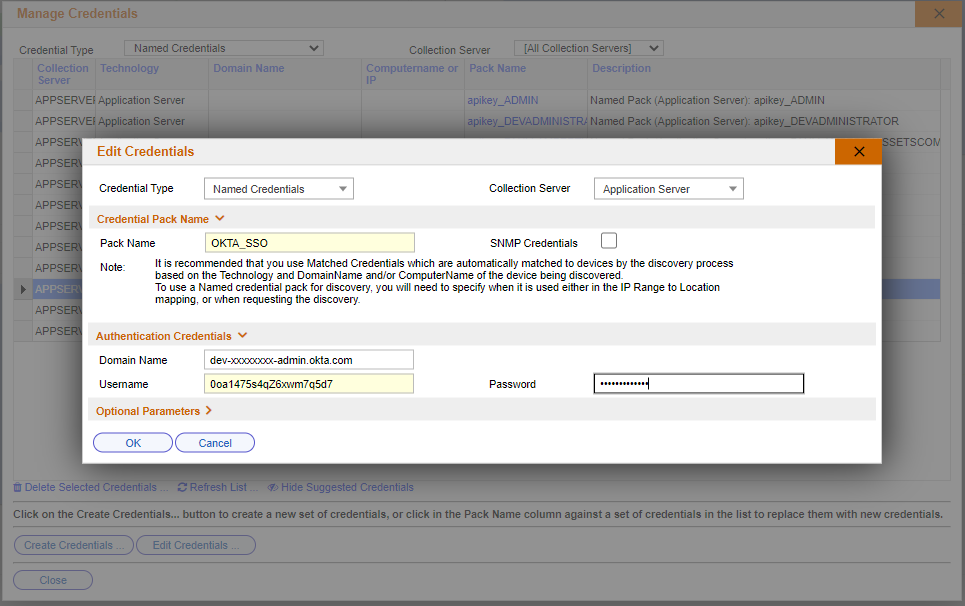
- Save the credential pack
Step 4: Set the Authentication Type
- Navigate to Admin > Settings
- Set the AUTHENTICATIONID to the OKTA option
- Ensure the AUTHENTICATIONSCRIPT points to the Authentication.xsc script (this should be set automatically)
Step 5: Test the Login
- Open a new private/incognito browser window
- Navigate to your xAssets URL
- You should be redirected to the OKTA login page
- After successful authentication, you should be returned to xAssets and logged in
If the login fails, see Troubleshooting. To bypass SSO for troubleshooting, add ?logondirect=direct to your xAssets URL.
Tip: If you receive a "redirect_uri mismatch" error from OKTA, check that the Sign-in Redirect URI in your OKTA application exactly matches your xAssets URL, including the protocol and path.
Related Articles
- OKTA User Import — importing OKTA users into the Custodian table (separate from SSO)
- SSO Introduction and Setup — general SSO enablement steps
- Troubleshooting — diagnosing login failures