Azure – Direct Integration
xAssets provides several built-in integrations with Microsoft Azure. These appear in the Integrations list as:
- Azure Integration - All — imports virtual machines and non-compute resources. This is the one to run if you want the whole Azure estate.
- Azure Integration - Services — imports non-compute resources only (storage accounts, databases, App Services, Key Vaults, and so on).
- Azure Active Directory Integration — imports user records from Microsoft Entra ID (formerly Azure AD) into the Custodian table.
- Azure Licensing Integration — imports Microsoft 365 subscription licences and their allocations to users.
All of them share the same app registration model and can use a single shared credential pack — see Sharing One Credential Pack below.
Azure Virtual Machines
What the Integration Provides
The Azure VM import runs as part of Azure Integration - All in the Integrations list. It imports the virtual machines from your Azure subscription into xAssets as asset records, and provides:
- VM master data — computer name, VM ID (serial number), install date, machine type (e.g.
Standard_D2s_v3), availability zone, Azure tags - Operating system — OS type, image offer, SKU, exact version, admin username, license type, patch mode, assessment mode, automatic update settings
- Hardware specifications — vCPU count, memory, OS disk size and resource disk size looked up from the Azure VM size catalogue
- Network addresses — public and private IP addresses retrieved via a second pass against each VM's network interface
The VM import covers one subscription per credential pack — the one named in the subscriptionid parameter. (The Services import described below works differently: it discovers every subscription the app registration can see.)
Limitations
The following data is not available from the Azure Resource Manager VM APIs and is not imported:
- Installed software — use the xAssets Discovery Agent or Network Discovery against the instance
- BIOS details, memory slot details, Device Manager entries
- Windows Updates and patches
- Windows internal hostname (lives inside the guest OS, not surfaced by ARM)
Non-compute Azure resources — storage accounts, databases, Key Vaults and the rest — are not part of the VM import, but they are covered by Azure Integration - Services below.
If you also have xAssets Network Discovery or the PCAnalyser agent deployed on the instance, these additional fields will be populated from that side.
Prerequisites
- An Azure tenant with an active subscription containing virtual machines
- An app registration in Microsoft Entra ID with Reader access to the subscription
- Access to xAssets with permission to create credential packs
- The xAssets Batch Service must be running (the integration runs as a batch job)
- Outbound HTTPS access from the xAssets server to
login.microsoftonline.comandmanagement.azure.com
Setup
Step 1: Create an App Registration in Azure
- Sign in to the Azure Portal
- Navigate to Microsoft Entra ID > App registrations > New registration (the top-level nav was renamed from "Azure Active Directory" to "Microsoft Entra ID" — both labels still work)
- Name the application, e.g.
xAssets Azure API - Register the application and note the Application (client) ID and Directory (tenant) ID
- Navigate to Certificates & secrets and generate a new Client secret. Copy the secret Value immediately — it is only shown once
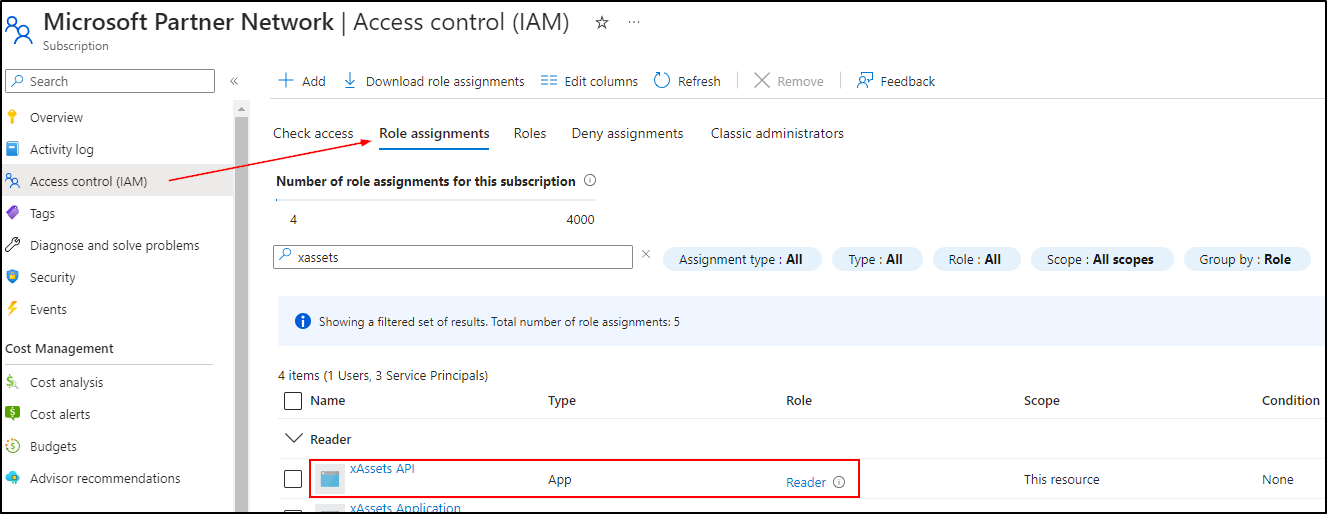
Step 2: Grant Reader Access to the Subscription
- In the Azure Portal, navigate to Subscriptions and select the subscription containing the VMs
- Note the Subscription ID — you will need it in Step 3
- Click Access control (IAM)
- Click + Add > Add role assignment
- Select Reader from the role list (use the search box under "Job function roles" if it is not visible)
- Click Next to go to the Members section
- Click + Select members
- Search for your app registration name (e.g.
xAssets Azure API) and select it - Click Select, then Next, then Review + assign
Step 3: Create a Credential Pack in xAssets
- Navigate to Discover > Prepare > Credentials
- Click New
- Configure the credential pack:
| Field | Value |
|---|---|
| Credential Type | Named Credentials |
| Collection Server | Application Server |
| Pack Name | Azure |
| Domain Name | Your Tenant ID (from Step 1) |
| Username | Your Application (client) ID (from Step 1) |
| Password | The client secret Value (from Step 1) |
| Parameters (under Optional Parameters) | subscriptionid=<your subscription ID> |
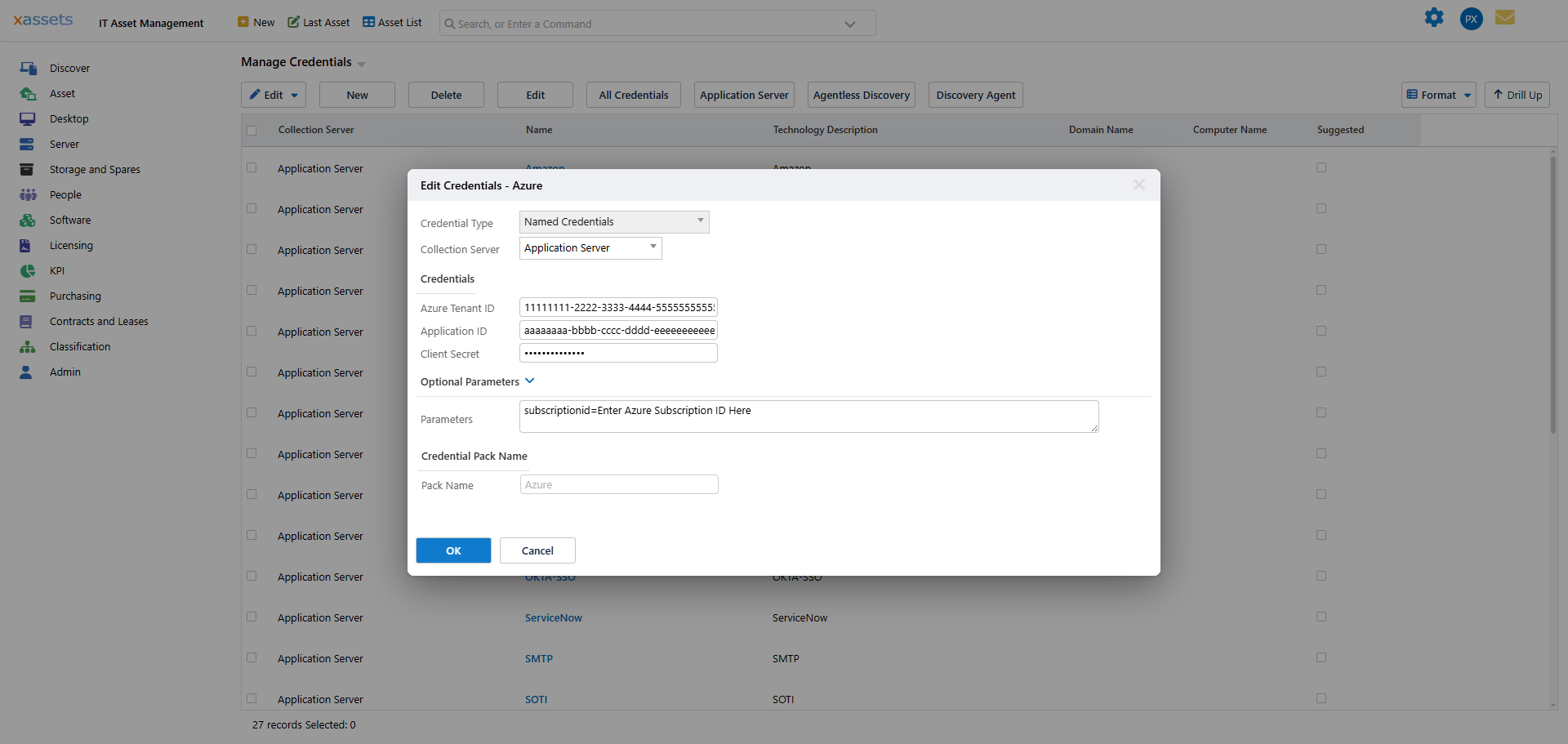
- Click OK to save the credential pack
Note: The
Parametersfield is the only difference between the credential formats, and it is additive rather than exclusive. The VM import readssubscriptionidfrom this field to target the right subscription; the Services, Azure AD and Azure Licensing imports ignore it. All of them can therefore share a singleAzurepack — see Sharing One Credential Pack.
Step 4: Run the Integration
- Navigate to Discover > Integrations
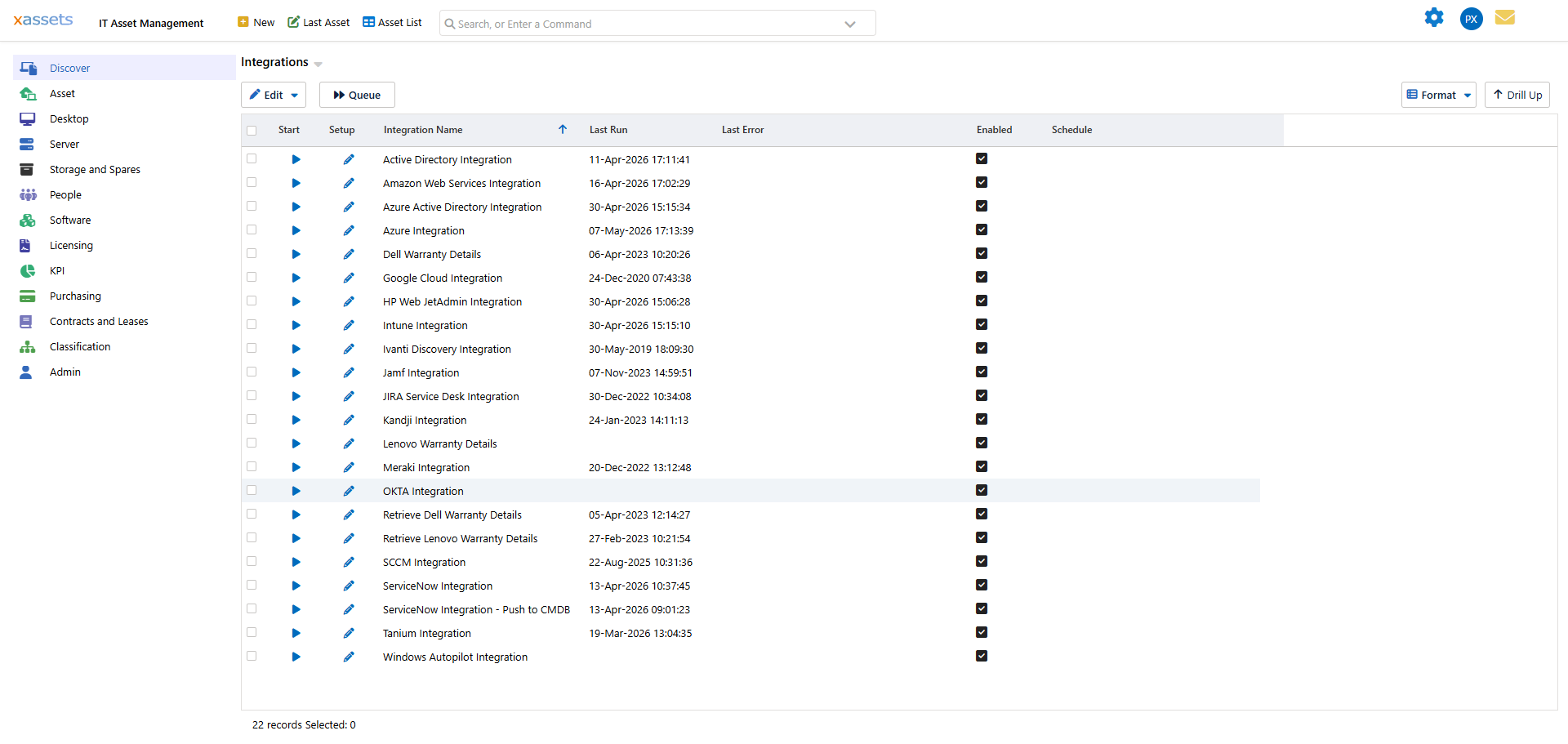
- Select Azure Integration - All by clicking its row
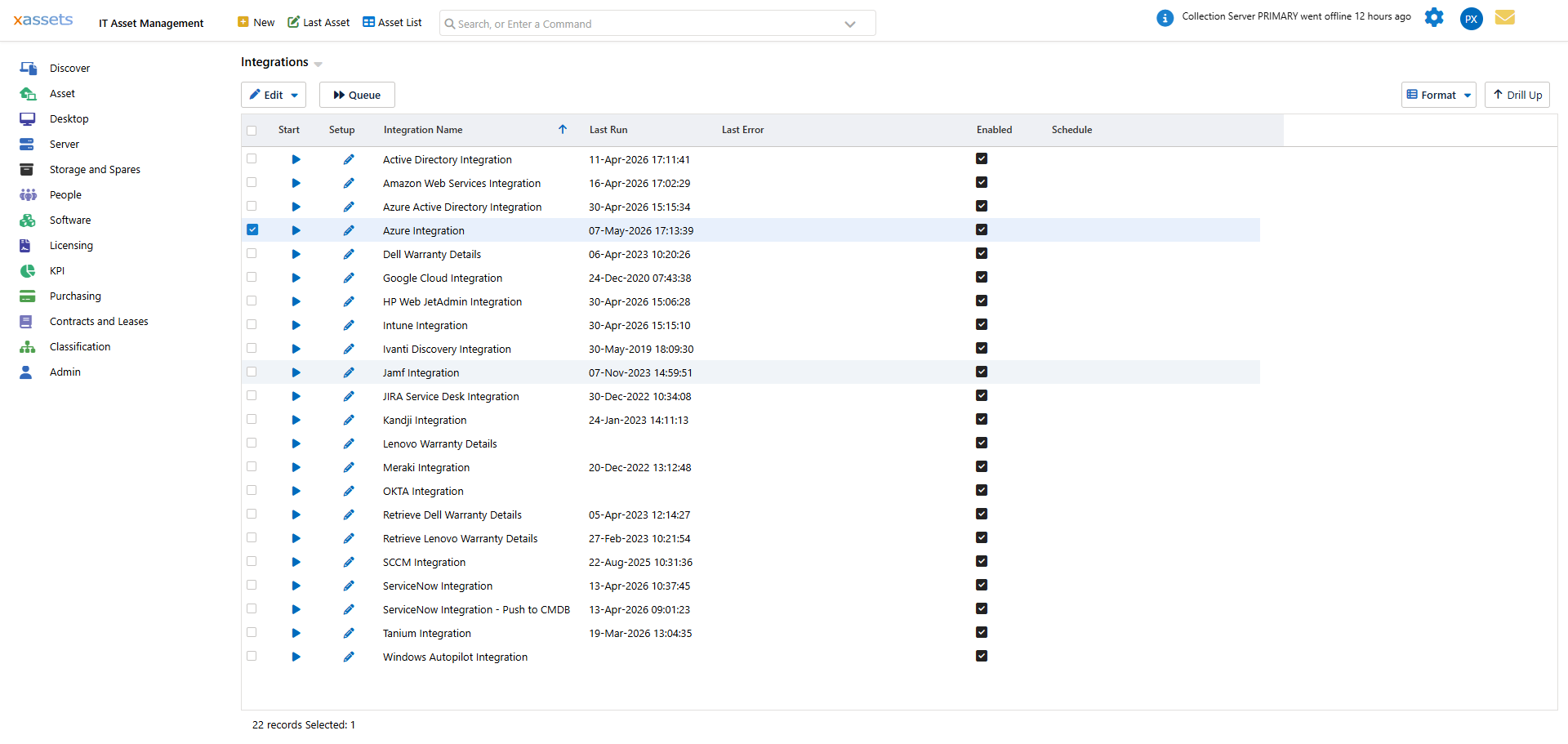
- Click Queue at the top of the screen to add the integration to the batch job queue. Alternatively, click the Start icon in the row to run the integration immediately.
- The integration runs as a batch job. Monitor progress in the batch job status area at the top right of the screen. Status messages will show:
- "Importing all Azure inventory - Servers and Services" — starting
- "Importing server data from Azure" — authenticating and fetching the VM list
- "Moving server data from Azure to holding area" — staging the VMs into the Discovery Load tables
- "Importing service data from Azure" — querying Azure Resource Graph for non-compute resources
- "Moving service data from Azure to holding area" — staging the services into the Discovery Load tables
- "Azure Integration (All) Completed. X asset records loaded." — finished
Tip: You can also open the integration's Setup dialog (the pencil icon in the row) to confirm which credential pack the integration will use, enable or disable it, edit its schedule, or configure per-integration settings.
Step 5: Verify the Results
After the integration completes:
- Open the Asset List and filter by Source =
Azureto see imported assets. Each asset will have:- Manufacturer set to Microsoft, Model set to
Azure <machine-type>(e.g.Azure Standard_D2s_v3) - Location set to
Azure <region>(e.g.Azure Uksouth) - Serial Number set to the VM ID GUID, Computer Name set to the Azure resource name
- Manufacturer set to Microsoft, Model set to
- Open an individual asset to verify:
- Install Date, operating system, OS version, SKU
- CPU cores, memory, and OS disk size filled in from the VM size catalogue
- Admin username, patch mode, license type
- Network tab — both public and private IP addresses
Azure Services (Non-Compute Resources)
What Azure Services Imports
Azure Integration - Services imports everything in Azure that is not a virtual machine — storage accounts, SQL databases, App Services, AKS clusters, Key Vaults, network security groups, public IPs, disks, Log Analytics workspaces, Function Apps, Cosmos DB, Service Bus and API Management, among others. Each resource becomes an asset record.
The split between the two imports is clean: anything of an Azure type beginning microsoft.compute/ is handled by the VM import, and everything else by this one. There is no overlap and no gap — a resource type that is new to Azure and matches neither is still imported, under a general cloud asset category.
Running Azure Integration - All runs both imports in sequence, so you do not need to run this one separately unless you want the non-compute resources on their own schedule.
How It Differs From the VM Import
This integration queries Azure Resource Graph, a single Microsoft-managed endpoint that indexes every resource in every subscription your app registration can see. Two practical consequences:
- All subscriptions at once. It discovers and inventories every enabled subscription the app registration has access to. The
subscriptionidvalue in the credential pack is ignored — grant Reader on each subscription (or on a management group covering them) and they will all be picked up. - No per-resource follow-up calls. The VM import makes extra calls per machine to chase network interfaces and IP addresses; Resource Graph returns the whole inventory from one paged query, so this import is comparatively quick even on a large estate.
Prerequisites for Azure Services
- An app registration in Microsoft Entra ID with Reader access to every subscription you want inventoried
- Access to xAssets with permission to create credential packs
- The xAssets Batch Service must be running
- Outbound HTTPS access from the xAssets server to
login.microsoftonline.comandmanagement.azure.com
Setting Up Azure Services
The setup is the same as for the VM import — the same app registration and the same Azure credential pack described in Step 3 above. If you have already configured the VM import, nothing further is needed; make sure the app registration has Reader on every subscription you want covered, then select Azure Integration - Services (or Azure Integration - All) in the Integrations list and click Queue.
Note: If the integration reports that no enabled subscriptions are visible, the app registration has no Reader role assignment. Add it under Subscriptions > Access control (IAM) as described in Step 2 above.
Azure Active Directory (Entra ID)
What the Integration Provides
The Azure AD integration (listed as Azure Active Directory Integration in the Integrations list) imports user records from Microsoft Entra ID into the xAssets Custodian table. New joiners, role changes, and leavers flow through automatically, so your custodian list stays in step with the directory without manual upkeep.
The integration also populates supporting location records — countries, states, cities, and office locations — from the user objects it imports.
Prerequisites
- An Azure tenant with Microsoft Entra ID
- An app registration with the Microsoft Graph User.Read.All application permission granted at tenant level (plus admin consent)
- Access to xAssets with permission to create credential packs
- The xAssets Batch Service must be running
- Outbound HTTPS access from the xAssets server to
login.microsoftonline.comandgraph.microsoft.com
Setup
Step 1: Create an App Registration
If you already created one for the Azure VM integration in Step 1 above, you can reuse it — just add the Microsoft Graph permissions below, then skip to Step 2.
Otherwise:
- In the Azure Portal, create a new app registration (e.g.
xAssets Azure AD) following Step 1 of the VM instructions above - Generate a client secret and copy the Value
- Navigate to the API permissions tab and add Microsoft Graph > Application permissions — at minimum
User.Read.All:

- Click Grant admin consent to activate the permissions
Step 2: Create a Credential Pack in xAssets
- Navigate to Discover > Prepare > Credentials
- Click New
- Configure the credential pack:
| Field | Value |
|---|---|
| Credential Type | Named Credentials |
| Collection Server | Application Server |
| Pack Name | Azure |
| Domain Name | Your Tenant ID |
| Username | Your Application (client) ID |
| Password | The client secret Value |
- Click OK to save the credential pack
Note: The Azure AD integration recommends the pack name
Azure— the same name every other Azure integration recommends. However many of them you run, you only need one pack. See Sharing One Credential Pack.
Step 3: Run the Integration
- Navigate to Discover > Integrations
- Select Azure Active Directory Integration by clicking its row
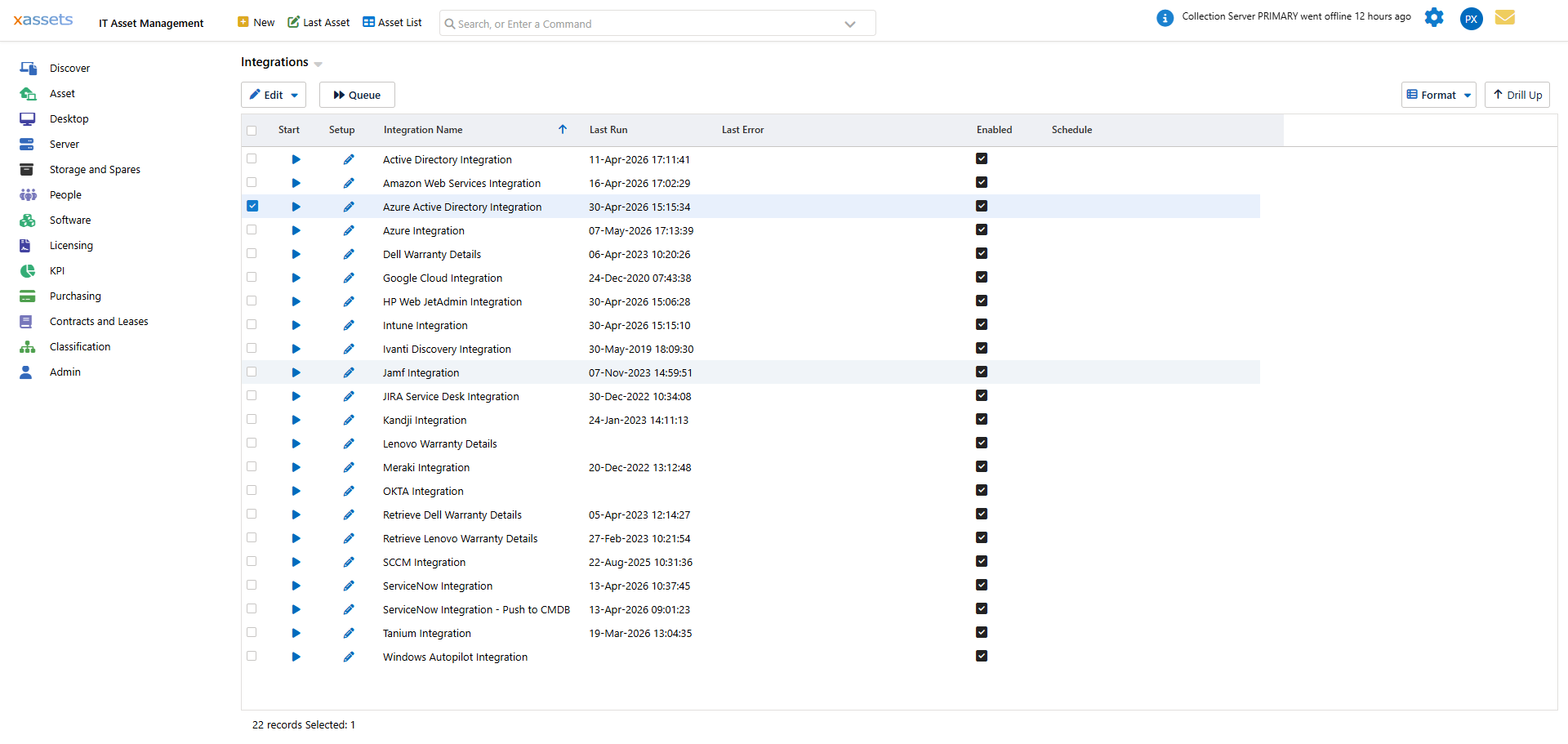
- Click Queue at the top of the screen. Alternatively, click the Start icon in the row to run the integration immediately.
- The integration runs as a batch job and imports user records into the Custodian table. Supporting Country, State, City, and Location records are created as needed.
Azure Licensing
What the Integration Provides
The Azure Licensing integration (listed as Azure Licensing Integration) imports your Microsoft cloud subscriptions — Microsoft 365, Dynamics 365, Power BI, Teams Phone and the rest — as software licence records, together with the seat counts and, crucially, who holds each seat.
It is the only Azure integration that produces licences rather than assets. Because Microsoft cloud licences are assigned to people rather than machines, the per-user assignments it imports are what make cloud compliance figures meaningful.
Prerequisites
- An Azure tenant with Microsoft Entra ID
- The Azure Active Directory integration must have been run first — see below
- An app registration with the Microsoft Graph Organization.Read.All and User.Read.All application permissions, granted at tenant level with admin consent
- Access to xAssets with permission to create credential packs
- The xAssets Batch Service must be running
- Outbound HTTPS access from the xAssets server to
login.microsoftonline.comandgraph.microsoft.com
Run the Azure AD integration first. Licence assignments are matched to Custodian records using the Entra object ID, and that is only populated by the Azure Active Directory integration described above. If Custodians have never been synchronised, the licences import correctly but no user assignments are created and no error is raised. If you see licences with no assigned users, this is almost always why.
Setup
Step 1: Add the Graph Permissions
Reuse the app registration you created for the other Azure integrations and add both Microsoft Graph application permissions:
| Permission | Needed For |
|---|---|
Organization.Read.All |
Reading the subscriptions and their seat counts |
User.Read.All |
Reading which user holds which licence |
Click Grant admin consent to activate them. The integration only issues GETs, so read-only permissions are sufficient.
A missing permission surfaces as a 403 part-way through the run rather than as a logon failure, because the token request itself still succeeds. If the integration authenticates and then fails while fetching, check consent first.
Step 2: Create a Credential Pack in xAssets
Use the same Azure credential pack as the other integrations — see Sharing One Credential Pack. If you have not created one, follow Step 2 of the Azure AD instructions above.
Step 3: Run the Integration
- Navigate to Discover > Integrations
- Select Azure Licensing Integration by clicking its row
- Click Queue, or the Start icon in the row to run it immediately
The integration fetches the subscriptions and assignments, then creates the licence records, names them, links the components of each suite, and allocates seats to custodians.
Step 4: Verify the Results
- Navigate to Licensing > Licenses — you should see one licence per subscription, named as they appear in the Microsoft 365 admin centre
- Open a licence and check the seat count matches the admin centre
- Open Assigned Users on a widely-used licence and confirm real people are listed
- Recalculate the licensing position — licences do not affect compliance until you do
For what the import creates, how licences are named, how to suppress trial and free SKUs, and how per-user allocation feeds compliance, see Azure License Import in the Software Asset Management Guide.
Sharing One Credential Pack Between the Azure Integrations
Every Azure integration recommends the same pack name, Azure. If your organisation runs more than one of them:
- Create a single app registration in Microsoft Entra ID
- Give it Reader on each subscription (for the Servers and Services imports) and the Microsoft Graph application permissions needed by the directory and licensing imports —
User.Read.Allfor Azure AD, andUser.ReadWrite.Allfor Azure Licensing — with admin consent granted for all of them - Create one credential pack named
Azure, populated with the tenant ID, client ID, client secret, andsubscriptionid=<guid>in the Parameters field - The VM import reads all four slots; the Services, Azure AD and Azure Licensing imports read the first three and ignore the Parameters field
This avoids maintaining several sets of credentials and several client secrets on separate rotation schedules.
Note: the pack name is only a recommendation shown in the integration's Setup dialog. Each integration is actually run against whichever credential pack it is given, so you can still keep separate packs — one per Azure tenant, for example — if you prefer.
Troubleshooting Azure and Intune Permissions
If you experience permission errors with any Microsoft integration (Azure VMs, Azure Services, Azure AD, Azure Licensing, or Intune), follow this diagnostic approach:
- Open the transformation behind the integration (via Admin > Transformations) and note the API URL being called
- Open Microsoft Graph Explorer
- Paste the API URL into the query box (e.g.
https://graph.microsoft.com/v1.0/usersfor Azure AD) - Run the query with the Run Query button
- If permissions fail, review the "Modify permissions" section to identify which permissions are needed. Read each permission description carefully before clicking "Consent" to avoid granting excessive privileges
- Once the query works in Graph Explorer, verify the same permissions are granted to your app registration in the Azure Portal
Warning: Microsoft Graph Explorer can grant more elevated permissions than are required. Always review the description of each permission before consenting, and only grant the minimum permissions needed for the integration.
Graph Explorer only covers the Microsoft Graph integrations — Azure AD, Azure Licensing and Intune. The Servers and Services imports call Azure Resource Manager (management.azure.com) instead, which Graph Explorer cannot test. Permission problems there are almost always a missing Reader role assignment on the subscription rather than an API permission: check Subscriptions > Access control (IAM) > Role assignments for your app registration.
Permissions for Azure SSO are covered separately — see SSO with Azure.
Related Articles
- Microsoft Intune — importing Intune-managed devices
- Amazon Web Services — importing AWS EC2 instances
- Google Cloud — importing GCP Compute Engine instances
- SSO with Azure — Azure SSO configuration (different from data integration)