The Data Transformation Menu
The Transformation List is the central screen for finding, creating, editing, running, and managing transformations. This page explains how to navigate the list and what actions are available.
Prerequisites
- Configuration-level access or membership of a user group with transformation management permissions
- Familiarity with the Transformations Overview
Accessing the Transformation List
Navigate to Admin > Transformations to view the full list of transformations:
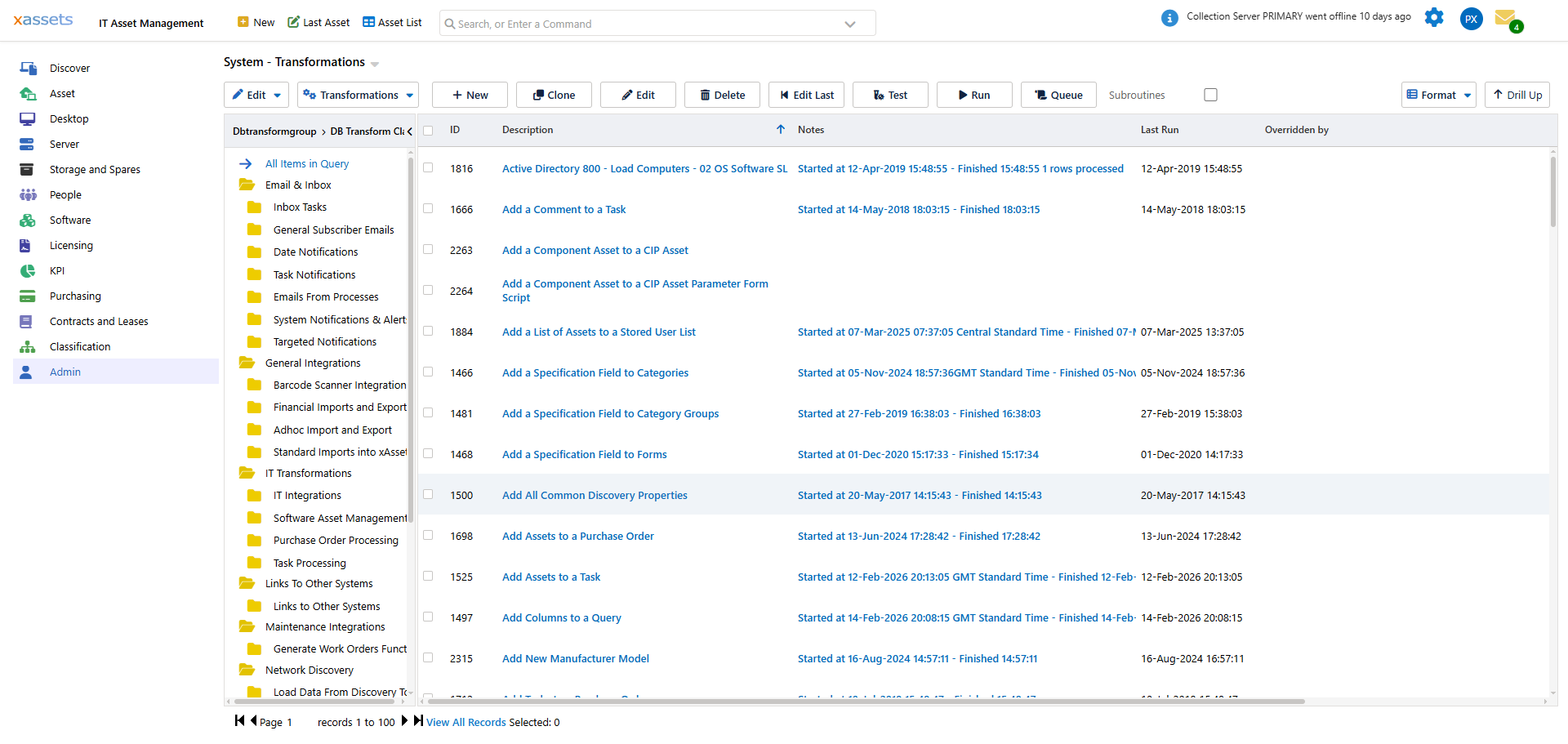
The screen is divided into two areas:
- Left panel -- a tree that groups transformations by type (e.g., Data Import, Integration, Scheduled, Triggers). Click a node to filter the list to that category.
- Main panel -- the list of transformations matching the current filter, with a search box above for finding a specific transformation by name.
Available Actions
From this screen you can perform the following actions:
| Action | How |
|---|---|
| Create a new transformation | Click the New button or choose "New Transformation" from the Transformations menu above the list |
| Clone an existing transformation | Select a transformation and click Clone, or choose "Clone Transformation" from the menu |
| Edit a transformation | Click a transformation description, or select it and click Edit (see Editing a Transformation) |
| Delete a transformation | Select a transformation and click Delete. System-layer transformations cannot be deleted. |
| Run a transformation | Select a transformation and choose "Run" to execute it immediately, or "Queue" to run it in the background via the batch processor |
| View batch history | Click "Recent and Running Batch Jobs" in the menu to see the status and output of recently executed transformations |
Searching and Filtering
The search box above the list supports partial name matching. Type part of a transformation name and the list filters in real time. You can also use the column headers to sort and filter the list by any visible column.
Tip: System transformations appear with a lock icon. If you need to modify one, create an override (see Layers and Overrides) rather than attempting to edit it directly.
Related Articles
- Creating a Transformation — detailed steps for creating new transformations
- Editing a Transformation — the Transformation Editor and its tabs
- Layers and Overrides — understanding system vs. customer layer transformations