Transformation Data Sources
The Data Source tab of the Transformation Editor defines where incoming data comes from. xAssets supports a wide range of source types to accommodate different integration scenarios. This page describes each source type and the parameters available in source queries.
Prerequisites
- Familiarity with the Transformation Editor and its tab structure
- Configuration-level access to edit transformations
Important Note on Excel Files
Since Excel is a proprietary format that requires specific drivers, Excel files cannot be used directly as input sources to transformations. Instead, save the spreadsheet as a tab-separated text file, or copy and paste the data directly into the transformation using the "Paste Data" source type.
Source Types
ODBC or OLEDB Data Source
Import data from any external database using an ODBC or OLE DB connection string. xAssets includes example connection strings, but most standard connection strings should also work.
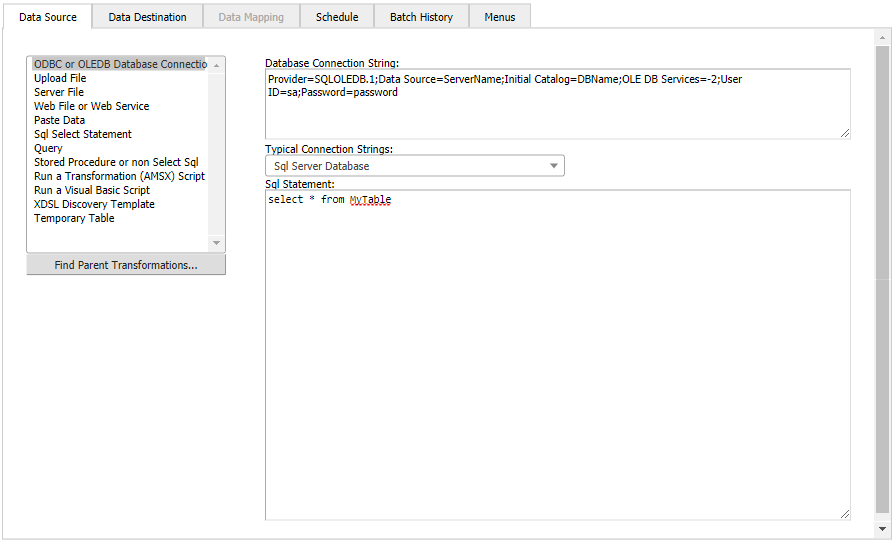
For these imports to work, sufficient permissions must exist for either the IIS process (for foreground transformations) or the Batch Processor process (for background transformations) to access the external database.
Upload File
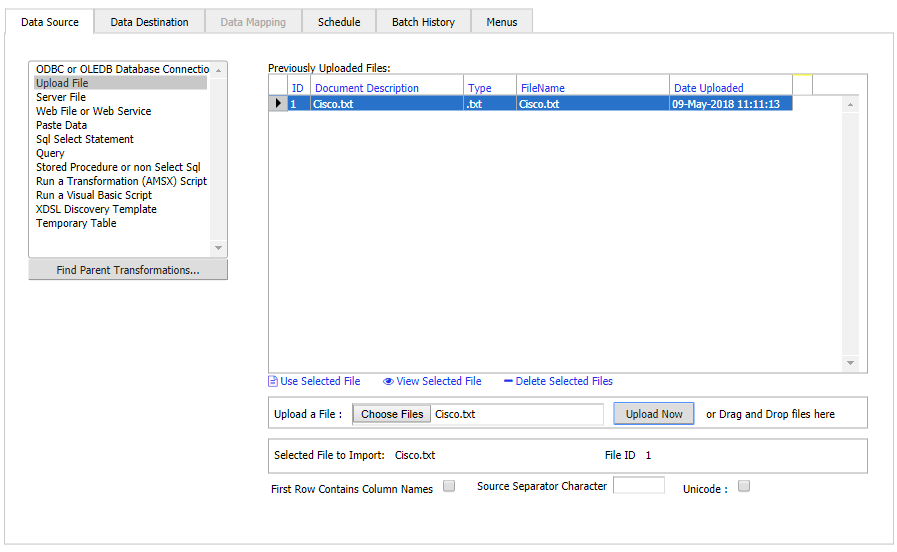
Allow a file to be uploaded to the server and then imported. Supported file types include:
- CSV files
- TXT (tab-separated text) files
- XML files
- MS Access databases (provided the correct drivers are installed on the application server, which is typically the case)
Server File
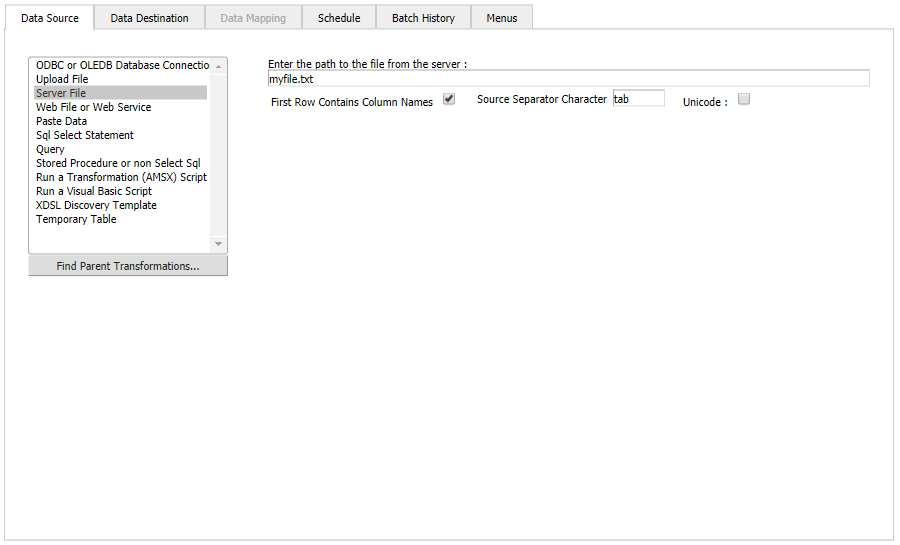
Import a file already located on the application server, a local share, or a UNC file path. Use this when files are deposited by another system (e.g., an overnight export from an ERP system).
Web File or Web Service
Pull data from a web server file or URL. The data is downloaded into a temporary file on the application server and then imported from there. Use this for REST API integrations where data is available at a URL endpoint.
Paste Data
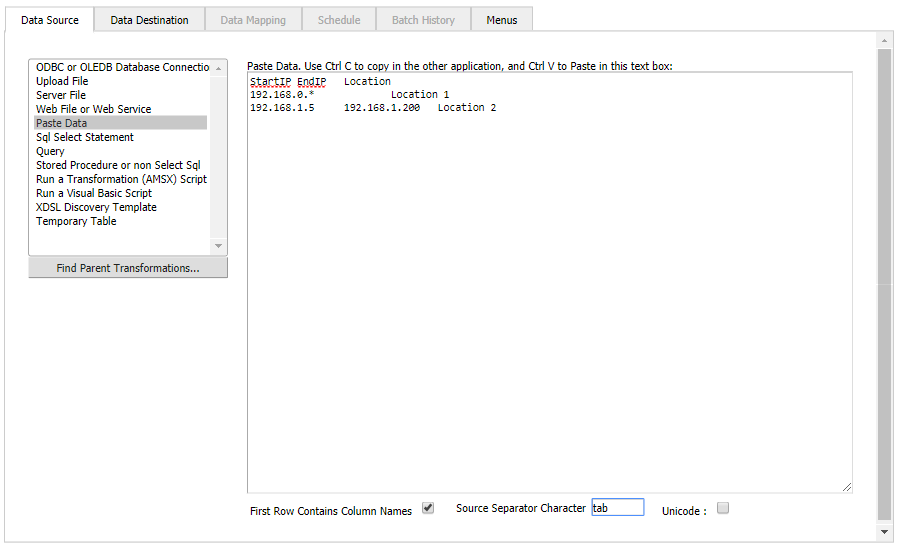
Directly import data that is copied and pasted from another source such as a spreadsheet. This is useful when the user has insufficient permissions to upload files, or when the data is frequently modified and a quick ad-hoc import is needed.
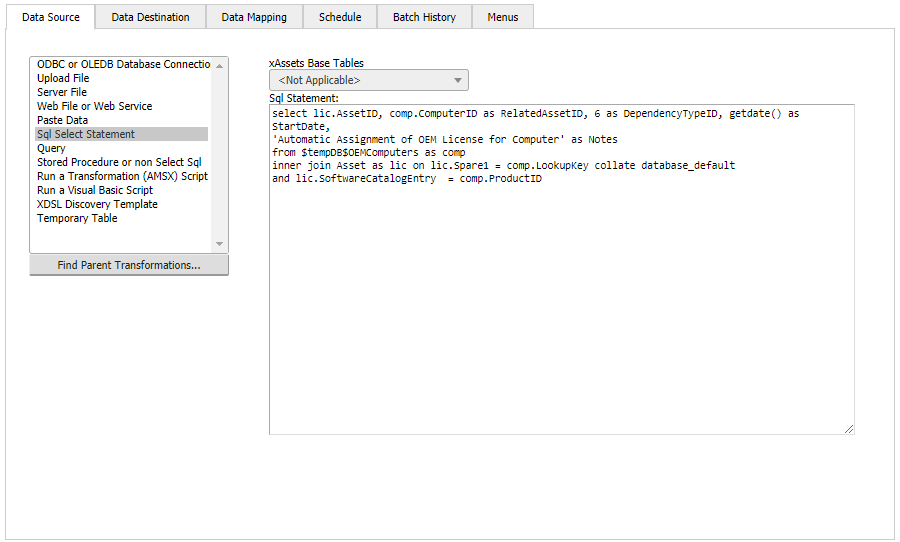
SQL Select Statement
Use when the data resides on a linked server, on the same SQL Server instance as the xAssets database, or within the xAssets database itself. Enter a SQL SELECT statement that returns the rows to be processed.
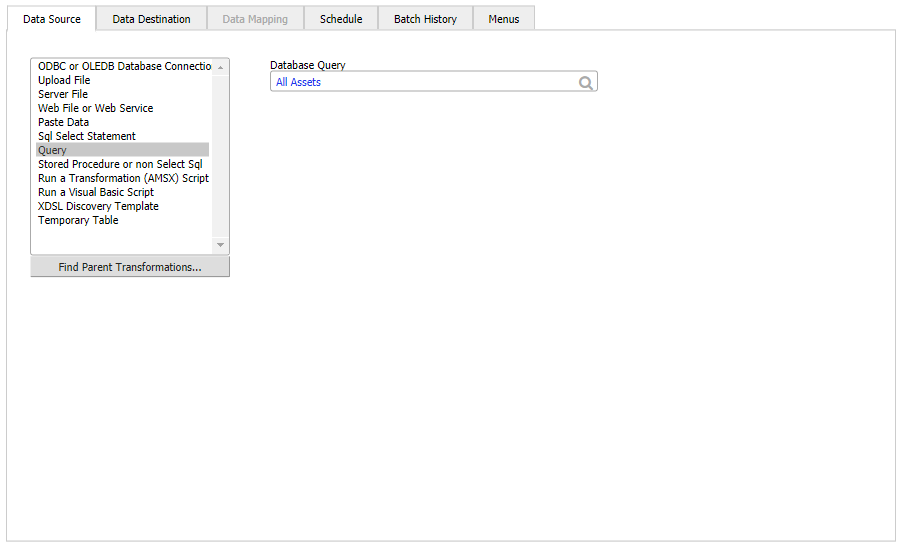
Query
Set the data source to an existing xAssets query. The query is executed and its output rows become the transformation's input data. This is useful when the data selection logic already exists as a saved query.
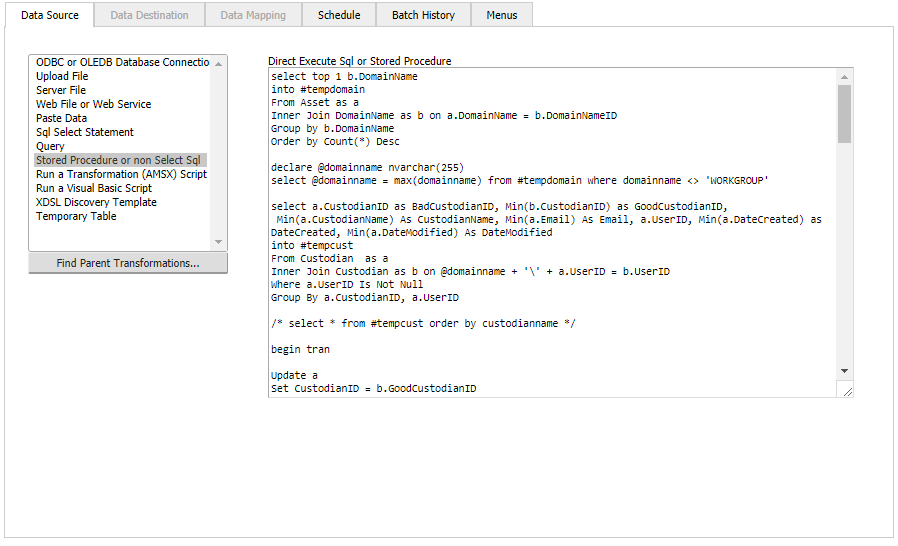
Stored Procedure or Non-Select SQL
Use this source type in the following situations:
- The action is performed by a stored procedure that does not return data
- The action is a SQL statement or a sequence of T-SQL statements that do not return a result set
- No data destination is required because the SQL itself performs all the work
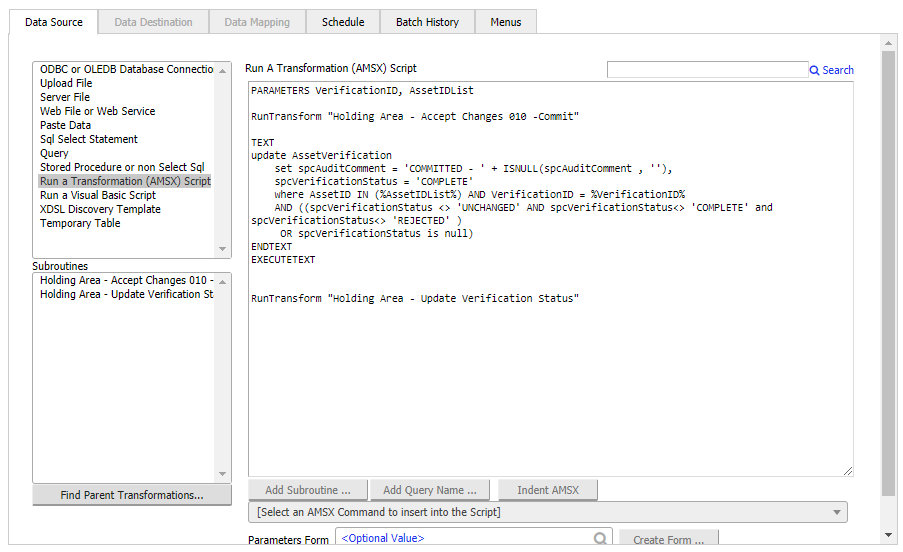
AMSX Scripts
Scripts written in xAssets' own scripting language (AMSX). AMSX scripts can be long and complex, and the language is designed for manipulating data, data files, XML data, and making calls into the xAssets API. See The AMSX Programming Language for details.
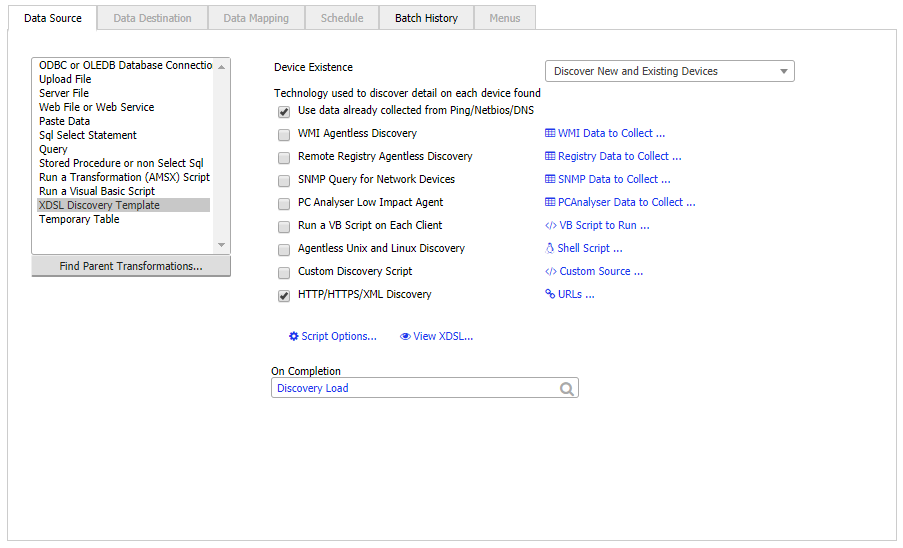
XDSL Discovery Scripts
Scripts written in xAssets' discovery scripting language (XDSL). Since December 2006, XDSL is compiled into Visual Basic .NET and then into executable files for direct and fast execution. XDSL itself has been replaced by a sequence of dialog boxes as documented in the Network Discovery User Guide, so there is no separate language visible to end users.
Temporary Table
Import data from a SQL Server temporary table. This is useful in multi-step processes where a previous transformation or stored procedure has placed data into a temporary table for further processing.
Warning: Temporary tables with the
#naming convention cannot be used. Onlytempdb..tablenamestyle table names are supported.
Source Query Parameters
Source queries that include SQL text can use the following built-in parameters for dynamic value substitution:
User and Session Parameters
| Parameter | Resolves To |
|---|---|
$USERID$ or %userid% |
The current user's logon ID |
%username% or %userid% |
The current user's user ID |
%ipaddress%, %userip%, or $userip$ |
The user's IP address |
%computername% |
The application server computer name |
Date Parameters
| Parameter | Resolves To |
|---|---|
$NOW$ or %now% |
SQL Server GETDATE() with time |
$TODAY$ or %today% |
SQL Server GETDATE() without time |
$STARTMONTH$ |
The user's "Actual Start Date" from their profile setup |
$ENDMONTH$ |
The user's "Actual End Date" |
$STARTPREVMONTH$ |
The month preceding $STARTMONTH$ |
$ENDPREVMONTH$ |
The month preceding $ENDMONTH$ |
$STARTFY$ |
The start of the financial year containing $STARTMONTH$ |
$ENDFY$ |
The end of the financial year containing $STARTMONTH$ |
$BEGINTRANSACTIONDATETIME$ |
The date and time the current transaction began (triggers only) |
System Parameters
| Parameter | Resolves To |
|---|---|
$TEMPDB$ |
Empty string on Oracle; tempdb.. on SQL Server |
$substr$ |
substr on Oracle; substring on SQL Server |
$datalength$ |
length on Oracle; len on SQL Server |
%database% |
The registry name of the current database |
%web% |
The root folder of the web application |
%webdb%, %webpath%, %webserverpath% |
The database subfolder of the web application |
Dynamic Parameters
| Parameter | Resolves To |
|---|---|
%FORVARIABLE% |
The current iteration value in AMSX ForEach loops |
%PARAMETERNAME% |
The value of a named parameter passed to the transformation |
%reg:setting% |
The registry string setting with the specified name on the application server |
%spo:setting% |
The option value (SpecialOption) of the specified setting name |
%sql:stmt% |
The first value of the first record returned by executing stmt as a SQL query |
Tip: When building complex SQL source queries, use the SQL Select source type with
%spo:setting%parameters to make your queries configurable without editing the transformation itself. Store the configurable values as SpecialOptions that administrators can change through the Settings screen.
Related Articles
- Transformations Overview — Introduction to data transformations
- Transformation Data Destinations — Available data destinations for transformations
- Creating a Transformation — Step-by-step guide to creating a new transformation
- Source to Destination Data Mapping — Mapping fields between source and destination
- Federated Data — Using federated data from external sources