Software Installed on a Computer
This page explains how to view the software installed on a specific computer, and how to find which computers are running a specific software product. These are day-to-day tasks for anyone managing software compliance.
Viewing Software on a Computer
- Find the computer by typing its name or username in the search box
- Click the blue link to open the asset editing screen
- Click the Software tab on the left-hand side
The Software tab provides several views of the installed software:
Licensable Products
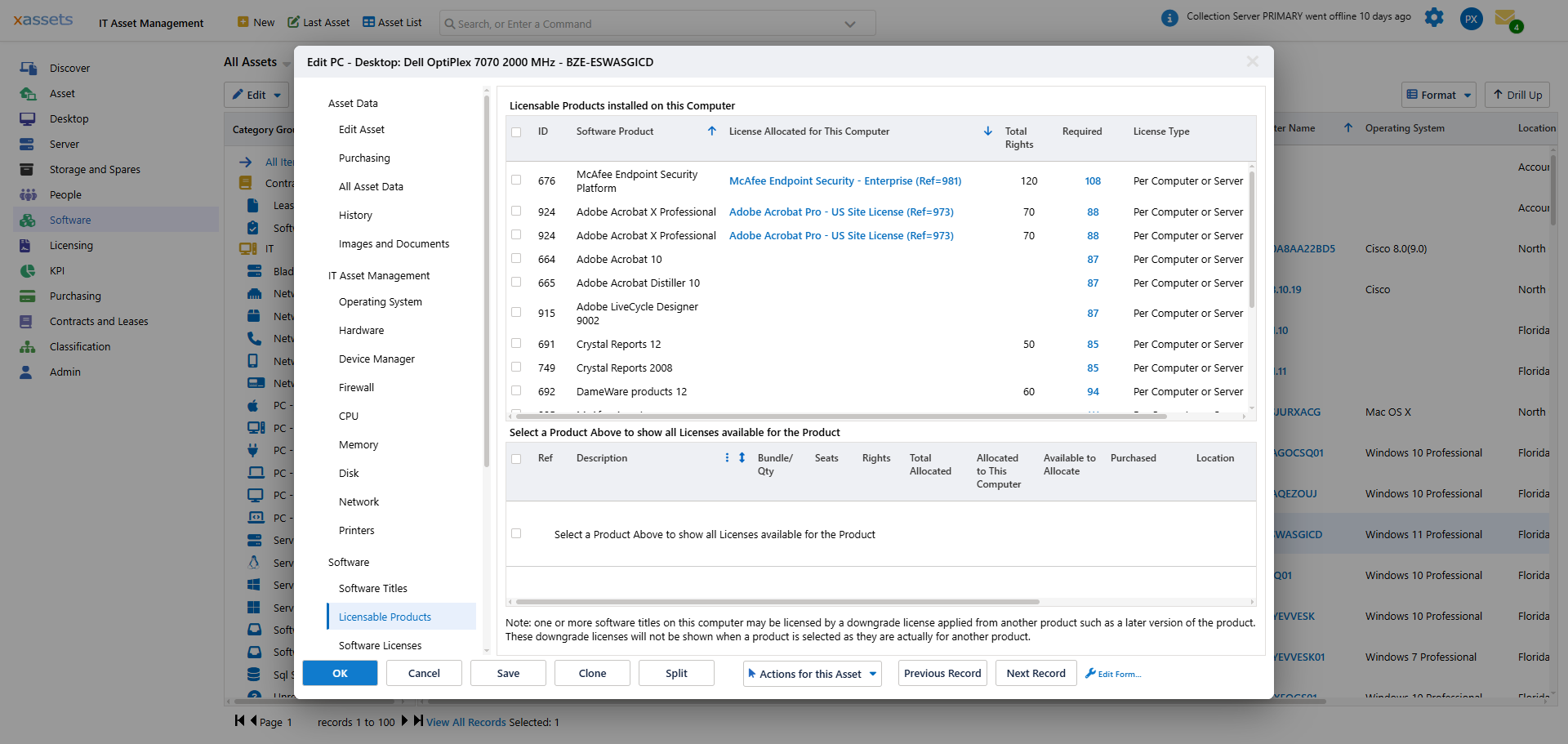
This lists the licensable products installed on this computer -- software that can be purchased and requires a licence. Two key columns help you assess the licensing situation:
| Column | Meaning |
|---|---|
| Seats Purchased | Total number of licences your organisation owns for this product |
| Licensable | Total number of computers running this product across the entire organisation (including this one) |
If "Licensable" exceeds "Seats Purchased", the product is under-licensed and action may be needed.
Primary Software Titles
This lists all software titles classified as Primary that are installed on this computer. The installation date, where populated, shows when the software was actually installed on that machine.
Primary titles are those the recognition engine has identified as significant, commercially-available software (as opposed to drivers, utilities, or system components).
All Software Titles
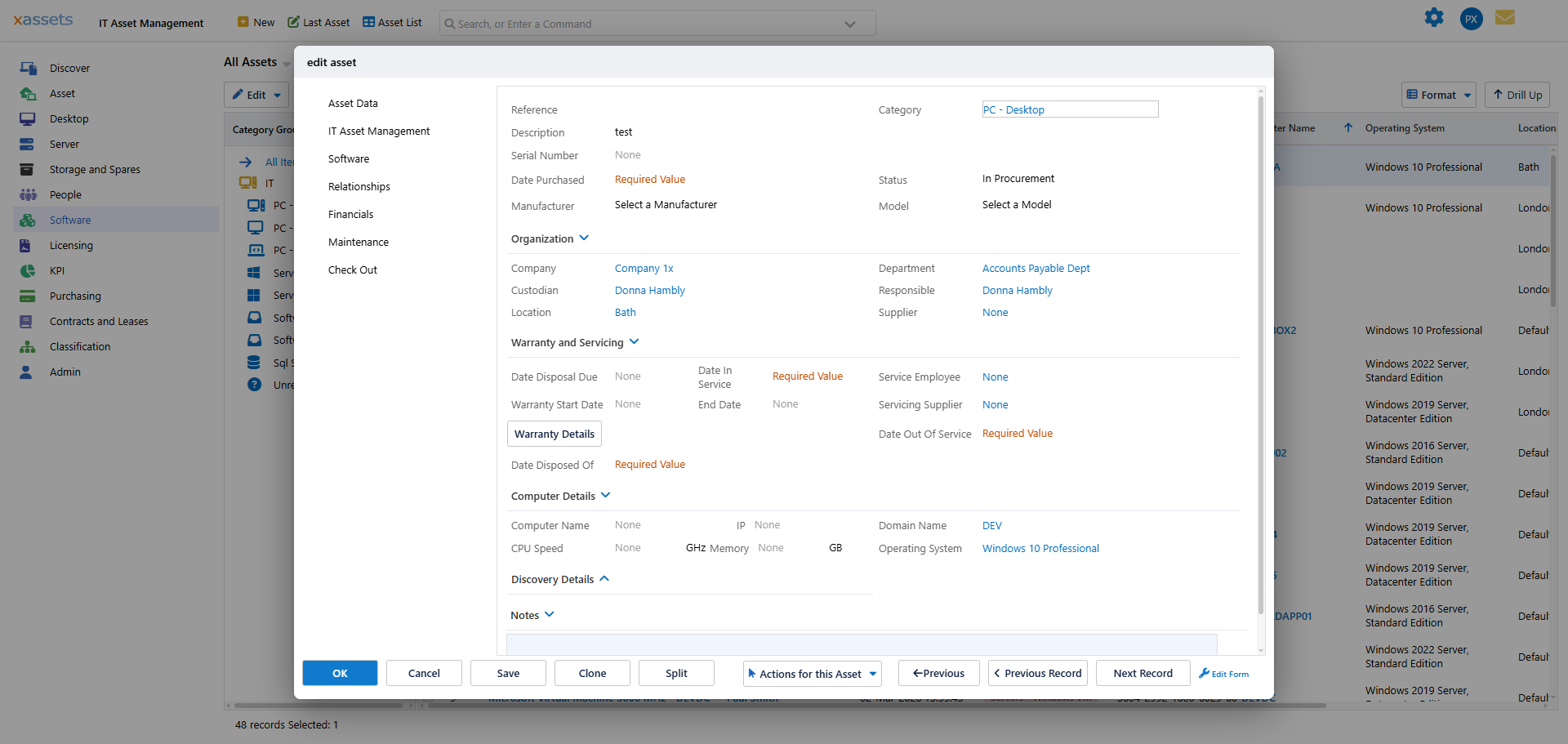
This is the complete list of all software titles discovered on this computer, including unrecognised software and titles classified as FREE or UNKNOWN. Use this view when you need the full picture of what is installed, regardless of licensing status.
Software Keys
This option may be disabled in some installations. When enabled, it shows the registration codes (typically 25-character product keys) used to install software on this machine. This information is collected by the PCAnalyser agent during discovery.
Finding Computers Running a Specific Product
To see which computers have a specific software product installed:
- From the Software menu, choose Computers by Software Title
- Select Computers by Software Product -- Installed
- Click a product name to see the list of computers with that product installed
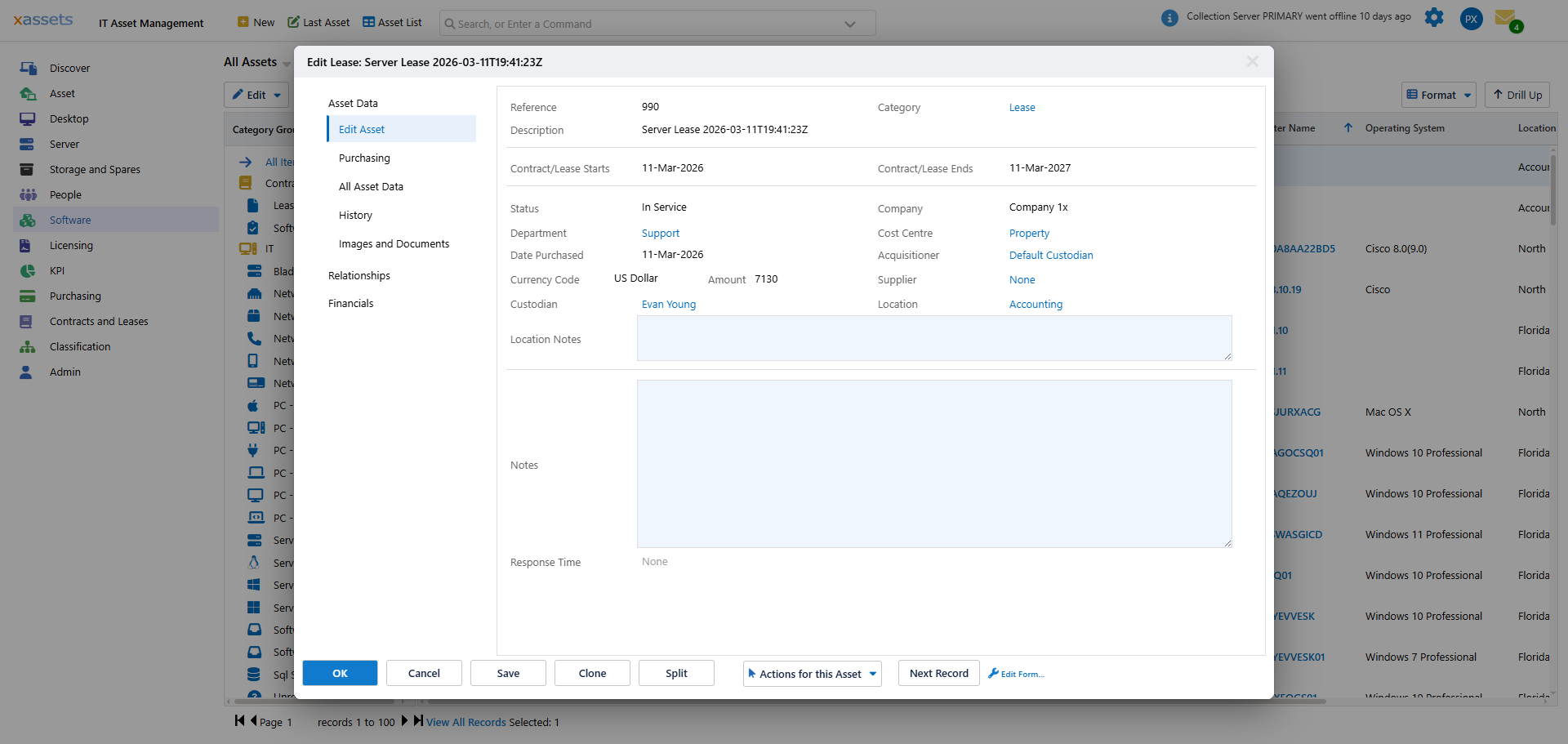
Finding Computers by Software Title
To search by individual software title rather than product:
- Computers by Software Title -- Primary shows only recognised primary titles
- Computers by Software Title -- All includes free, unknown, and unrecognised titles
Warning: The "Computers by Software Title -- All" query can take a long time to run in large installations because the left-hand title list may contain thousands of entries. Use the Primary view when possible.
Tips
- Use the Licensable Products view for quick compliance checks on a single machine
- Use Computers by Software Product when you know a product is under-licensed and need to identify which machines to remediate
- The All Software Titles view is useful for security audits -- it shows everything installed, including potentially unwanted software
Related Articles
- Software Products — managing the product catalogue
- Licensing Position — organisation-wide compliance reporting
- Unrecognised Software — handling unknown titles