Software Products
Software Products are central to the software licensing reporting engine. A software product represents a licensable piece of software (e.g., "Microsoft Office 365") that one or more discovered software titles map to. This page explains how to view, create, and manage software products.
Viewing the Software Product Catalogue
To view the list of software products and their current licensing position, choose Software Product Catalog from the License menu:
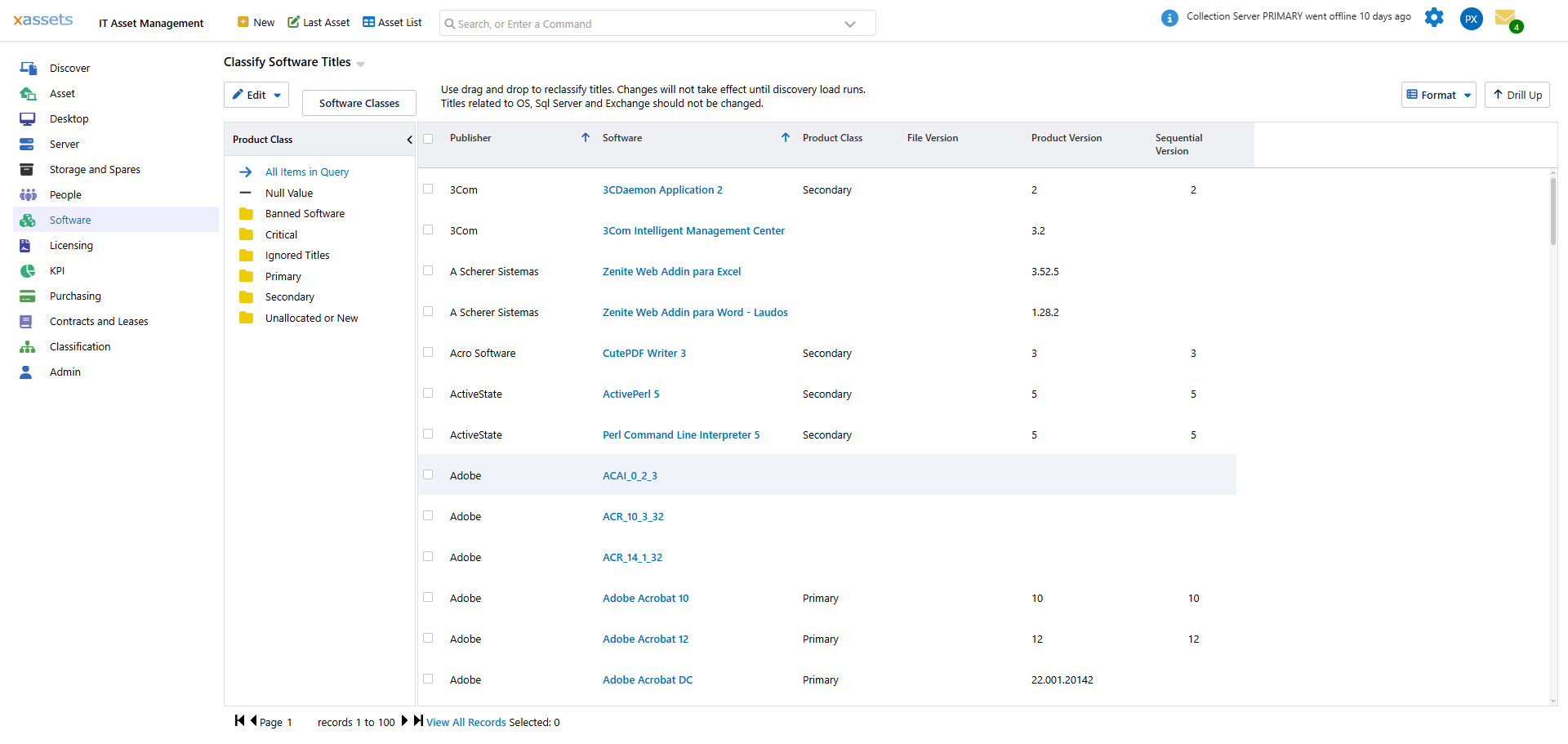
The catalogue displays several columns that summarise each product's licensing status:
| Column | Meaning |
|---|---|
| Seats | Total seats across all licence records attached to this product (the number of potential qualifying rights) |
| Rights | Total rights available after upgrade/downgrade processing |
| Installed | Number of computers with this product installed, including those not requiring a licence |
| Required | Number of licensable installations -- the count that actually needs licence coverage |
| Allocated | Number of rights allocated to cover this product, including downgrades from other products |
| Assigned | Number of computers explicitly assigned to a licence for this product |
| Downgrade Allocated | Number of downgrades from other products used to cover requirements for this product |
| Outstanding | Number of installations that remain uncovered by a licence right |
Tip: For software suites like Microsoft Office, the "Required" column may differ from "Installed" because individual titles (Excel, Word) do not each consume a separate licence -- they are covered by the suite licence (Microsoft Office).
Creating a New Software Product
- From the Software Product Catalog, use the Software Product Catalog Menu to select Create a new Software Catalog Entry:
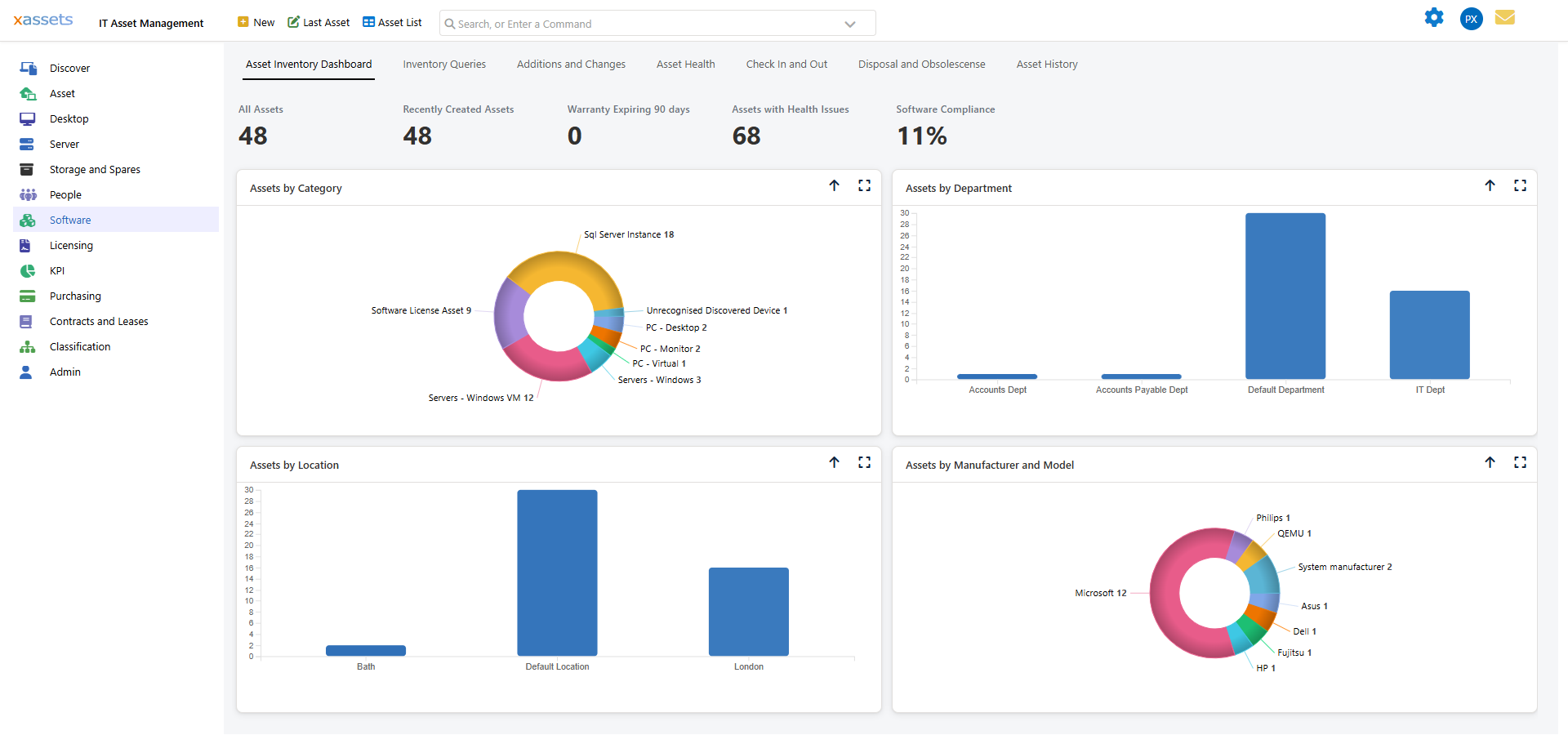
- An entry screen opens for the new product:
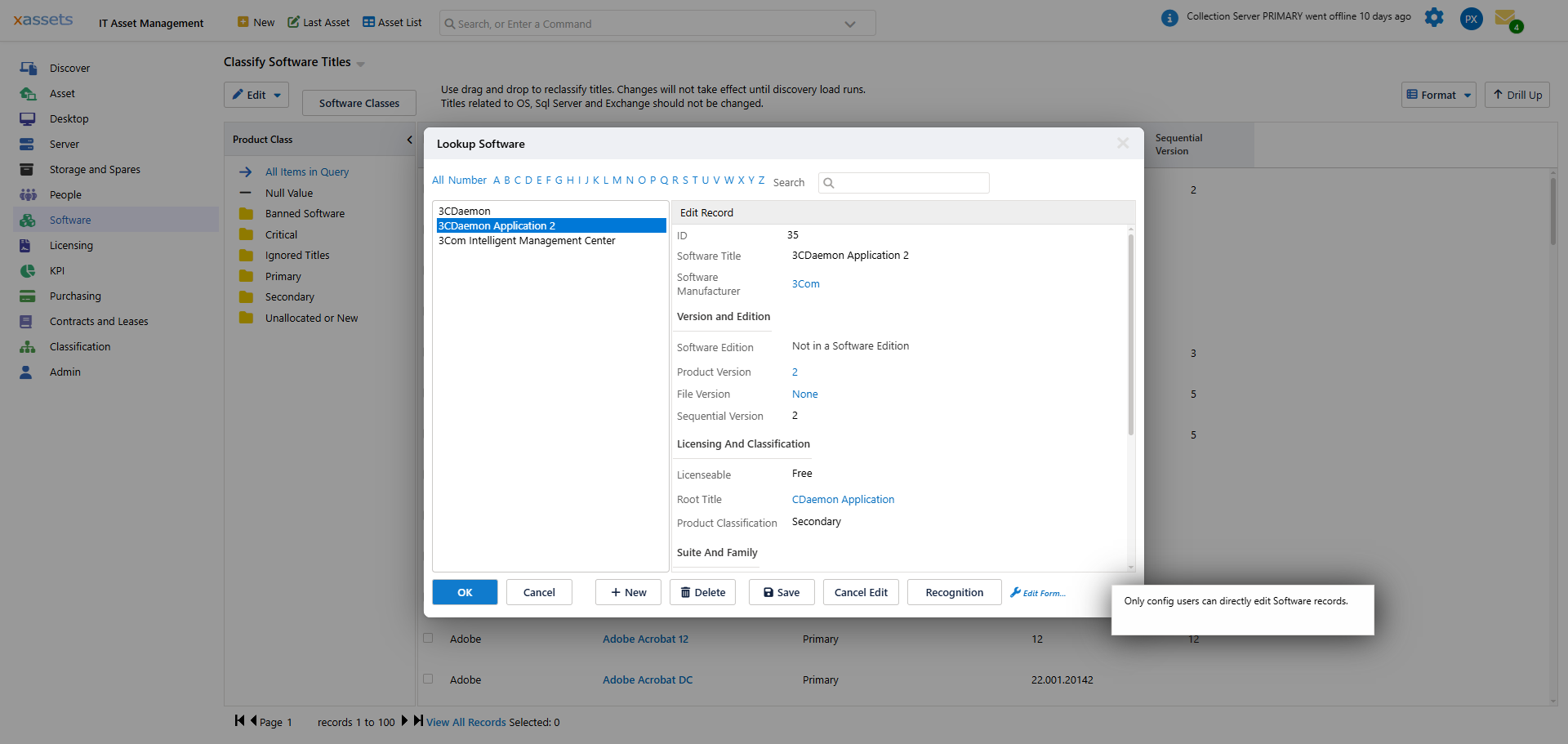
- Fill in the product name, publisher, and other relevant fields
- Click OK to save
Associating Software Titles with a Product
After saving a software product, you must associate it with one or more software titles for it to appear correctly in reports:
- Open the saved product record
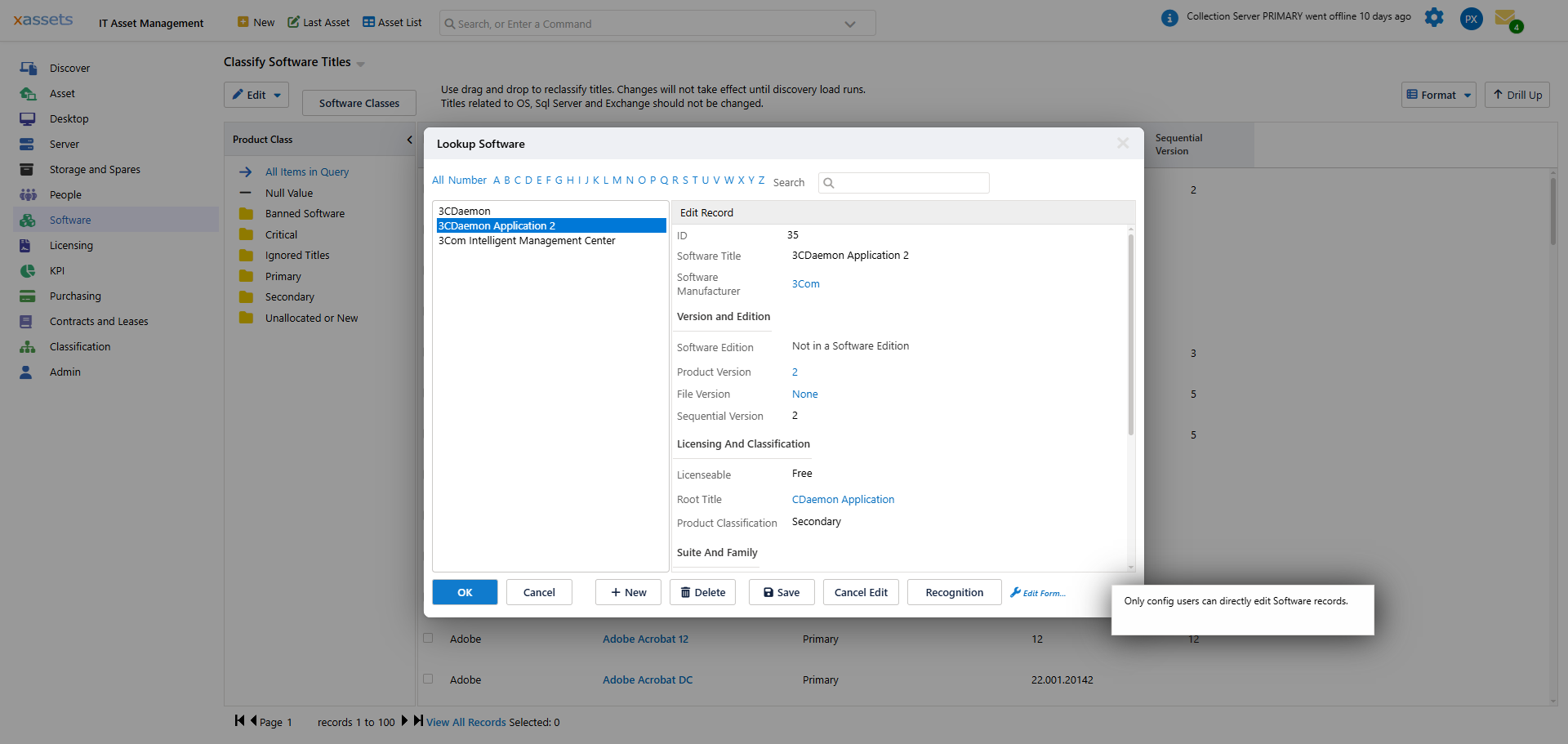
- Click Add Existing and select the titles this product covers
- Select the titles and click OK
Setting the Defining Title
At least one title must be marked as Defining -- this means that if a computer has that title installed, it definitively has this product installed.
- Click Edit Link... on the associated title
- Tick the Defining checkbox
- Click OK to save
Important: When you change software title associations, some internal database links must be regenerated. This process can take a few minutes on large installations. Refresh the Software Product Catalog page after making changes to see updated data.
When Are Products Created Automatically?
In most installations, software products are created automatically by the "Load Now" process after:
- A network discovery run
- An integration (e.g., Microsoft Intune or SCCM)
Manual creation is only needed when a product is not being auto-created -- for example, for software that was imported rather than discovered, or for products you want to track before discovery data is available.
Related Articles
- Software Licences — creating licence records for products
- Licensing Position — seeing the compliance status of each product
- Creating Software Titles Manually — manually creating the full record chain
- Unrecognised Software — handling titles that need product association