Software Licences
Each software licence record represents a purchase of one or more seats of a single software product. This page explains how to view, create, and manage licence records. Accurate licence records are essential for compliance reporting -- the licensing position is only as good as the licence data you maintain.
Viewing Software Licences
To list all software licences, choose Software Licence Asset Register from the License Menu or Software Dashboard:
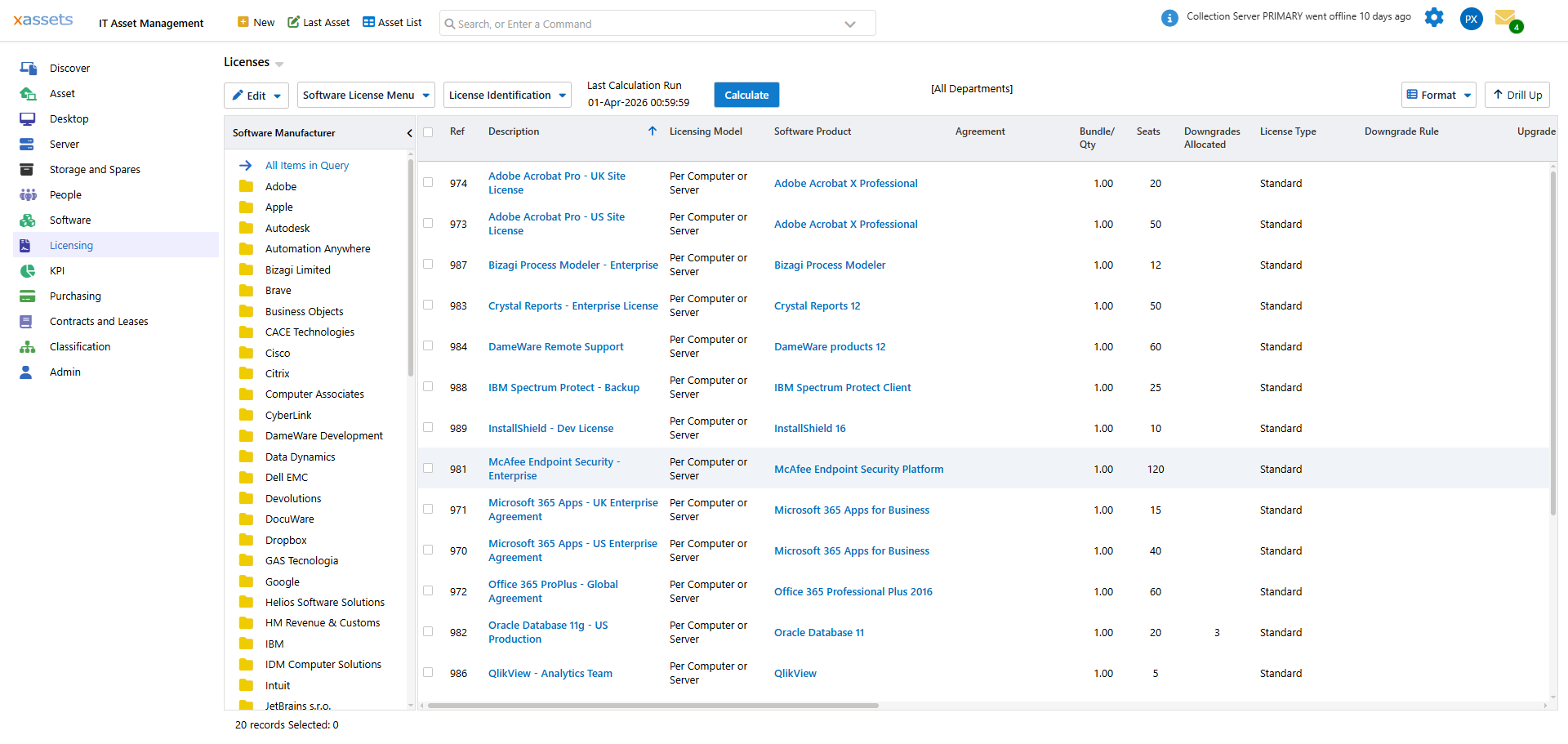
The list displays the following key columns:
| Column | Meaning |
|---|---|
| Quantity | The number of licence items purchased (e.g., buying a bundle of 5 licence packs) |
| Seats | The total number of licence seats this purchase covers |
| Licensable | The number of installations across your network that need a licence for this product (not specific to this licence record, but to the product it covers) |
| Assigned | The number of computers explicitly assigned to this specific licence |
| Cost | The cost of this licence purchase |
Creating a New Licence
- From the Software Licence list, choose Create New Software Licence Asset from the Software Licence Menu:
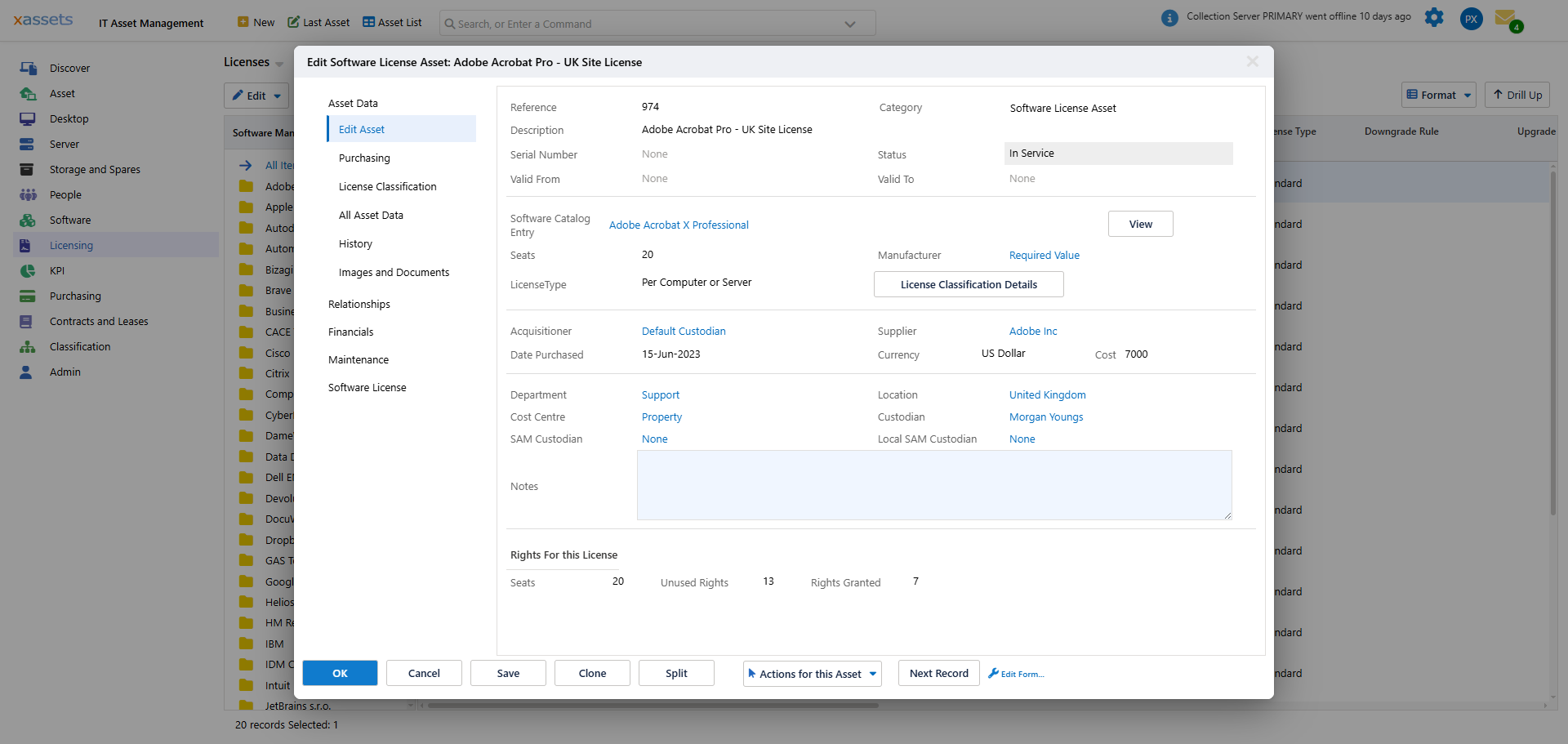
- An asset entry screen opens for the new licence:
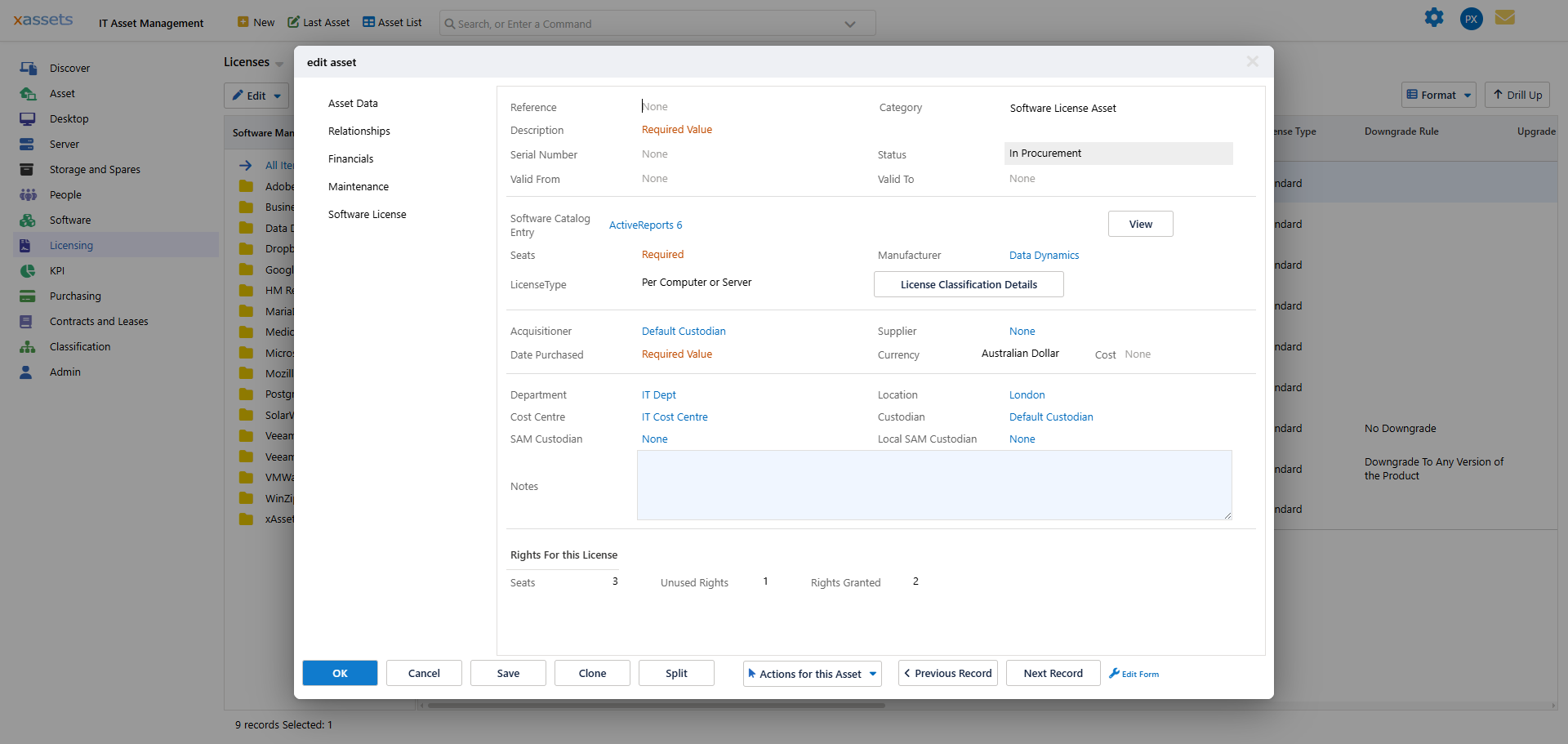
- Fill in the following fields:
- Description -- a clear name for this licence (e.g., "Microsoft Office 365 -- 50 Seats")
- Software Product -- the product this licence covers (must exist in the Software Product Catalogue)
- Seats -- the number of licence seats
- Licence Type -- per-computer, per-user, per-processor, etc.
- Date Purchased -- when the licence was acquired
- Cost -- the purchase cost
- Supplier -- the vendor you purchased from
- Status -- typically "In Service" for active licences
- Click OK to save
The licence immediately appears in software reports and contributes to the licensing position calculation.
Importing Licences
Software licences can also be imported into the system from a spreadsheet. This is useful when you have a large number of licence records to enter -- for example, when first setting up SAM or when migrating from another tool. See the Configuration Guide for import procedures.
Understanding Licence Fields
| Field | Purpose | Impact on Compliance |
|---|---|---|
| Seats | Number of rights this licence provides | Directly increases the entitlement count for the product |
| Licence Type | How consumption is measured (per-computer, per-user, per-core, etc.) | Determines how installations are counted against this licence |
| Status | Whether the licence is active | Only "In Service" licences count toward entitlement. Expired, upgraded, or disposed licences are excluded |
| Software Product | Which product this licence covers | Must match a product in the catalogue for the licence to count in reports |
Tips
- Keep licence descriptions consistent and include the seat count -- this makes the licence register easier to read and audit
- When a licence expires, change its status rather than deleting it -- this preserves the audit trail
- After adding or modifying licences, run Calculate Licensing Position to update compliance reports
- Link licences to contracts or agreements using parent-child relationships for full traceability
Related Articles
- Software Products — the products that licences are attached to
- Licensing Position — how licences feed into compliance reporting
- Assigning Computers to a Licence — allocating licences to specific machines
- Upgrade Licences — handling licence upgrades correctly