Assigning Computers to a Licence
Software Assignment lets you allocate a specific licence to a set of computers. When a product is under-licensed, assignment helps you identify exactly which computers are covered and which are not -- enabling targeted remediation rather than guesswork.
Why Assign Computers?
Assignment is optional -- the licensing position calculation works without it. However, assignment provides significant benefits:
- Audit readiness -- you can demonstrate exactly which machines are licensed
- Targeted remediation -- when under-licensed, you know which specific machines lack coverage
- Cost allocation -- licence costs can be attributed to the departments or locations of assigned machines
How Assignment Works
Assignment is implemented through parent-child relationships in xAssets. The software licence is the parent, and the computers are the children. This uses the same relationship mechanism as contracts and leases.
Assigning Computers to a Licence
Step 1: Copy Computers from the Allocation Report
- Navigate to Software Licence Asset Register from the License menu
- Select the licence you want to assign computers to
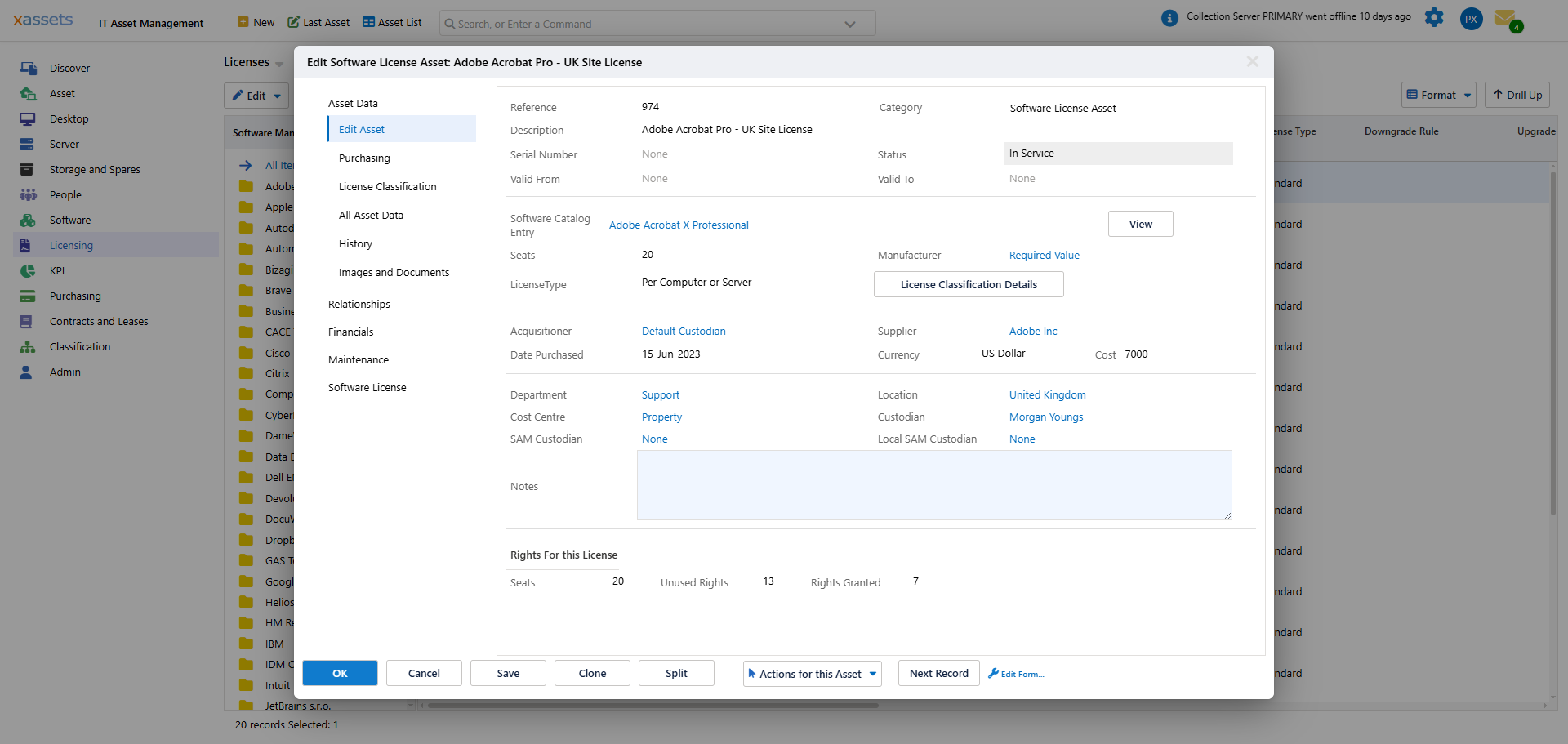
- From the License allocations menu, choose one of:
- List Computers that the Selected License is Allocated to -- shows computers already allocated
- List Qualifying Unallocated Computers for the Selected License -- shows computers that have the software installed but are not yet allocated to any licence
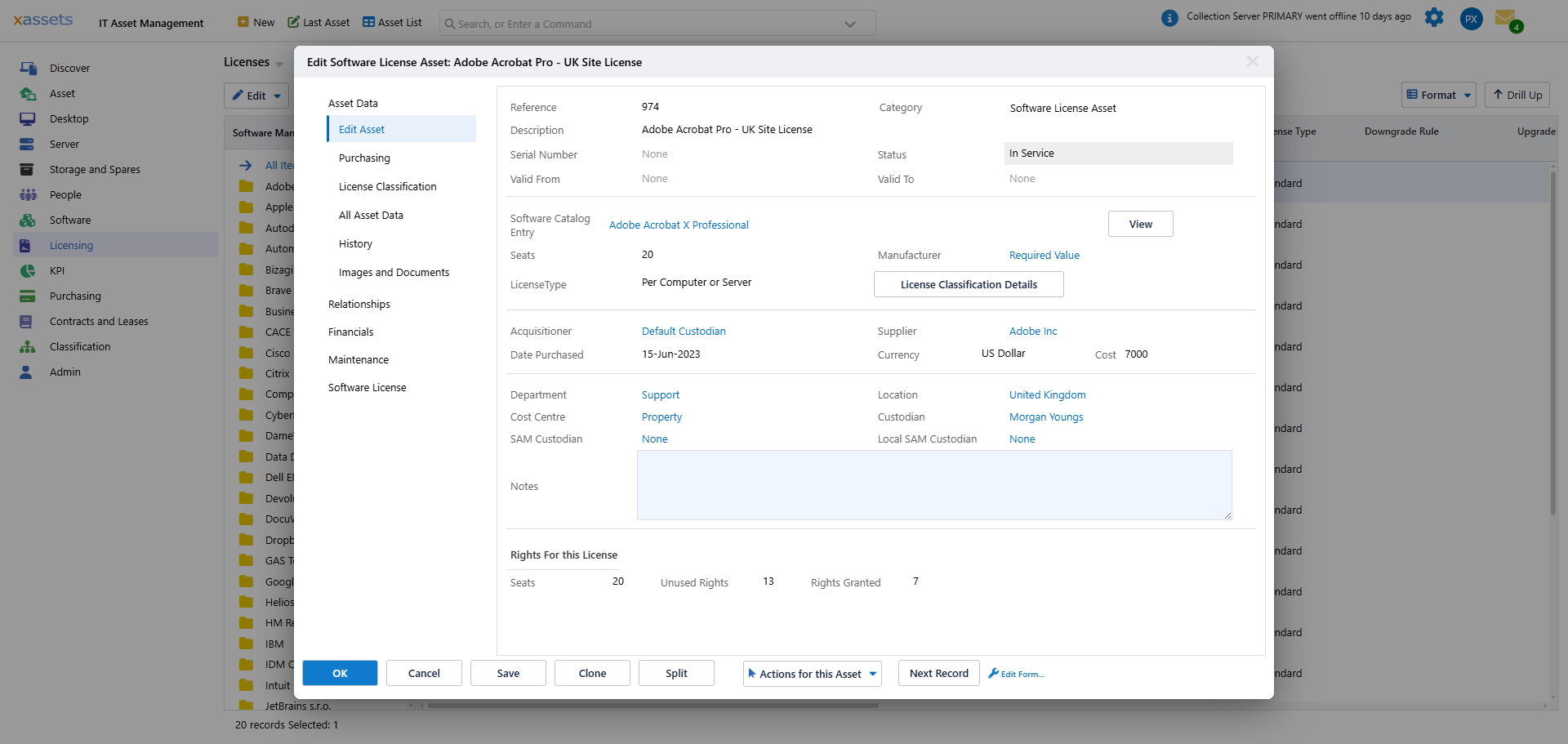
- Select the computers you want to assign (use Shift+Click or Ctrl+Click)
- Choose Query > Copy -- a dialog confirms the copied records
Step 2: Paste as Children of the Licence
- Open the software licence asset
- Navigate to Relationships > Related Assets tab
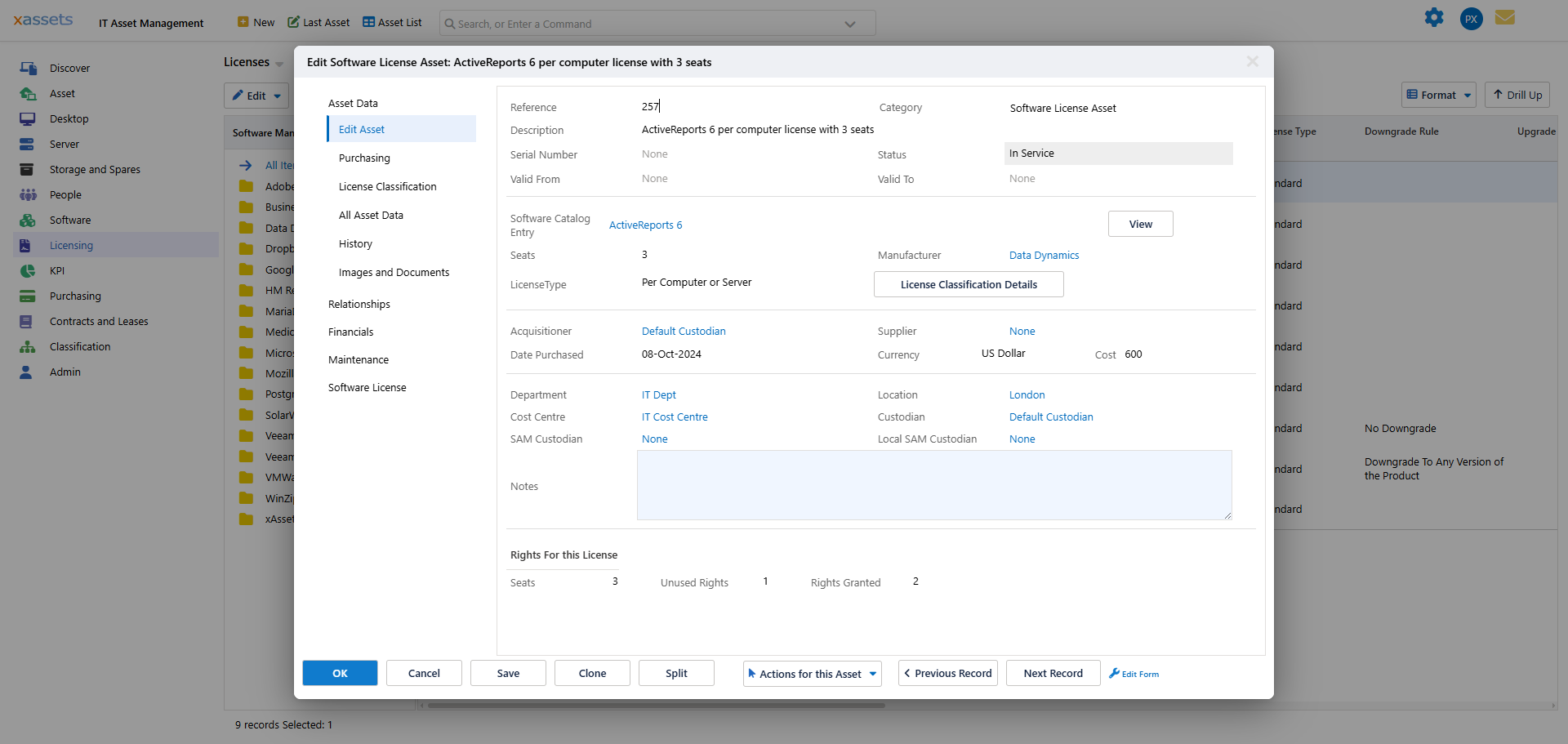
- Choose Paste Children...
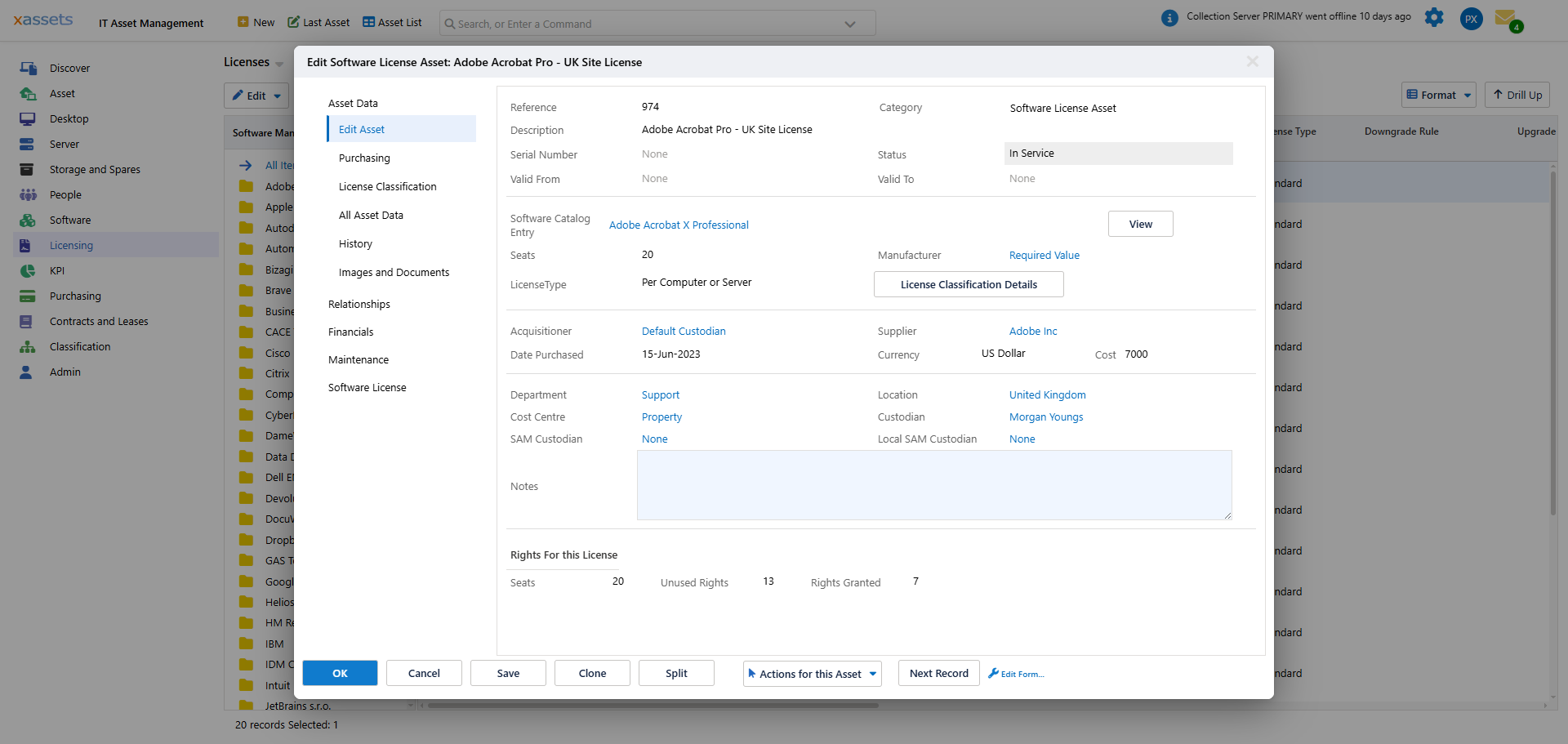
- In the dialog, select Has software as the Dependency Type
- Click OK
Step 3: Verify the Assignment
The assigned computers now appear in the Related Assets tab:
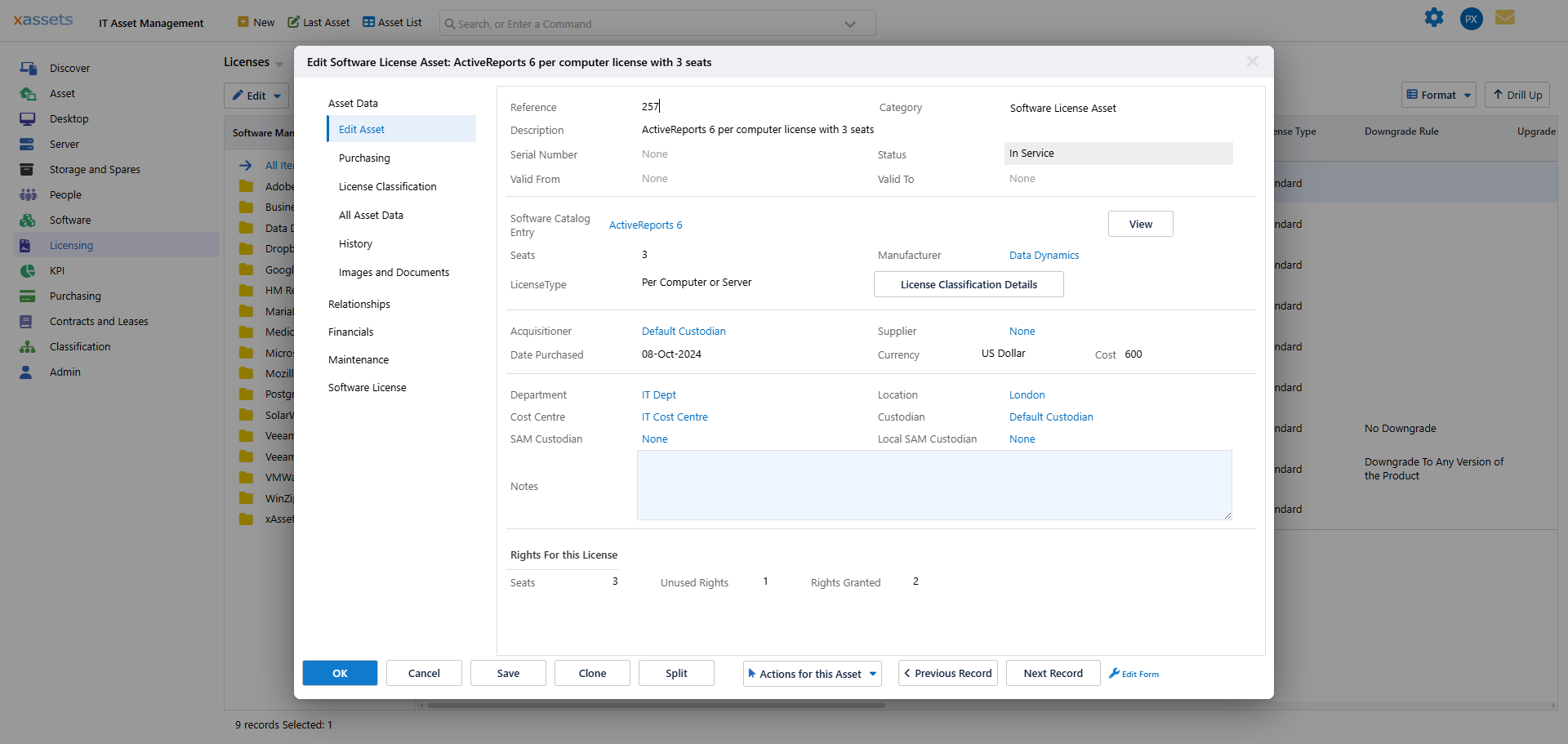
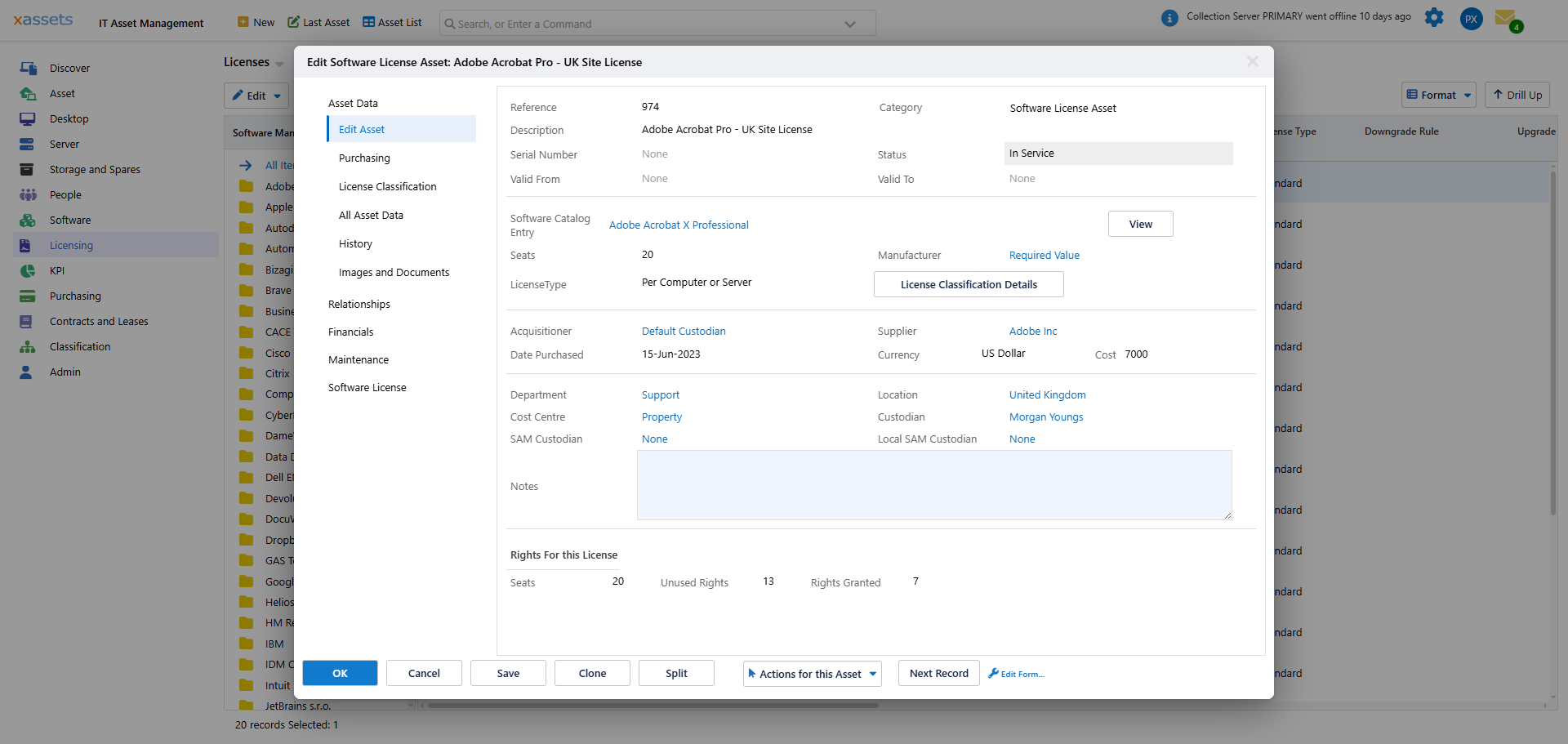
Click OK to close the asset. The licence register now shows the updated Assigned count:
Tips
- Start with your most critical (and most audited) products -- Microsoft, Adobe, Oracle
- The Qualifying Unallocated Computers report is the most efficient way to find machines that need assignment
- After assigning computers, recalculate the licensing position to update the compliance data
- If a computer is replaced or decommissioned, remember to remove its assignment and reassign the licence seat to the replacement machine
Related Articles
- Software Licences — creating and managing licence records
- Licensing Position — compliance reporting after assignment
- Software Products — understanding which products need licence coverage