Creating Software Titles Manually
In most implementations, software titles, product catalogue entries, and software-to-asset relationships are all created automatically by the "Load Now" process after a network discovery run or an integration (e.g., Microsoft Intune or SCCM). This page documents the manual creation process for situations where automatic loading is not an option.
When to Use Manual Creation
Manual creation is only necessary when:
- You need to track software that was not discovered (e.g., software on air-gapped machines)
- You are importing software data from a non-standard source that cannot be loaded through the discovery holding area
- You need to create licence and compliance records before discovery data is available
Tip: If you are importing software titles in bulk, the best approach is usually to import into the discovery holding area and then let the "Load Now" process handle recognition and record creation. Manual creation should be a last resort.
Understanding the Data Model
The system maintains three tables for software titles:
| Table | Contents | Usage |
|---|---|---|
| Installed Software | Titles found in "Programs and Features" (Add/Remove Programs) | Raw discovery data -- input to recognition |
| Full Software | Titles found in EXE file headers | Raw discovery data -- input to recognition |
| Software | System-calculated merge of both tables above | The recognised software table used in reports. Do not enter records directly -- the load process may delete them. |
The correct method is to enter titles into the Installed Software or Full Software tables and allow the system to generate the records it needs.
Step-by-Step Manual Creation
Step 1: Create the Asset
The asset must be in a category that has a NetworkDiscoveryCode value filled in, and the code must not be "SW" (which denotes software product catalogue template records).
- Click New Assets on the top bar of the page
- Fill in at least: Description, Category, and Date Purchased
- Save the asset
Step 2: Create an Installed Software Title
- Reopen the asset and navigate to the Specification Data tab
- Scroll down to the Installed Software section
- Add a new software title entry
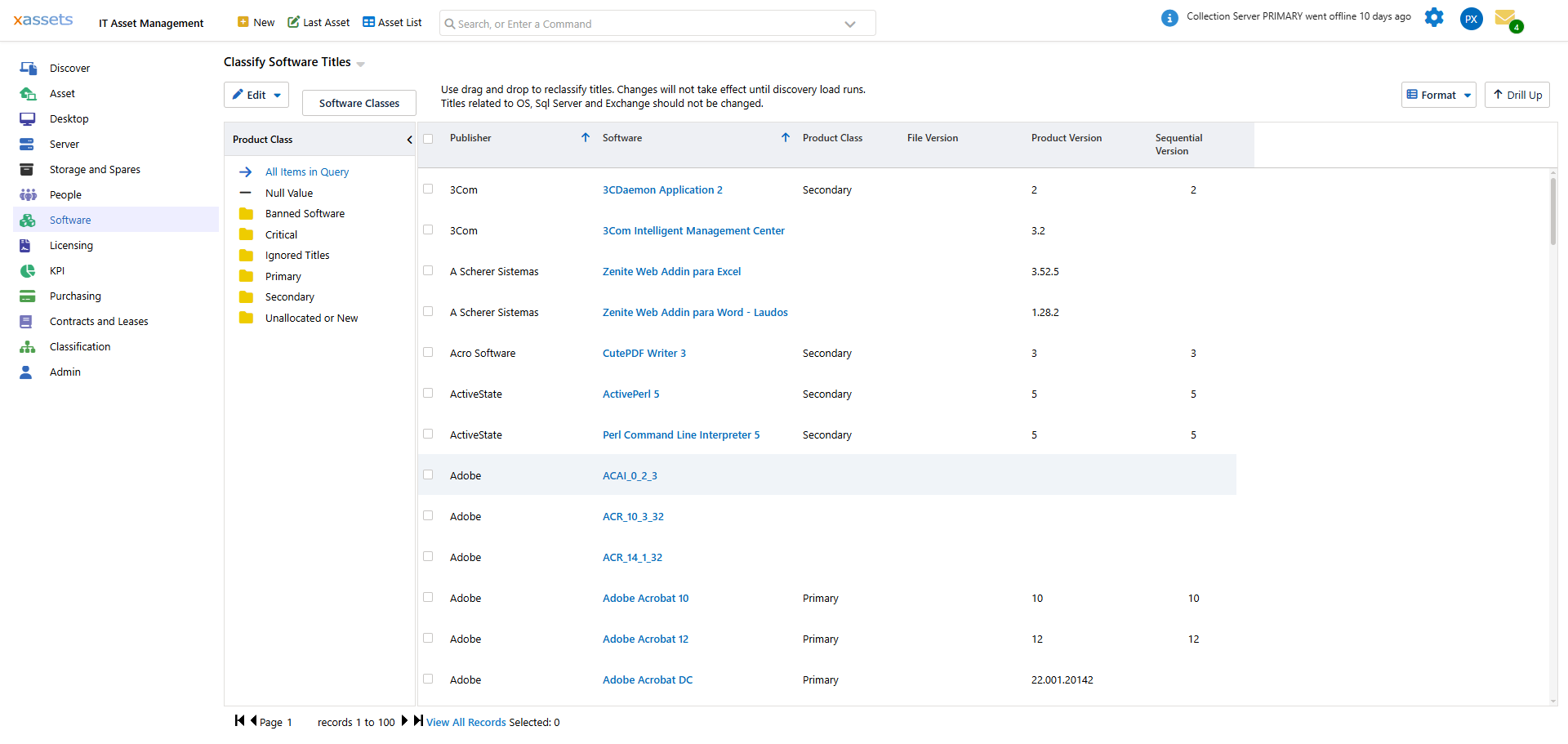
- Click OK to save
This creates two records:
- The Installed Software Title record
- A link record associating this title with the asset
Step 3: Create a Recognition Record
Software titles are not used in licensing unless they are recognised. To create a recognition record:
- Edit the software title from the asset
- Click the Recognition button at the bottom of the editor
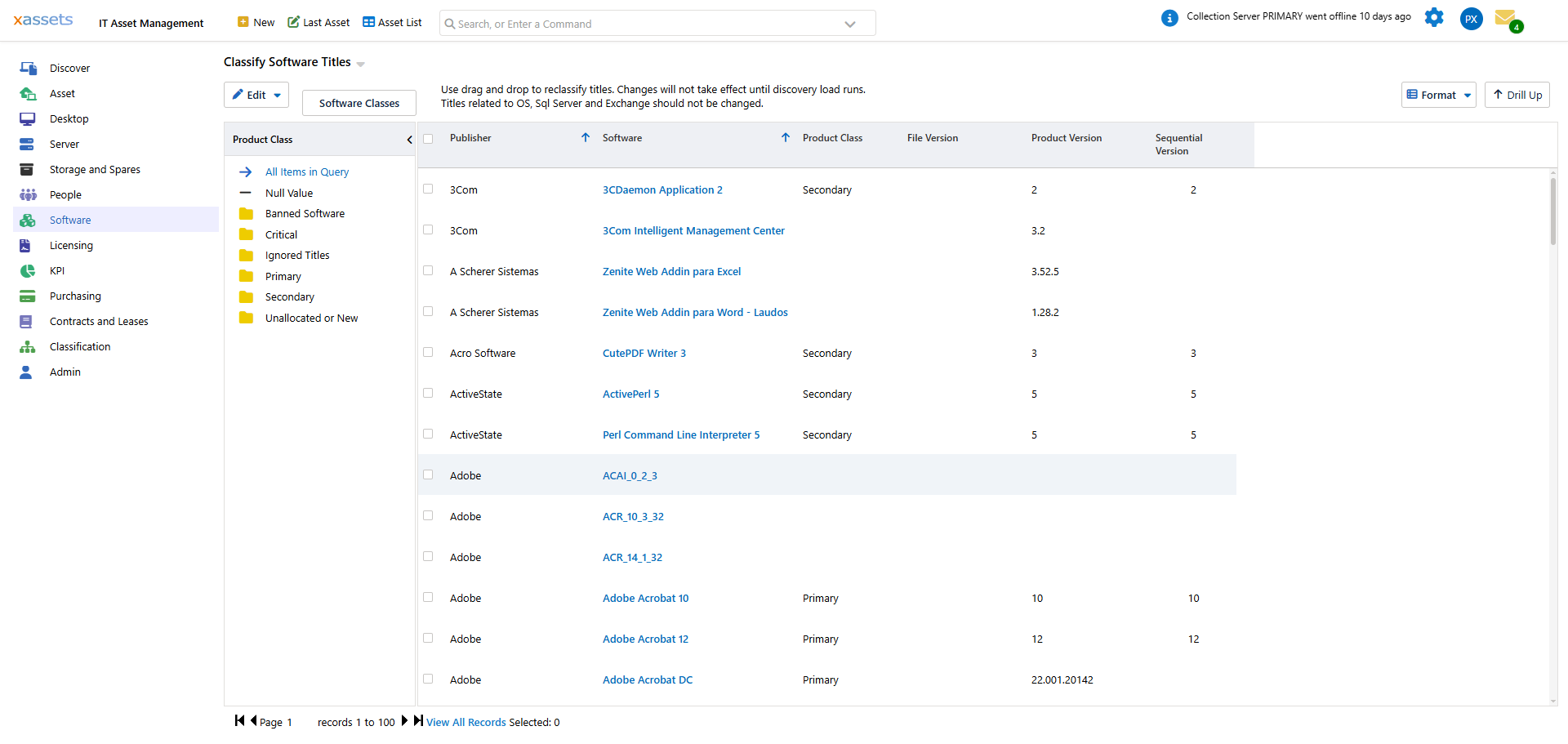
- Click Yes if a warning dialog appears
- Fill in the recognition record fields:
- Class -- must be Primary for the software to appear in the product catalogue and be licensable
- Version -- the software version
- Type -- the software type classification
- Licensing -- whether the software requires a licence
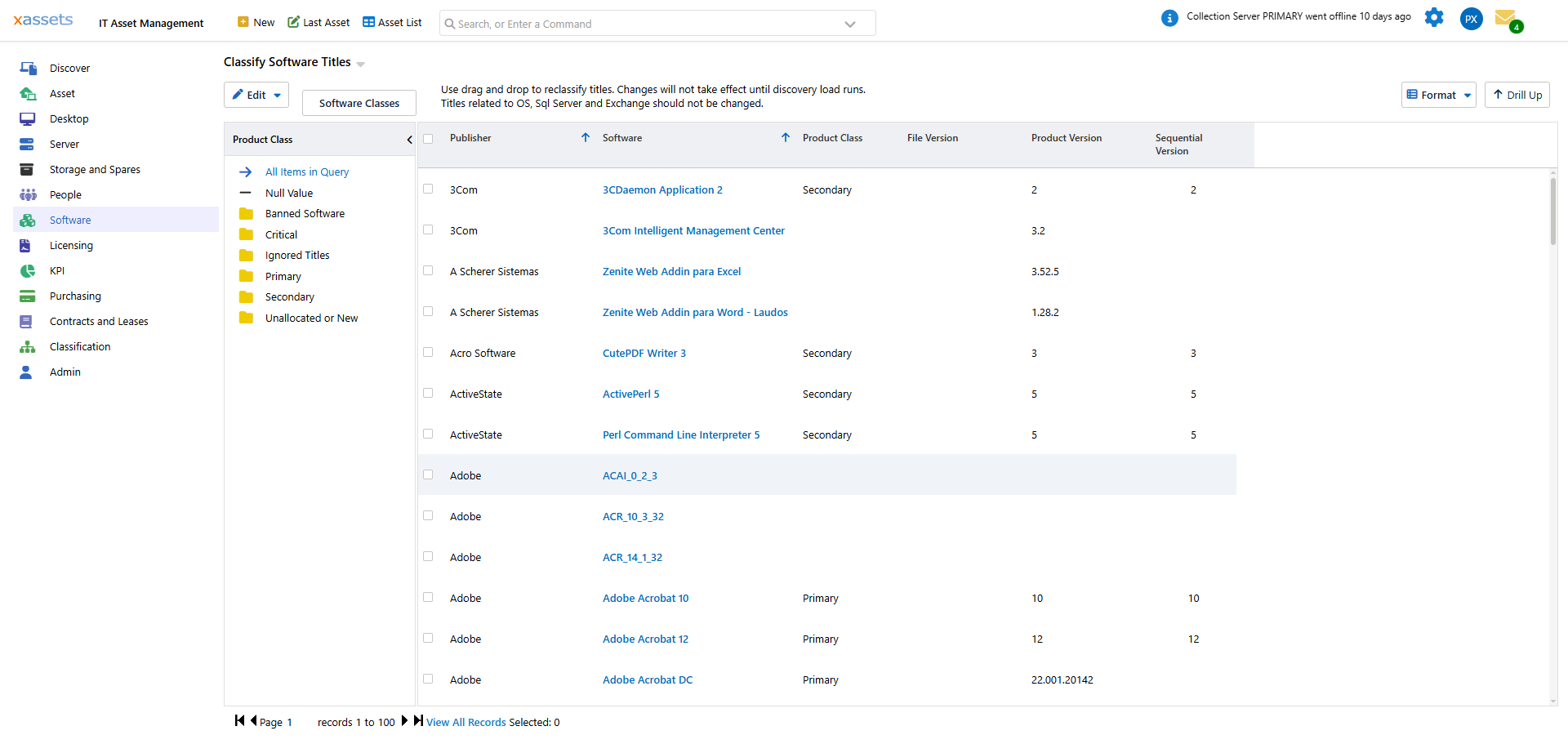
- Save the recognition record
Step 4: Generate the Software Record and Product Catalogue Entry
Although this can be done manually, the easiest method is to run the transformation named Load 900 -- Software. This creates any missing software catalogue entries for primary or licensable titles and generates the Software table based on what exists in Installed Software and Full Software.
- Navigate to the transformation
- Click Queue (not "Run") to submit it as a batch job -- on larger databases this may take some time
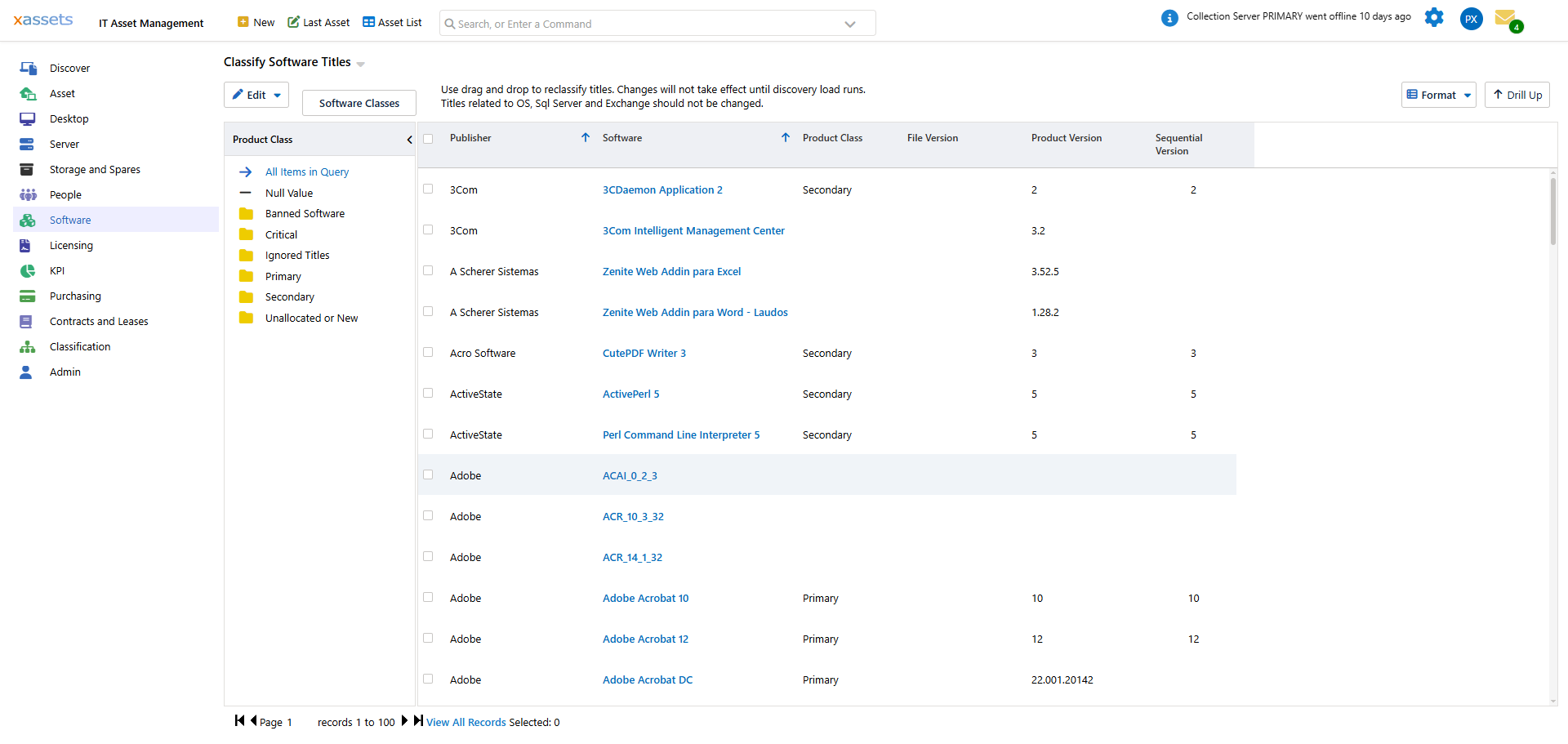
- Wait for the batch job to complete
- The software title should now appear in Licenses
Step 5: Create a Software Licence
- Open the Licenses screen from the Licensing menu
- Select the title you created
- Click New License
- Enter the number of seats purchased, a licence class, and the date purchased
- Save the licence record
Step 6: Calculate Licensing
- Use the Calculate button in the Licenses screen to run the licensing calculation
- The calculation runs as a batch job
- When complete, the licence should be fully allocated and appear in licensing reports
Common Mistakes
| Mistake | Consequence | Fix |
|---|---|---|
| Entering records directly into the Software table | Records may be deleted by the next Load Now run | Use the Installed Software or Full Software tables instead |
| Recognition class not set to Primary | The title does not appear in the product catalogue or licensing reports | Edit the recognition record and set the class to Primary |
| Asset category missing NetworkDiscoveryCode | The asset is not treated as a discoverable endpoint | Ensure the asset's category has a valid NetworkDiscoveryCode (not "SW") |
| Forgetting to run Load 900 | No product catalogue entry is created | Queue the Load 900 transformation after creating recognition records |
Related Articles
- Software Products — the product catalogue that manual titles feed into
- Software Licences — creating licence records
- Licensing Position — verifying compliance after manual creation
- Unrecognised Software — an alternative to manual recognition