Assigning Licenses to Users
A per-user license is held by a person, not a machine. The Assigned Users list on the license record is where you say who holds a seat, and it is the list a license manager works from when reconciling against a vendor portal or planning a renewal.
Assignment and Allocation Are Different Things
These two words look interchangeable and are not. Both appear on the license record, in different places, and they answer different questions.
| Assignment | Allocation | |
|---|---|---|
| Answers | Who has been given a seat on this license | Who the calculation decided this license covers |
| Set by | You, or by an import such as Microsoft 365 | The licensing calculation |
| Changes when | Someone assigns or removes a user | The licensing position is recalculated |
| Found under | Relationships → Assigned Users | Software License → Allocated to Users |
Assignment is a statement of entitlement — this person is entitled to this seat, and you are paying for it. Allocation is the calculation's conclusion about coverage, based on what is installed and what the rules allow.
The two normally agree. Where they do not, the gap is usually informative: a seat assigned to somebody with no discovered installation is a seat you are paying for and nobody is using.
The Assigned Users List
Open a license from Licensing → Licenses, then choose Relationships → Assigned Users.
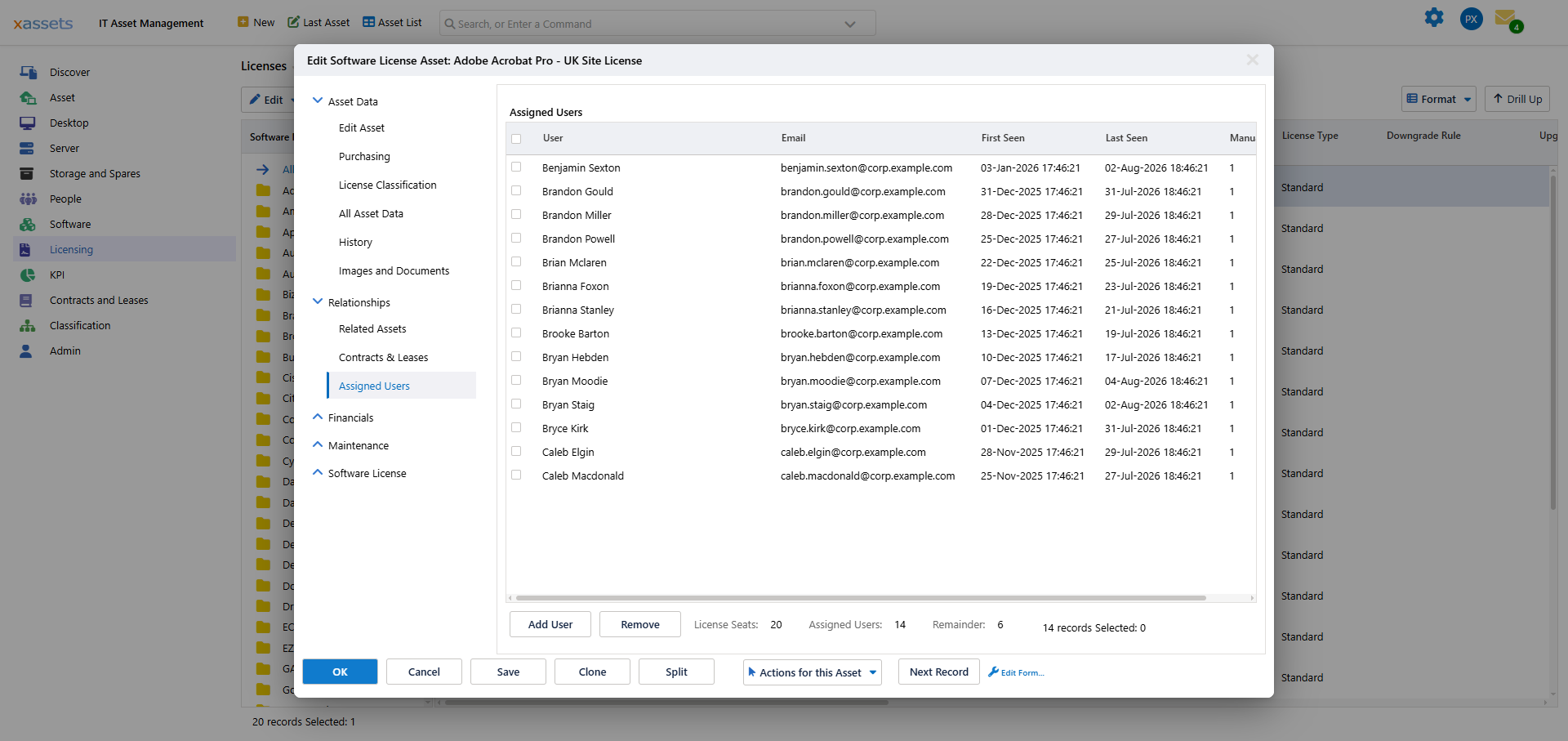
Each row is one person holding one seat:
| Column | Meaning |
|---|---|
| User | The person holding the seat |
| Their email address, as held on the person record | |
| First Seen | When the assignment first appeared |
| Last Seen | The most recent time it was confirmed |
| Manual | Set when the assignment was made by hand rather than by an import |
Beneath the list, three figures tell you where the license stands:
- License Seats — how many seats the license carries
- Assigned Users — how many are currently handed out
- Remainder — how many are left to give
A negative remainder means you have assigned more seats than you own. That is worth acting on before an audit rather than after one.
Assigning a Seat
Click Add User. The person picker opens with an A–Z index and a search box.
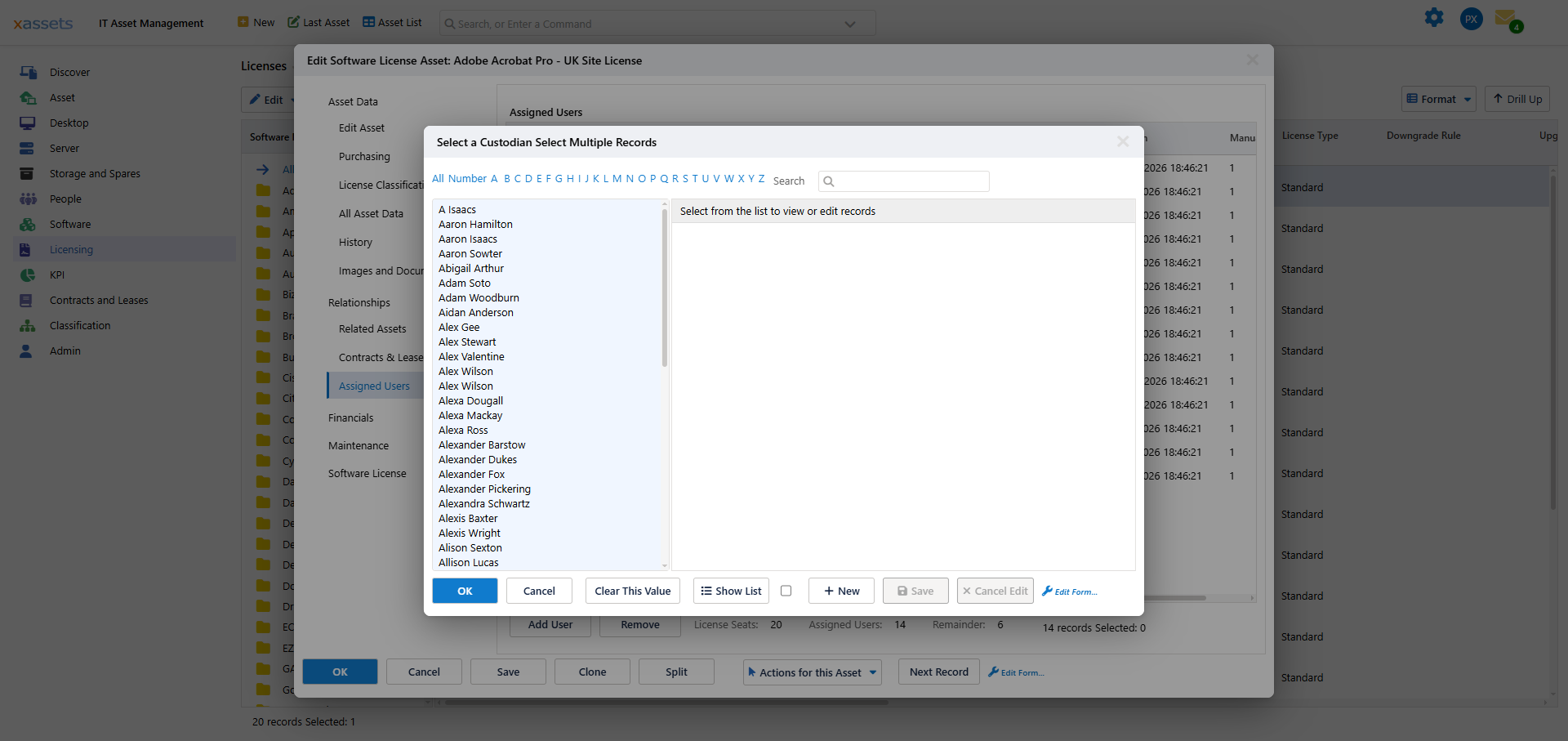
You can select several people at once — hold Ctrl and click each of them, then click OK. All the selected people are assigned in one pass, which is the quickest way to seat a team on a newly purchased license.
To take a seat back, tick the rows you want and click Remove.
Manual and Imported Assignments
Assignments arrive two ways, and the Manual column tells them apart.
Imported. The Azure License Import brings Microsoft 365 and other Entra subscription assignments in from your tenant and keeps them current, stamping First Seen and Last Seen on each pass.
Manual. Anything you add by hand, for licenses that have no live feed — perpetual licenses, licenses bought outside the cloud portals, or a seat you are holding for a new joiner.
The two do not fight. An import only tidies up the assignments it created itself, so a manual assignment is never removed by a subsequent import run. That means you can safely hand-manage a license that is partly fed from a vendor portal, but it also means a manual assignment will sit there indefinitely until somebody reviews it. Stale manual assignments are what the License Reclaim review is for.
When You Cannot See Assigned Users
Relationships → Assigned Users is the per-user view. For a per-device license the equivalent is Assigned Computers, in the same place, listing machines instead of people. Which one is meaningful depends on the license type set on the catalog entry — see License Metrics.
If a license you expect to be per-user is offering you Assigned Computers, the catalog entry's license type is the thing to check first.
Related Reading
- User Allocation — how the calculation allocates per-user licenses
- Azure License Import — where imported assignments come from
- License Reclaim — finding seats that should be handed back
- Direct Assignment — the per-device equivalent