Creating a New Audit
This page walks through the process of creating a new audit, including all the configuration fields that control how the audit behaves.
To create an audit, go to Barcoding > Create a New Audit, or click the 
The system first prompts you to select an Audit Type:
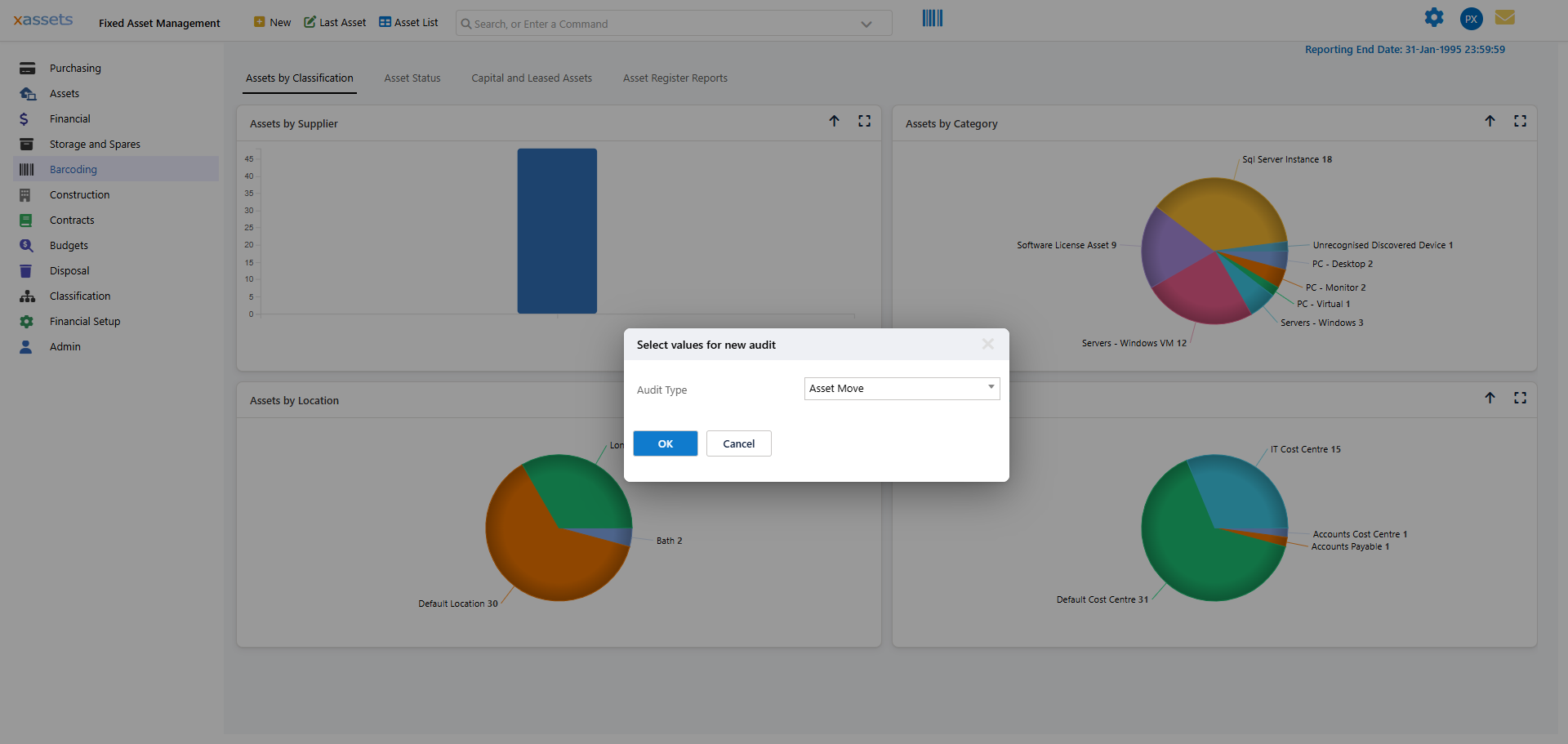
The New Asset Audit dialog is then displayed:
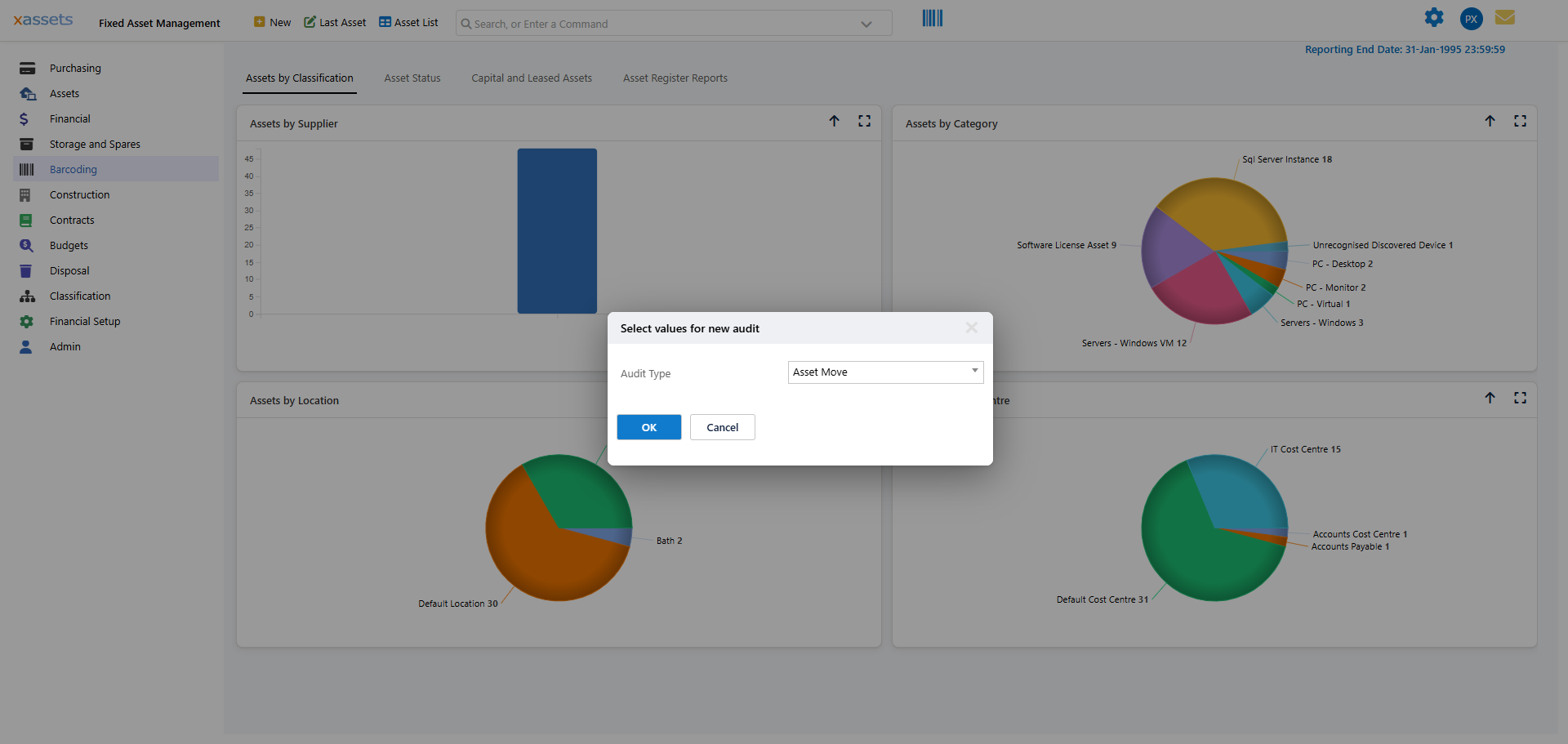
Audit Fields
ID -- Automatically assigned. Uniquely identifies the audit.
Audit Type -- Determines the form used during scanning. Select from the configured audit types.
Description -- A meaningful description so the audit's purpose is clear (e.g., "Q1 2026 Server Room Verification").
Start Date -- The scheduled date for the audit to begin. Can be used to trigger alerts.
Status -- Set automatically by the system. Cannot be changed manually.
| Status | Meaning |
|---|---|
| NEW | Created but not yet started. |
| INCOMPLETE | Scanning has begun but is not finished. |
| COMPLETE | All results have been accepted or rejected. |
| INACCEPTANCE | Scanning is finished; results are being reviewed. |
Grouping -- Controls how the audit form is applied:
- Individual Assets -- the form appears for each asset as it is scanned.
- Batched Assets -- the form appears once at the start, and its values apply to all scanned assets.
Individual Asset Form -- An additional per-asset form shown during scanning. Only applicable when Grouping is set to Batched Assets (since Individual Assets grouping already shows the audit type form per asset).
Selection Type -- Determines how expected assets are identified:
- Selected by Scanner -- no pre-defined list; any asset scanned is included.
- Selected by a Query -- a query defines the expected asset list.
- Selected by User (preselected) -- the user manually selects expected assets.
Important: When using "Selected by a Query" or "Selected by User", any expected assets that are not scanned will be flagged as "Missing" and set to Status Lost if the audit results are accepted. Double-check your expected asset list before accepting results to avoid accidentally marking assets as lost.
Selection Query -- When Selection Type is Selected by a Query, specify the query here. The query must be of type AUDIT SELECTION with a subject of Assets and must include the AssetID column. It can include additional columns and accept parameters. Click 
Selection Parameters -- If the Selection Query uses parameters, enter them here. Click 
Selected Assets -- When Selection Type is Selected by User (preselected), this field contains a comma-separated list of expected asset IDs. Click 
Blind Audit -- When enabled, the person conducting the audit does not see the list of expected assets or confirmation of scanned assets. Use this when you want an unbiased physical count.
Barcode Scanner -- The scanner to be used. This can be overridden when the audit begins.
Scanner User -- The person who will conduct the audit.
Notes -- Any notes about the audit.
Important: Once scanning has begun and assets have been recorded, all audit configuration fields are locked and cannot be changed.
Dialog Buttons




Related Articles
- Performing an Audit - Step-by-step guide to performing the audit after creation
- Reviewing the Results of an Audit - Analysing audit results and handling discrepancies
- Asset Audits Overview - Introduction to the asset audit process
- Asset Audit Forms - Forms used during the audit process
- Configuring Barcode Scanners and Audit Types - Setting up scanners and configuring audit types