Using a Barcode Scanner to Search
This page explains how to find asset records in xAssets by scanning a barcode. Two scanning paths are supported: a Keywedge (USB or Bluetooth) scanner for desktop use, and the device Camera for users on a phone, tablet, or laptop.
xAssets matches the scanned value against the Barcode and Serial Number fields on asset records. If a match is found, the asset is displayed in the search results. Both scanning paths share the same search behaviour, the same results page, and the same multi-barcode list mechanics -- only the input method differs.
Choosing Between the Two Paths
| You want... | Use... |
|---|---|
| To scan from a phone or tablet in the field | Camera |
| To use the device camera on a laptop | Camera |
| To use a USB or Bluetooth Keywedge scanner at a desk | Keywedge |
| To scan several barcodes in a row into one search (the accumulator dialog) | Keywedge |
Which path the search-bar barcode icon launches is controlled by the BarcodeInputMode system option. See Configuring the Barcode Input Mode below for setup.
Camera Barcode Search
When the BarcodeInputMode option is set to camera or auto (and the user is on a browser that supports camera access), tapping the barcode icon next to the search box opens a full-screen camera viewfinder. The user points the camera at the asset's barcode label; xAssets decodes the barcode in the browser, populates the search field, and runs the search.
To search by camera:
- Open xAssets on a phone, tablet or laptop. For best results, install xAssets to the home screen as an app (using your browser's "Add to Home Screen" or "Install App" option) -- this gives a larger viewfinder with no address bar. This is optional; the camera scan works in a normal browser tab too.
- Navigate to any page with a search box (e.g., the Home dashboard or an asset query).
- Tap the barcode icon to the right of the Search box.
- The camera viewfinder opens. Hold the device so the barcode sits inside the green rectangle.
- xAssets decodes the barcode automatically. The viewfinder closes, the search field is populated with the decoded value, and the matching asset is displayed.
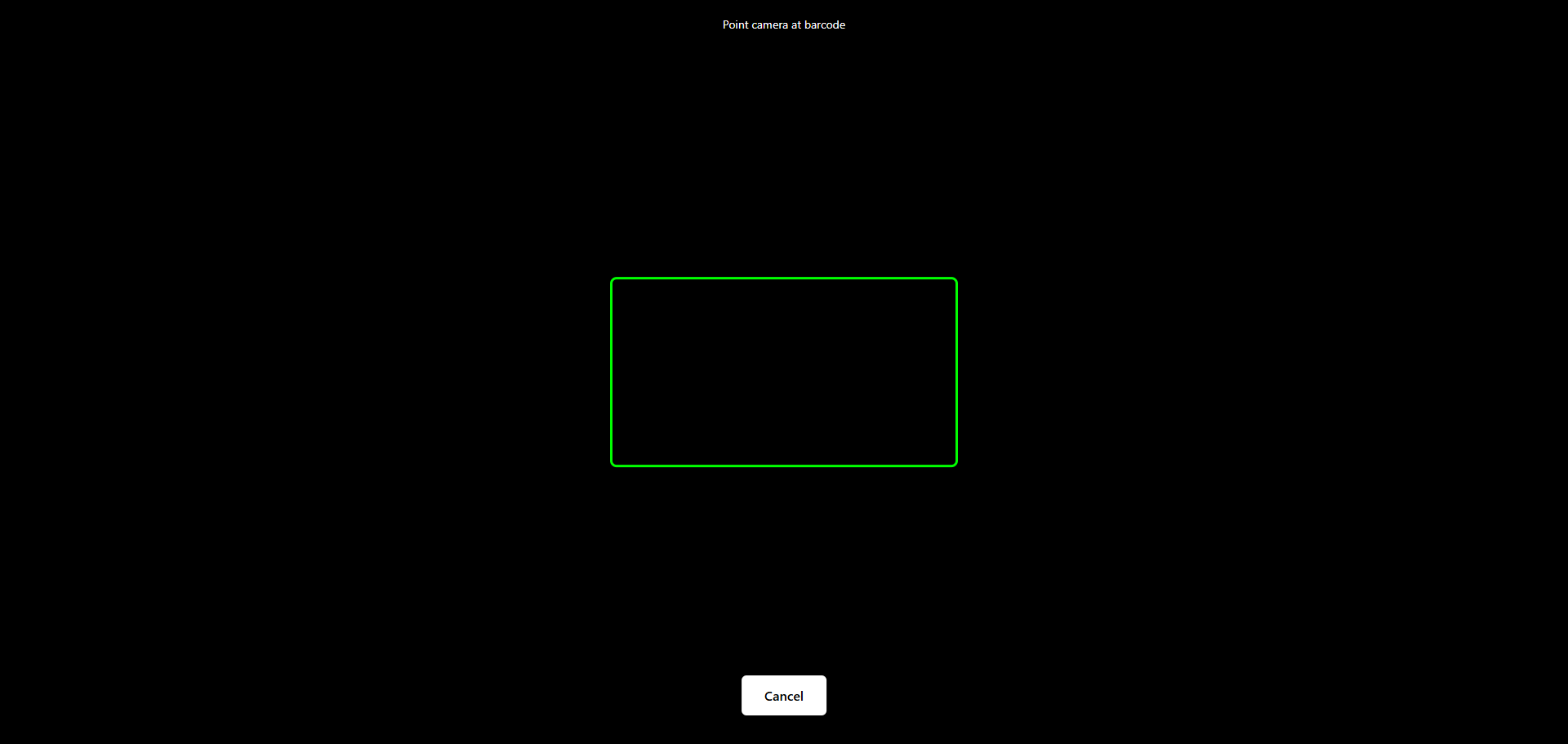
The camera flow supports the same barcode formats as a Keywedge scanner (CODE128, CODE39, EAN-13, EAN-8, UPC-A, UPC-E, ITF, Codabar) plus 2D codes (QR, Data Matrix, PDF417). Chrome and Edge (desktop or Android) use the browser's built-in barcode decoder; Safari (iPhone, iPad, macOS) and Firefox do not have a built-in decoder, so xAssets loads a small in-browser decoder library the first time you scan on those browsers.
Tip: On a phone with a flashlight-capable camera, a torch icon appears in the top-right of the viewfinder. Use it for scanning in dim warehouses or under desks.
Multi-Barcode Camera Scanning
To scan several barcodes in succession with the camera:
- Tap the barcode icon, scan the first barcode -- the search updates.
- Tap the barcode icon again, scan the second barcode -- the new value is appended (comma-separated) to the existing search.
- Repeat for each additional barcode.
Each tap of the icon opens the camera, decodes one barcode, then closes. The accumulated comma-separated list in the search box matches all the scanned assets.
Keywedge Barcode Search
When the BarcodeInputMode option is set to dialog (the default after upgrade), or when the user is on a browser without camera access, the keywedge flow is used. A Keywedge barcode scanner provides the fastest way to look up asset records from a desktop -- scan a barcode from any page that has a search box, and the scanner types the barcode into the search field and presses Enter automatically.
Single Barcode Keywedge Search
- Navigate to any page with a search box (e.g., the Home dashboard or an asset query).
- Click in the Search box to give it focus.
- Scan the asset's barcode.
- The scanner types the barcode characters into the search box and presses Enter.
- The matching asset record is displayed in the results.
Example
With a Keywedge scanner connected and the Search box focused, scanning an asset barcode (e.g., 00615741) types the value into the Search box and triggers a search, displaying the matching asset record:

Multi-Barcode Keywedge Search
You can scan multiple barcodes in succession. Each additional scan appends a comma and the new barcode to the search field, and the results update to show all matching assets:

This is useful when you need to find and act on several specific assets at once -- for example, selecting assets for a bulk edit or transfer.
For the dedicated multi-scan accumulator, tap the barcode icon next to the search box while in keywedge mode. This opens the Barcode Search dialog, which collects scanned barcodes one-by-one, shows a running "Scanned Barcodes" count, and updates the search results in the background as you scan. Click Close on the dialog when you are done scanning to review the results. See the Keywedge Barcode Scanner Guide for details.
Tip: Keywedge search works in any dialog that has a search box for assets -- not just the main dashboard.
Configuring the Barcode Input Mode
The BarcodeInputMode system option determines what happens when the user taps the barcode icon next to the search box. The option is created automatically during upgrade with a default value of dialog -- existing keywedge workflows are preserved unchanged. Implementers change the value to auto or camera for installations where users will scan from a phone or laptop camera.
| Value | Behaviour |
|---|---|
dialog (default) |
Opens the keywedge accumulator dialog. Camera is not used even if the device supports it. |
auto |
Opens the camera viewfinder if the browser supports camera access. Falls back to the keywedge dialog otherwise. |
camera |
Opens the camera viewfinder. Falls back to the keywedge dialog if the browser does not support camera access. |
To change the option:
- Go to Admin > Settings.
- Search for BarcodeInputMode.
- Change the dropdown to your preferred mode.
If the option does not exist (e.g. on an installation that has not yet run the 7.2 upgrade script), xAssets behaves as if the value were dialog.
Troubleshooting
| Problem | Cause | Solution |
|---|---|---|
| Barcode icon opens the dialog instead of the camera | BarcodeInputMode is set to dialog, or the browser does not have camera access |
Set BarcodeInputMode to auto or camera. Verify the site is served over HTTPS. |
| Camera viewfinder opens but never decodes | Camera cannot focus on the barcode | Hold the device closer or further from the label until the barcode appears sharp. On phones with autofocus, tap the screen to refocus. |
| Camera button is missing on iOS | Camera permission not granted, or the site is on plain HTTP | Re-install the xAssets app from Safari, or open Settings > Safari > Camera and grant access. xAssets must be served over HTTPS. |
| Keywedge characters appear but search does not trigger | Scanner not sending Carriage Return | Reconfigure the scanner to send Enter as suffix. |
| No results found | Barcode value does not match any Barcode or Serial Number field | Verify the barcode value against the asset record. |
| Keywedge data appears in wrong field | Search box did not have focus | Click in the search box before scanning. |
For the dedicated multi-scan accumulator dialog and stored-list workflows, see the Keywedge Barcode Scanner Guide.
Related Articles
- Barcoding Overview - Introduction to the barcoding module
- Barcode Identification - Identifying assets using barcodes
- Library Check Out and Check In - Library asset check-out and check-in using barcodes
- Finding Assets - Finding assets using the search interface