Library Check Out and Check In
The Library Check Out/Check In feature lets you loan assets to custodians for temporary periods using a Keywedge barcode scanner. This is ideal for equipment pools, tool cribs, or any scenario where assets are issued and returned regularly.
Navigate to Barcoding > Check in and out > Bulk Asset Check Out or Check In to open the Library Check In/Out dialog.
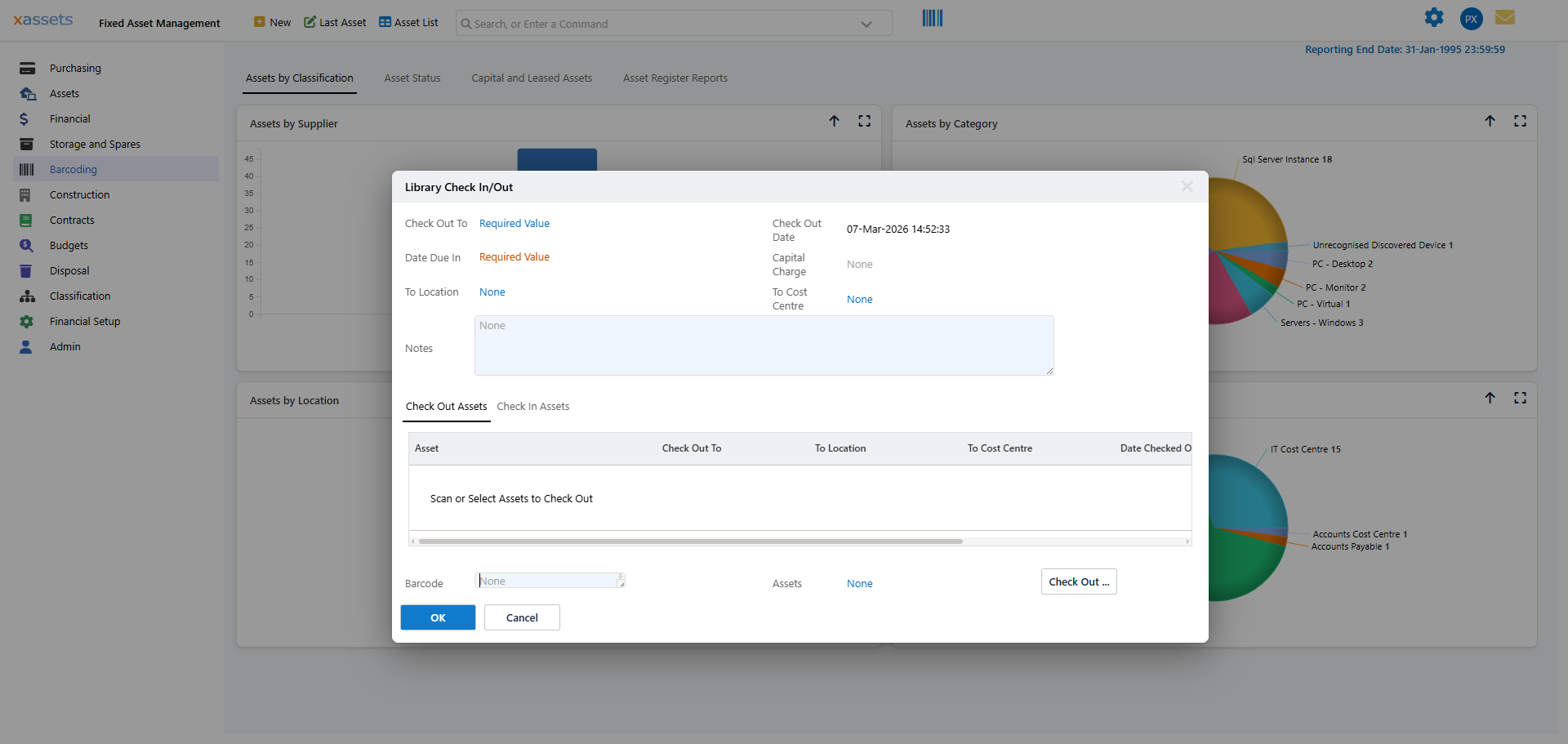
The dialog opens on the Check Out Assets tab. Switch to the Check In Assets tab to return assets that are currently checked out. The cursor starts in the Barcode field, ready for scanning.
Check Out
The Check Out tab lets you loan one or more assets to a custodian. Assets can be selected by scanning their barcodes or by using the Assets dot-lookup field. Only assets that are not currently checked out can be selected.
Important: You can check out multiple assets at once, but only to a single custodian per transaction. The assets are not checked out until you click Check Out... or OK.
Check Out Fields
| Field | Description |
|---|---|
| Check Out To | The custodian receiving the assets. Select via dot-lookup or scan the custodian's barcode. |
| Check Out Date | Defaults to today. Change if backdating is needed. |
| Date Due In | When the assets are expected to be returned. |
| Capital Charge | Optional per-asset charge in the default currency. Can be confirmed or adjusted at check-in. |
| To Location | Where the assets will be kept during the loan. Can be set by scanning a location barcode. |
| To Cost Centre | The cost centre for the capital charge. Can be set by scanning a cost centre barcode. |
| Notes | Any comments about the check-out. |
Check Out Example
A librarian scans the custodian's barcode from a badge or printed sheet, then scans each asset being loaned out. After entering the Date Due In, they click Check Out to complete the transaction. The dialog remains open for the next custodian, enabling rapid processing of a queue.
Check In
The Check In tab lets you return assets that are currently checked out.
As with check-out, assets can be selected by scanning barcodes or using the Assets dot-lookup field. Only assets that are currently checked out can be checked in. The check-in is not processed until you click Check In... or OK.
Note: You can check in assets from different custodians in a single session, but the check-in date and charges apply to all assets processed at that time.
Check In Fields
| Field | Description |
|---|---|
| Checked Out To | Select a custodian (by dot-lookup or barcode scan) to see all assets currently checked out to them. Useful for verifying what a custodian has on loan. Use the Clear button to reset the filter and see assets checked out to any custodian. |
| Checked Out | The check-out date. For multiple assets with different dates, the earliest date is shown; individual dates appear in the asset list below. |
| Date Due In | The date the assets were due back. For multiple assets, the earliest date is shown. |
| Location | The location(s) the assets were assigned to during the loan. |
| CostCentre | The cost centre associated with the checked-out assets. |
| Actual Date In | The date the assets are being returned. |
| Capital Charge | Per-asset charge for the loan period. Applied to all assets in this check-in. |
| Notes | Comments about the check-in. |
Asset List Options
Below the list of assets selected for check-in, three buttons let you refine the selection:
- Remove Selected Assets -- removes highlighted assets from the check-in.
- Retain Selected Assets Only -- keeps only the highlighted assets; removes all others.
- Set Values for Selected Assets -- sets the capital charge and notes for specific assets. When set, these values override the form-level values above.
Check In Example
A librarian scans a custodian's barcode to see all assets on loan to that person. If the custodian is only returning some items, the librarian deselects the ones being kept and clicks Check In for the returned items. Alternatively, the librarian can scan each returned asset individually without needing to scan the custodian barcode first.
Related Articles
- Barcoding Overview - Introduction to the barcoding module
- Using a Barcode Scanner to Search - Searching for assets using a barcode scanner
- Barcode Scanner Types - Types of barcode scanners supported
- Asset Audits Overview - Introduction to the asset audit process