Finding Assets
The quickest way to locate an asset is the Search, or Enter a Command box in the toolbar. Type any text -- a location name, user name, computer name, or asset description -- and matching records appear. For anything more precise than a text match, the same box opens Advanced Search, a full query builder with its own conditions, columns and sort order. This page covers both, plus the tree panel and dashboard queries as alternative ways to find assets.
Instant Search
Click into the Search box in the toolbar and type a value:
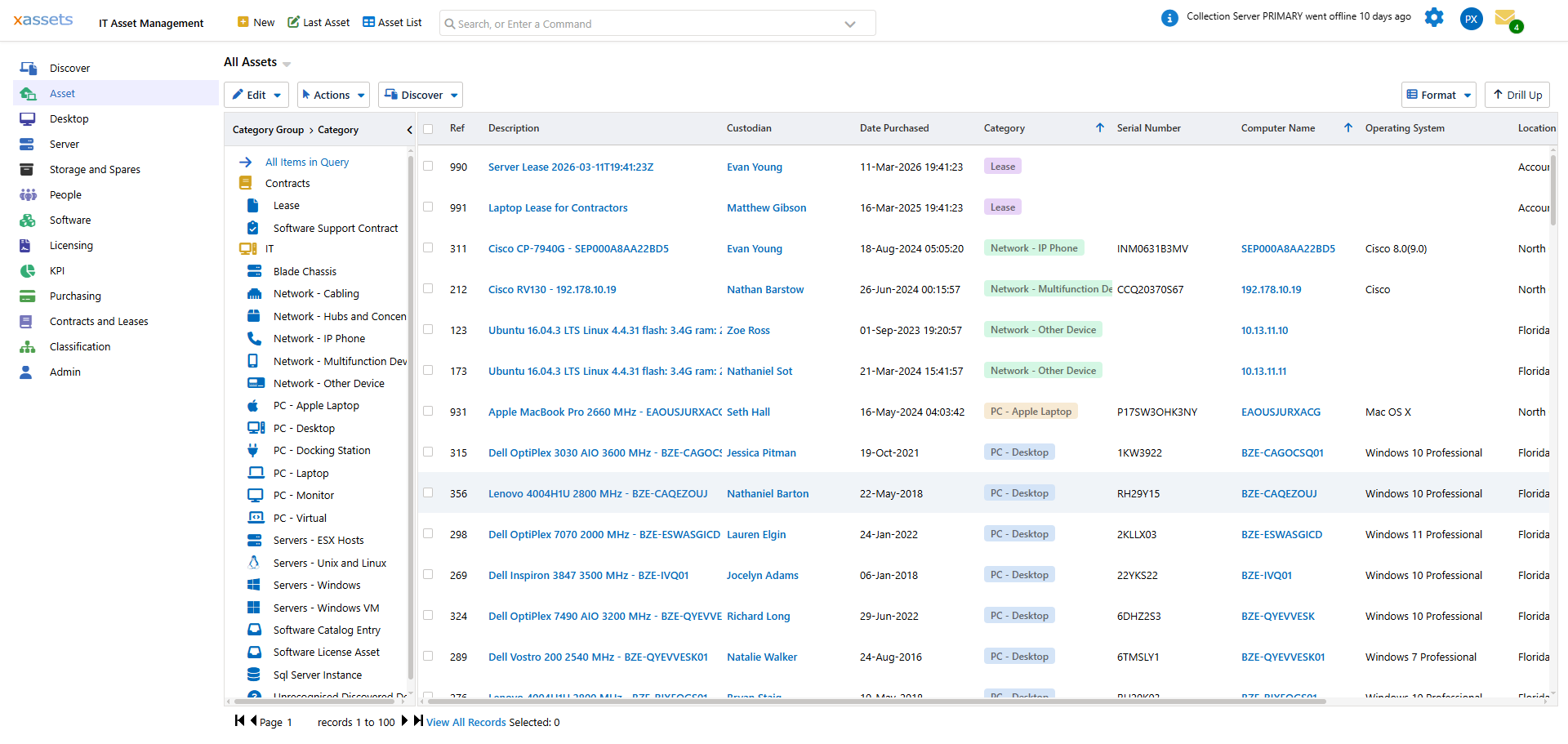
Focusing the box (before you type anything) shows a hint of what it accepts:
Enter a command or query, or a value to search for. Optionally use an XQL expression such as
Custodian like Smith AND Description Like Dell, orBarcode in 00713456, 00713457.
So the box works three ways:
- Plain text -- matched against whatever fields the current search query covers (by default the asset description, category, location, custodian, and computer name).
- An XQL expression -- e.g.
Custodian like Smith AND Description Like Dell, orBarcode in 00713456, 00713457for a multi-value lookup. - A command -- menu and action names can be typed directly into the box to jump straight to them.
The default search runs against a query the system keeps for this purpose, which administrators can edit to include additional fields. If a field is not included in that query, it will not be matched. Custom search queries can be created to cover additional fields such as serial number, IP address, or custom specification data.
Tip: If you know the exact asset reference number, type it into the search box for the fastest result. Reference numbers are unique and return a single match.
Switching Search Type
Click the dropdown arrow at the right of the search box (or click into the box) to see the list of search types and the Advanced Search link:
The search types offered are:
| Search Type | What It Searches |
|---|---|
| Assets | General asset search across description, category, location, and custodian (default) |
| Tasks | Search open tasks |
| Custodians | Search the custodian (user) list by name |
| Locations | Search the location hierarchy by name |
| IP, MAC and Computer Name | Search by IP address, MAC address, or computer name -- useful for network troubleshooting |
| Queries and Reports | Search saved queries, transformations, menu items and reports -- useful for administrators |
| Help Topics | Search xAssets documentation |
Advanced Search
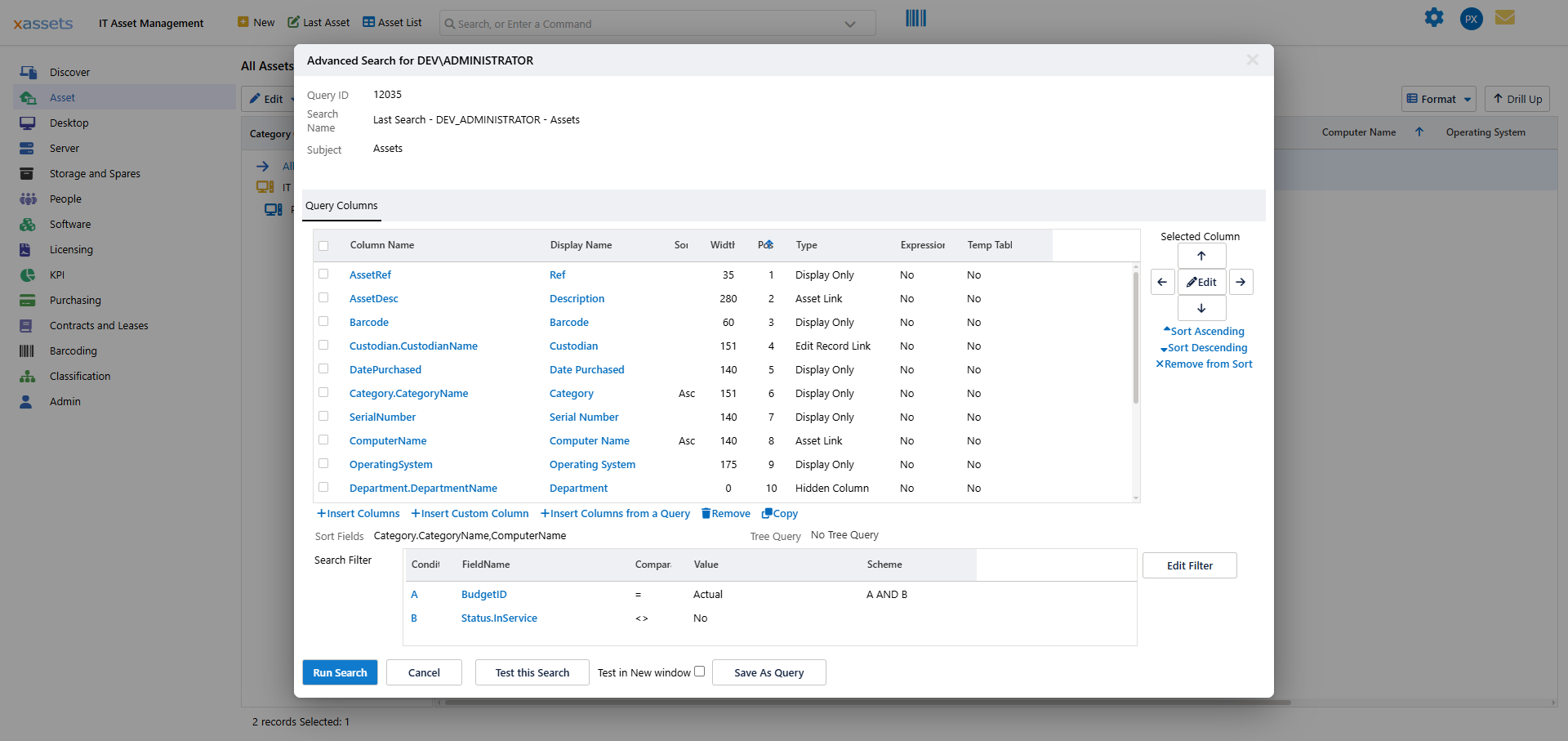
Choosing Advanced Search opens a dialog titled "Advanced Search for <your username>" for the current search. It has:
- Query Columns -- the grid of columns the search results will display, each with its display name, width, position, type and any expression. Use Insert Columns, Insert Custom Column, or Insert Columns from a Query to add more, and the Selected Column panel on the right to reorder or edit one.
- Sort Fields -- the columns results are ordered by.
- Search Filter -- the list of conditions (labelled A, B, C...) combined with AND/OR logic. Click Edit Filter to open the Search Conditions dialog and add, edit, or remove conditions against any field, with a comparison operator (
=,<>,like, and so on) and a value.
At the bottom of the dialog: Run Search applies the filter to the current view, Test this Search or Test in New Window preview the results without leaving the dialog, and Save As Query stores the whole thing (columns, sort, and filter) as a reusable named query that appears alongside the other search types.
Tree Navigation
You can also find assets using the tree panel on the left side of the screen. Click any node in the tree to display all assets belonging to that node and its sub-nodes:
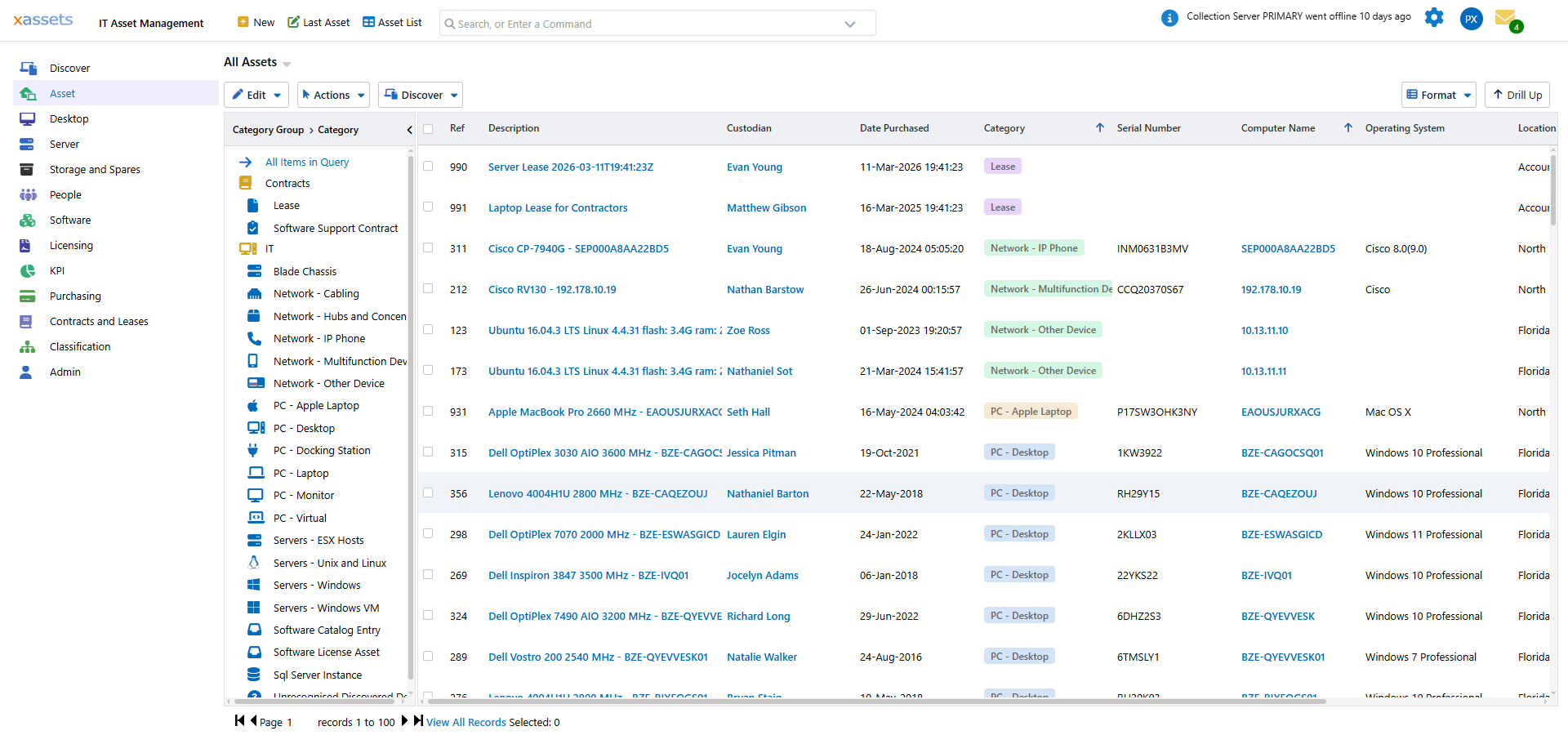
In the above example, "PC - Desktop" was clicked in the tree, and all assets in that Category are displayed in the central results area.
The tree can be configured to show different hierarchies:
- Category tree -- groups assets by type (the default)
- Location tree -- groups assets by physical location
- Department tree -- groups assets by organisational department
- Cost Centre tree -- groups assets by financial cost centre
The tree hierarchy depends on the query you are currently viewing. Different queries use different trees.
Using Dashboard Queries
The Asset Inventory Dashboard and its tabs provide pre-built queries that are another way to find specific groups of assets:
- Inventory Queries tab -- queries grouped by Classification, Hardware, and Software attributes
- Asset Health tab -- assets with health issues
- Disposal and Obsolescence tab -- disposed assets and assets approaching end of life
- Additions and Changes tab -- recently added or modified assets
See Asset Inventory Overview for details on the dashboard and its tabs.
Tip: Combine search with tree navigation for the most efficient workflow. First use the tree to narrow to a category or location, then use the search box to find a specific asset within that group.
Tip: If you frequently search for the same type of information, ask your administrator to create a custom search query. Custom searches can match against any combination of asset fields, including custom specification data.
Related Articles
- Search Results - understanding the results screen layout and controls
- Selecting Assets - selecting records from the results for further actions
- Editing Assets - opening an asset for viewing or editing
- Asset Inventory Overview - dashboard queries and charts