Editing Assets
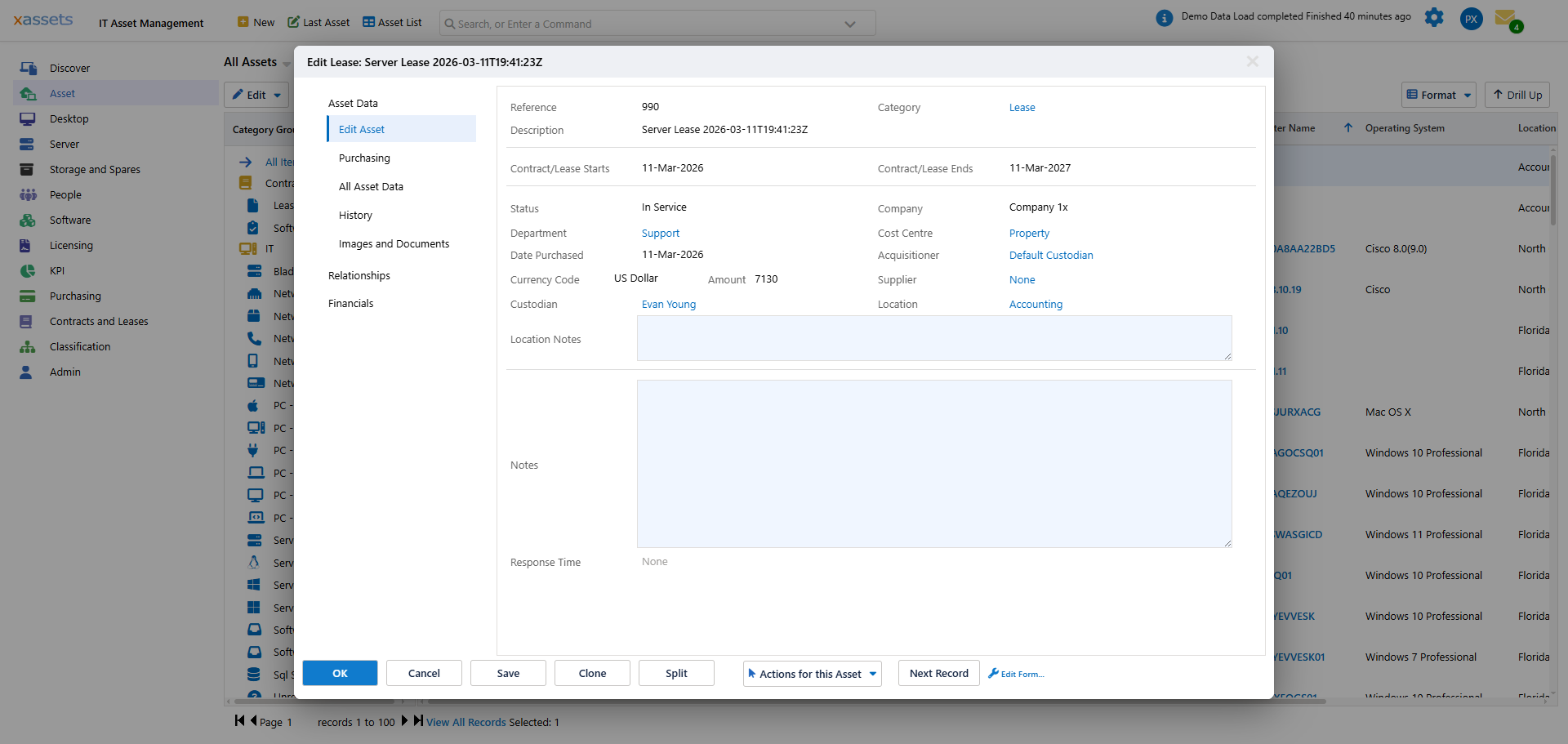
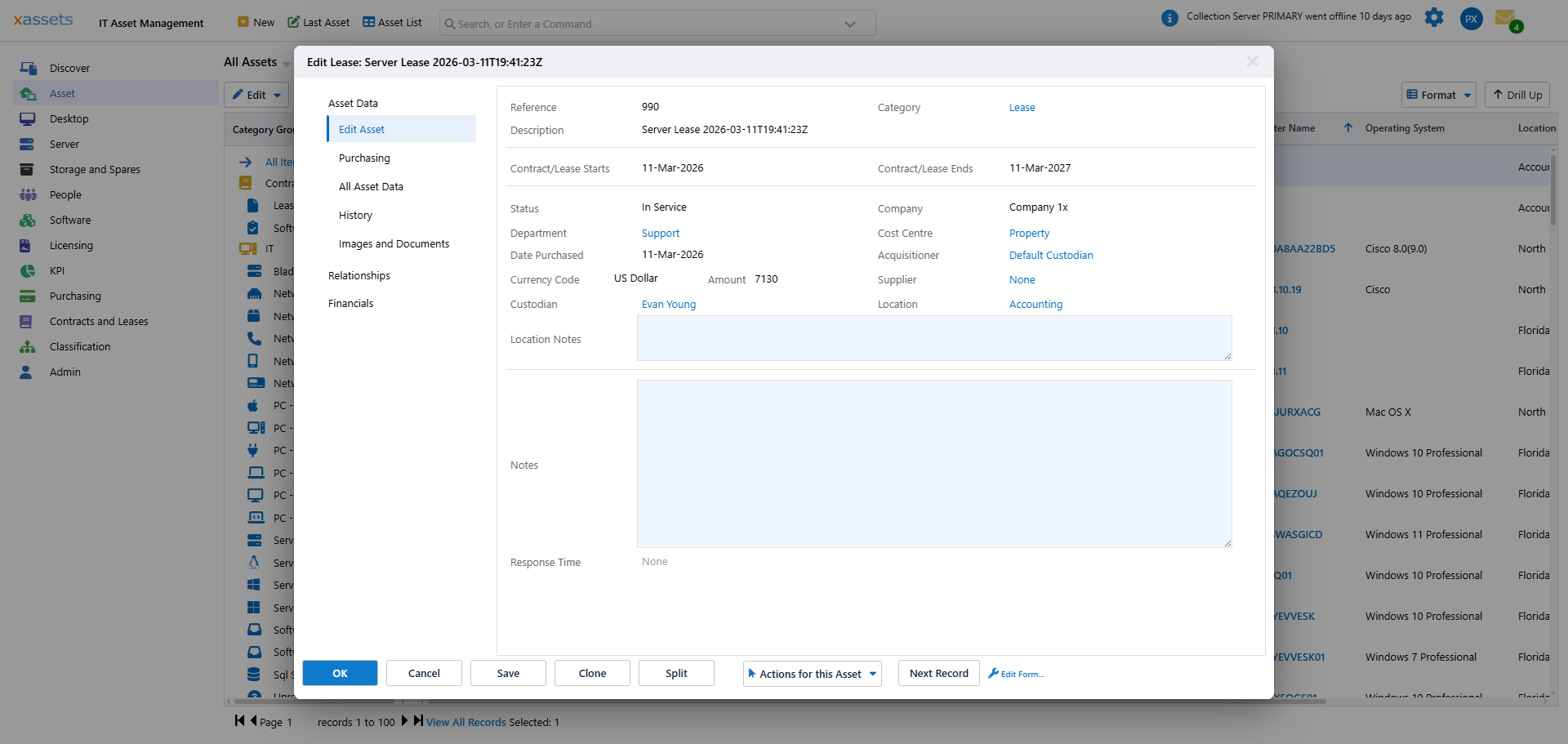
The asset editing screen is where you view and modify all data held against an asset. It opens as a dialog over the current grid, and the fields shown vary by asset category -- a desktop PC shows computer hardware fields, while a lease or contract shows lease dates and financial fields instead. This page covers the editing controls, the left-hand navigation tabs, and how to change lookup and reference-data fields.
Opening an Asset
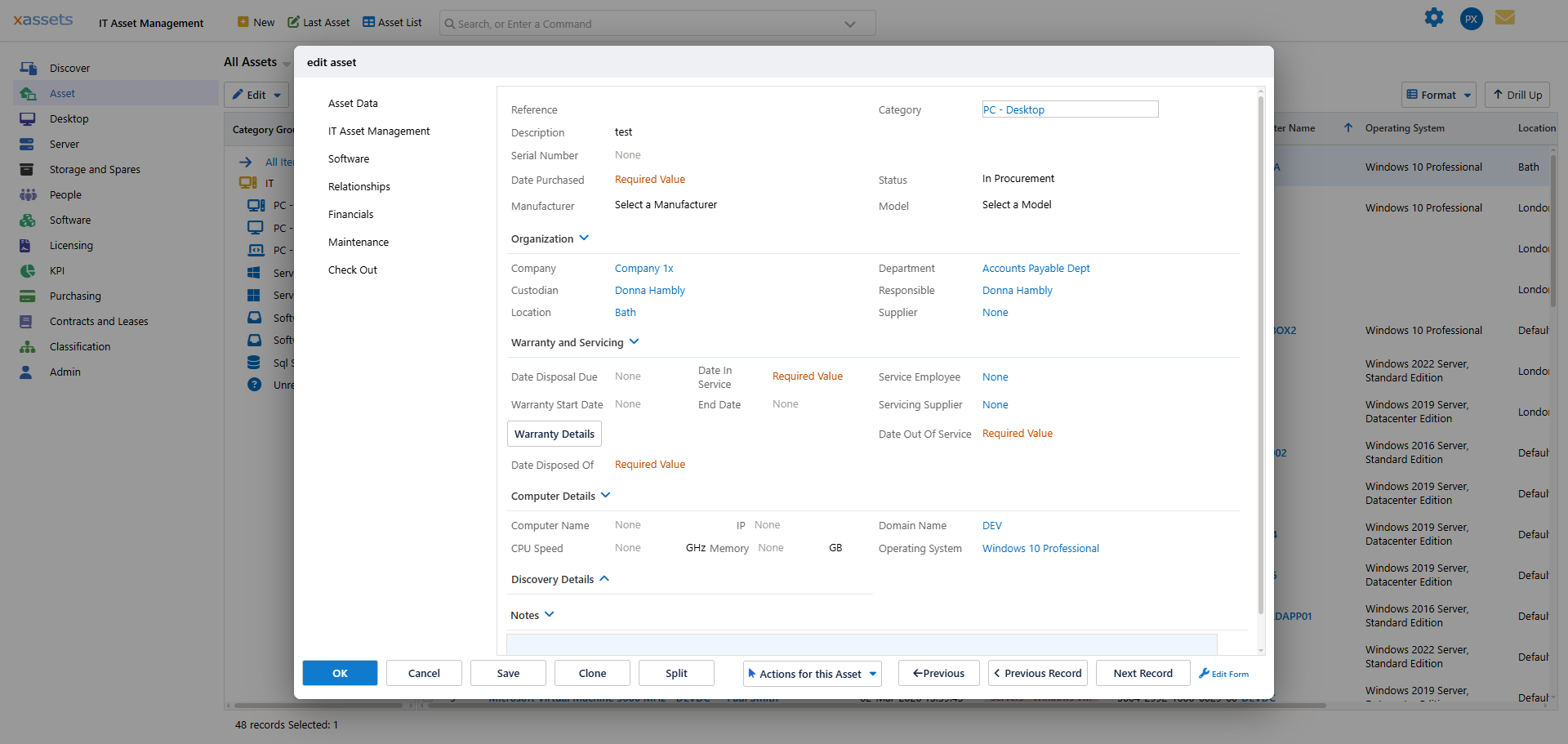
From the Asset List (or any other asset grid), click the blue description link on a row to open the editing dialog:
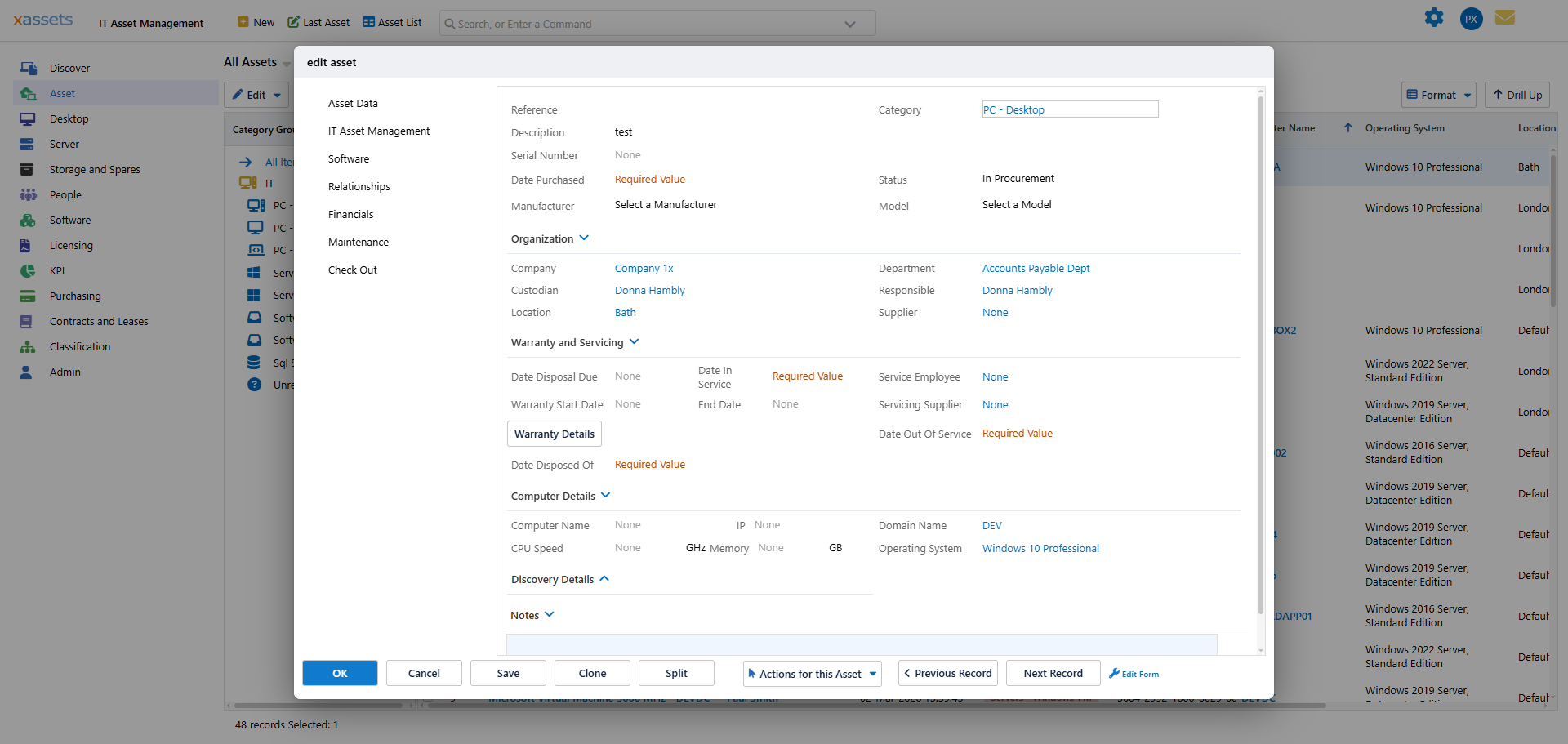
The dialog opens on the Edit Asset tab, showing the core fields: Reference, Description, Serial Number, Barcode, Category, Status, Manufacturer and Model at the top, followed by Organization details (Company, Custodian, Department, Location, Responsible, Supplier), Warranty and Servicing dates, category-specific details (for example Computer Details on a PC), Discovery Details, and a free-text Notes box.
Editing and Saving
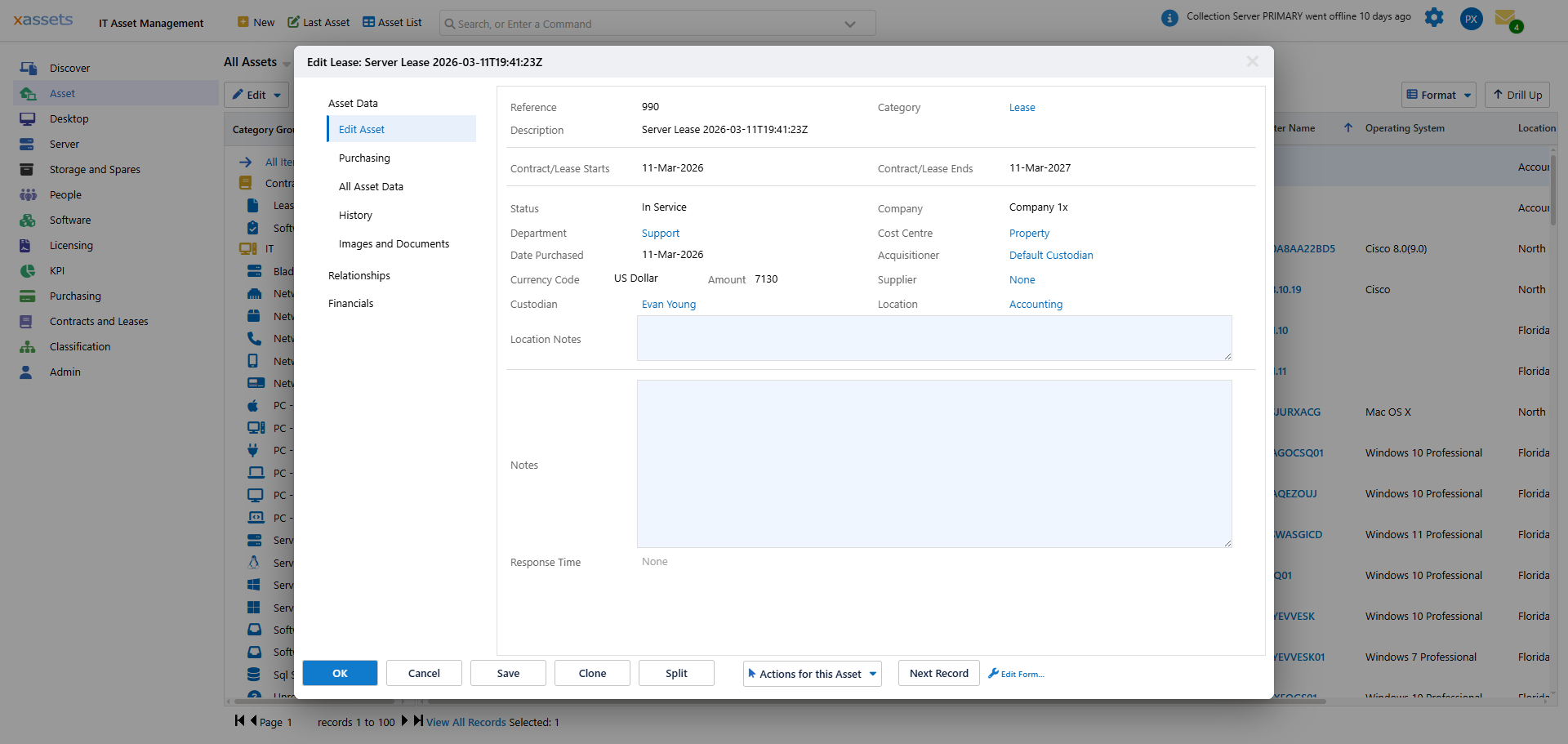
Make the necessary changes and click OK to save and close the dialog, or Save to save and keep it open. Cancel discards any unsaved changes on the current tab and closes the dialog.
You can also click any tab on the left side of the screen to jump straight to it -- the tab list is grouped under headings such as Asset Data, IT Asset Management, Software, Relationships, Financials, Maintenance and Check Out (the exact groups shown depend on the asset's category).
Tip: Switching tabs saves the changes you made on the tab you are leaving, so you do not need to click OK before moving to another tab. Click OK (or close the dialog) when you are completely finished, so the grid behind it refreshes with your changes.
Asset Actions
Click Actions for this Asset (bottom toolbar of the dialog) to access additional operations for the currently open record:
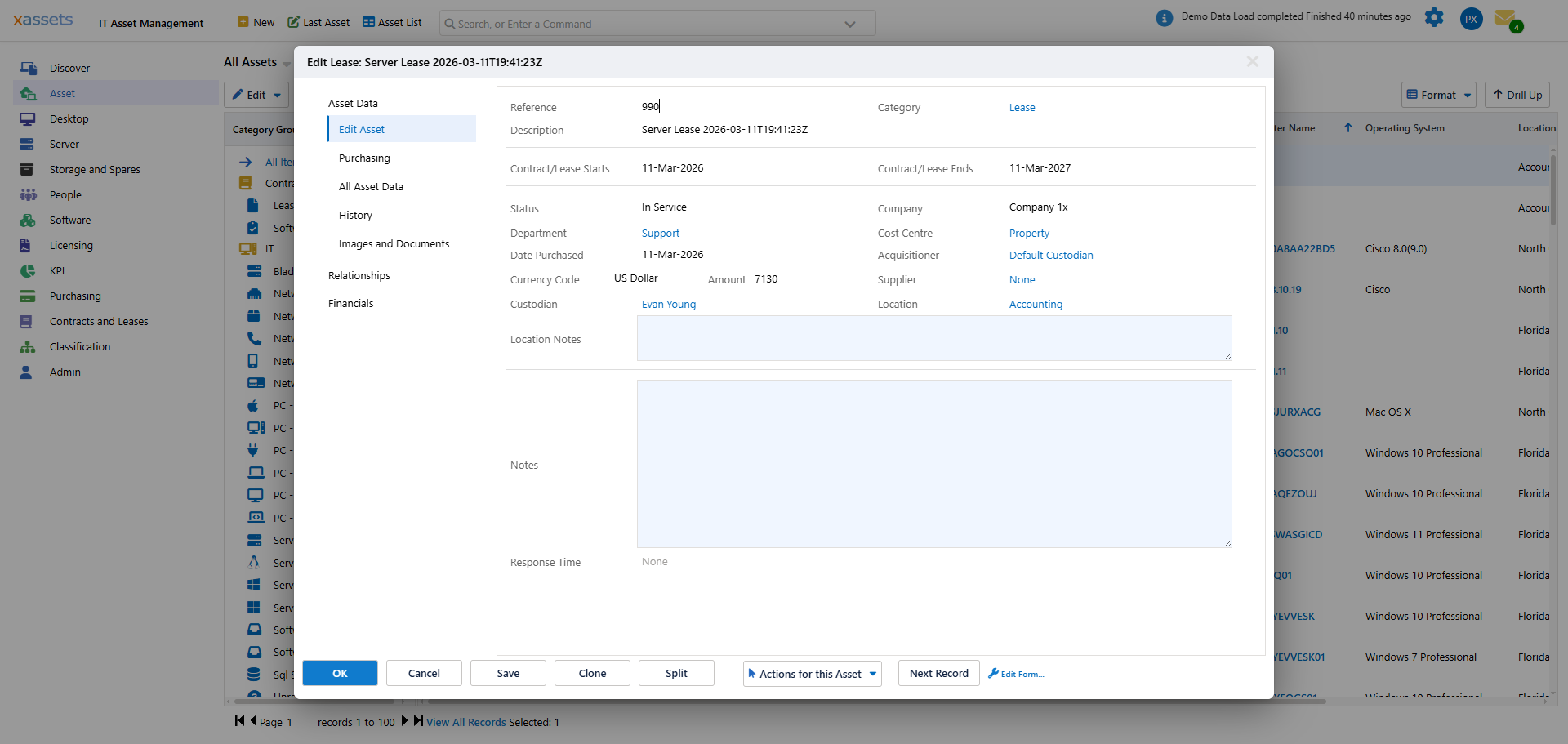
The actions offered depend on the asset's category and current status, and typically include:
| Action | What It Does |
|---|---|
| Dispose of or Delete this Asset | Mark the asset as disposed (sold, lost, stolen) or remove it entirely. See Disposal. |
| Transfer this Asset | Move the asset to a different location, department, or company. See Transfers. |
| Open the Purchase Order for this Asset | Jump to the purchase order this asset was received against, if it was created from Purchasing. |
| Clone This Asset | Create a new asset with the same field values. See Creating Asset Records. |
| Split This Asset | Divide a multi-quantity asset into separate records. See Creating Asset Records. |
| New Incident for This Asset | Log a Service Desk incident against this asset (only shown when the Help Desk module is enabled). |
Tabs and Category-Specific Data
Discovery and manual entry between them populate many attributes per asset, and some are multi-valued (installed software, memory modules, network adapters, and so on). These are organised into tabs down the left side of the dialog, grouped under headings:
- Asset Data -- Edit Asset (core fields), Purchasing, All Asset Data, History, Images and Documents
- IT Asset Management (computers/servers) -- Operating System, Hardware, Device Manager, Firewall, CPU, Memory, Disk, Network, Printers
- Software -- installed software and licensing information for this asset
- Relationships -- parent-child links to other assets
- Financials -- purchase cost, net book value, depreciation
- Maintenance -- service and warranty records
- Check Out -- check-out/check-in status for loanable assets
The Hardware tab (under IT Asset Management) is a good example of the detail captured for a computer -- Manufacturer, Model, Screen Resolution, Video Card, Motherboard details, CPU/BIOS information and disk sizing:
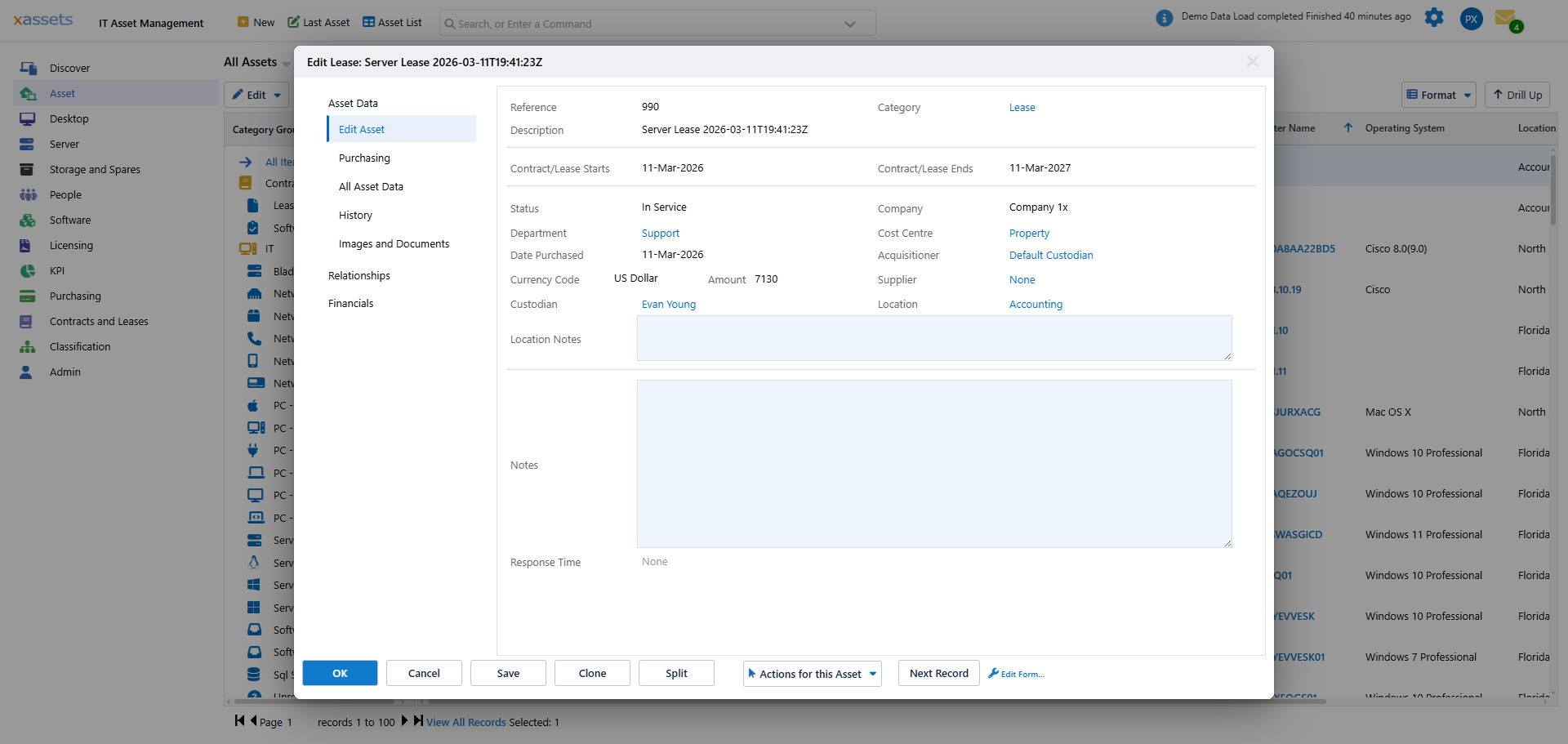
Non-computer categories (leases, contracts, spares) show a shorter, category-appropriate set of groups instead of IT Asset Management.
Administrators can configure forms to add or remove fields, and create additional tabs to suit the installation. See the Configuration Guide for details.
Editing Lookup and Classification Fields
Reference data fields (Company, Custodian, Department, Location, Manufacturer, and so on) use lookup dialogs rather than free text. To change one:
- Click the blue link next to the field name, on the Edit Asset tab or any other tab that shows the field:
- A "Find a ..." dialog opens (titled for the field, e.g. "Find a Custodian"), with a search box, a grid of matching values, and a Selected panel underneath showing your current choice:
- Type in the search box to filter, tick the checkbox next to a value in the top grid to select it (it then also appears in the Selected panel), and click OK to apply it to the field.
To create a new value from within the lookup dialog, click the New... button (e.g., "New Custodian...", "New Location..."). This opens a New Record dialog for that reference type, with required fields marked accordingly:
Fill in the required fields (shown in red/orange until set) and click OK to save the new record and select it -- this lets you add reference data without leaving the asset editing screen.
Tip: Dropdown fields (as opposed to lookup fields) display their options directly in a select list -- click the dropdown to see the available values and select one. Dropdowns are used for fields with a small, fixed set of values (e.g., Status).
Tip: A field showing "Select a ..." or a plain unlinked value has no value set yet. Once you assign one via the lookup dialog it becomes a clickable blue link, letting you jump to or change that record.
Related Articles
- Finding Assets - locating assets to edit
- Creating Asset Records - creating new asset records
- Bulk Update - editing multiple assets at once
- Attaching Images and Documents - attaching files to assets
- Parent Child Relationships - the Related Assets tab