Disposal
When an asset is sold, lost, stolen, or otherwise retired from service, use the disposal process to update its status. Disposal preserves the asset record and its full history while removing it from active queries and reports, and it is not permanent -- a disposed asset can be restored with the Un-Dispose function. This page explains the disposal process, its effects, and related features.
What Disposal Does
- Changes the asset status to a value that is not "in existence" (e.g., Sold, Lost, Stolen, Written off or Scrapped)
- Sets the Date Disposed Of field
- Posts financial transactions to write off the asset's current Net Book Value (if financial tracking is configured)
- If depreciation is configured, future runs will apply any outstanding depreciation up to the disposal date
- Removes the asset from most standard queries and reports -- disposed assets have their own separate queries and can be restored at any time
Disposal is not a one-way trip: the asset record and its complete history remain in the database, and you can bring an asset back into active service later using Un-Dispose. Only the separate "Permanently Delete" option removes a record for good.
Disposing of Assets
- Select one or more assets in any results grid (tick their row checkboxes). See Selecting Assets.
- Open the Actions menu on the toolbar and choose Dispose of or Delete Assets:
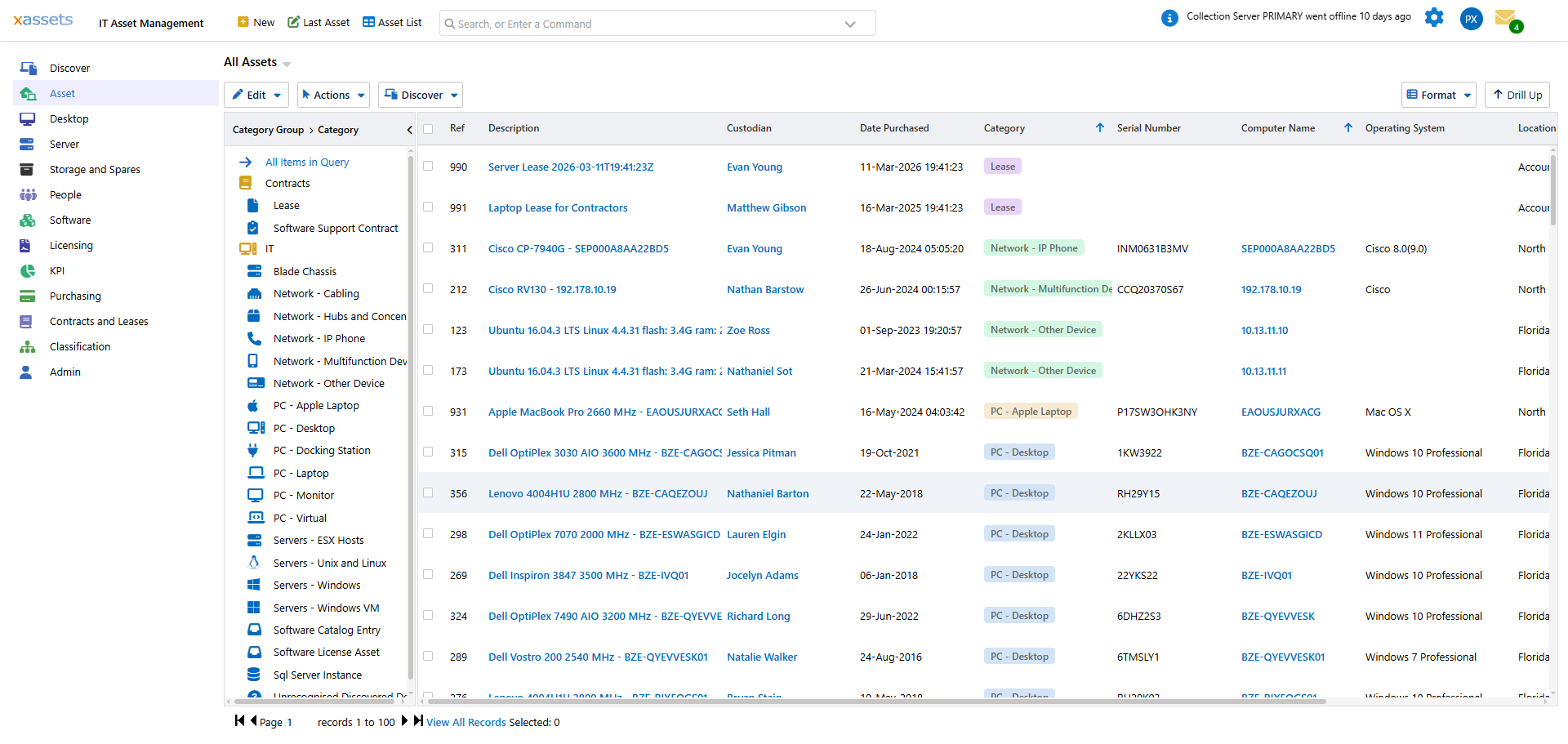
- The disposal dialog opens -- titled Dispose of Asset: <name> for a single asset, or Bulk Disposal of N Assets when multiple rows are selected. It has the following fields:
| Field | Description |
|---|---|
| Set Status To | The status to apply, e.g. Sold, Lost, Stolen, Written off or Scrapped, Returned to Supplier. The list shows every status not flagged as "in existence", so it may also include other workflow statuses your organisation uses. |
| Date Disposed Of | The date the asset was or will be disposed of. Defaults to the current date and time. |
| Permanently Delete this asset | Administrators only -- permanently removes the record from the database instead of just changing its status. See Deleting Assets. |
| Use Batch Process | Queue the disposal as a batch job. Useful when disposing of a large number of assets to avoid tying up the interface. |

- Select the appropriate status and date, then click OK to run the disposal (or Cancel to back out without changing anything).
Important: "Permanently Delete this asset" is irreversible and removes the asset record entirely, including its history. In most cases, use a disposal status (Sold, Lost, Stolen, etc.) instead -- this retains the full audit trail, can be undone with Un-Dispose, and still removes the asset from active queries. See Deleting Assets for details.
Disposals and Permanent Deletions also apply to child assets in a Parent/Child relationship, where that relationship has "Moves With Parent" selected.
Choosing the Right Disposal Status
| Status | When to Use |
|---|---|
| Sold | The asset was sold to a third party |
| Lost | The asset cannot be located |
| Stolen | The asset was stolen (may require additional incident reporting) |
| Written off or Scrapped | The asset was physically destroyed or recycled |
| Returned to Supplier | The asset was returned under warranty or lease agreement |
Your administrator may have configured additional disposal-type statuses for your organisation, and the Set Status To list will include those too.
Disposal Dashboard
Disposal can also be reviewed from the Disposal and Obsolescense tab on the Asset Inventory Dashboard. Go to Asset > Asset Inventory Dashboard, then select the Disposal and Obsolescense tab:
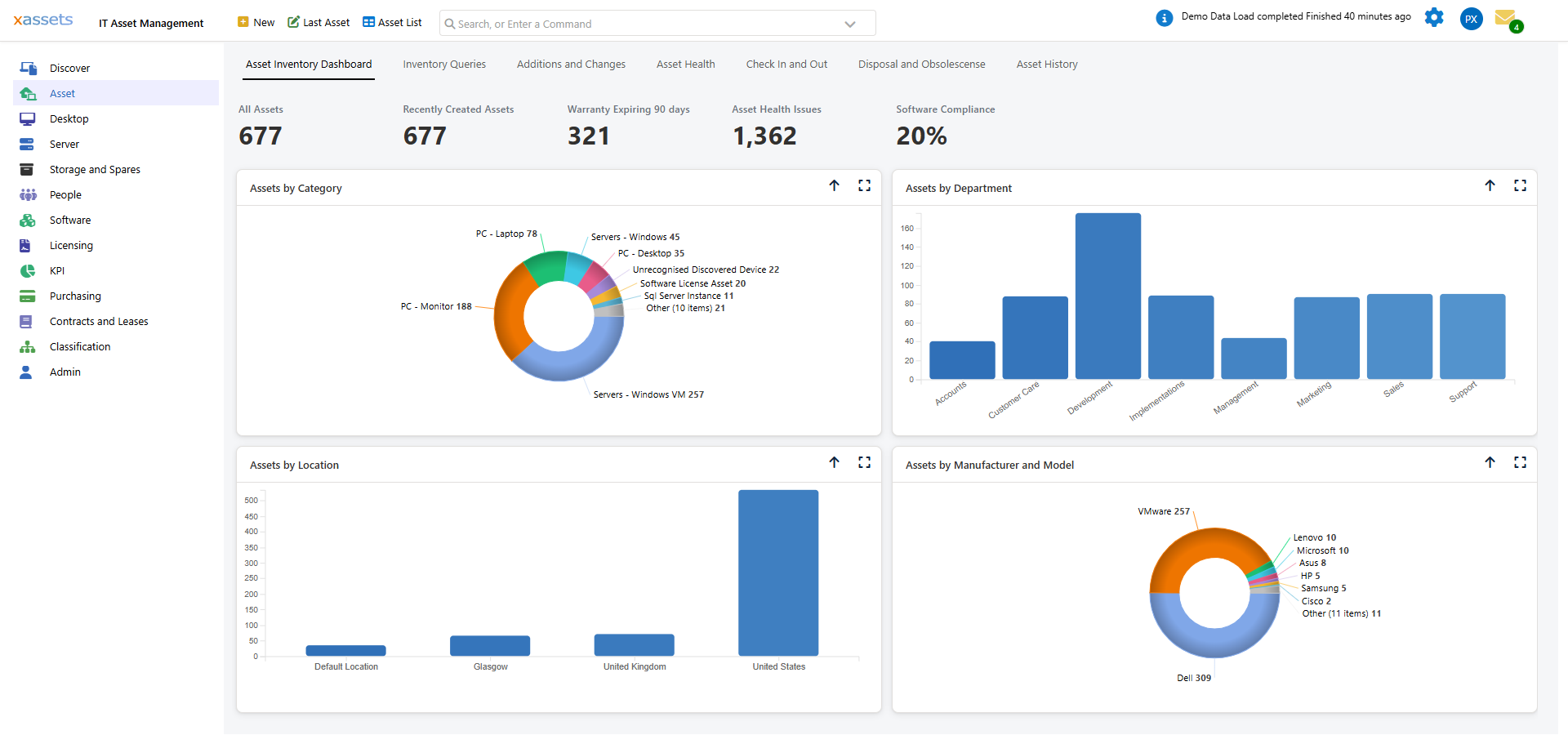
This tab provides:
- Assets Due for Disposal -- assets that have a Due for Disposal date, or a Disposal date, in the next 30 days. See Due for Disposal.
- Disposed Assets -- assets that are in a status that is not "in service" and not "in existence". They are excluded from most reports, and you can Un-Dispose them from this list to return them to service.
- Disposal group -- Assets Due for Disposal in a Number of Days, a query you can point at any custom day range.
- Obsolescence group -- Low Specification Configuration, plus Low Specification Assets by Location and Low Specification Assets by User, which flag hardware that falls below the specification thresholds you configure (e.g., low memory, slow CPU, small disk):
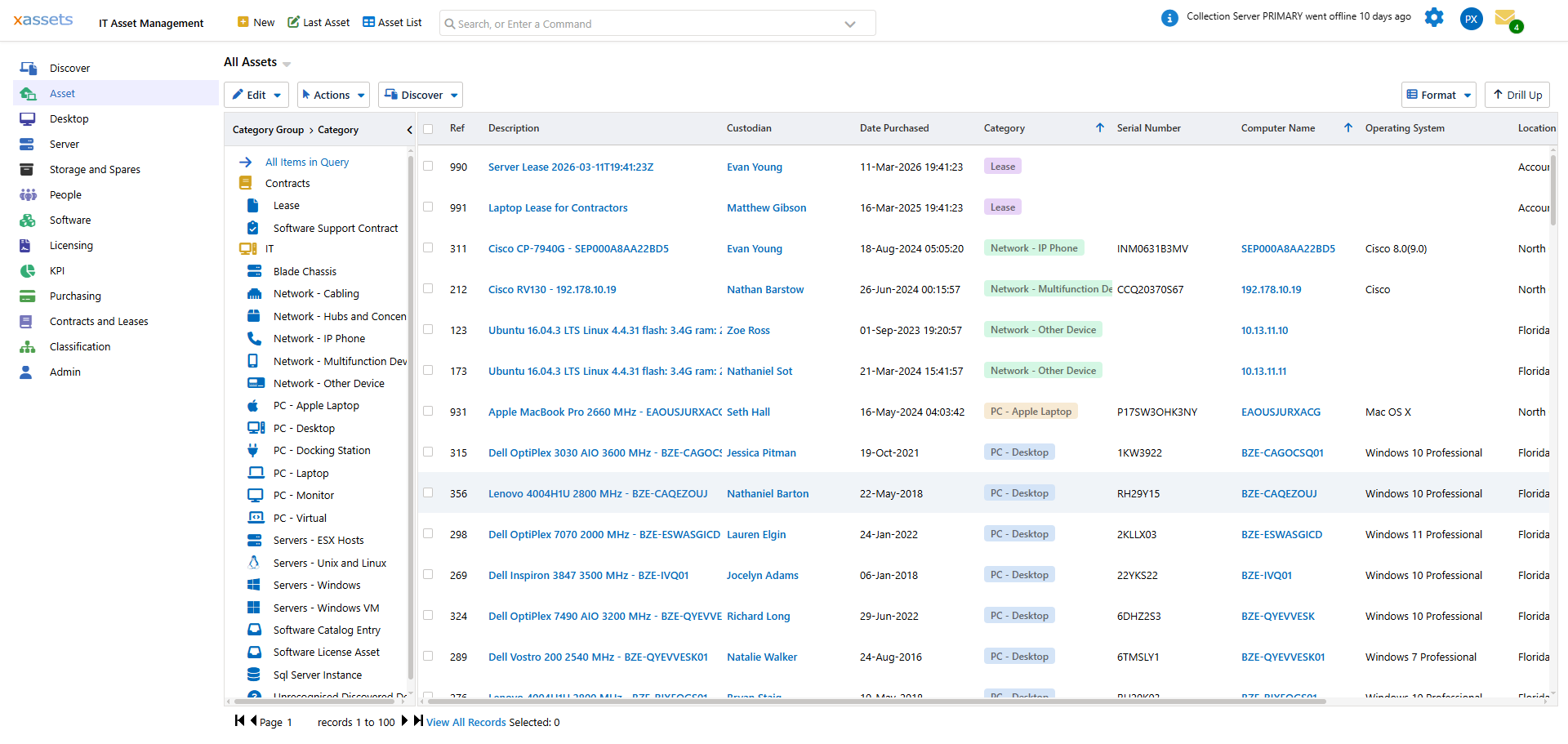
- Reports group -- Assets Disposed Report and Assets Due for Disposal Report, printable PDF reports that open in a separate window.
Tip: Review the Low Specification views regularly. They identify hardware that falls below current standards and may be candidates for replacement, helping with proactive lifecycle planning.
Tip: If you accidentally dispose of an asset, use the Un-Dispose function to restore it to active status. This is available from the Disposed Assets list on this tab.
Related Articles
- Un-Dispose - restoring a disposed asset to active status
- Due for Disposal - scheduling future disposals
- Deleting Assets - permanent deletion (irreversible)
- Selecting Assets - how to select records before disposing