Bulk Update
Bulk Update lets you apply the same change to multiple assets at once -- for example, changing the location, status, or custodian of a group of assets in a single operation. This is significantly faster than editing each asset individually and ensures consistency across the updated records.
Prerequisites
- You must have permission to edit the fields you want to change.
- Select at least two assets in a results screen before starting bulk update.
How Bulk Update Works
When you open a bulk update, the editing screen shows field values as follows:
| Situation | Display |
|---|---|
| All selected assets share the same value | The shared value is shown |
| Selected assets have different values | A grayed placeholder such as None / Multiple Values is shown (lookup fields such as Manufacturer or Model show their normal "Select a ..." prompt instead) |
| A field already holds different real values on the assets | The placeholder is shown as Multiple Values, highlighted, as a reminder that the assets are not currently in sync |
| A field is left unchanged | That field will not be modified on save |
An information icon at the bottom of the dialog restates this: fields containing a value have that same value on every asset in the selection; fields without a value differ across one or more of the selected assets. If you type a value into a field, that value is applied to every selected asset when you save.
Important: Blank/placeholder fields are left unchanged during a bulk update -- only fields you actively modify will be saved. To deliberately clear a field value to empty across all selected assets, type the word null (without quotes) into the field. Simply leaving a field as-is will not erase existing values.
Using Bulk Update
- Select the assets to update in any results screen (for example Asset List). See Selecting Assets for selection techniques.
- Open the Actions menu and choose Bulk Update Assets in a Single Edit.
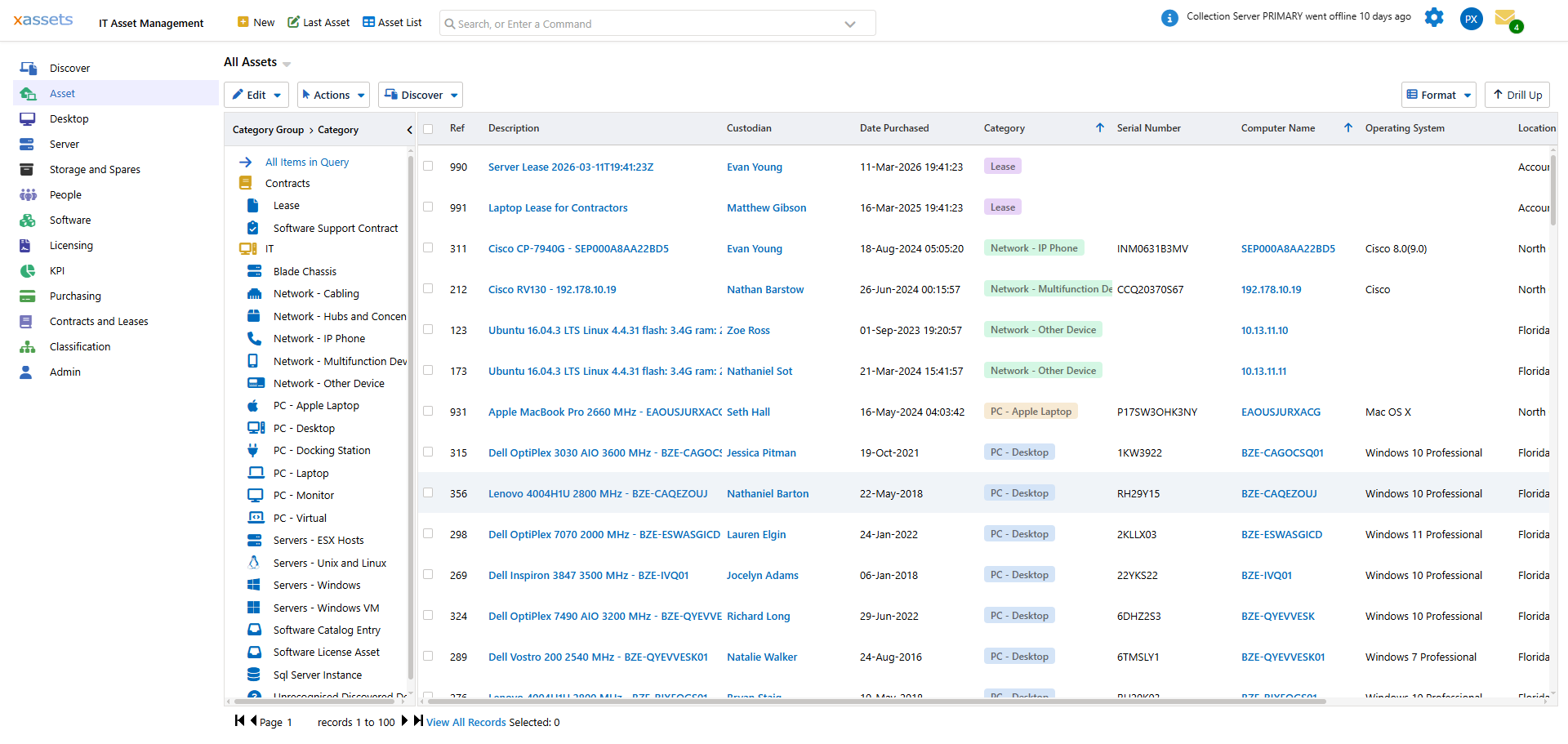
- The asset editing screen opens with the title Bulk Update of N Asset Records, where N is the number of assets you selected.
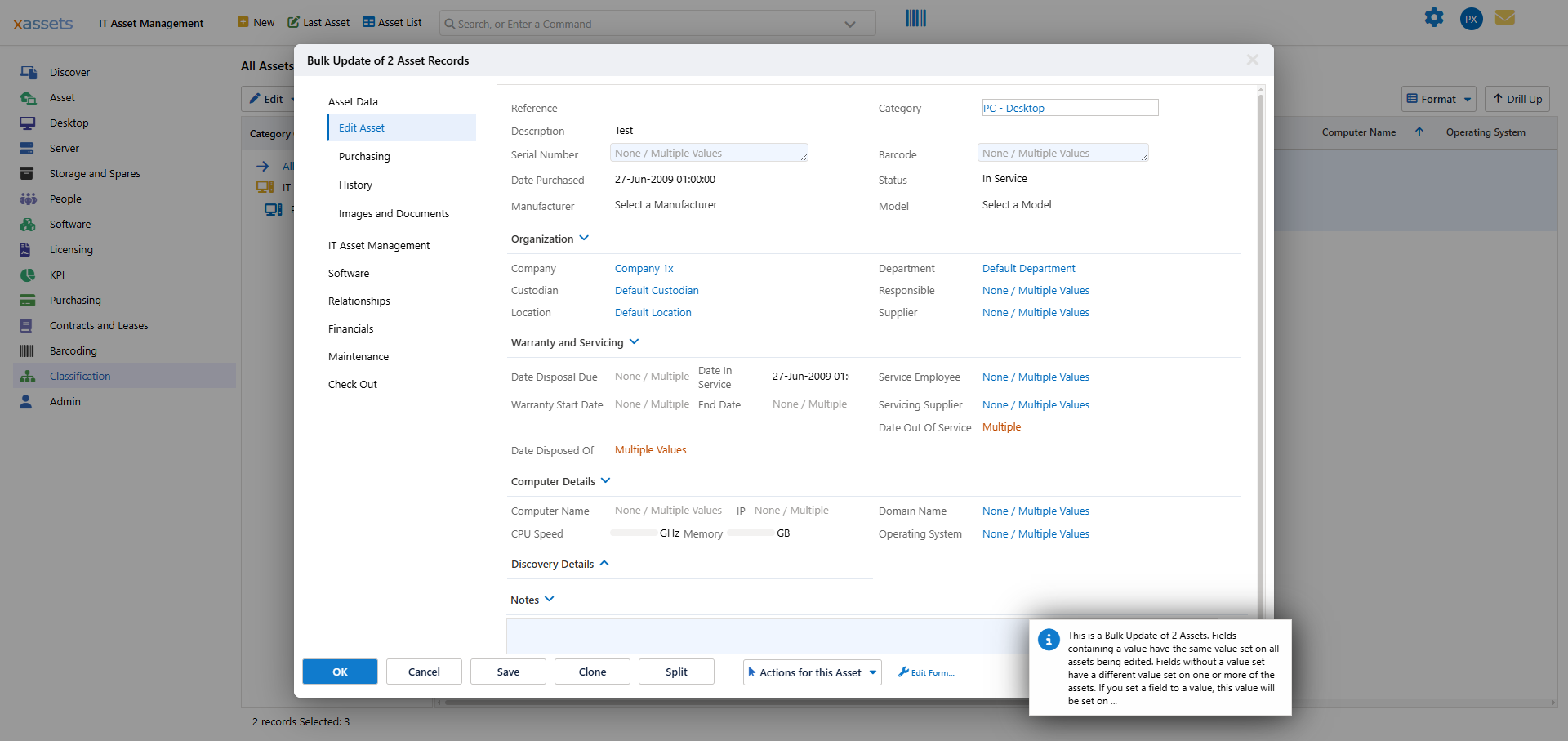
- Review the field values:
- Fields where every selected asset agrees show the shared value (for example Category might show "PC - Desktop", or Status might show "In Service").
- Fields that differ show a grayed None / Multiple Values placeholder instead of an actual value.
- Lookup fields (Manufacturer, Model, and similar) that differ simply show their normal selection prompt rather than a value.
- Fields with a computed or history-driven value that already differs (for example a disposal date) are called out as Multiple Values in an emphasized color.
- Make changes to one or more fields. Only the fields you touch are saved back to every selected asset.
- Click OK or Save to apply the changes. The system updates each selected asset with the modified fields.
Tabs Available During Bulk Update
The bulk edit screen has the same tabs down the left side as the normal Edit Asset screen, and you can bulk-update through any of them:
| Group | Tabs | Capability |
|---|---|---|
| Asset Data | Edit Asset, Purchasing, History, Images and Documents | Core fields, purchasing details, and attachments. History is view-only and shows combined history for the selected assets. |
| Software | Software | Software installations/entitlements linked to the selected assets. |
| Relationships | Relationships | Parent/child and related-asset links. |
| Financials | Transactions, Depreciation Setup | Post one or more financial transactions, or edit depreciation rules, across every selected asset at once. |
| Maintenance | Service Data, Service Plans | Maintenance/service records for the selection. |
| Check Out | Check In and Check Out | Update check-in/check-out status for library-style asset tracking. |
Custom specification fields configured for the assets' category also appear as their own tab where applicable.
Note: The sidebar also has an entry with your current profile's name (for example "IT Asset Management") near the top of the list. This is not a data tab -- clicking it opens a Change Profile dialog to switch between profiles such as IT Asset Management and Fixed Asset Management. It does not affect the bulk update itself.
Common Bulk Update Scenarios
| Scenario | How |
|---|---|
| Move 50 assets to a new location | Select all 50, bulk update, change the Location field |
| Set warranty end date for a batch of laptops | Select the laptops, bulk update, set the Warranty End Date |
| Change status from "On Order" to "In Service" for received equipment | Select the assets, bulk update, change Status |
| Assign a custodian to unassigned assets | Select assets with no custodian, bulk update, set the Custodian field |
| Clear a field value across multiple assets | Select assets, bulk update, type null in the field to clear it |
Tip: Bulk update is one of the most powerful features in xAssets. To use it safely, always verify your selection before opening the bulk update screen. Check the selection count in the grid footer and review the highlighted rows to make sure you are updating the correct assets.
Warning: There is no undo for bulk update. If you change the wrong field or select the wrong assets, you will need to manually correct each affected record or perform another bulk update to reverse the change.
Related Articles
- Selecting Assets - how to select records for bulk update
- Editing Assets - editing individual assets
- Reclassification - overview of all methods for changing classifications
- Transfers - formal transfer operations with financial tracking