Users
This page covers how to create, edit, and manage user accounts in xAssets. Every person who accesses the system must have a user record, regardless of whether they authenticate via Windows, database credentials, or Single Sign-On.
Prerequisites
- You must have Administrator or Configuration user group permissions to manage users.
- Before creating a user, ensure the appropriate user group exists, as every user must be assigned to one.
- If you want the user to receive email notifications and be associated with organisational data, create a Custodian record for them first.
The Users List
Navigate to Admin > Users to see all user accounts:
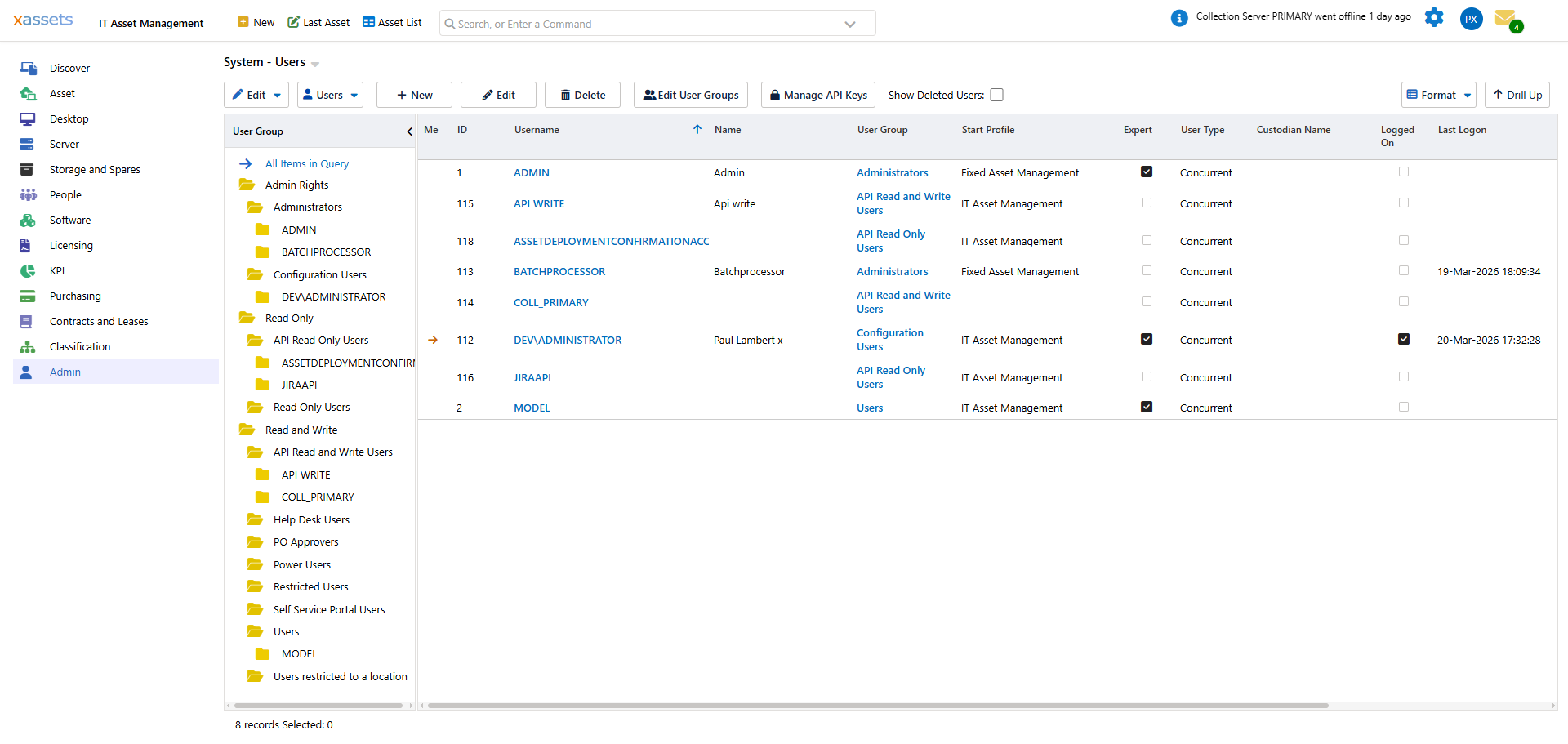
The tree on the left lets you filter users by their User Group or database role (Read, Write, Admin). The currently logged-in user has a pointer icon in the Me column. Click a User Group name to edit that group, or click a Username to edit the individual user.
Creating a New User
- From the Users list, choose Create a new user from the Users menu (or click the New button).
- Enter the User ID -- this is the login name. For Windows Authentication users, enter their Windows username exactly as it appears in Active Directory.
- Select the User Group to assign permissions.
- Choose a Start Profile (the profile the user sees on first login).
- Set Records per page (recommended: 50--200; values above 200 may slow query rendering).
- Link a Custodian record if one exists.
- For database authentication, set a Password.
- Click Save.
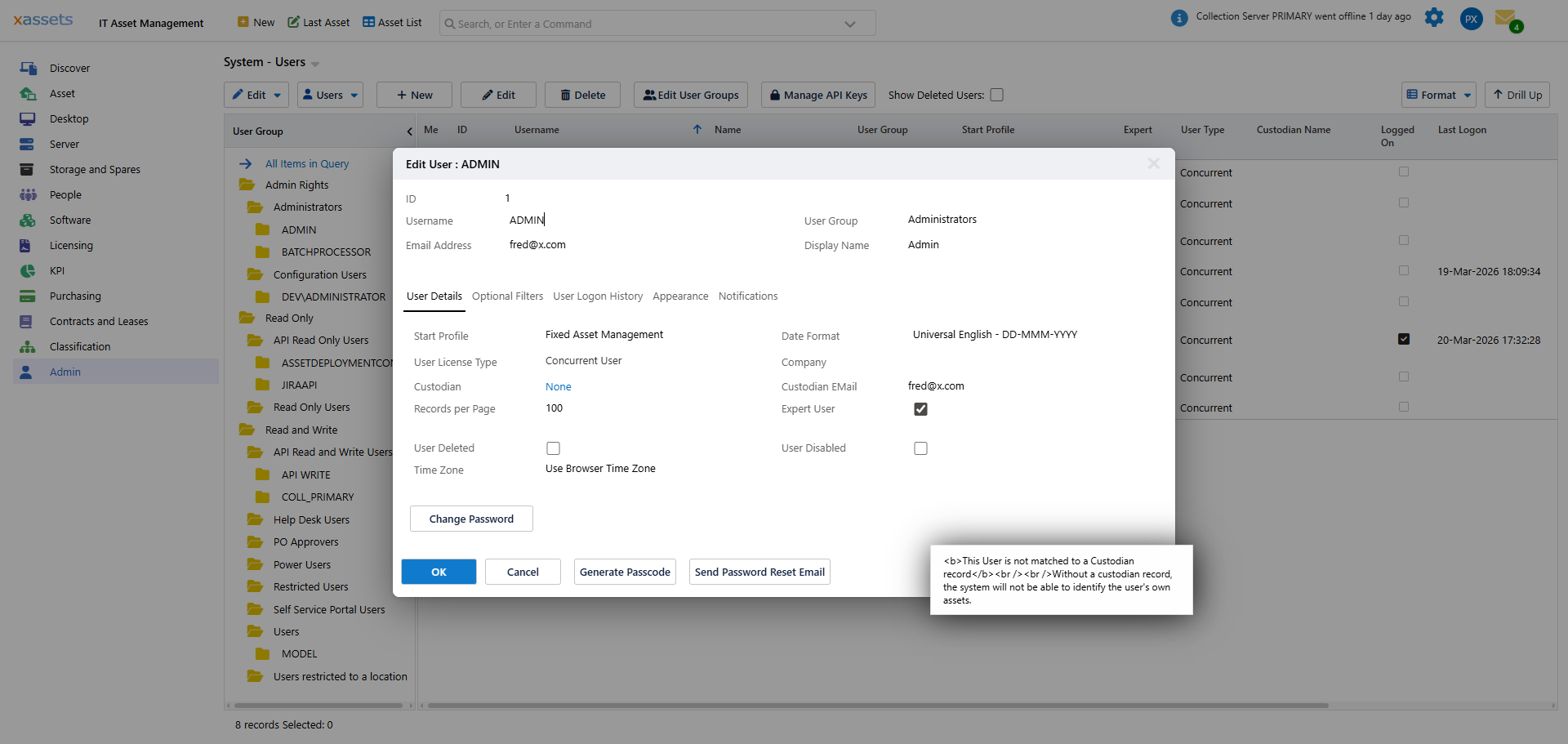
User Editor Fields
| Field | Description |
|---|---|
| User ID | The login name. For Windows Authentication users this is the Windows username and cannot be changed after creation. |
| User Group | The user group that controls this user's permissions, menu access, and table-level security. See User Groups. |
| Start Profile | The profile shown when the user first logs in. After the first session, the system remembers the user's Current Profile (the last profile they used) and uses that instead. |
| Records per page | How many rows appear per page in query results. Setting this above 200 is not recommended as it slows rendering of large datasets. |
| Expert user | When checked, the user has access to advanced features such as Querystrings for Fields and Forms. Leave unchecked for standard users. |
| Company | The company this user belongs to. Can be used with record filters to restrict the user's view to assets belonging to the same company. |
| Custodian | Links the user to a Custodian record. This association connects the user to locations, departments, cost centres, and assets. The custodian record should have a valid email address for notifications. |
| User Deleted | Marks the user as deleted. The record remains in the system for audit purposes, but the user cannot log in. |
| User Disabled | Temporarily prevents the user from logging in without deleting their account. |
| Password | Sets or changes the password for database-authenticated users. Not applicable for Windows Authentication or SSO users. |
Important: Every user should have a linked Custodian record with a valid email address. Without this, the user will not receive email notifications and cannot be associated with locations, departments, or cost centres.
Disabling vs. Deleting Users
- Disable a user when they are temporarily unavailable (e.g., on leave or pending role change). Their record remains active and can be re-enabled.
- Delete a user when they have permanently left the organisation. Deleted users remain in the database for audit history but cannot log in.
- Neither action removes the user's Custodian record or any asset associations.
Tip: When an employee leaves, disable their account immediately for security, then mark it as deleted after any handover period. This ensures you have an audit trail while preventing access.
Related Articles
- Users Menu Options — bulk operations like reset permissions, logoff, and unlock
- User Logon History — tracking when users last logged in
- User Groups — controlling permissions via groups
- Multi-factor Authentication — adding MFA to database authentication
- Profiles — configuring the profiles users can switch between