Profiles
This page explains how profiles work and how to configure them. Profiles separate the application into distinct functional areas so that each user sees only the menus, data, and dashboards relevant to their role.
What Profiles Do
Profiles control three aspects of the user experience:
- Which menu categories are visible -- each menu category belongs to a single profile (or to the Global profile, which is visible in all profiles).
- Which categories of assets are visible -- a Category Filter Query hides irrelevant asset categories from the category tree and dropdown lists.
- Which asset records are visible -- an Asset Filter Query restricts the set of assets shown in queries and the asset editor.
For example:
- A Fixed Asset Management profile shows asset accounting, barcoding, and financial menus, while hiding IT-specific categories like Servers and Software Licences.
- An IT Asset Management profile shows inventory, contract management, and software licensing functions, filtered to IT-related assets and contracts.
- A Fleet Management profile shows vehicle-specific menus and only vehicle category assets.
Viewing the Current Profile
The current profile name is shown at the top of the main page:
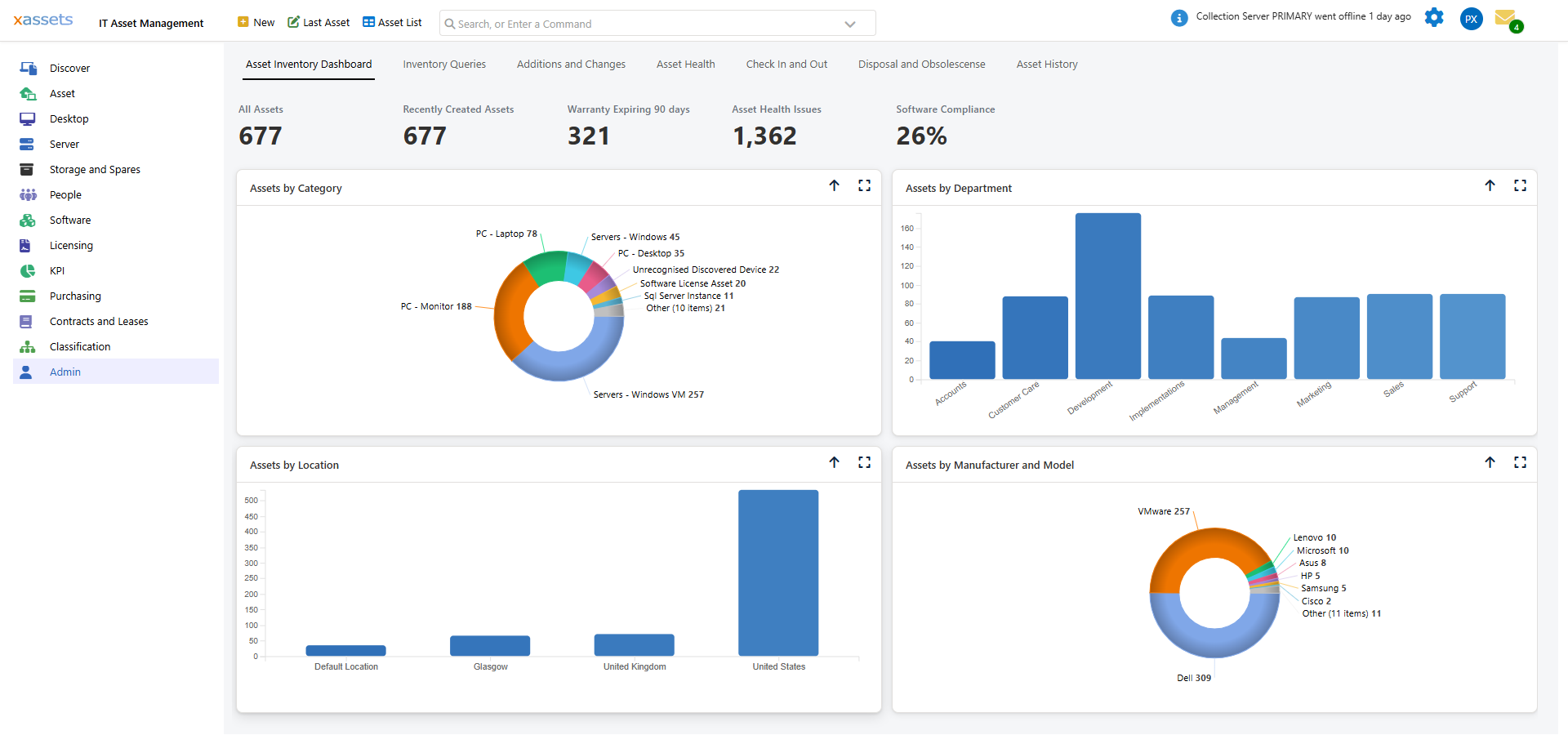
Clicking the profile name opens a dialog that allows the user to switch to another profile. Users can only switch to profiles that are enabled and that their user group has access to.
Managing Profiles
Navigate to Admin > Menus > Profiles to see the list of all profiles. Click a profile name to edit it.
Profile Editor Fields
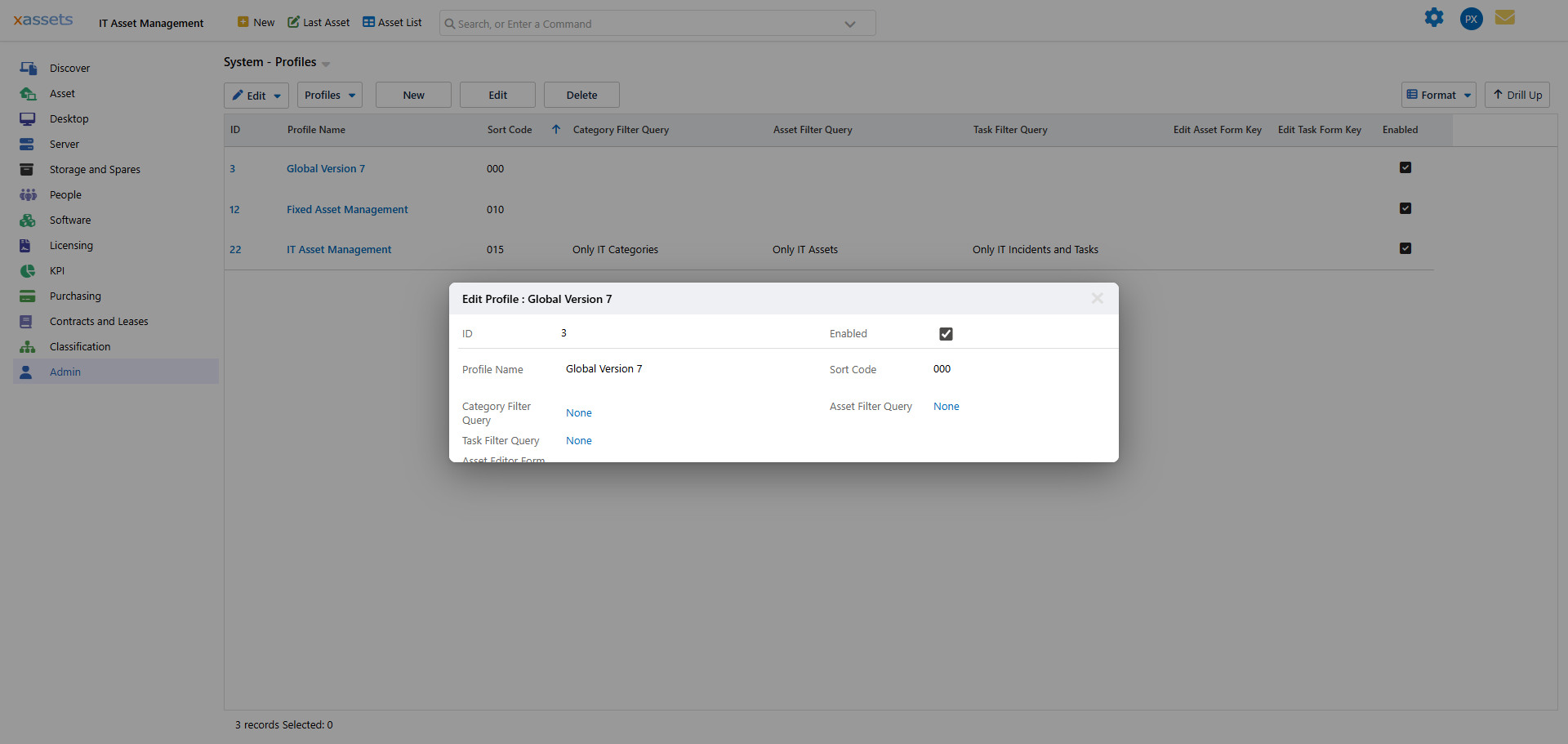
| Field | Description |
|---|---|
| ID | A unique number generated by the system. Cannot be changed. |
| Enabled | Whether the profile is available for users to select. Disabled profiles do not appear in the profile switcher. |
| Profile Name | The name displayed in the top-left corner of the page and in the profile switcher dialog. |
| Sort Code | A numeric value that controls the order profiles appear in the profile switcher. Lower values appear first. |
| Category Filter Query | A query with a subject of Category that determines which asset categories are visible in this profile. For example, the IT Asset Management profile uses a filter that hides Fixed Asset categories like Vehicles and Buildings. |
| Asset Filter Query | A query with a subject of Assets that restricts which asset records are visible when this profile is active. Only assets that pass this filter appear in queries and the asset editor. |
| Task Filter Query | A query with a subject of Incidents and Tasks that restricts which tasks and incidents are visible in this profile. |
| Asset Editor Form Key | Optional. Selects an alternate asset editor form layout to use while this profile is active, instead of the default asset editor. |
Creating a New Profile
- Navigate to Admin > Menus > Profiles.
- Click New to open the Profile Editor.
- Enter a Profile Name.
- Set Enabled to make it available to users.
- Set the Sort Code to control its position in the profile list.
- Optionally select a Category Filter Query to restrict which categories appear.
- Optionally select an Asset Filter Query to restrict which assets are visible.
- Optionally select a Task Filter Query to restrict which tasks are visible.
- Save the profile.
- Create menu categories assigned to this profile, and add menus to those categories.
Tip: A new profile will appear empty until you assign menu categories to it. Start by copying or creating menu categories for the dashboards, navigation menus, and query header/footer menus that this profile needs.
The Global Profile
The profile named "Global Version 7" is a special system profile:
- It cannot be selected as an active profile by users.
- Menu categories assigned to the Global profile are visible in all profiles.
- Use the Global profile for menu categories that should appear everywhere, such as the Admin menu, user preferences, and cross-functional tools.
How Profiles Interact with User Groups
Profiles and user groups are complementary:
- Profiles control which menus and data subsets are visible to the user based on their current functional area.
- User groups control permissions -- what the user can do with the data they can see.
- A user's Start Profile is set on their user record and determines which profile they see on first login.
- After the first session, the system remembers the user's last-used profile (Current Profile) and uses that on subsequent logins.
Warning: Profile filter queries are applied in addition to any user group table permission filters. If both a profile filter and a table permission filter restrict the same table, both filters apply, and the user sees only records that pass both.
Related Articles
- Menu Categories - assigning menu categories to profiles
- Users - setting a user's Start Profile
- User Groups - permissions that complement profile-level filtering
- Query Record Filters - building the filter queries used by profiles
- Dashboards - configuring the dashboard pages within a profile