Dashboards Overview
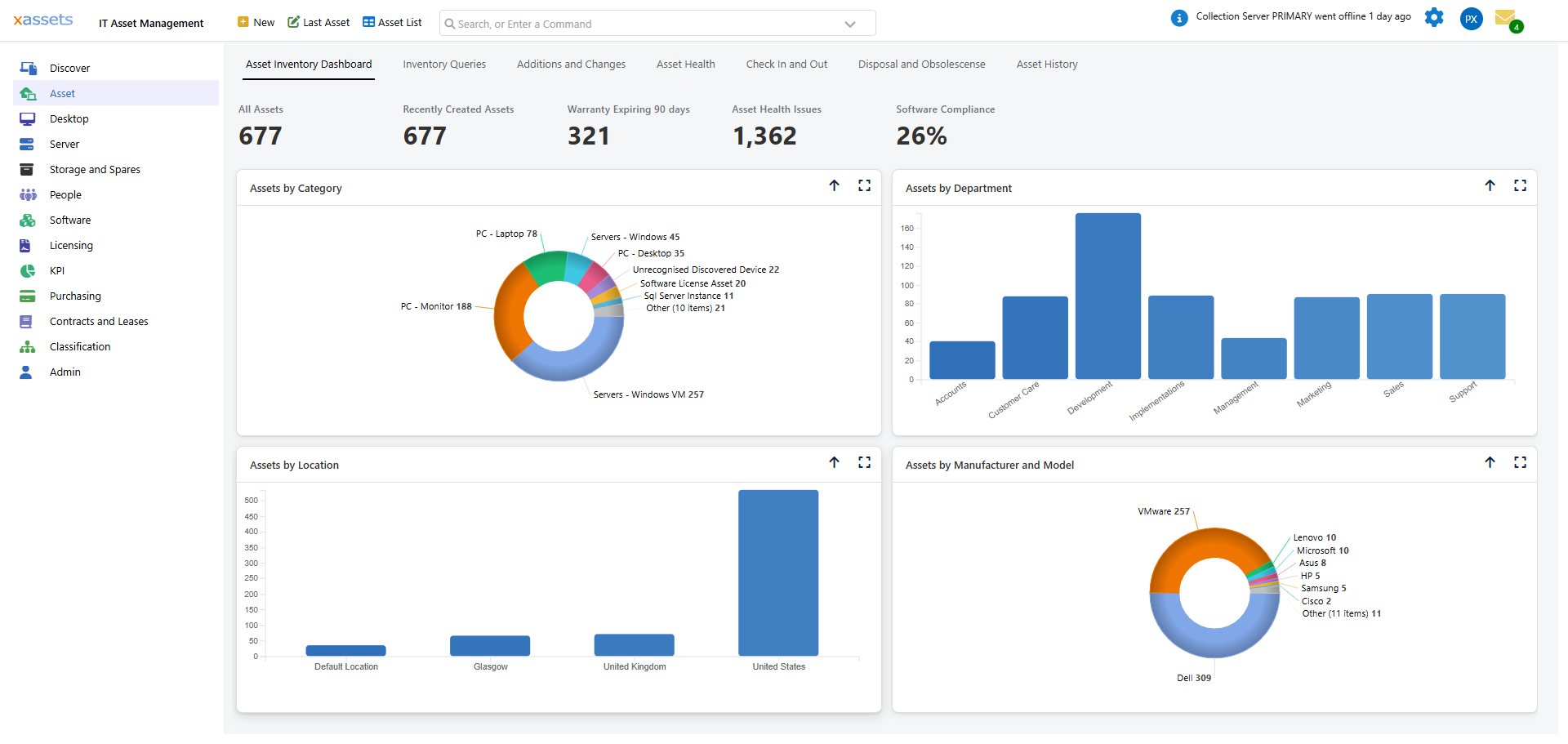
Dashboards are the home pages and landing pages of xAssets. They bring together menu links, charts, and data tables in a single view, giving users quick access to the information and actions they use most often. This page explains how dashboards work and what you need to know before building or modifying one.
How Dashboards Are Built
Unlike forms and queries, a dashboard is not stored as a single, dedicated entity. Instead, it is assembled from existing building blocks:
- A menu item invokes the dashboard. Its command specifies the layout grid and which menu categories populate each cell.
- Menu categories contain the individual items that appear in each cell of the dashboard grid.
- Each menu item within a category can be displayed as a link, a chart, or an embedded query, depending on its Display Type.
This architecture means that dashboards are entirely configurable using the same Menu Editor and Menu Categories tools you use for regular navigation. No separate dashboard designer is needed.
Display Types
Each menu item placed on a dashboard has a Display Type that controls how it appears in its cell:
| Display Type | Behaviour |
|---|---|
| Menu | Displays as a clickable text link. Multiple menu items with this type are stacked vertically within their cell. |
| Horizontal Menu | Displays as a link placed horizontally in a row alongside adjacent horizontal menu items. Useful for toolbars or button rows. |
| Query or Chart | Renders the referenced query’s results (table or chart) directly on the dashboard. The chart type is determined by the query’s presentation settings. |
| Query with Help Text | Same as Query or Chart, but additionally displays the menu item’s Tooltip text as a description above the query or chart. |
What You Can Put on a Dashboard
- Links to queries, forms, pages, or external URLs
- Charts (bar, pie, line, etc.) generated from queries
- Data tables showing query results directly on the dashboard
- Sub-dashboards -- tabbed or nested dashboards that group related content (see Creating a Dashboard)
Common Use Cases
- A Home dashboard that shows KPIs, recent activity, and quick links
- A Discovery dashboard that summarises recently discovered assets and highlights exceptions
- A Fixed Asset Management dashboard with depreciation summaries and period-end status
- A Software Compliance dashboard with licensing position charts and audit results
This Chapter
- Dashboard Layout -- how the grid of rows, columns, and menu categories works
- Creating a Dashboard -- step-by-step instructions for building a new dashboard, including sub-dashboards
Related Articles
- Menus Overview — dashboards are built from menu items
- Menu Categories — each dashboard cell is a menu category
- Queries and Reports — the queries and charts that appear on dashboards