Dashboard Layout
This page explains how the grid-based layout system for dashboards works, including rows, columns, and how menu categories map to cells in the grid.
The Dashboard Grid
A dashboard is organised into a grid of rows and columns. The grid can have one to four columns across the page. Each cell in the grid is populated by a menu category, and the menu items within that category determine what appears in the cell (links, charts, or data tables).
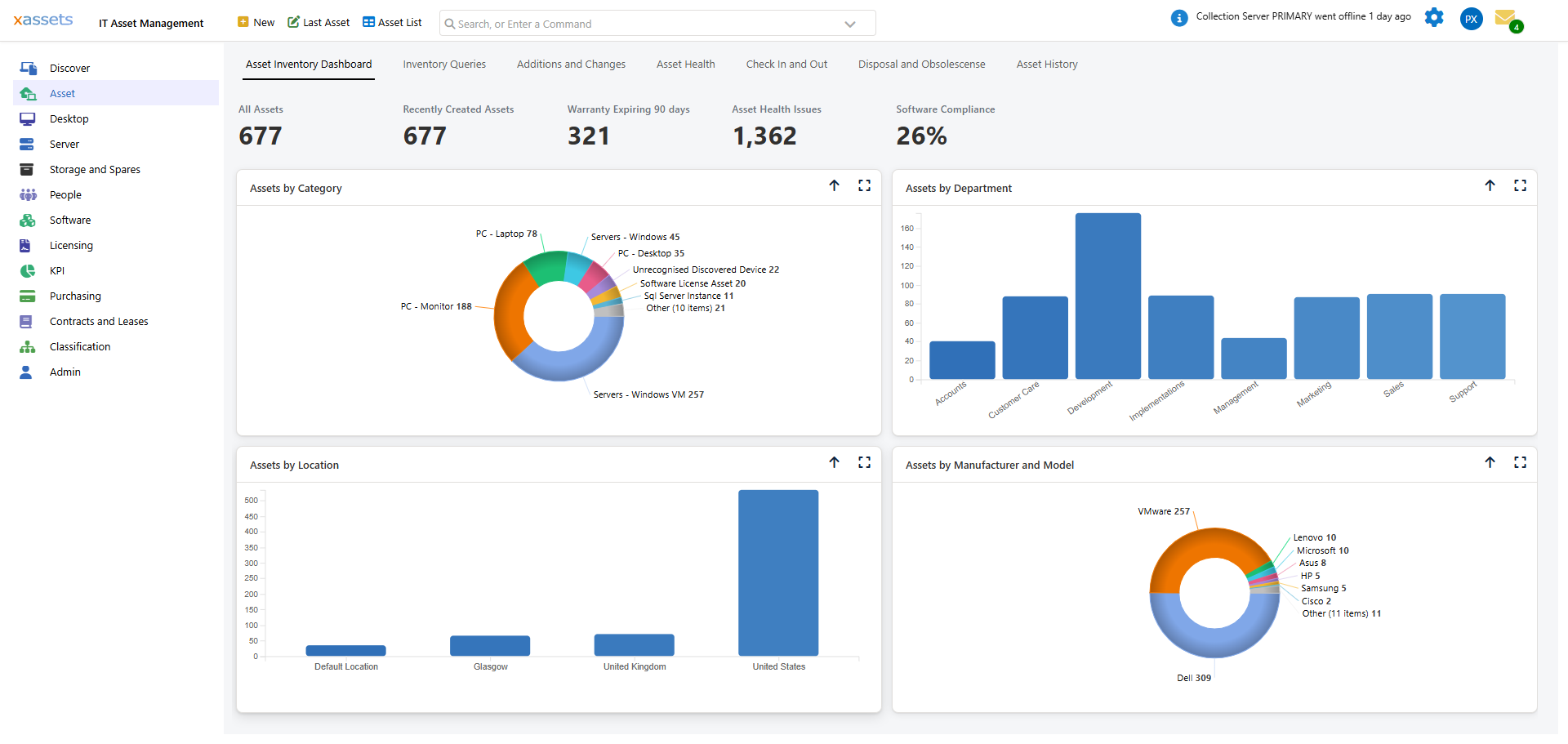
How Cells Are Sized
- By default, columns share the available width equally (e.g., two columns each take 50% of the width).
- A cell can span the full width of the page if it is the only cell in its row. This is common for wide queries or charts.
- The height of each cell is determined automatically by its content.
In the example above (the Software License Dashboard), the first row has two columns, each showing a chart ("Software Product Summary - Rights" and "Software Product Summary - Top 25 Installs"). The second row contains a single menu category ("Software License Expenditure - Year to Date") that spans the full width, because a wide data table reads better across the whole page than squeezed into one column.
Configuring the Grid Layout
The grid layout is defined in the Menu Command Builder for the menu item that invokes the dashboard. Each row-and-column position is assigned a menu category:
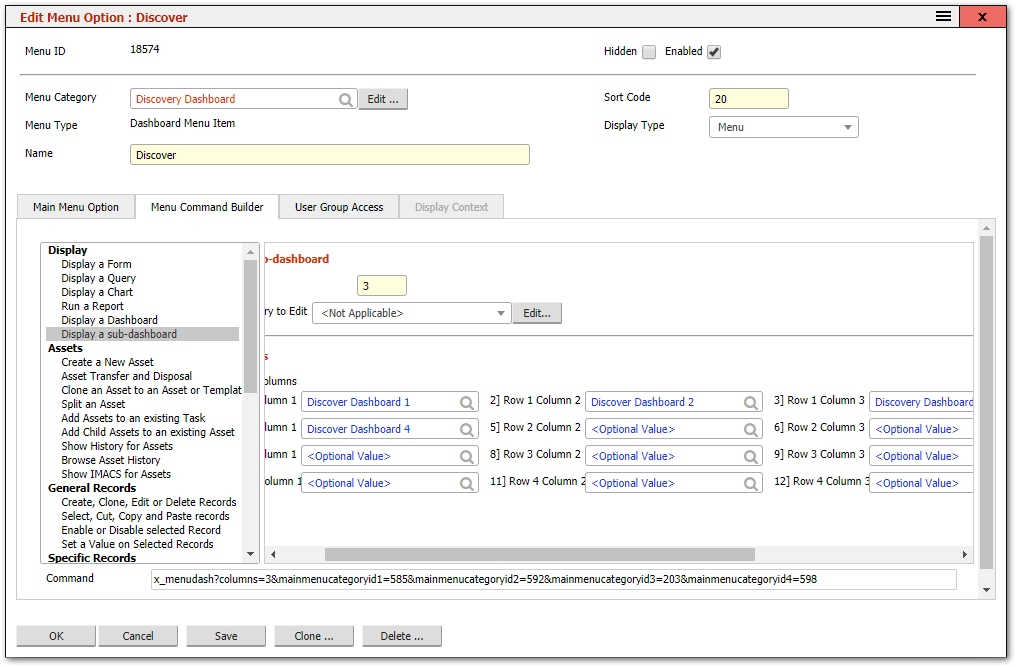
Steps to Modify a Dashboard Layout
- Find the menu item that invokes the dashboard. You can Ctrl-Shift-click the dashboard title to open its menu item directly.
- Open the Menu Command Builder tab.
- The builder shows the grid with row and column assignments. Each position has a dropdown to select a menu category.
- To add a row, assign a menu category to the next available row position.
- To add a column, assign additional menu categories to column positions within the same row.
- To remove a cell, clear the menu category assignment for that row-column position.
- Click Save.
- Refresh the page to see the updated layout.
What Goes in Each Cell
Each cell corresponds to a menu category. The items within that menu category control what appears:
| Menu Items in the Category | Result in the Cell |
|---|---|
| Multiple items with Display Type "Menu" | A vertical list of clickable links |
| Multiple items with Display Type "Horizontal Menu" | A horizontal row of links |
| One item with Display Type "Query or Chart" | A query table or chart rendered directly |
| One item with Display Type "Query with Help Text" | A chart/table with descriptive text above it |
| A mix of display types | Links appear first, followed by charts/tables |
Tips
Tip: Start with a simple layout (two columns, two rows) and add complexity as needed. It is easier to add cells than to reorganise a complex grid.
Tip: To see which menu categories are assigned to a dashboard's cells, Ctrl-Shift-click the dashboard title to open the menu item, then view the Menu Command Builder tab.
Warning: If a menu category assigned to a dashboard cell contains no enabled menu items, the cell appears empty. Remove unused cells or add content to keep the dashboard clean.
Related Articles
- Creating a Dashboard - building a new dashboard from scratch
- Dashboards Overview - what dashboards are and how they are built
- Menu Command Builder - the tool used to configure the grid layout
- Menu Categories - the containers that populate each cell