Menu Command Builder
The Menu Command Builder provides a guided interface for constructing the command that a menu item executes when clicked. It is the recommended way to build and edit menu commands, especially for users who are not familiar with the raw querystring command syntax.
Prerequisites
You must be a Configuration User to edit menu commands. Open a menu item in the Menu Editor to access the Command Builder.
Accessing the Command Builder
There are two ways to open the Menu Command Builder:
- Click the

- Click the Menu Command Builder tab in the Menu Editor.
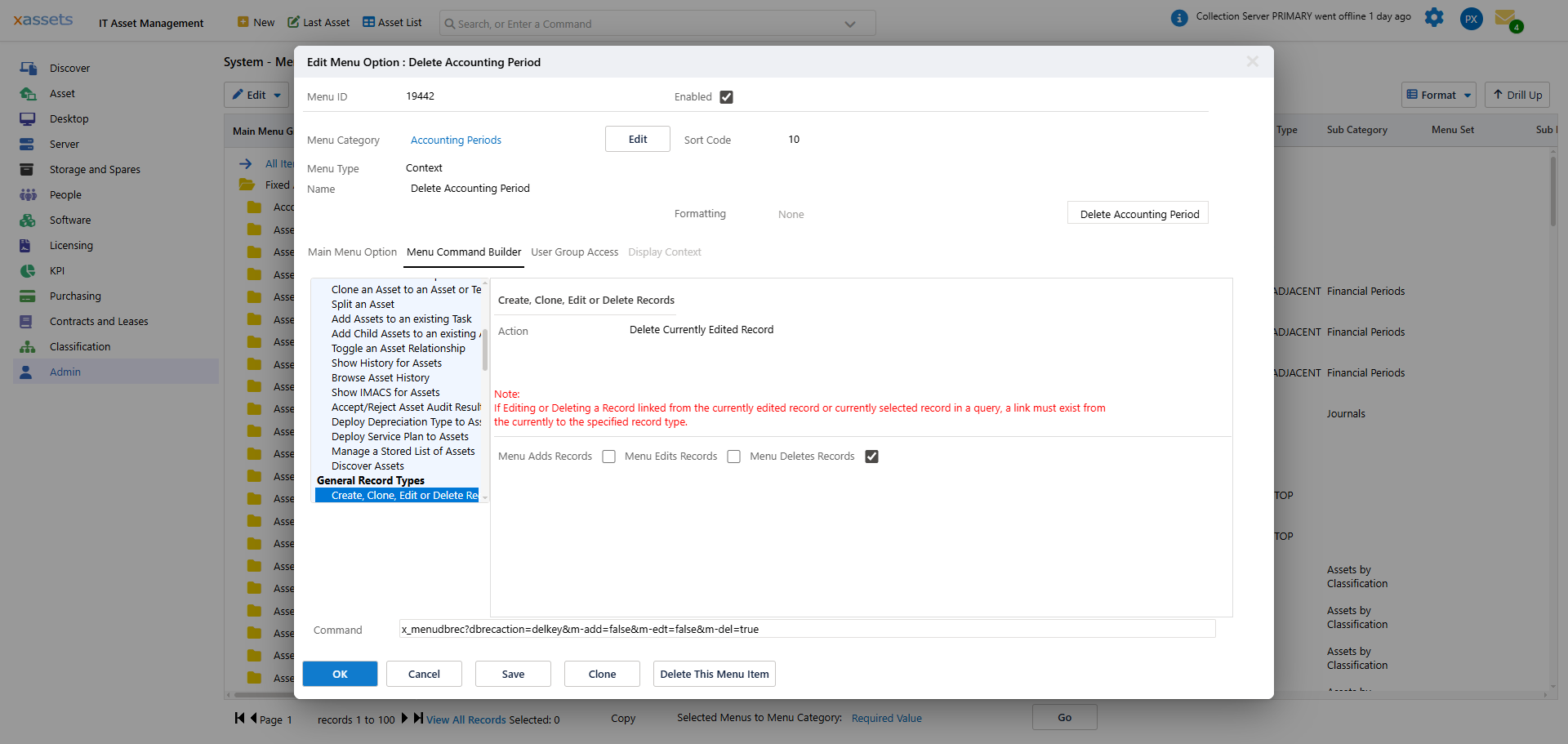
How the Command Builder Works
The Command Builder has two panels:
- Left panel -- lists the available command types (e.g., "Display a Query", "Display a Form", "Run a Transformation", "User Actions", "Navigate to a Page").
- Right panel -- shows the options and parameters for the selected command type.
Steps to Build a Command
- Select a command type from the list on the left.
- Fill in the options on the right. The options change depending on the command type:
- Display a Query -- select the query, set parameters, choose display options
- Display a Form -- select the form, set the script and data source
- Run a Transformation -- select the transformation, set parameters
- User Actions -- select a built-in user action (e.g., logout, change password)
- Navigate to a Page -- specify a URL or page reference
- Click Save on the Menu Editor to save the command.
Tip: Hover over each option for a tooltip that explains its purpose. The tooltips are a quick reference when you are unsure what a field does.
Copying Commands Between Menus
Instead of building a command from scratch, you can copy a command from an existing menu item:
- Click

- Click

This is the fastest way to create a new menu item that does something similar to an existing one -- copy the command, then modify the parts that need to change.
The Raw Menu Command
For expert users, the Menu Command field on the Menu Editor's main tab shows the command as a raw querystring. This is the underlying format that the Command Builder generates. You can edit it directly if you are familiar with the syntax, but for most users the Command Builder is safer and easier.
Tips and Warnings
Tip: The best way to learn how menu commands work is to examine existing menus that do something similar to what you want to achieve. Open them in the Command Builder to see how they are constructed.
Tip: Some command types are simple and have only a few options (e.g., "User Actions"), while others are complex with many configurable options (e.g., "Display a Query"). Start with the simpler types to get familiar with the builder.
Warning: Changes to menus that are currently displayed on the screen will not take effect until the page is refreshed. New menu items created in menu categories that are visible on screen also require a page refresh before they appear.
Related Articles
- The Menu Editor — the full Menu Editor and its fields
- Parameters for Queries and Transformations — how to pass parameters from menus to queries and transformations
- Menu Security — controlling who can see and use each menu item