Parameters for Queries and Transformations
This page explains how to supply parameter values when a menu item runs a parameterised query or transformation. Parameters allow a single query or transformation to be reused for different data by varying the inputs.
Menu commands can display a query or run a transformation. Some queries or transformations require parameters to be specified when they are run. For details on creating queries or transformations with parameters, refer to the Queries and Transformations chapters. When a parameterised query or transformation is specified in a menu, the Menu Command Builder provides options for specifying where the parameter values come from.
There are four sources for the data that is to be supplied for the parameters:
- The User can enter the values when the menu is run. Based on the names of the parameters, the user will be prompted to select or enter the values in a dialog.
- They can be filled in in the menu with a static value that will always be used when the menu is run.
- They can be dynamically generated based on the current environment, for example using the UserID of the currently logged in user, or the current date and time.
- The parameter values can be retrieved from the selected records on a displayed query or the ID of a currently edited record. The option to select records from a query for the parameter value is only valid for menu types that are related to queries, such as Query Header and Footer menus. The option to select the currently edited menu is only valid in menus displayed in an Editor dialog such as Editor menus and Action Menus.
Note: if multiple parameters are required, and any of them are missing by not having been specified using options 2 ,3 or 4 above, then, unless the option "Force Prompt Off" is checked, the user will be prompted for the parameters.
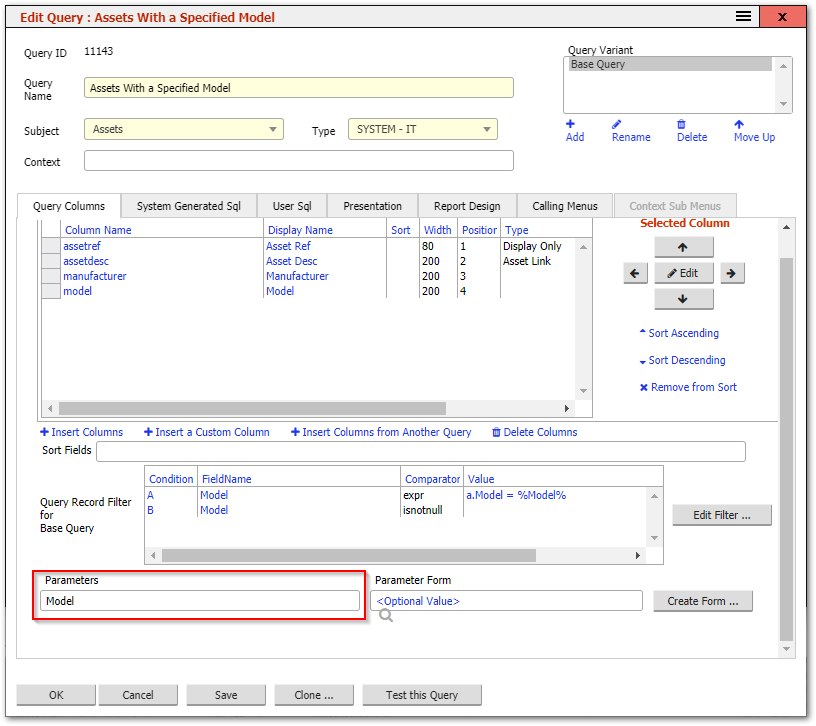
If, for example, a menu is set to Display a Query and the Query selected is "Assets With a Specified Model", then because this query expects a parameter of Model:
The Menu option will offer Parameter entry in the Menu Command Builder:
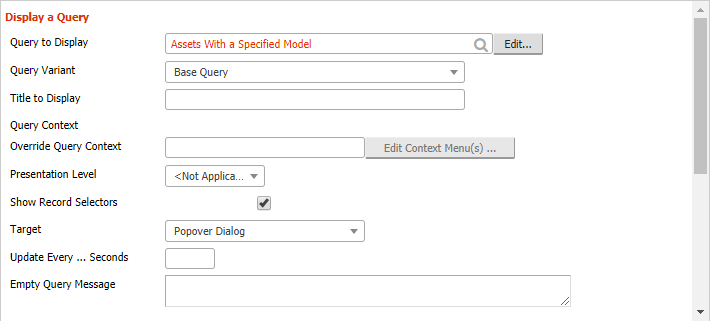
If the option "User Enters Parameters" is checked, then the user will be prompted to select a model from a dialog to use.
If the option is specified as in the screenshot above, then the user will not be prompted, and that specific model will be used.
Clicking the 
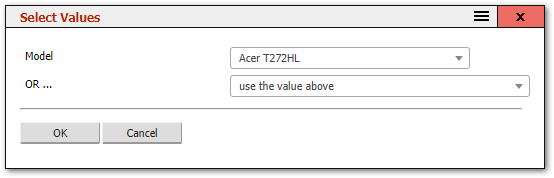
Using the lower dropdown in this dialog (OR ...) there is the option to "Use Model selected in a query". This option will change the parameter entry for running this query from this menu to "p?model=%selected%" which means that when the menu is run, the model from a selected asset record will be used as the parameter for this query.
Tip: The most common parameter source is "User Enters Parameters", which prompts the user with a dialog. Use static or dynamic sources when you want the menu to run without any user interaction.
Tip: To test a parameterised menu, click the menu item as an end user would. If parameters are missing and "Force Prompt Off" is not checked, you will see the parameter prompt dialog.
Related Articles
- Menu Command Builder — building commands that include parameter sources
- The Menu Editor — editing menu items
- Queries and Reports — creating queries with parameters
- Transformations — creating transformations with parameters