Queries and Reports Overview
This page provides an overview of the xAssets query and reporting system. Queries are the primary way to list, analyse, and export data in xAssets. Every query also has an embedded report design, so any query can be printed as a formatted PDF report.
What Queries Do
A query in xAssets is a stored definition that retrieves and displays data from the database. Queries can:
- Display data on screen as a sortable, filterable table.
- Export to Excel for further analysis.
- Generate PDF reports using the embedded report layout.
- Drive charts and KPIs on dashboard pages.
- Feed data to transformations for automated processing.
- Act as record filters to restrict what users or profiles can see.
Types of Queries
Queries have a Type that identifies their purpose:
| Type | Purpose |
|---|---|
| Standard | General-purpose queries displayed on screen |
| Filter | Used by table permissions and profiles to restrict which records are visible |
| Search | Queries that accept search text as a parameter and return matching results |
| User SQL | Custom queries where you write the SQL directly |
| Dashboard | Queries used to populate dashboard charts and tables |
Queries also have a Subject that determines what data table they operate on (e.g., Assets, Custodians, Contracts, Software Licences). The subject controls which columns are available in the query builder.
The Query Builder
The xAssets query engine includes a visual query builder that knows how to join the most commonly used tables automatically. You do not need to know SQL to create most queries. For complex requirements, the engine also supports User SQL queries where you write the SQL directly.
Each query stores a list of columns. Columns can be formatted with custom widths, colours, fonts, and display types (plain text, edit links, checkboxes, and more).
Accessing Queries
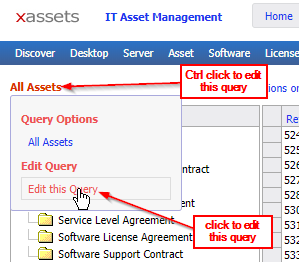
Queries can be edited by clicking the query title after the query has been run:
To access the full list of queries, navigate to Admin > Queries > Queries and Reports:
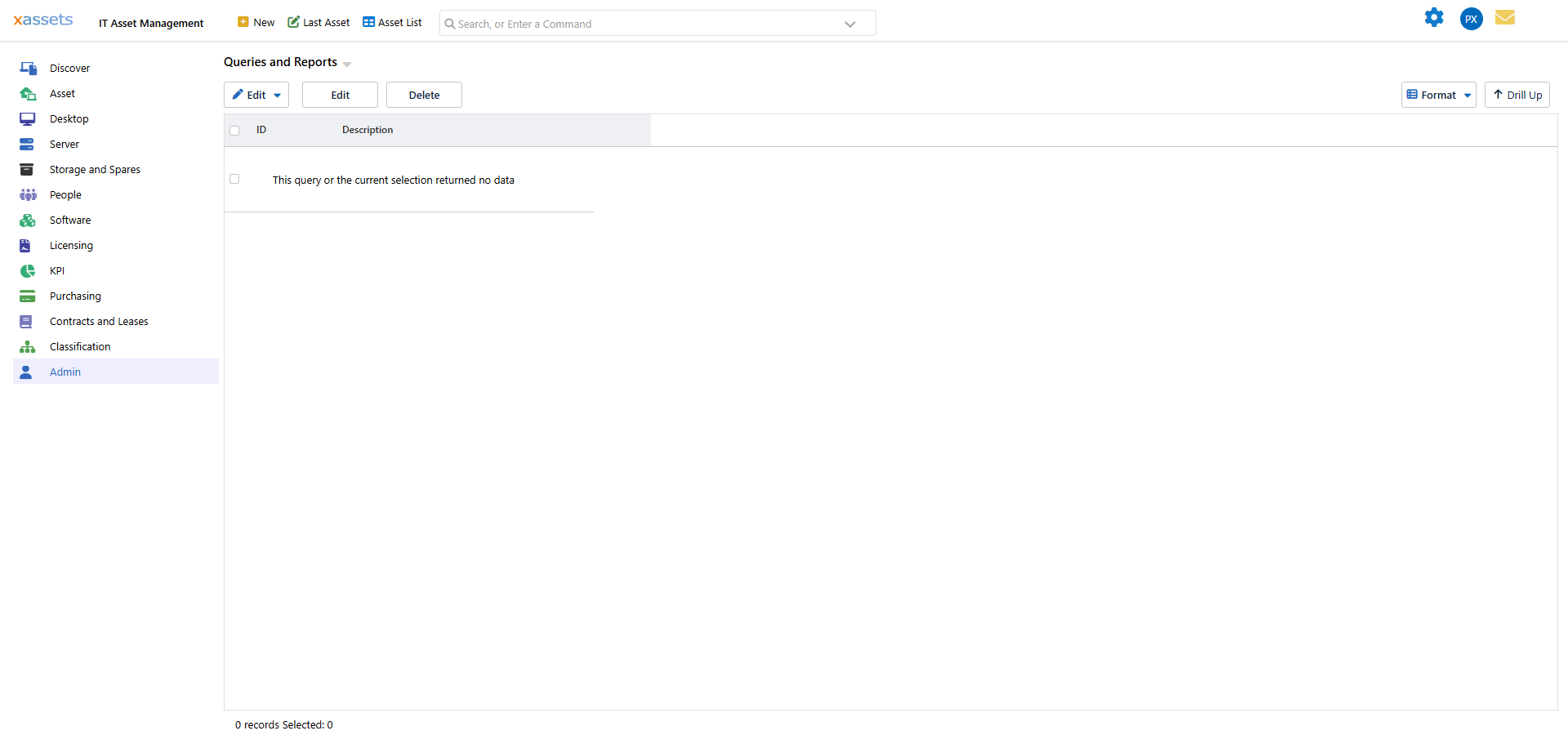
From here you can create new queries, clone, edit, and delete existing queries. You can also run a query by selecting it and clicking  .
.
The tree on the left sorts queries by Type and Subject. Use it to narrow down the list when looking for a specific query.
Key Concepts
| Concept | Description | Learn More |
|---|---|---|
| Variants | Different filtered views of the same base query | Query Variants |
| Columns | Fields displayed in the query, with configurable formatting | Query Columns and Display |
| Filters | Conditions that control which records appear | Query Record Filters |
| Parameters | Values passed to the query at run-time (e.g., date range, user selection) | Query Parameters |
| Presentation | Drilldown hierarchy and tree structure for grouped views | Query Columns and Display |
| Report Design | PDF report layout associated with the query | Query Sorting and Report Design |
| User SQL | Custom SQL for complex queries beyond the builder | Advanced Query Techniques |
Related Articles
- Creating a Query — how to create new queries
- Editing a Query — the query editor fields and tabs
- Query Columns and Display — column properties, ordering, sizing, and presentation
- Query Sorting and Report Design — default sort orders and PDF reports
- Query Variants — creating multiple filtered views from one query
- Advanced Query Techniques — User SQL and calling menus
- Query Parameters — parameterised queries
- Query Record Filters — filter conditions and scheme