Editing a Query
This page explains how to open the Query Editor and describes the main fields and tabs. For detailed information about columns, see Query Columns and Display.
Opening a Query for Editing
There are several ways to open a query in the editor:
From the Query List
- Navigate to Admin > Queries > Queries and Reports.
- Use any of these methods:
- Click a query name in the list to open it directly.
- Select a query and click
 or choose Edit Query from the Query Editor menu.
- Click
 to open the Find dialog, search for the query, select it, and click
  .
.
- Click
 to re-open the last query you edited.
From a Running Query
When a query is displayed on screen, Ctrl-click on the query title to open it in the editor. This is the quickest way to edit a query you are currently viewing.
The Query Editor
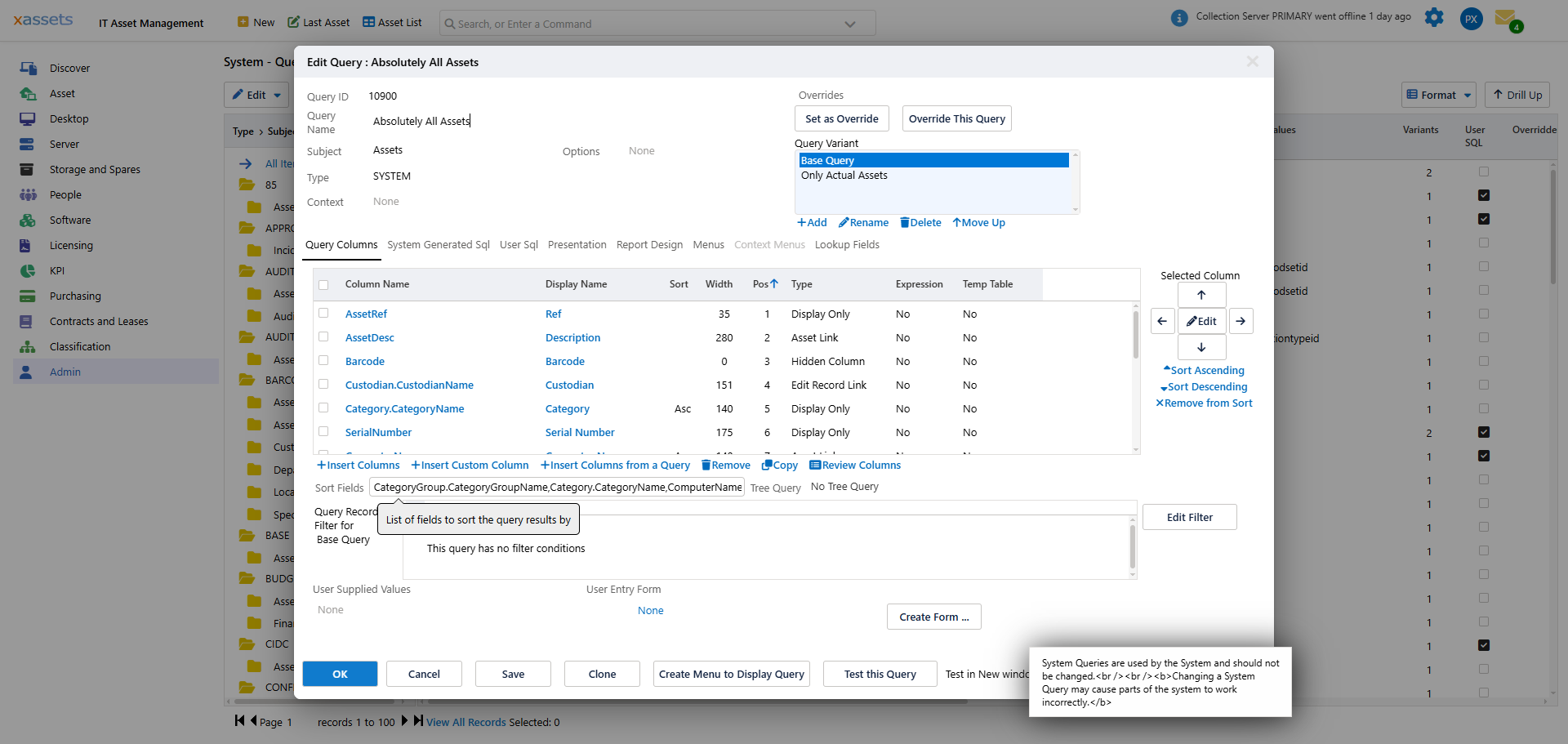
Main Fields
| Field | Description |
|---|---|
| ID | A unique number generated by the system. Cannot be changed. |
| Query Name | The display name for the query. This appears as the title above the query results, although it can be overridden by the menu item that runs it. |
| Subject | The primary data table the query operates on (e.g., Assets, Custodians, Contracts). This determines which columns are available in the column picker. Cannot be changed after the query has columns. |
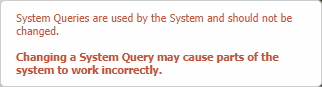
| Type | The query type categorises its purpose (Standard, Filter, Search, etc.). Some types display an information alert in the bottom-right of the dialog explaining their use. |
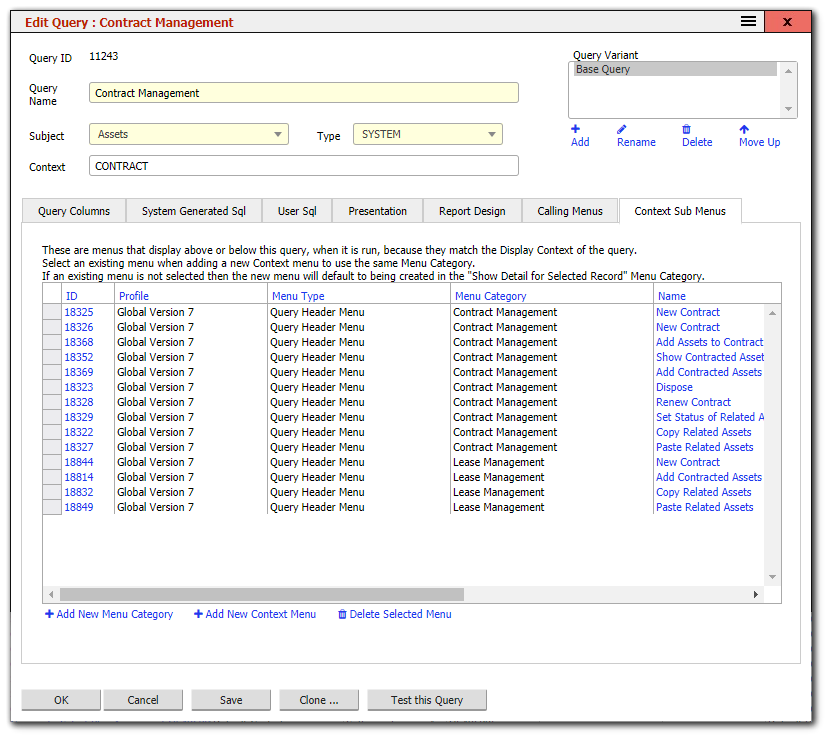
| Context | When set, the query establishes a display context that determines which Query Header and Footer menus appear alongside it. The Context Sub Menus tab will show menus matching this context. |
Type Information Alerts
When you select certain query types, an information box appears explaining the type:
Context Sub Menus
When a query has a Context set, the Context Sub Menus tab shows which menus share that context and will display alongside the query:
Query Editor Tabs
| Tab | Purpose | Learn More |
|---|---|---|
| Query Columns | Manage the list of columns, their properties, and the record filter | Query Columns and Display |
| Presentation | Configure the drilldown hierarchy for tree views and charts | Query Columns and Display |
| Variants | Create and manage variants with different filters | Query Variants |
| Sort | Set the default column sort order | Query Sorting and Report Design |
| Report Design | Manage the PDF report layout | Query Sorting and Report Design |
| System Generated SQL | View the SQL that the query builder produces (read-only) | Advanced Query Techniques |
| User SQL | Write custom SQL for complex queries | Advanced Query Techniques |
| Transformations | List transformations that use this query as a data source | Advanced Query Techniques |
| Calling Menus | List menu items that display this query | Advanced Query Techniques |
| Context Sub Menus | List menus matching the query's context (when context is set) | -- |
Managing Columns
The Query Columns tab shows the list of columns currently in the query:
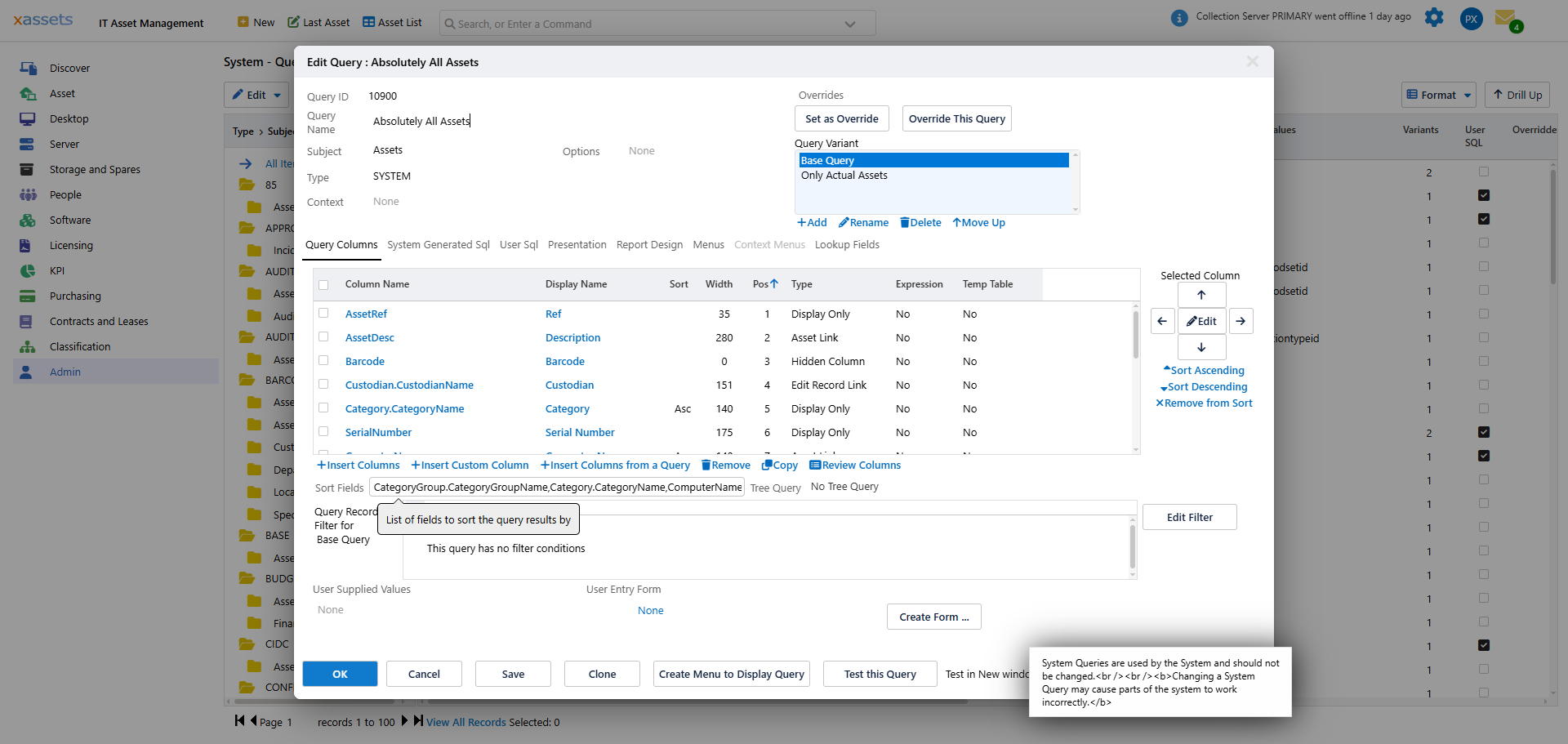
Key operations:
- Insert Columns -- select from a list of available columns based on the query's subject.
- Insert a Custom Column -- create a user-defined column using expressions or TEMPTABLE subqueries.
- Insert Columns from Another Query -- copy columns from another existing query.
- Delete Columns -- select one or more columns and click Delete Columns to remove them.
Columns are inserted at the bottom of the list if no column is selected, or above the selected column.
Tip: Use the Search box and column sort/filter features in the query list to find queries quickly. The tree on the left also helps by filtering by Type and Subject.
Related Articles
- Query Columns and Display — column properties, formatting, ordering, and sizing
- Query Record Filters — filter conditions at the bottom of the Query Columns tab
- Query Variants — creating multiple filtered views
- Query Sorting and Report Design — sort orders and PDF reports
- Advanced Query Techniques — User SQL, transformations, and calling menus
- Creating a Query — how to create new queries