Query Record Filters
This page explains how to use query record filters to control which records appear in query results. Filters are a core part of the xAssets query system -- they let you define conditions that records must meet to be included in the output.
Prerequisites
- You must have Configuration or Administrator permissions to edit query filters.
- Familiarity with the Queries and Reports system is recommended.
Where Filters Appear
When editing a query (that is not a User SQL query), the record filter is shown at the bottom of the Query Columns tab. Each variant of a query can have its own filter, allowing different subsets of data to be displayed from the same base query.
Warning: Changes made to a filter using the Query Filter Editor are applied immediately, even if you do not save the query itself. Take care when editing filters on production queries.
Opening the Filter Editor
To edit a query's filter:
- Open the query in the Query Editor.
- In the Query Columns tab, locate the filter area at the bottom.
- Click the
 button, or click on any existing condition to open the filter editor.
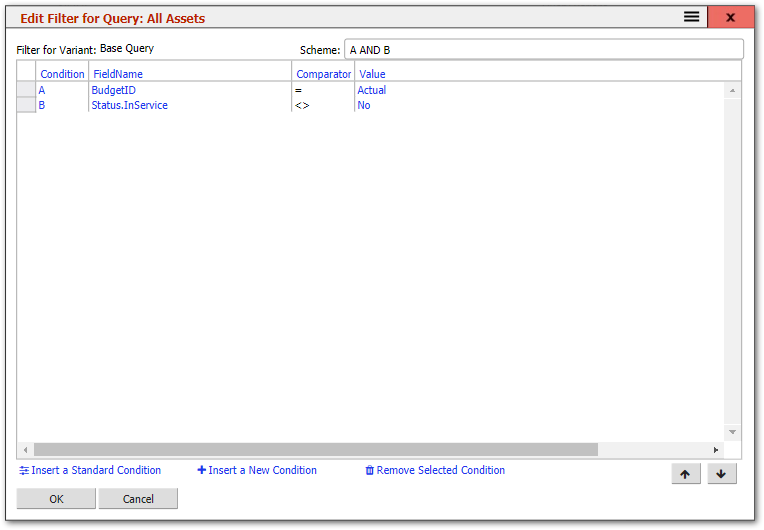
Default Conditions
When you edit a filter that has no conditions, the system may offer to automatically add common default conditions:
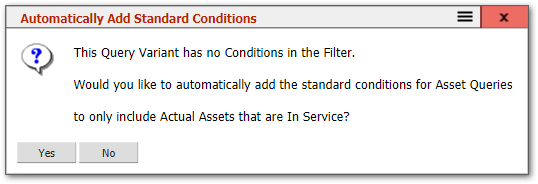
These defaults vary by query subject and typically include conditions like "exclude deleted records" or "exclude disposed assets." You can accept the defaults or decline and add your own conditions manually.
Standard Conditions
Depending on the query's subject, an Insert Standard Conditions option may be available. This provides a list of pre-built conditions relevant to the subject:
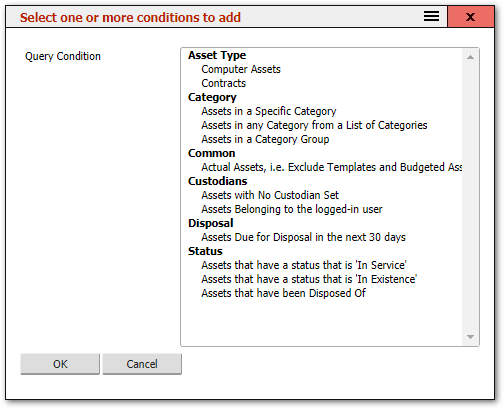
You can select one or more conditions to add. Some conditions may require you to select a value (e.g., a specific category or status).
Warning: Some standard conditions have conflicting criteria and should not be used together. For example, adding both "Show only active assets" and "Show only disposed assets" would result in no records being returned.
Adding a Condition
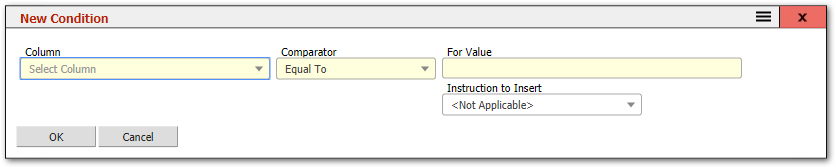
Click Insert a Condition to add a new filter condition. If an existing condition is selected, the new condition is inserted above it; otherwise it is added to the bottom of the list.
Condition Fields
Each condition has the following properties:
| Field | Description |
|---|---|
| Column | The query column to test. Not required when using the "Expression" comparator. |
| Comparator | How to compare the column value to the filter value. See the Comparators table below. |
| For Value | The value to compare against. |
| And Value | A second value, used only with "Between" and "Not Between" comparators. |
| Instruction to Insert | Adds a run-time pseudo value to the For Value. These are evaluated at run-time based on the logged-in user, current date/time, or server details. Useful for dynamic filters like "assets at the current user's location." |
| Add to All Variants | When checked, this condition is added to the filter for all variants of the query, not just the current variant. |
Comparators
| Comparator | Description |
|---|---|
| Equal To | Column value must exactly equal the For Value. |
| Not Equal To | Column value must not equal the For Value. |
| Less Than | Column value must be less than the For Value. |
| Greater Than | Column value must be greater than the For Value. |
| Less Than or Equal | Column value must be less than or equal to the For Value. |
| Greater Than or Equal | Column value must be greater than or equal to the For Value. |
| Between | Column value must fall between the For Value and the And Value (inclusive). |
| Not Between | Column value must not fall between the For Value and the And Value. |
| In List | Column value must match one of the comma-separated values in the For Value. Quotes are not required for text values. |
| Not in List | Column value must not match any of the comma-separated values. |
| Like (%) | Column value must contain the For Value. SQL wildcards % (any characters) and ? (single character) can be used. |
| Not Like (%) | Column value must not contain the For Value. |
| In Text | Column value must be one of the values contained in the For Value. The For Value can be a SQL SELECT statement or a parameter. |
| Not In Text | Column value must not be one of the values in the For Value. |
| In Text or 0 | Same as In Text, but evaluates to true if the For Value is 0. Useful for parameters where 0 means "All Rows." |
| Not In Text or 0 | Same as Not In Text, but evaluates to true if the For Value is 0. |
| Is Null | Column value must be NULL (empty). |
| Is Not Null | Column value must not be NULL. |
| In Query | Column value must appear in the first column of the query specified in the For Value. |
| Not In Query | Column value must not appear in the first column of the specified query. |
| Expression | Any valid SQL expression can be entered as the For Value. The Column field is ignored. |
| Has Tag | For columns containing comma-separated lists, the For Value must appear as one of the values in the list. |
Tips for Building Filters
- Start with the standard conditions for your query subject, then customise as needed.
- Use the In Query comparator for complex filtering -- create a separate filter query that returns the IDs you want, then reference it.
- Use run-time instructions (via "Instruction to Insert") for dynamic values like the current user's location, department, or company.
- Test filters by running the query after each change to verify the results match expectations.
- Use the Filter Scheme to combine conditions with OR logic when needed.
Related Articles
- Filter Scheme — combining conditions with AND/OR logic
- Queries and Reports — the query builder
- Query Parameters — using parameters in filter conditions
- Table Permissions — using filter queries for user group security
- Profiles — using filter queries for profile-level data restriction