Table Permissions
This page explains how to configure table-level permissions for a user group. Table permissions control which database tables a user group can read, insert into, update, and delete from, and can optionally apply record-level filters to restrict which rows are visible.
Prerequisites
- You must have Administrator or Configuration user group permissions.
- To use record filters, you need a query of type Filter with a subject matching the target table. Create the filter query first if one does not exist.
Viewing Table Permissions
- Navigate to Admin > Users, then click Edit User Groups in the toolbar to open the System - User Groups screen. (There is no standalone "User Groups" menu item.)
- Click a user group code to open the Edit Usergroup dialog.
- Switch to the Table Permissions tab.
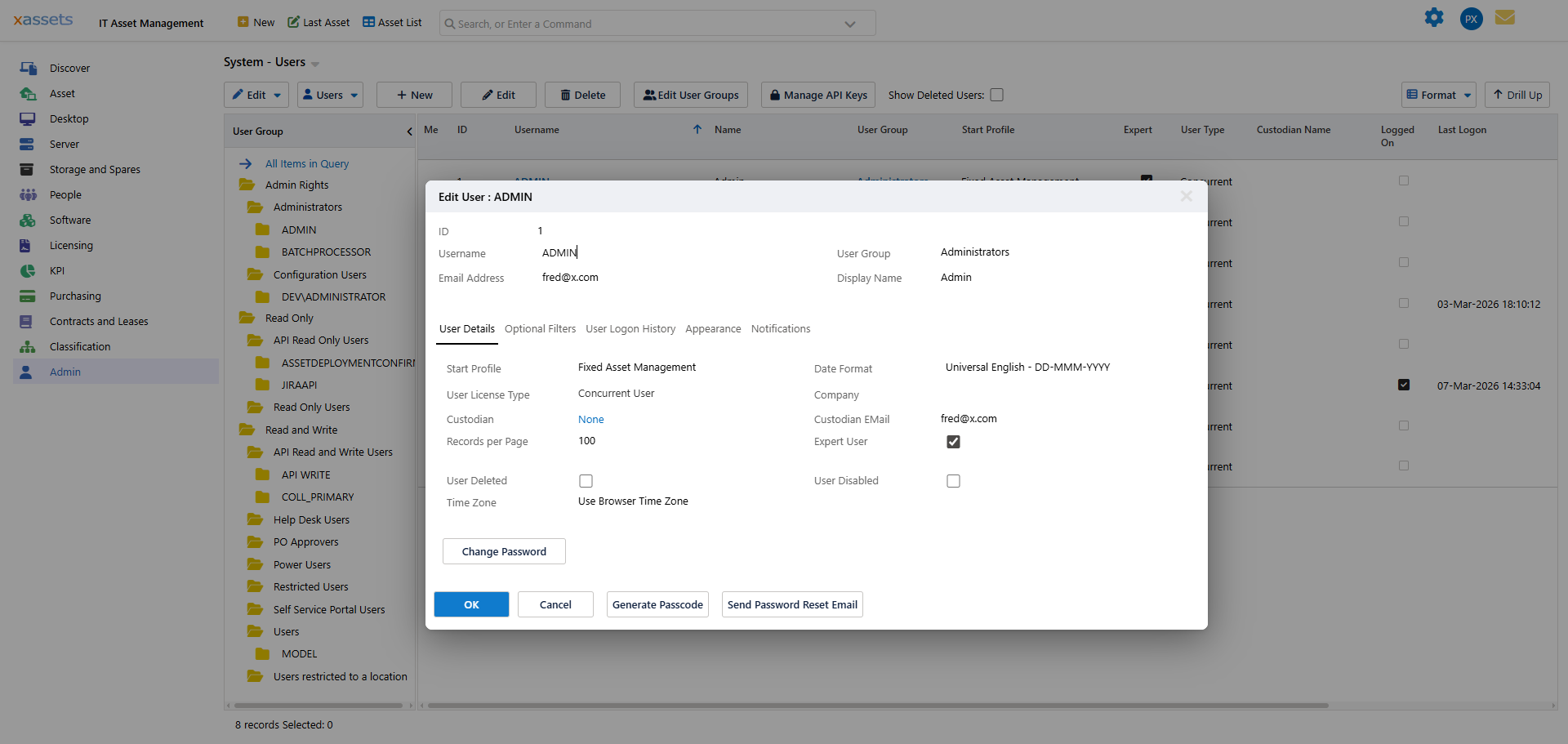
The list shows all table permission records for this user group, with columns for Object Name, Object Type, Permissions (the granted Select/Insert/Update/Delete letters), Records (any record filter query, or the count of records explicitly granted), and Rights List. Click an Object Name to edit a permission, or select Add a new Permission to create one.
Table Permission Fields
| Field | Description |
|---|---|
| User Group | The user group this permission applies to (read-only on existing permissions). |
| Object Name | The database table this permission controls (e.g., Asset, Custodian, Contract). Cannot be changed after creation. |
| Type | Set to TABLE for table permissions. |
| Select | When checked, users in this group can read records from this table. |
| Insert | When checked, users can create new records in this table. |
| Update | When checked, users can modify existing records in this table. |
| Delete | When checked, users can delete records from this table. |
| Record Filter | A query of type Filter with a subject matching the selected table. When set, only records that pass this filter query are visible to users in the group. Records excluded by the filter are completely invisible -- they do not appear in queries, searches, or the asset editor. |
| Rights | For the Asset table only, additional rights can be specified for the user group. |
How Table Permissions Interact with Database Roles
Table permissions refine the access granted by the user group's database role:
- A READ role user group cannot insert, update, or delete regardless of table permission settings.
- A WRITE role user group can have individual tables restricted (e.g., allow Select and Update on Asset but deny Insert and Delete).
- An ADMIN role user group has unrestricted access; table permissions are typically not needed.
Warning: If no table permission record exists for a table, the user group's default access is determined by the database role. Only add table permission records when you need to restrict or filter access beyond the role default.
Using Record Filters
Record filters are the most powerful feature of table permissions. They provide mandatory data segregation that users cannot override.
Common use cases:
| Scenario | Filter Query |
|---|---|
| Users see only assets in their own location | Filter on Asset table where Location matches the logged-in user's location |
| Users see only assets in their company | Filter on Asset table where Company matches the logged-in user's company |
| Users see only active (non-disposed) assets | Filter on Asset table where Status is not "Disposed" |
| Users see only custodians in their department | Filter on Custodian table where Department matches the user's department |
To set up a record filter:
- Create a query with type Filter and a subject matching the table you want to filter.
- Add filter conditions that reference the logged-in user (using instructions like
%CurrentUserCompanyID%or%CurrentUserLocationID%). - Open the table permission record for the target user group and table.
- Select the filter query in the Record Filter field.
- Save.
Tip: Test record filters thoroughly before deploying them. Log in as a user in the affected group and verify that the correct records are visible and that no expected records are missing.
Related Articles
- User Groups - overview of the user group system
- Menu Access - controlling which menus each group can see
- Query Record Filters - building the filter queries used in table permissions
- Optional Filters - user-controlled voluntary filtering (as opposed to mandatory table permission filters)
- Profiles - profile-level filters that work alongside table permissions