Asset Editor Forms
This page explains how to create customised asset editor forms for specific user groups. By using form prefixes, different user groups can see different fields and layouts when editing the same type of asset.
Prerequisites
- The user group must have an Asset Editor Form Prefix set in the User Group Editor.
- You must have Configuration user group permissions to create or edit forms.
How Asset Editor Form Prefixes Work
When a user opens an asset for editing, the system determines which form to display:
- The system checks whether the user's group has an Asset Editor Form Prefix set.
- If a prefix is set, the system looks for a form whose name starts with that prefix and whose category matches the asset's category. If no exact category match exists, it also checks for a match on the category's context and then on the category group, before falling back to a form that just matches the prefix (with no category set), so it applies to all categories.
- If a matching prefixed form exists, it is used instead of the standard form for that category.
- If no matching prefixed form exists at all, the profile's default form is used as a fallback.
This mechanism enables you to control what fields are shown to different user groups without creating entirely separate security configurations. For example:
- A Read Only user group with prefix "RO" could have simplified forms that show only key fields.
- A Finance user group with prefix "FIN" could have forms that emphasise financial fields and hide technical specifications.
- A Help Desk user group with prefix "HD" could have forms focused on support-related fields.
Viewing Asset Editor Forms
The Asset Editor Forms tab in the User Group Editor is only available when the user group has an Asset Editor Form Prefix set. It shows all forms that have been created with that prefix, listed by name.
From this tab you can:
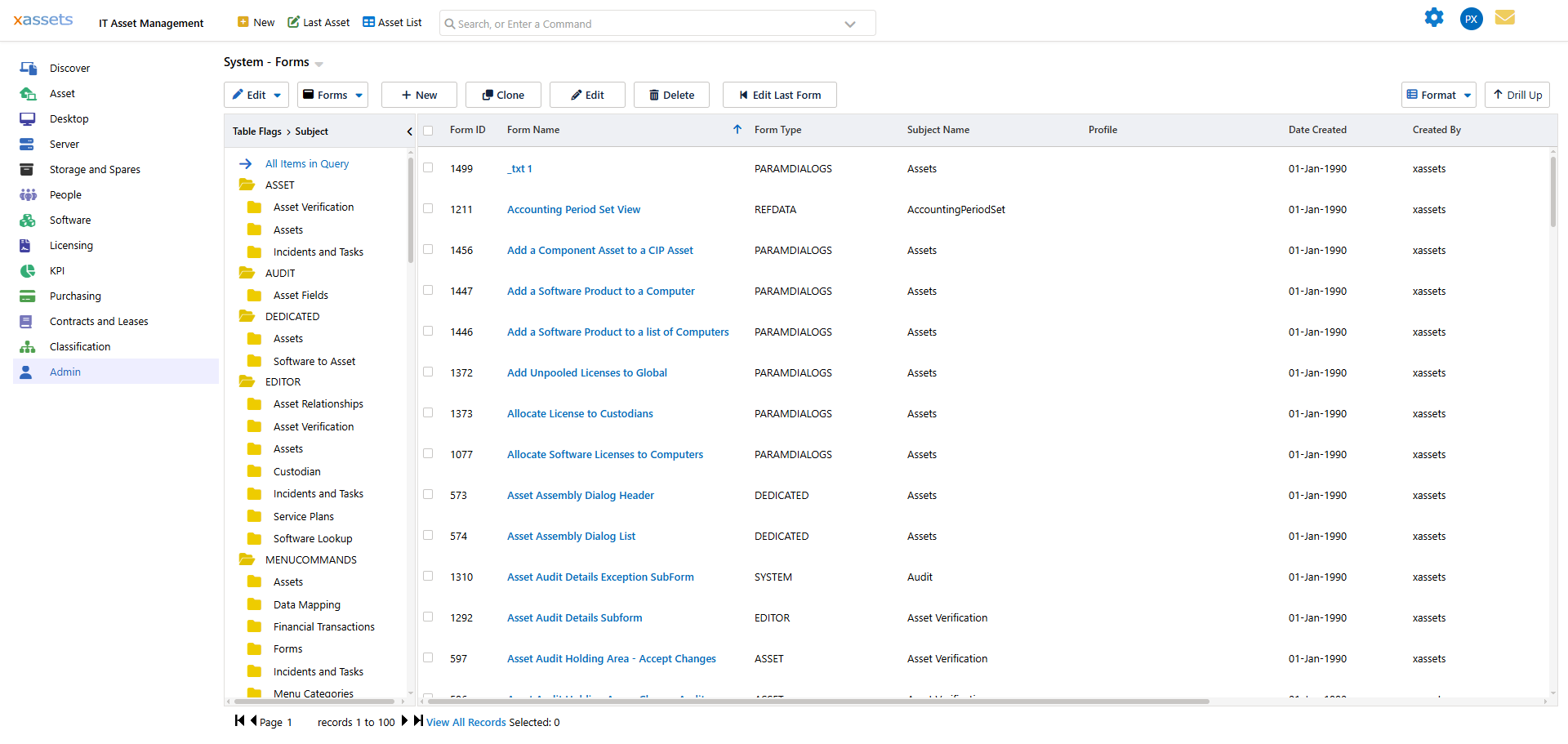
- Edit a form by clicking on its name. This opens the Form Editor dialog, where you can add, remove, or rearrange the fields on the form:
- Delete selected forms by selecting them and clicking Delete Selected Asset Editor Form.
- Add a new asset editor form (see below).
Creating a New Prefixed Form
- Open the user group in the editor and switch to the Asset Editor Forms tab.
- Click Add a new Asset Editor Form.
- In the dialog, select an existing form to clone from. The new form will inherit all properties and fields from the source form.
- The new form is named
<Prefix>_<SourceFormName>(e.g. prefix "RO" cloned from "Standard Asset Form" produces "RO_Standard Asset Form"), and it overrides the source form for users in this group. - Edit the cloned form to customise it for this user group -- add, remove, or rearrange fields as needed.
Tip: Always clone from the standard form for the same category. This ensures you start with the correct fields and layout, and you only need to remove or hide the fields that this user group should not see.
Sharing Prefixed Forms Across User Groups
Multiple user groups can share the same prefix. For example, if both "Standard Users" and "Department Managers" should see the same customised forms, set the same Asset Editor Form Prefix on both groups.
This avoids duplicating form definitions and ensures consistent field layouts across related user groups.
Warning: Do not change a user group's Asset Editor Form Prefix after forms have been created with that prefix. Changing the prefix breaks the association, and the prefixed forms will no longer display for users in that group.
Related Articles
- User Groups - overview of the user group system
- Editing a User Group - setting the Asset Editor Form Prefix
- Forms - creating and editing forms in general