Query Variants
This page explains query variants, which let you create multiple filtered views of the same base query. Variants share the same columns as the base query but can have different filter conditions and different report formats.
What Variants Are
Every query has a Base Query variant that is created automatically. You can then add additional variants, each with its own record filter. This avoids creating multiple nearly-identical queries when you need different filtered views of the same data.
For example, an "All Assets" query might have variants for:
- Active Assets -- filtered to Status = Active
- Disposed Assets -- filtered to Status = Disposed
- Recently Created -- filtered to Created Date in the last 30 days
- Non-Admin -- filtered to exclude administrative asset types
Managing Variants
Open a query in the Query Editor and switch to the Variants tab:
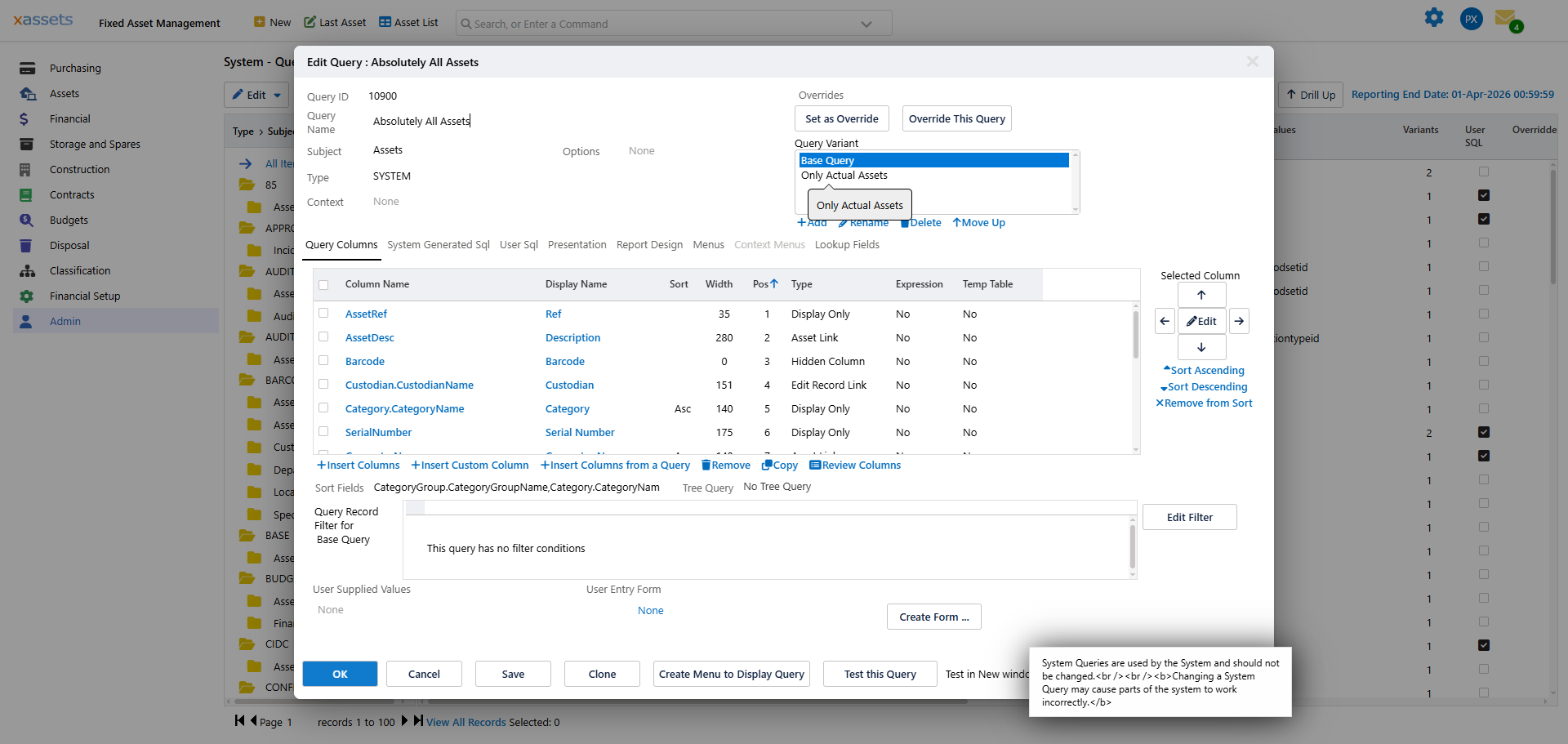
From this tab you can:
- Create a new variant. It inherits the filter settings of the Base Query.
- Rename an existing variant.
- Delete a variant (you cannot delete the Base Query variant).
- Reorder variants to control their display order in the variant menu.
How Users Switch Between Variants
When a query is run from a menu, the menu item can specify which variant to display. The displayed query shows a variant menu under the title listing all available variants:
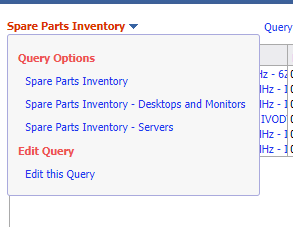
The user can click any variant name to switch to that view. The columns remain the same; only the filtered data changes.
Configuring Variant Filters
Each variant has its own record filter, independent of the base query's filter. To configure a variant's filter:
- Open the query in the Query Editor.
- Switch to the Variants tab.
- Select the variant you want to configure.
- The filter area at the bottom of the Query Columns tab now shows the filter for the selected variant.
- Edit the filter conditions as described in Query Record Filters.
Tip: When adding a condition in the filter editor, check the Add to All Variants option to apply the condition to every variant at once. This is useful for conditions that should always apply regardless of the variant (e.g., "exclude deleted records").
Variants and User SQL
For User SQL queries, each variant can have different SQL, but all variants must return the same columns as the Base Query. This allows different SQL approaches (e.g., different WHERE clauses, different joins) while maintaining a consistent column structure.
Variants and Report Design
Each variant can have its own report layout. This is useful when different variants need different PDF formatting, grouping, or headers. When the report layout is not customised for a variant, it inherits the Base Query's report design.
Related Articles
- Queries and Reports Overview — overview of the query system
- Query Record Filters — building filter conditions for variants
- Query Sorting and Report Design — configuring report layouts
- Editing a Query — the query editor dialog