Menus Overview
Menus are the navigation backbone of xAssets. Every clickable link, toolbar button, and dashboard action is a menu item stored in the database. Because menus are data (not code), the entire navigation structure of the application can be reconfigured to match your organisation's workflows.
What a Menu Item Does
A menu item stores a command that executes when the user clicks it. Commands can:
- Display a query (a data list, chart, or report)
- Open a form (an editing screen or dialog)
- Run a transformation (an import, export, or data operation)
- Execute an AMSX script
- Navigate to a page or URL
- Perform a built-in user action (e.g., logout, change password)
The command is configured through the Menu Command Builder, which provides a guided interface for selecting the command type and its parameters.
Where Menu Items Appear
Menu items appear in many locations throughout the application, controlled by their Menu Category and Menu Type:
| Location | Description |
|---|---|
| Dropdown menus | The main menu bar across the top of the page. Each dropdown corresponds to a menu category. |
| Header bar links | Links at the top of each screen |
| Query header and footer menus | Menus that appear above and below queries, filtered by Display Context |
| Query link columns | Clickable columns within query results that run other queries or commands |
| Left-side links | Links on the left panel of asset and task editing screens |
| Action menus | Context-sensitive menus for assets and tasks |
| Dashboard items | Links, charts, and tables displayed on dashboards |
| Search menu | Options that appear in the search results |
Standard Dropdown Menus
The most visible menus are the Standard Menu Items that appear in the dropdown bar across the top of the page:
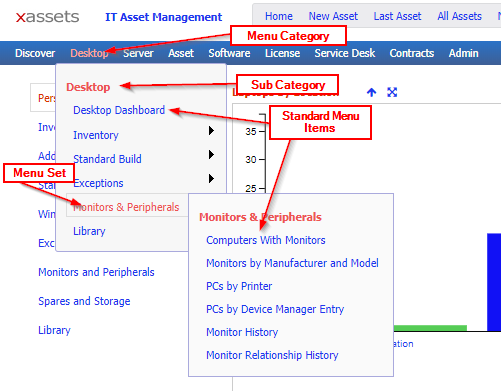
In this example, both "Desktop Dashboard" and "Computers With Monitors" are Standard Menu Items in the "Desktop" Menu Category. They appear as a dropdown from the menu bar because their Menu Type is set to Standard Menu. Their order within the dropdown is determined by the Sort Code field.
Organising Menus Within a Dropdown
Menu items within a dropdown can be organised using three grouping features:
- Sub Categories -- provide headings that visually separate groups of related menu items within the same dropdown.
- Menu Sets -- group several menu items into a collapsible sub-menu within the dropdown. This is useful when a menu has many items.
- Menu Sub Sets -- provide an additional level of sub-menu nesting within a Menu Set.
In-Place Configuration of Menus
Configuration Users can edit menus directly from the live application without navigating to the Admin screens:
- Ctrl-click a menu item to open it in the Menu Editor.
- Ctrl-click a dashboard chart or query title to edit the underlying query.
- Ctrl-Shift-click a dashboard chart or query title to edit the menu item instead.
- Ctrl-click a menu category name (e.g., in the menu bar) to edit the Menu Category.
- Ctrl-click a field on a form to edit that field's properties.
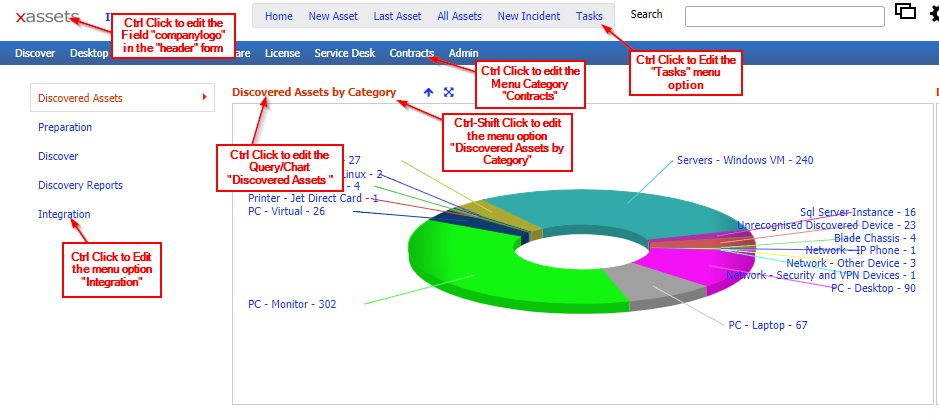
Tip: In-place editing is the fastest way to find and modify a menu. If you can see it on screen, Ctrl-click it.
This Chapter
This chapter covers the following topics:
- The Menu Editor -- creating, editing, and deleting menu items
- Menu Command Builder -- building the command a menu item executes
- Parameters for Queries and Transformations -- passing data to parameterised queries and transformations
- Menu Security -- controlling which User Groups can see each menu item
Related Articles
- Menu Categories — the containers that group menu items and control where they appear
- Dashboards — dashboards are built from menu items and menu categories