Reference Data Lookup Screens
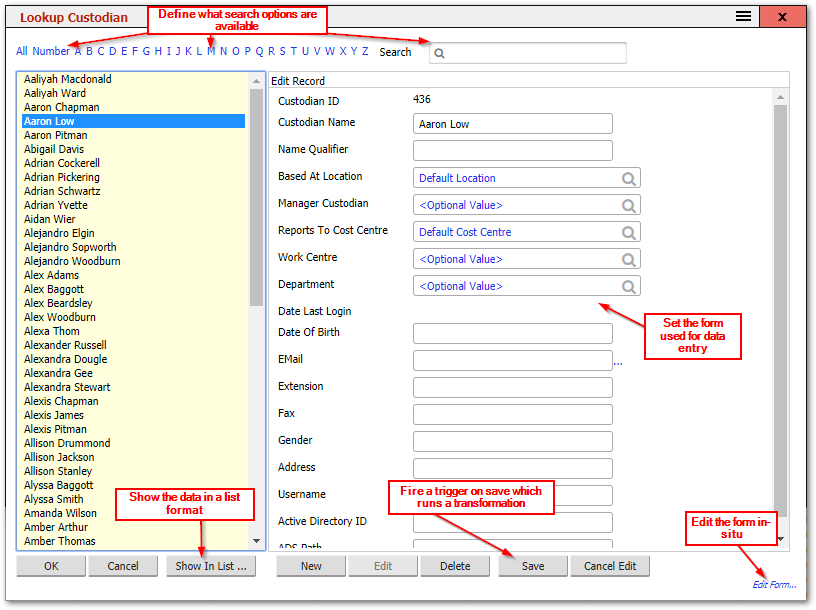
- Set the form used for data entry in each type of reference data field or specification field
The main data area shown is based on a form. By default, the form is generated by the system automatically. The default form can be overridden by a user defined form in the REFDATA (Reference Data (Lookups)) section in the Forms editor. The Subject of the form within this section determines when it is used as the editor. For example, the form with a subject of Custodian, in the REFDATA section will be used to edit Custodian records.
- For reference data items, setting the subject will connect the form to the lookup For specification lookup fields and specification lookup arrays, setting "Subject" to Specification Lookup and "Lookup Field" to the specification fieldname will connect the form to the lookup values for this field For specification connecting records (specification type 12 and type 13 text array and lookup array fields), setting "Subject" to Specification Type 12 to Asset or Specification Type 13 to Asset, and "Lookup Field" to the specification fieldname will connect the form to the link between this field and the asset table.
- Define what Search Options are available
The menu that calls this Lookup can specify whether or not the user has the option to find all values starting with a number, the A to Z options and the Search box. If not specified, the default settings of the reference data type will be used.
- Fire a trigger on save which runs a transformation
This feature is available on the saving of any record in the whole database, including assets, tasks, POs, and reference data. A trigger can validate data, change data, enforce business rules, create reports, and send emails.
- Edit the form in-situ
The "edit view" button is used to edit the base form from within the dialog.
- Show the data in a list format
If there is a query called "<Tablename> List" (where <Tablename> is the name of the table for the reference data) in the SYSTEM-LIST Query types, then the "Show In List…" button will be available and will run that query in a dialog. The user can then export or print the data. The query has a context of RECORDLIST which displays a "listed Records" menu with a bulk delete option to delete multiple selected records.
Note: Some data types like Software Titles can only be edited by a Configuration User. Software Titles also offer a "Recognition …" button that enables editing of the recognition data that was used to recognise this title.
Related Articles
- What Can Be Configured Overview — Overview of all configurable areas
- Lookup Lists — Creating and managing lookup lists
- Forms Overview — Detailed guide to forms and the form editor
- Search — Configuring search behaviour