Moving an Asset into Storage
When an asset is taken out of active service -- for example, returned equipment awaiting redeployment, or a server decommissioned but not yet disposed of -- use this function to move it into storage. The asset's status changes but the record is preserved with full history.
Why Move Assets to Storage
Rather than deleting or disposing of assets immediately:
- Preserves the record -- the asset retains its history, configuration, and financial data
- Enables redeployment -- stored assets can be quickly put back into service
- Accurate reporting -- storage assets are excluded from "in service" reports but included in total asset counts
- Financial tracking -- assets in storage may still have book value for accounting purposes
Prerequisites
The asset must currently have a status of In Service or Received to be moved into storage. Software and contract records are excluded from storage operations.
How to Move an Asset into Storage
Step 1: Select Assets
- Navigate to Asset > Storage, Spares and Library > Move an Asset into Storage
- A query displays all physical assets eligible for storage (status In Service or Received):
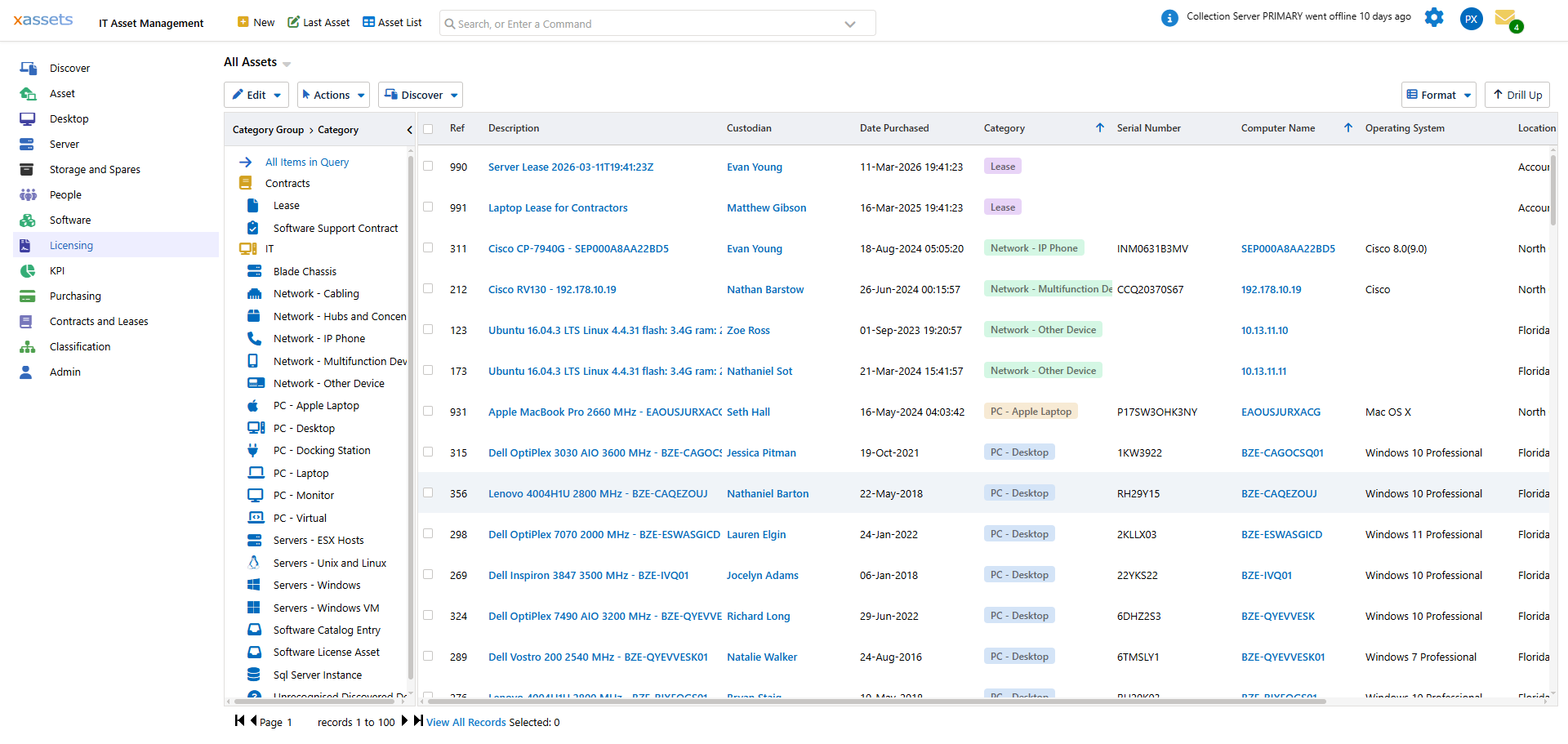
- Select one or more assets (use Shift+Click or Ctrl+Click for multiple selection)
Step 2: Execute the Move
- From the action menu, choose Actions on Selected Assets (Storage) > Move Selected Assets Into Storage
- In the dialog, set the following options:
- Status -- typically "In storage - may be used again" (other storage statuses may be available depending on your configuration)
- New Location -- optionally move the assets to a dedicated storage location (e.g., "Warehouse" or "IT Storeroom"), or choose [Do not change location] to keep the current location
- Click OK to execute the move
A confirmation message appears when the operation completes.
Viewing Assets in Storage
To see all stored assets:
- Navigate to Asset > Asset Inventory Dashboard > Spares and Storage
- Use the Assets in Storage by Location report
Click a location to drill down into the list of stored assets, or click the full screen icon to expand the view.
Tips
- Create a dedicated storage location (e.g., "IT Storeroom - Building A") rather than leaving stored assets at their last in-service location -- this makes it easier to physically find them
- If an asset will never be redeployed, consider disposing of it instead of storing it (see the Asset Management chapter for disposal procedures)
- Moving an asset to storage creates a history entry, so the exact date of storage is recorded for audit purposes
- Review stored assets regularly -- equipment that has been in storage for more than 12 months may be obsolete and should be evaluated for disposal
Related Articles
- Deploy Assets from Storage — returning stored assets to active service
- Spare Parts — managing spare part inventory
- Spares and Storage Overview — the module overview