Change Requests
Change Requests track planned modifications to software, servers, or infrastructure that require formal approval and structured execution. Use Change Requests to document what is changing, who raised it, who it is assigned to, and its current status.
When to Use Change Requests
Change Requests are appropriate for:
- Server upgrades or migrations -- planned downtime, multiple steps, multiple teams
- Software deployments -- rolling out new software to a group of machines
- Network changes -- firewall rule changes, VLAN reconfigurations
- Infrastructure moves -- relocating equipment between data centres or offices
- Security patches -- coordinated patching across multiple systems
For reactive issues (something is broken and needs fixing now), use Incidents instead. For root-cause investigations, use Problems.
Viewing Change Requests
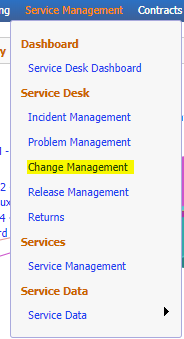
Change Management is part of the Service Management module. Click Service Management in the left navigator, then choose Change Management from the flyout menu:
This opens the Change Requests grid, grouped in the left panel by Service Priority (choose All Items in Query to see every change request). The grid columns are Reference, Change Request Description, Date Completed, Raised, Caller, Status, Assigned, Priority and Hours. Toolbar buttons let you Edit the selected request, run Actions, start a New Change Request, or add a New Comment.
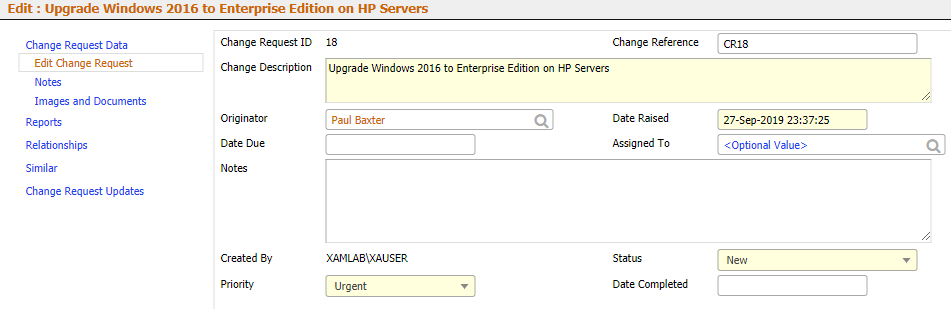
Click New Change Request to open the entry form, which is also used to view and edit an existing change request:
Key Change Request Fields
| Field | Purpose |
|---|---|
| Change Description | What is being changed (required) |
| Originator | The person who raised the change |
| Date Raised | When the change was logged (defaults to today) |
| Date Due | The target date for the change |
| Assigned To | The person responsible for carrying out the change |
| Notes | Free-text notes about the change |
| Priority | Urgency of the change (defaults to Medium Priority) |
| Status | Lifecycle state of the change (starts as New) |
| Date Completed | Set once the change has been finished |
The left-hand tab list on the entry form also gives access to Notes, Servicing, Images and Documents, Reports, Relationships, Similar items, and Change Request Updates for the record.
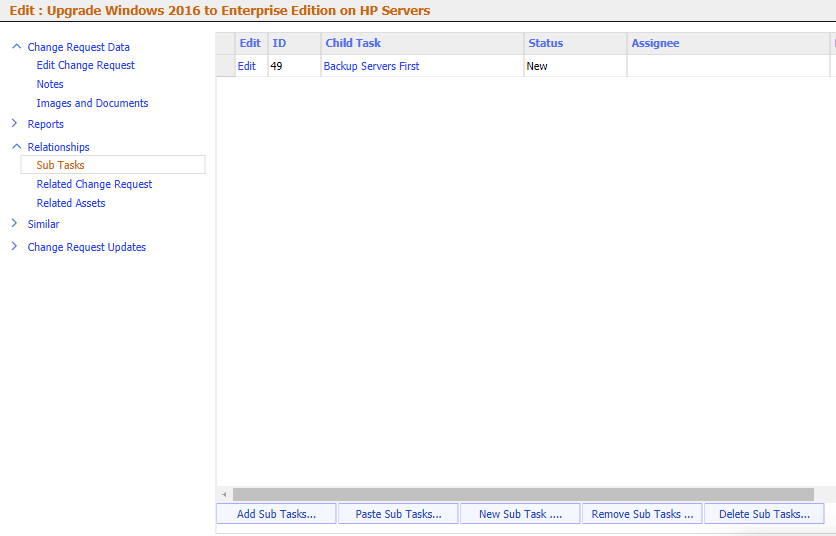
Servicing (Related Work Items)
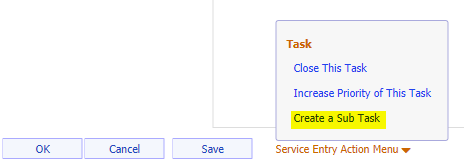
The Servicing tab tracks work items linked to the change request. It becomes available once the change request has been saved -- opening it on a new, unsaved change request prompts you to save first:
Reporting
Reports for change requests are available from the Service Management area alongside incident and problem reports.
Tips
- Set Assigned To as soon as a change is logged so ownership is clear
- Use the Notes field (or the Notes tab) to record justification and rollback plans, especially for higher-risk changes
- Use Relationships to link the change request to the affected assets -- this provides an audit trail
- After completing a change, verify that the affected assets' data in xAssets reflects the new state (e.g., updated software version, new location)
Related Articles
- Tasks -- the Service Desk overview
- Problems -- when a change is needed to resolve a root cause
- Adding New Incidents -- for reactive issues that do not require change management