Completed Incidents
The Completed Incidents query provides a historical view of resolved incidents. Use it for auditing response times, reviewing resolution patterns, generating historical reports, and identifying trends that may indicate underlying problems.
Viewing Completed Incidents
Open the Service Management icon in the left navigation bar, then click Incident Management. This opens the Incidents grid grouped by Service Priority. Click the dropdown arrow next to the Incidents heading above the grid and choose Incidents - Completed from the query variant menu:
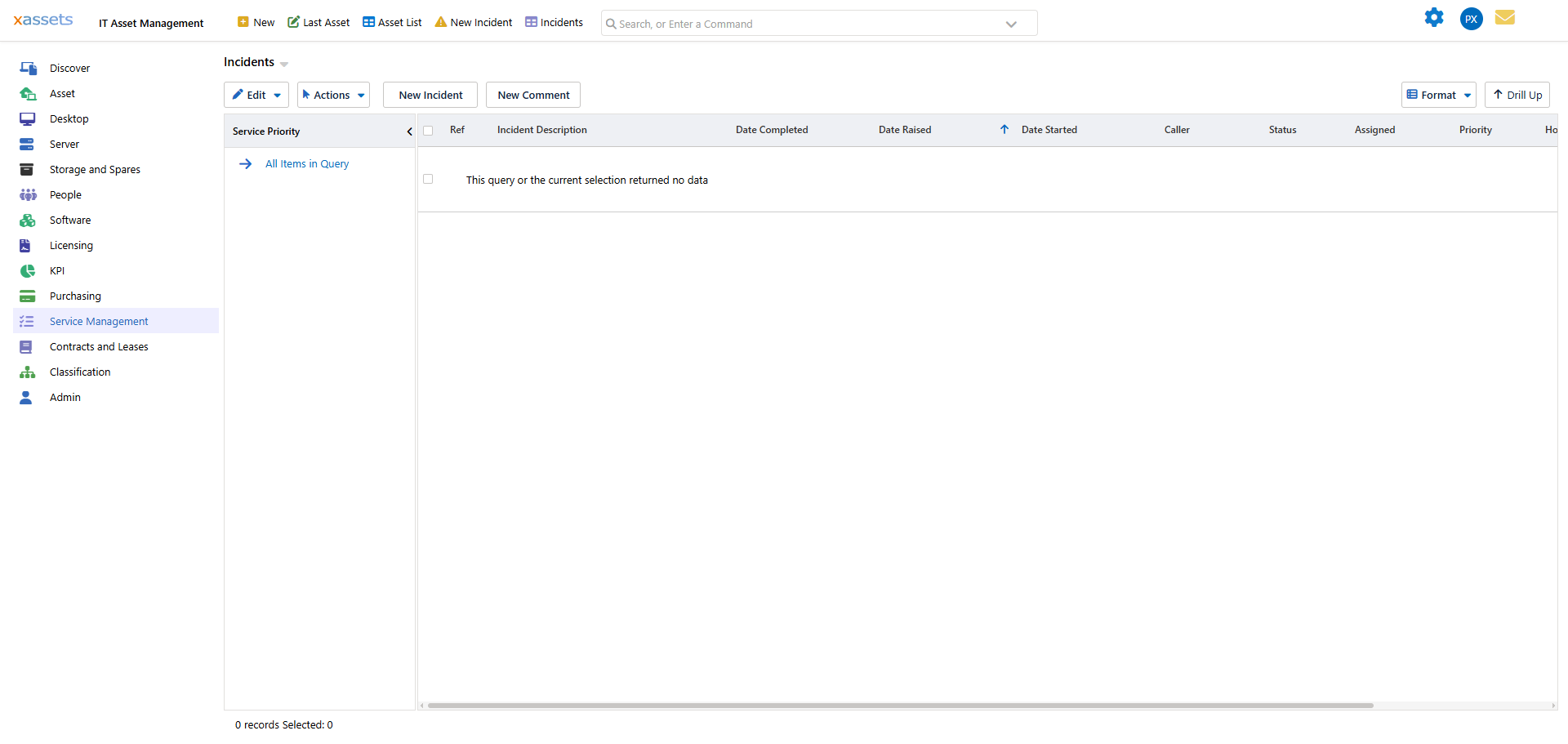
The list shows only incidents that have been closed, including their resolution date, assignee, and priority. If no incidents have been completed yet, the grid shows "This query or the current selection returned no data" -- this is expected on a system with no closed incidents yet, not an error.
What You Can Do with Completed Incidents
| Task | How |
|---|---|
| Audit response times | Compare the creation date and resolution date to calculate resolution time |
| Review resolution patterns | Look for common resolution approaches that could be documented as knowledge base articles |
| Identify recurring issues | Sort by asset or category to find repeated problems that may need a root-cause fix |
| Generate management reports | Export or print the query results for reporting on service desk performance |
| Reopen an incident | Click into the incident and change its status back to "Open" if the issue has recurred |
Customising the View
Menu items and queries are fully configurable, so additional time-based filters can be added as needed. For example:
- Incidents completed this week
- Incidents completed this month
- Incidents by assignee over a given period
See the Configuration Guide for instructions on creating query variants.
Tips
- Review completed incidents weekly to identify trends before they become chronic problems
- If the same type of incident appears repeatedly for the same asset, consider creating a Problem record (see Problems) to track the root cause
- Use the completed incidents data to set realistic SLA targets based on actual resolution times
Related Articles
- Tasks - the Service Desk overview
- Adding New Incidents - creating new incident records
- Problems - linking completed incidents to root causes