Task Assignment Rules
Task Assignment Rules let you automatically route new work orders and tasks to the right person, work centre, or supplier based on the task's Service Type, Service Status, and Asset Category. This eliminates manual assignment and ensures work reaches the correct team immediately.
To manage rules, go to Maintenance > Maintenance Setup > Rules for Task and Work Order Assignment. The screen itself is titled "Data Mapping - Task Assignment Rules".
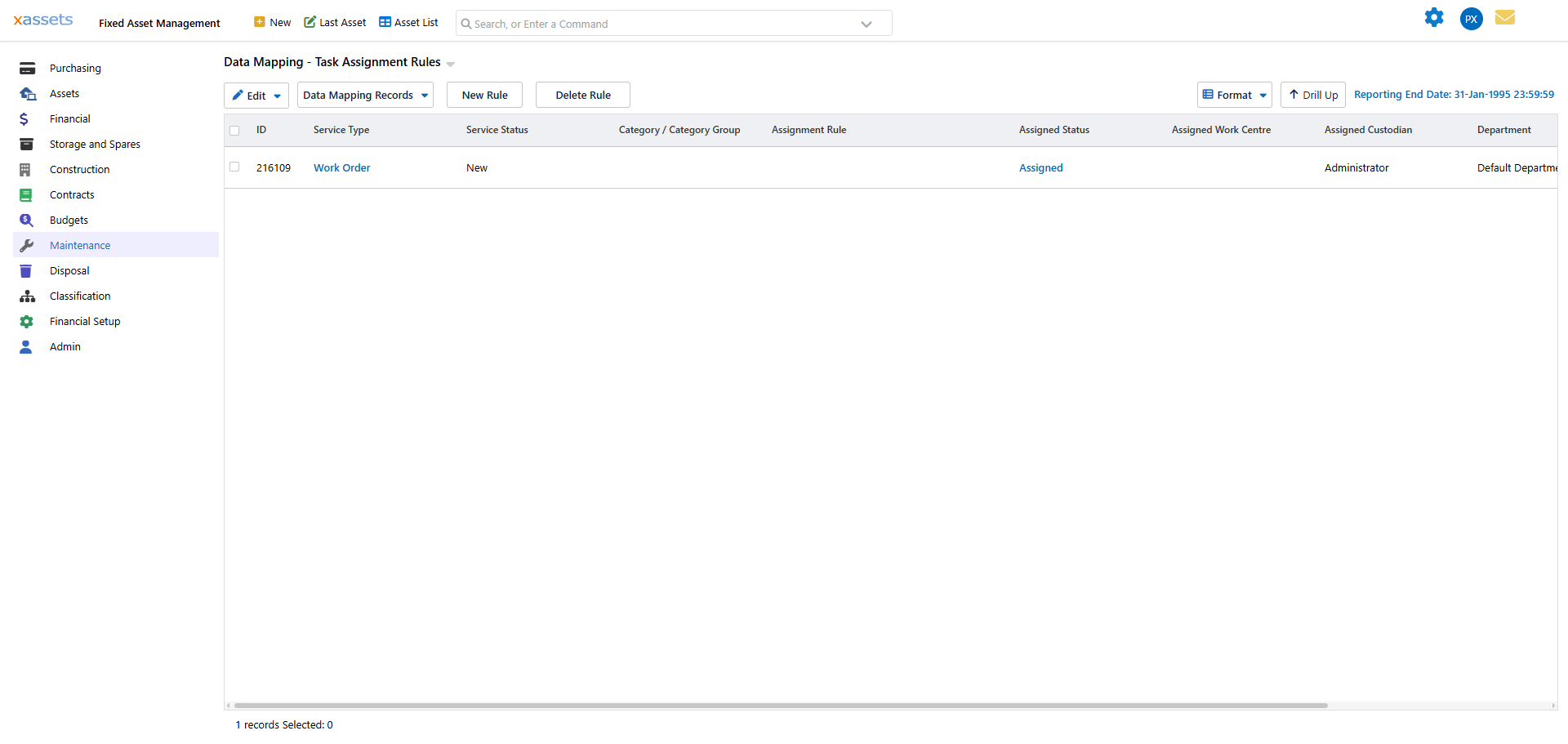
The grid lists each rule's matching criteria (Service Type, Service Status, Category / Category Group) alongside the resulting assignment (Assignment Rule, Assigned Status, Assigned Work Centre, Assigned Custodian, Department, and Supplier - scroll right to see the remaining columns). From this screen you can:
- Click New Rule to create a rule
- Click a blue hyperlinked value (for example the Service Type or Assigned Status) to open an existing rule
- Select a rule's checkbox and click Delete Rule to remove it
Creating or editing a rule
The dialog has two sections:
- When the Task Meets the Following Criteria - the conditions a task must match: Service Type (for example Work Order), Service Status (or "Any Service Status"), and Asset Category (or "All Asset Categories").
- Automatically Assign the Task as Follows - the Assignment Rule field. This is a required value; once you choose an assignment rule it drives the resulting Assigned Status, Assigned Work Centre, Assigned Custodian, Department, and Supplier shown back on the list screen.
A Note at the bottom of the dialog reminds you that the rule only applies to new, unassigned tasks, and only when the prerequisites below are also met.
Prerequisites for automatic assignment
For rules to take effect, two conditions must be met:
- The TASKALLOCATION setting (in Maintenance Settings) must be set to Yes or Only for Generated Work Orders.
- The Allow Automatic Assignment option must be checked when generating work orders.
Result
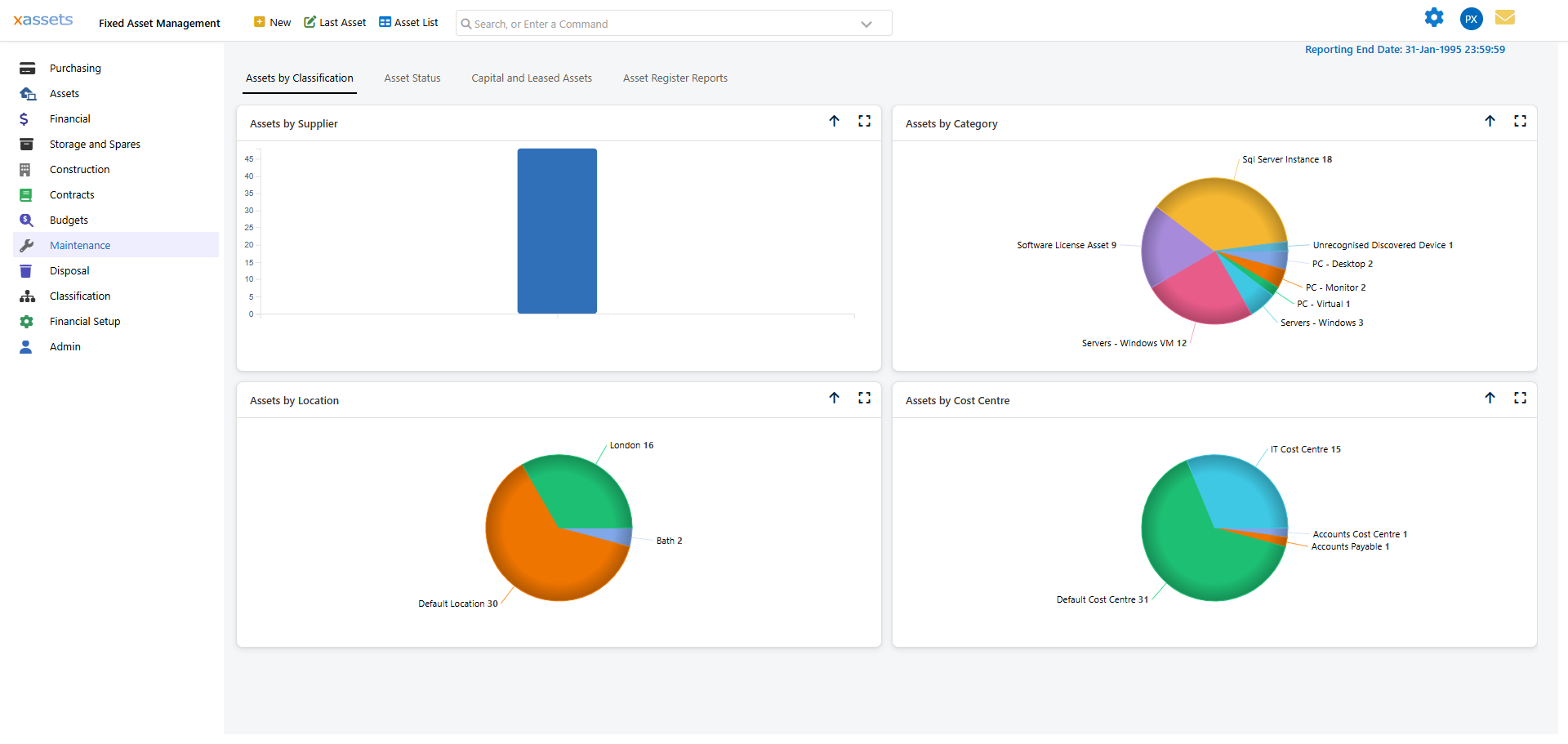
With rules in place, generated work orders are automatically assigned to the specified individual and work centre:
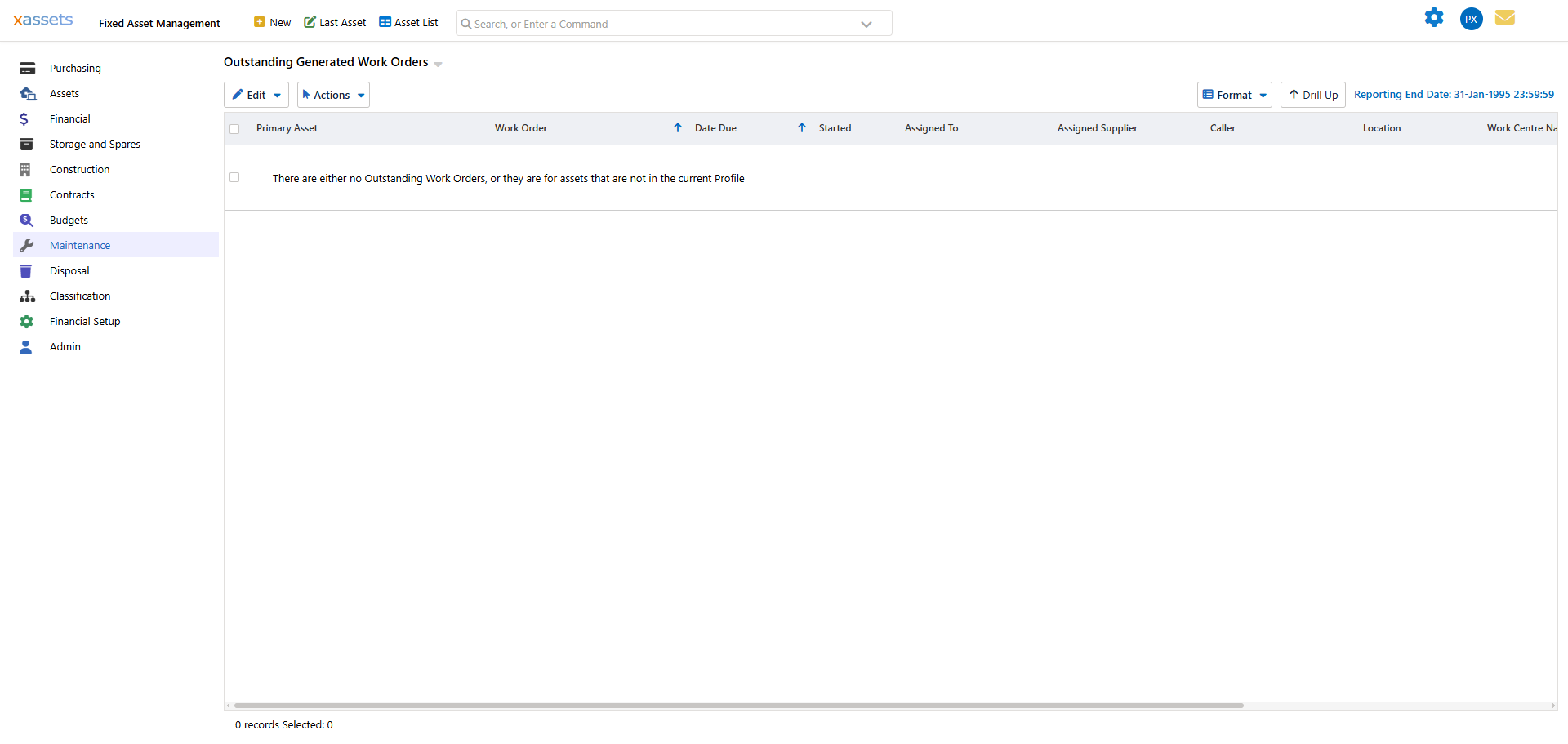
Automatic assignment can be combined with email notifications to alert the assigned individual or team. The Service Management Dashboard also provides an overview of workload by technician for anyone with an xAssets login.
Related Articles
- Introduction to Work Orders - Overview of work orders
- Creating Work Orders Manually - How to create work orders by hand
- Introduction to Work Centres - Overview of work centres
- Assigning an Individual to a Work Centre - How to assign personnel to work centres