Running the Calculation
The Licensing Position is not updated automatically — you run Calculate Licensing Position when you want to refresh it. This page covers the dialog, the right defaults to use, and when to recalculate.
When to Recalculate
Run a calculation after:
- A discovery run has loaded new asset or software data
- License records have been added, modified, or imported
- Catalog entries have changed (License Type, Defining Titles)
- An asset has been disposed or its attributes have changed
- You have edited the calculation rules (see Customizing the Calculation)
For routine operations, schedule the calculation to run nightly — see Operations: Scheduling and Monitoring.
Opening the Calculate Dialog
Navigate to Licensing → Calculate Licensing Position:
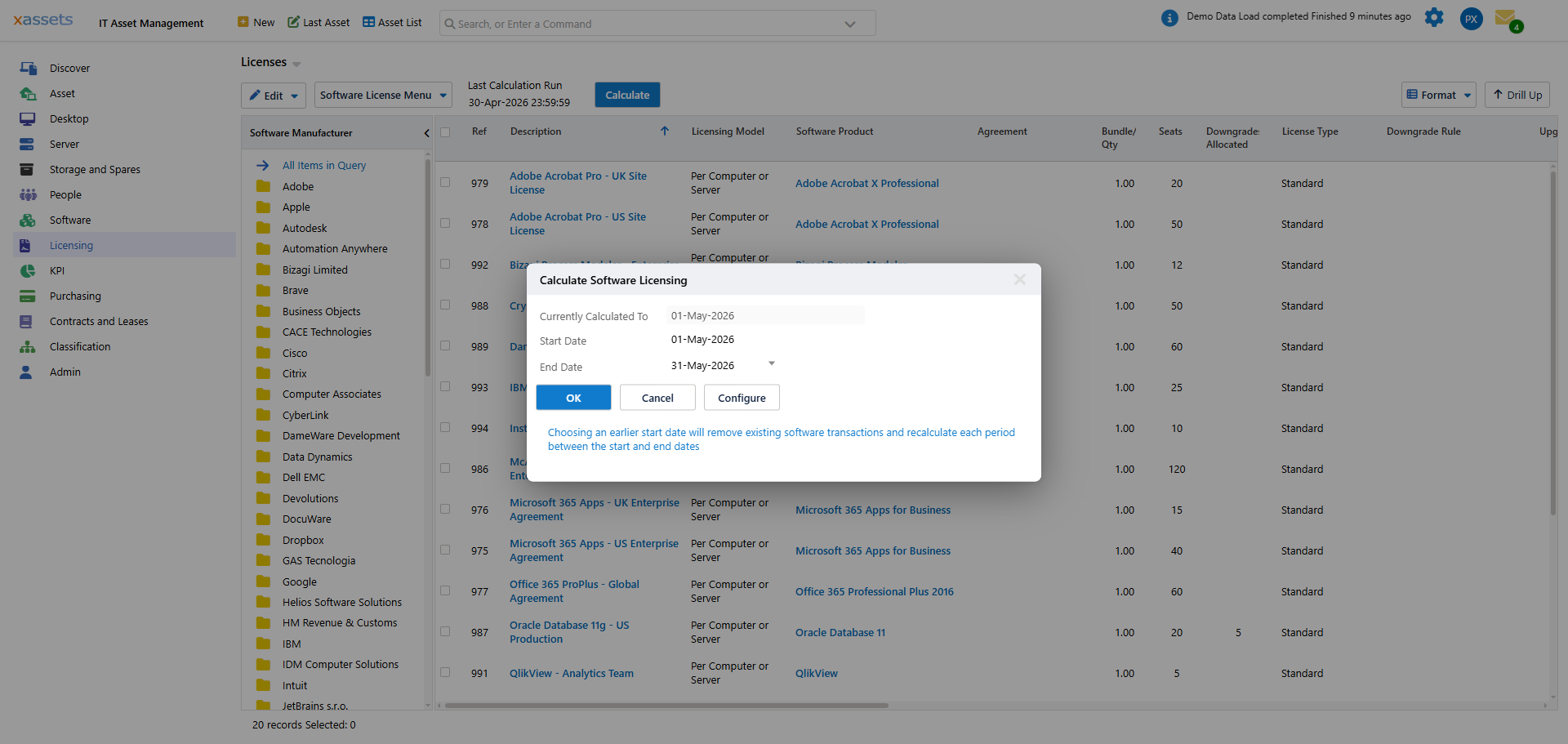
The dialog shows three things:
| Field | What It Says |
|---|---|
| Currently Calculated To | The latest period the engine has calculated up to |
| Start Date | The date to recalculate from |
| End Date | The date to recalculate to |
And two buttons beside OK and Cancel:
| Button | Does |
|---|---|
| Recalculate | Sets Start Date back to the earliest date available, so the whole history is rebuilt |
| Configure | Opens the rules editor — see Customizing the Calculation: Editing Rules |
Recalculate is a shortcut for a full rebuild, and it is destructive in exactly the way the next section describes — it does not do anything you could not do by typing the earliest date into Start Date yourself. Use it after a change that affects historical classification, such as a recognition rule that alters whether a product ever needed a licence. For routine runs, leave Start Date on the current period and click OK instead.
What Start Date and End Date Mean
This is critical to understand because the wrong choice can rewrite history.
End Date is straightforward: the latest date you want the position to be current as of. Almost always today (or end of current month for monthly cycles).
Start Date is destructive: it tells the engine which date to delete and rebuild transactions from. The engine deletes every transaction with apply date ≥ Start Date, then reposts.
| Start Date Choice | Effect |
|---|---|
| First of current month | Recalculates the current period only — historical periods preserved |
| First of current quarter | Recalculates the current quarter — last quarter preserved |
| Six months ago | Deletes and reposts six months of transaction history |
| Two years ago | Wipes two years of history; the position for any period in that range may differ from what was previously published |
The dialog warns about this:
Choosing an earlier start date will remove existing software transactions and recalculate each period between the start and end dates.
The Right Default: Current Period Only
For routine operation, set Start Date to the first of the current month (or first of current quarter, depending on your reporting cadence). End Date to today.
This recalculates only the open period, leaving previously-closed periods exactly as they were when you last reported on them.
Start Date:  01-Apr-2026
End Date:    27-Apr-2026
This is what your scheduled nightly job should run. Historical periods do not change; the current period reflects the latest state.
When to Recalculate History
Sometimes you do need to rewrite history:
| Scenario | Start Date To Use |
|---|---|
| You changed the calculation rules and want them retroactive | The earliest date affected — but think carefully |
| You discovered a data quality bug and want to correct historical reporting | The date the bug started |
| You imported a license late and want it to count for past periods | The license's purchase date |
Be aware: recalculating historical periods means previously-published reports will no longer reproduce. If you have shared a report externally and an audit refers to it, the position you can produce now may differ from the one you sent. Document the recalculation event.
Running the Calculation
- Set Start Date and End Date.
- Click OK.
- The calculation runs as a batch job — typically 1-10 minutes depending on data volume.
- Watch progress in Admin → Batch Jobs.
While the job is running, the position is in flux. Wait for completion before relying on the numbers.
After the Calculation
When the batch job completes:
- The Last Calculation Run timestamp updates on the Licenses query.
- The Licensing Position grid reflects the new state for the recalculated period.
Spot-check by opening the Licensing Position and looking at a product you know recently changed. Confirm the numbers reflect the change.
Calculation Errors
If the calculation fails, the batch job log is the first place to look. Common causes:
| Error | Cause |
|---|---|
| "Missing required field in affinity rules" | A rule references a field not present on every consumption or license — check the rules and the data source queries |
| "Invalid LicenseType" | A license has a LicenseTypeID that does not exist in the LicenseType table — clean up the license record |
| Generic timeout | Very large data volume; consider running off-peak or splitting the recalculation period |
Related Reading
- Recalculation Behavior — what changes when you recalculate
- Customizing the Calculation: Testing Rule Changes — the safe-rollout pattern
- Operations: Scheduling and Monitoring
- Concepts: Temporal Accounting