The Licenses Query
The Licenses query is the per-license register — one row per purchase. Use it to see exactly what you own, what each license covers, and how much capacity each has used.
Opening the Query
Navigate to Licensing → Licenses.
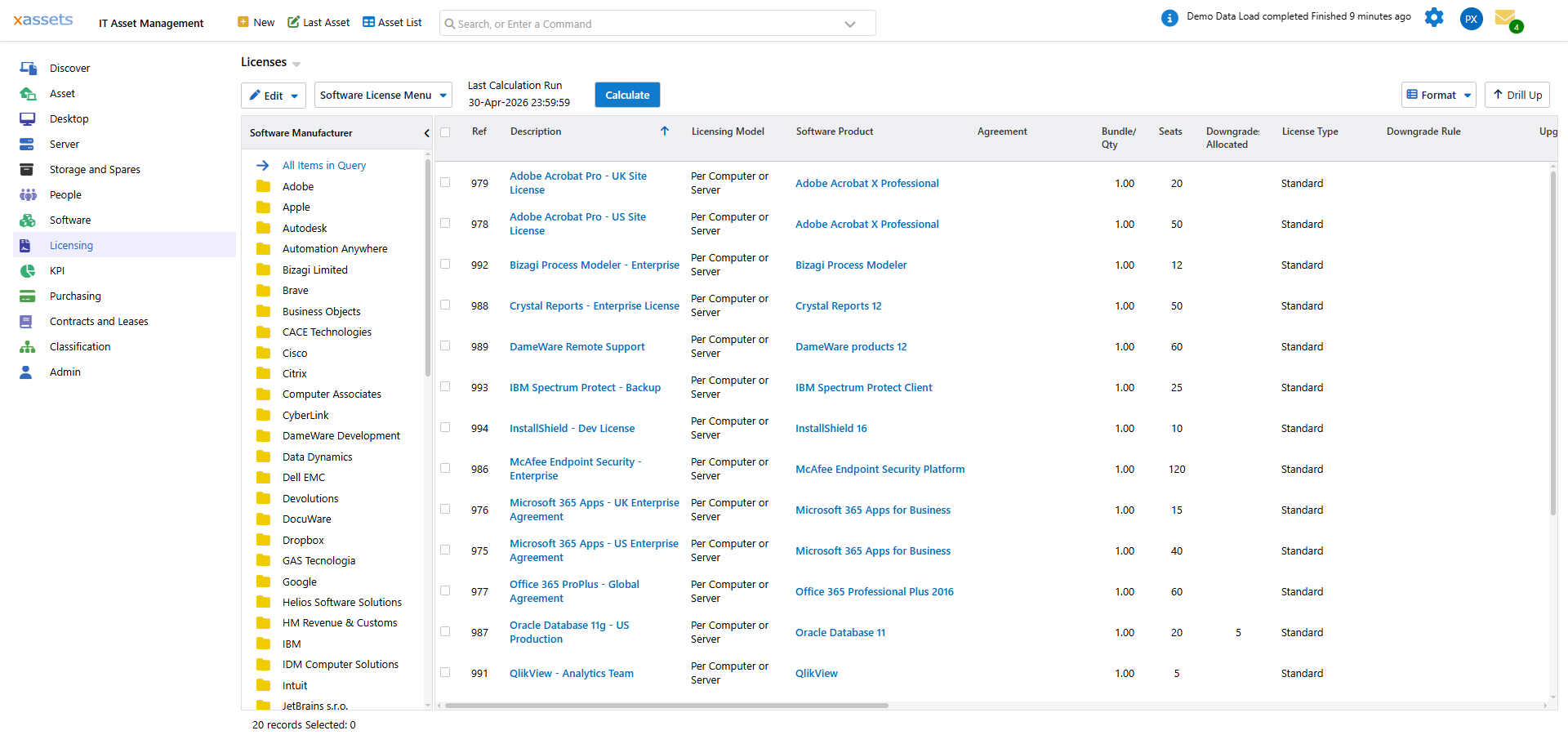
The left pane has a tree of Software Manufacturers — click one to filter to that vendor's licenses. The grid on the right shows the licenses themselves.
Reading the Columns
The columns you reach for first:
| Column | Meaning |
|---|---|
| Description | The license name |
| Licensing Model | The license type |
| Software Product | The catalog entry this license attaches to |
| Seats | The license's capacity in metric units |
| Quantity | Number of license items purchased (often 1 unless you buy in packs) |
| Allocated | How many of the seats are currently in use |
| License Type | The metric flag (per user, per computer, per core, per processor) |
| Downgrade Rule | None / One / Any |
Additional columns visible on scroll: Date Purchased, Cost, Supplier, Custodian, Department, Location, Status. Other columns may appear depending on local query configuration — hover over a column header to see the field name and check its meaning against your catalog.
What Each Row Tells You
For each license you can answer:
- Did we use it? — Allocated > 0 means yes, the engine has granted from it
- Is it full? — Allocated = Seats means at capacity; new consumption would not get this license
- Is it idle? — Allocated = 0 means the engine considered this license but allocated to others, or no eligible consumptions exist; investigate why
- Is it the right type? — License Type column should match how you actually licensed the product
Filtering
Common filters:
| Goal | Filter |
|---|---|
| See licenses for one vendor | Use the manufacturer tree on the left |
| See expired or out-of-service | Status ≠ In Service |
| See unallocated capacity | Allocated < Seats |
| See licenses with no allocations | Allocated = 0 |
| See licenses by date range | Date Purchased between... |
Drilling Into a License
Click a license to open the editor:
- Main fields — name, product, seats, type, status, dates
- Relationships → Related Assets — direct-assigned computers
- Allocations — the list of grants this license has issued (per consumption)
- Notes — free text
The Allocations view is the audit-ready answer to "what does this license cover?" — one row per grant, with the asset, product, and date.
Top Action Buttons
Above the grid:
- New Software License — manual entry shortcut
- Calculate — runs Calculate Licensing Position with the dialog
- Last Calculation Run — shows when the position was last refreshed
The Last Calculation Run timestamp is important context — if it says "30-Apr-2026 23:09" but you imported new licenses today, the position you see does not include them yet. Recalculate.
Action Menu
The License menu (varies by user rights) includes:
- Auto Allocate this License to Available Computers — runs allocation for this single license
- Allocate this License to All Users of the Software Product — direct-assign to every user with consumption
- Allocate this License to Users — open a user picker
- Software License Compliance Report — generates the per-license compliance PDF
- Clone — create a copy of this license (useful for upgrade workflows; see Upgrade Licenses)
When the Allocated Number Looks Wrong
| Symptom | Likely Cause |
|---|---|
| Allocated > Seats | Allocations from a previous higher-Seats configuration; recalculate to reset |
| Allocated = 0 with eligible consumptions | License Status is not In Service, or Date Purchased is in the future, or License Type does not match what consumptions need |
| Allocated unchanged after asset disposal | Calculation has not been run since the disposal |
| Allocated includes a disposed asset | Direct assignment is still pointing at the disposed asset; remove the assignment |