Custodian Matching and Integration Authority
Most integrations carry information about people as well as devices. Left unrestricted, every one of them can create and edit person records — which is fine when your directory is the only source, and a problem when six systems each have their own idea of who somebody is. Custodian Authority settings control which integrations may do what.
The Three Levels
Each integration has its own setting, with three possible values:
| Value | The integration may |
|---|---|
| Read — Match Existing Custodians Only | Attach data to people who already exist. It may not create or change anybody |
| Add — Add Custodians Only | Create people it has not seen before, but not modify existing records |
| AddEdit — Add or Edit Custodians | Create people and update existing records |
Every integration defaults to AddEdit, which preserves how xAssets behaved before these settings existed.
Where to Set Them
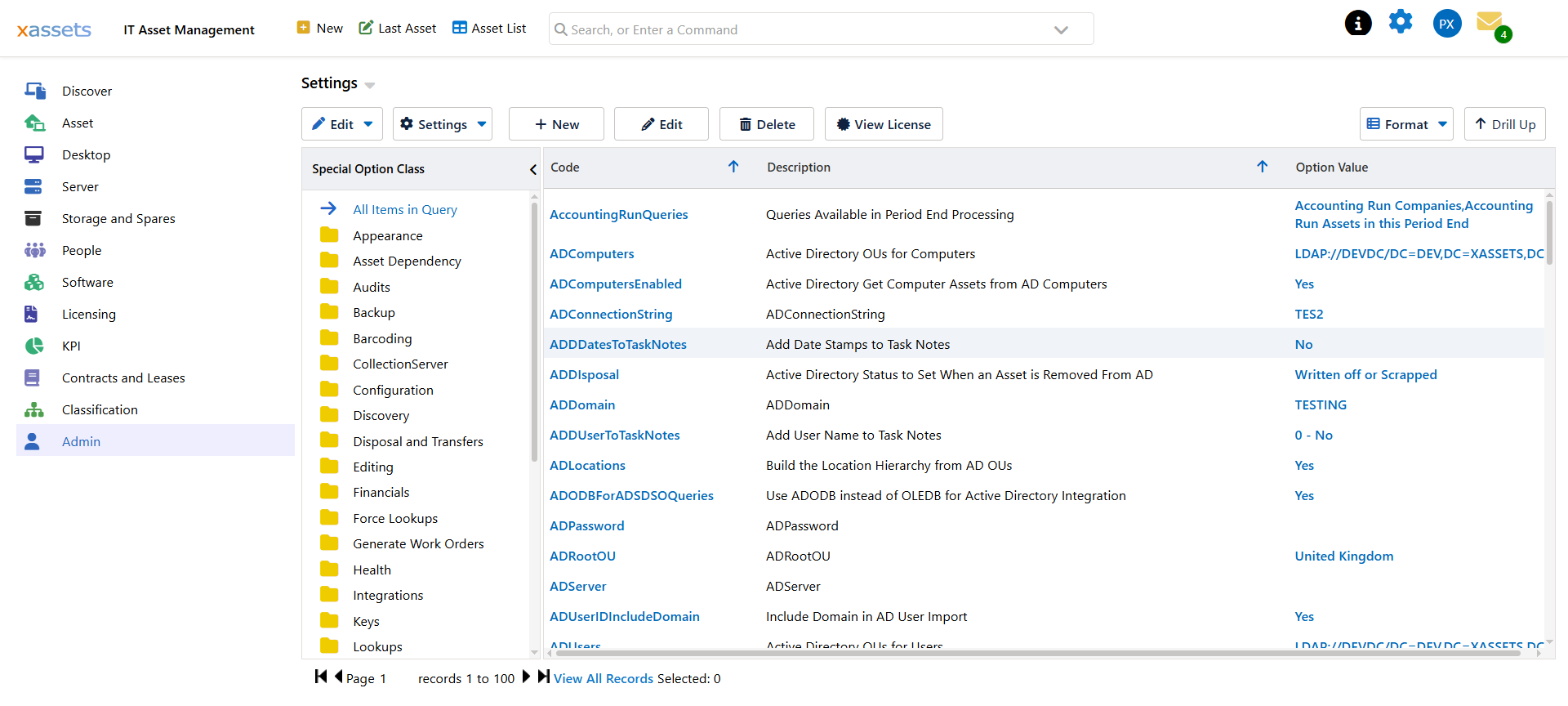
Go to Admin → Settings and look under the Integrations class. The settings are named Custodian Authority – integration, one per integration:
Active Directory, Amazon Web Services, Cisco Meraki, Google Cloud, Google Workspace, JAMF, Kandji, Manual Entry, Microsoft Azure, Azure Licensing, Microsoft Entra ID, Microsoft Intune, Microsoft SCCM, Ivanti, Okta, SCIM Provisioning, ServiceNow, SOTI, Standard Import, Tanium, Windows Autopilot, and xAssets Discovery.
Choosing a Level
The question to ask is: which system is the truth about people in your organisation?
Most organisations have one — a directory, an HR feed, or an identity provider. That system should be AddEdit. Everything else should be Read, or Add if it genuinely sees people the authoritative system does not.
A typical configuration:
| Integration | Setting | Why |
|---|---|---|
| Entra ID or Active Directory | AddEdit | The directory is authoritative for who exists |
| SCIM Provisioning | AddEdit | If SCIM is your provisioning path, it owns the lifecycle |
| Intune, SCCM, Discovery | Read | They report which person is using a device, not who exists |
| ServiceNow, Tanium, JAMF | Read | They know about people, but not better than your directory |
| Manual Entry | AddEdit | Somebody has to be able to add a contractor by hand |
The common mistake is leaving everything at AddEdit and then wondering why a person's department keeps changing. If two integrations both claim authority and disagree, each run overwrites the other, and the record flips on whichever ran last.
Read is the setting that stops that. An integration set to Read still attaches its devices, licences and usage to the right person — it simply cannot invent or alter the person.
Working With Identity Matching
Authority decides whether an integration may act. Custodian Identities decide who it is acting on. Both matter:
- An integration set to Read that cannot match an incoming username has nowhere to put its data. That data is skipped.
- An integration set to Add that cannot match creates a new person — a duplicate, if the person did exist under a username xAssets did not know about.
So if you tighten these settings, check the duplicates report afterwards for a cycle or two. If an integration set to Read is quietly dropping people, the fix is to record the usernames it uses as identities against the right people, not to loosen the setting again.
Recommended Sequence
- Decide which single system is authoritative for people.
- Set that one to AddEdit and everything else to Read.
- Run the integrations.
- Check Manage Duplicate Custodians and merge anything left over.
- Watch for a cycle or two. Persistent gaps mean a missing identity, not a wrong authority setting.
Related Reading
- Custodian Identities — how a person is matched across systems
- Managing Duplicate Custodians
- SCIM Provisioning
- Settings