Managing Duplicate Custodians
When the same person exists more than once, their assets and licences are split across the copies and no report about them is right. Manage Duplicate Custodians finds the likely duplicates and merges them into one person.
Open the People Dashboard and choose the Duplicates tab.
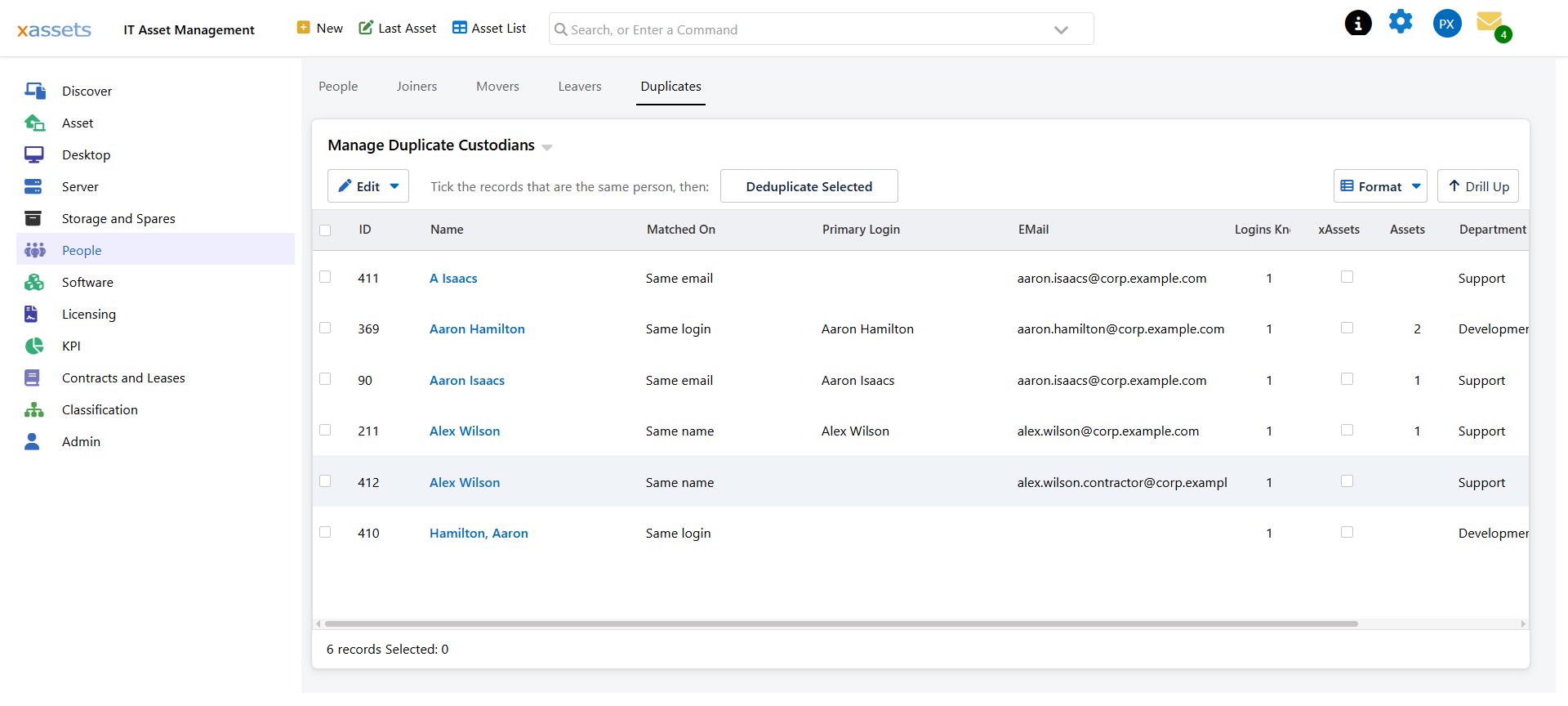
Reading the List
People that look like the same human appear together. Each row is one person record, and a pair or group of rows is one suspected human:
| Column | Meaning |
|---|---|
| Name | The person's name as held on that record |
| Matched On | Why this record was flagged — see below |
| Primary Login | Their main username |
| Their email address | |
| Logins Known | How many identities are recorded against this record |
| xAssets User | Whether this person can log in to xAssets |
| Assets | How many assets they hold |
| Department / Status | Context for deciding which record to keep |
Matched On is the column to read first, because it tells you how much to trust the suggestion. It takes one of three values:
| Matched On | Means | Trust |
|---|---|---|
| Same login | Two records carry a username that resolves to the same person, even if the two usernames are spelled differently | High — this is almost always the same human |
| Same email | Two records share an email address | High — people rarely share a mailbox |
| Same name | Two records carry the same name, and nothing stronger links them | Check before merging — two people can share a name |
Work down that order. Same login and Same email can usually be merged on sight. Same name deserves a look at the department, location and asset list first, because merging is not something you can cleanly undo.
Assets and Logins Known tell you which record is the substantial one. Usually one record has the history and the others are thin copies created by an integration that did not recognise the person.
Merging
- Tick the records that are the same person. Include the one you want to keep.
- Choose Deduplicate Selected Custodians.
- Confirm when prompted.
Everything the duplicates hold — assets, licence assignments, history, identities — moves onto the surviving record, and the redundant records are removed. The identities move too, which is the part that stops the duplicate coming straight back: whichever username the integration was using is now recorded against the surviving person, so the next run matches it.
Merge one group at a time and check the result. It is not reversible.
If Duplicates Keep Coming Back
Merging fixes the records you have. If new duplicates appear on the next integration run, something upstream is still not matching:
| Symptom | Likely cause |
|---|---|
| A specific person duplicates every run | The integration sends a username not recorded against them — add it by hand via Show Logins |
| Many duplicates from one integration | That integration is allowed to create people when it should not be — see Custodian Matching and Integration Authority |
| Duplicates differing only by name spelling | Name matching is off, and their usernames genuinely differ — record the second username as an identity |
| Two genuinely different people merged | They share a name and name matching was on — see Custodian Identities |
The durable fix is nearly always on the identity side rather than repeated merging. See Custodian Identities.
Before You Start
- Run your integrations first. Merging before a sync means merging again afterwards.
- Do the obvious ones first — matches on email or username. Leave name-only matches until you have checked them.
- Watch the licence counts. Duplicates inflate per-user licence consumption, so a merge should reduce it. If your seat count does not fall after a merge, the duplicates were not consuming seats and the saving is elsewhere.
Related Reading
- Custodian Identities — stopping duplicates being created
- Custodian Matching and Integration Authority
- Assigning Licenses to Users — what duplicates do to seat counts