Procure
Procurement in Fixed Asset Management is now handled from a single Purchasing menu, which covers the acquisition lifecycle from purchase request through purchase order, approval, and receipt. In earlier versions this was split across separate "Procure" and "Receive" menus; those have been merged into Purchasing, and this page has been updated to describe the current menu.
Prerequisites
- You must be in the Fixed Asset Management profile (see Fixed Asset Management Profile).
- To create or approve purchase orders, you need appropriate user group permissions for the Procurement tables.
Menu Overview
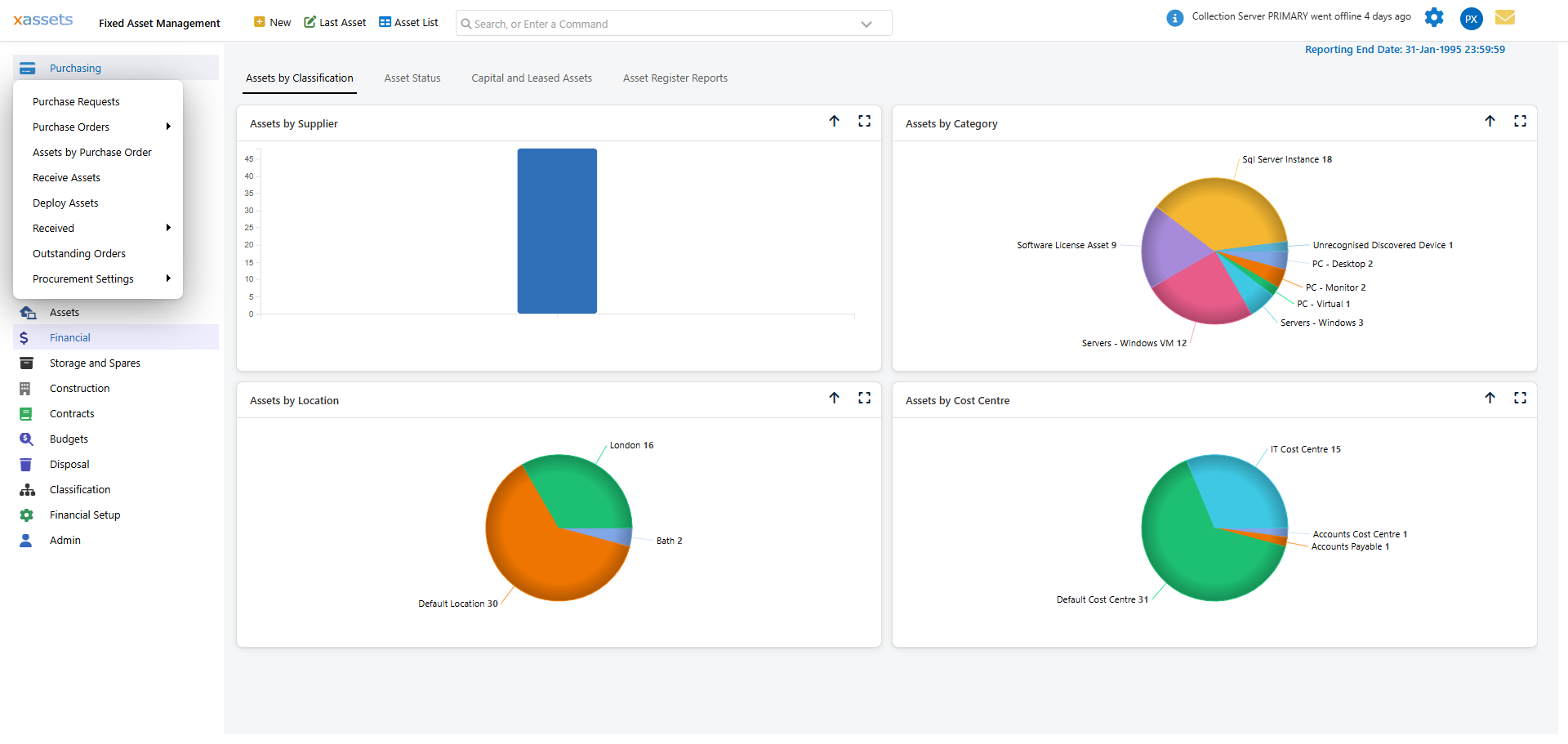
The Purchasing menu provides access to:
| Menu Item | Purpose |
|---|---|
| Purchase Requests | View and manage purchase requests submitted by users |
| Purchase Orders | View all purchase orders; the grid toolbar also holds the approval actions (see below) |
| Assets by Purchase Order | View assets grouped under the purchase order that acquired them |
| Receive Assets | Receive assets against an existing purchase order |
| Deploy Assets | Deploy assets that have been received into service |
| Received | Submenu: Assets (assets already received) and Purchase Orders (POs that have been received) |
| Outstanding Orders | Purchase orders still awaiting delivery |
| Procurement Settings | Submenu: Purchase Order Options and Purchase Order Status setup lists |
Note that a dedicated "PO Commitment Reports" item is not present on this menu; commitment/outstanding-order values are tracked via Outstanding Orders and the Asset Register Reports on the Assets dashboard.
Creating a New Purchase Order
To create a new purchase order:
- Select Purchasing > Purchase Orders, then click New PO on the grid toolbar (or use Purchasing > Purchase Order Approval > New Purchase Order).
- Complete the purchase order form:
- Fill in the key fields:
| Field | Description |
|---|---|
| Purchase Order No | Auto-generated order number (editable) |
| Requested By | The person requesting the purchase |
| Description | A short description of the order |
| Department | The department that will own the assets |
| On Behalf Of / For Location | Optional requestor and delivery location context |
| Cost Centre | The cost centre to charge the purchase against |
| Supplier | The vendor supplying the goods |
| Carrier / Ship Via | The delivery carrier and shipping method (if applicable) |
| Delivery Address / Delivery Date | Where and when the order is expected |
| Billing Currency | The currency for the purchase - this determines how amounts are recorded |
| Shipping Cost / Tax | Additional costs to include on the order |
- Use the tabs at the bottom of the dialog - Assets, Contracts and Services, RMAs, Instructions, Processing, Documents - to add the items being ordered and any supporting information. The Assets tab includes links to Add Existing PR, Add New PR, Receive Assets, Deploy Assets, Create RMA, and Return Assets.
- Click Save (or OK) to create the purchase order.
Approval Workflow
Purchase orders can require approval before they proceed. Each PO shows its current approval state (for example "No Approval Needed") at the top of the form, with an Edit Form link to configure the approval rule. Day-to-day approval actions are driven from the Purchase Orders grid toolbar and its Purchase Order Approval dropdown, which includes:
- New Purchase Order / Send Purchase Order for Approval
- Set Status to Ordered
- Approve selected POs / Reject selected POs
The toolbar also has direct Approve Purchase Order and Reject Purchase Order buttons for the selected order(s).
- A user creates a PO and, if required, sends it for approval.
- The approver opens Purchasing > Purchase Orders, selects the order(s), and approves or rejects using the toolbar actions above.
- Approved orders can proceed to goods receipt via Receive Assets.
Tip: Review Purchasing > Outstanding Orders regularly so POs awaiting approval or delivery are not overlooked. Delayed approvals can block asset receipts and affect your period-end figures.
Financial Impact
When assets are received against a purchase order, the system can automatically create purchase transactions in all books. This links the procurement process to the financial asset register, ensuring that acquisition costs are captured accurately from the point of purchase.
Warning: If you create assets directly (via Receive Assets or the Receive process) without linking them to a PO, you will need to enter the purchase amount manually. Using the purchase order workflow ensures financial data flows through automatically.
Related Articles
- Receive - Receiving assets into the register
- Financial Transactions - Viewing and managing transactions on individual assets
- For detailed procurement workflow configuration, see Purchasing > Procurement Settings.