Receive
Receiving is the step where assets ordered on a purchase order are confirmed as delivered and turned into asset records in the register. In the current product this is handled from the Purchasing menu (the same menu used for procurement - see Procure), not from a separate "Receive" menu. This page focuses on the receiving-specific items: Receive Assets, the Received submenu, and the financial effect of receiving.
Prerequisites
- You must be in the Fixed Asset Management profile (see Fixed Asset Management Profile).
- To create or update asset records, you need appropriate user group permissions for the Asset table.
Menu Overview
The Purchasing menu's Received item is a submenu with two views: Assets (assets that have been received) and Purchase Orders (purchase orders that have been received):
The full Purchasing menu also includes Receive Assets (the action described below), Deploy Assets, and Outstanding Orders - see Procure for the complete menu layout and the purchase order workflow.
Receiving Assets Against a Purchase Order
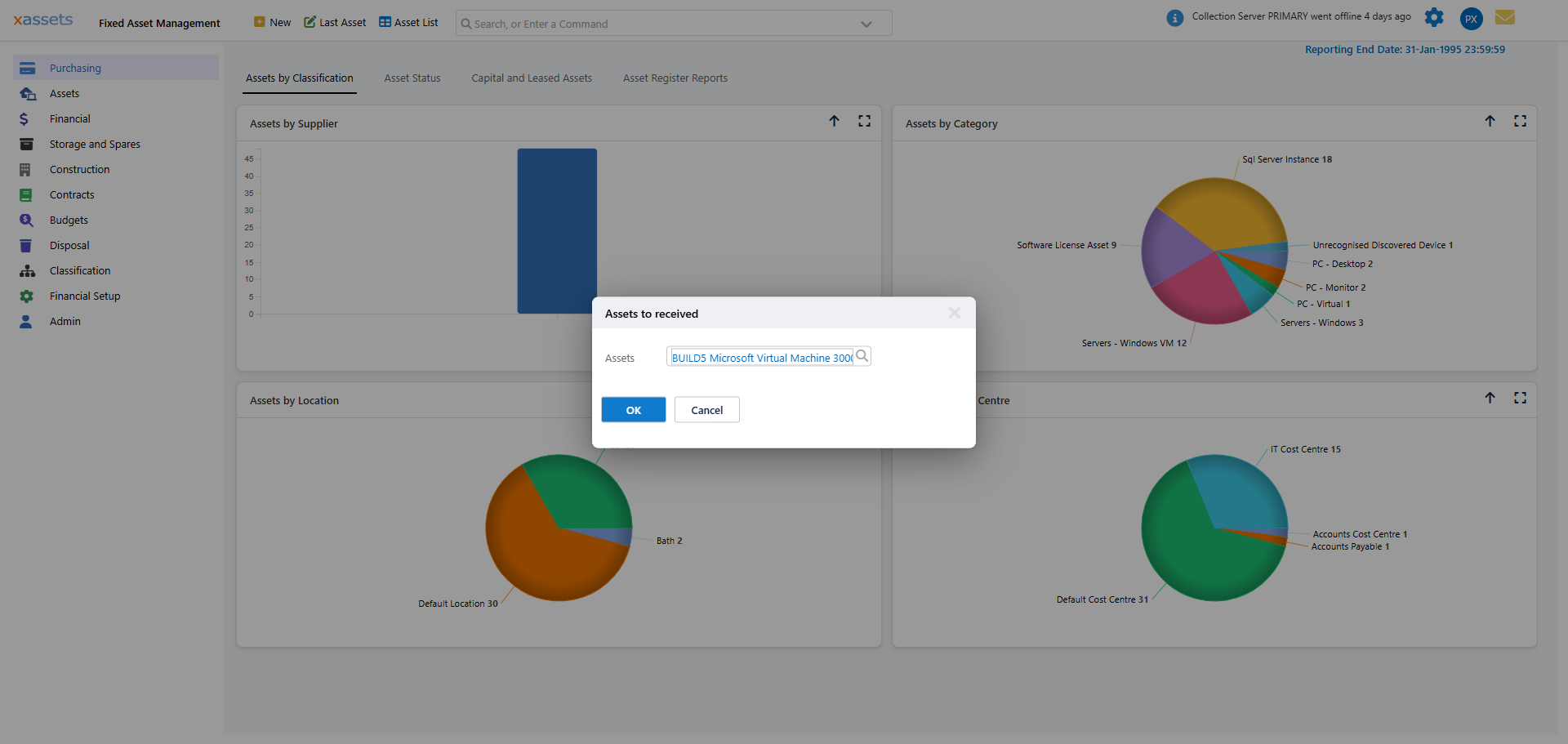
Assets are received against an existing purchase order using Purchasing > Receive Assets:
- Select Purchasing > Receive Assets.
- In the Assets to received dialog, use the Assets lookup to select the asset(s) to receive, then click OK.
- The system marks the selected assets as received and creates the corresponding asset records, inheriting financial data from the PO line items.
Only assets that are attached to a purchase order can be received this way. If you select an asset that is not on a PO, the Receive/deploy assets dialog reports "Assets not on a purchase order cannot be received or deployed" and the receipt is not processed.
This PO-based approach is preferred for formal procurements because:
- The purchase amount is already recorded on the PO
- Financial transactions are created automatically in all books
- There is a complete audit trail from requisition through to receipt
Creating an Asset Without a Purchase Order
There is no separate "receive without a PO" menu item. To register an asset that was never raised on a purchase order (a donation, a transfer from another system, a retrospective registration, or a low-value item outside the formal procurement process), use the global New button in the header bar to open the New Asset dialog and create the asset record directly. Because there is no PO to inherit values from, you must enter the purchase amount and purchase date yourself.
Tip: The purchase date is financially significant. Depreciation calculations use this date (or a configured "in-service" date) to determine when charges begin. Setting the wrong date will cause incorrect depreciation amounts.
Viewing Received Items
Use Purchasing > Received to review what has already been received:
- Received > Assets opens Received Assets Not Yet In Service - assets that have been received but not yet deployed/put into service.
- Received > Purchase Orders opens Purchase Orders - Received - purchase orders that have been fully received.
Once an asset is ready to be put into use, deploy it via Purchasing > Deploy Assets (see Procure).
Financial Impact of Receiving Assets
When an asset is created (whether directly or via PO receipt), the following financial records are established:
- Purchase transaction - A transaction recording the acquisition cost is created in each book.
- Depreciation setup - The asset inherits depreciation rules from its category-book combination (see Assigning Depreciation Types to Categories).
- Valuation baseline - The asset's original value, net book value, and accumulated depreciation are initialised.
Warning: If an asset's category does not have a depreciation type assigned for a given book, the asset will not depreciate in that book. Review the Depreciation Setup after adding assets in new categories.
Related Articles
- Procure - Creating and managing purchase orders
- Asset Register - Browsing assets after receipt
- Financial Asset Information - Viewing financial data on received assets
- Assigning Depreciation Types to Categories - How category defaults affect new assets
- For detailed instructions on completing the asset creation form, refer to the main user guide.