Fixed Asset Management Profile
This page explains how to switch to the Fixed Asset Management profile and introduces its default menu layout. The profile determines which menus, queries, and dashboards you see, so you need to be in the correct profile before using any of the features described in this guide.
Prerequisites
- You must have a user account with access to the Fixed Asset Management profile. Your administrator assigns profile access through user group settings.
- If you do not see "Fixed Asset Management" as an available profile, contact your administrator.
Switching to the Fixed Asset Management Profile
The current profile name is shown in the header bar at the top of the screen, next to the xAssets logo:

If a different profile is active, switch profiles by following these steps:
- Click the profile name in the header bar.
- In the Change Profile dialog, select Fixed Asset Management from the list.
- Click OK.

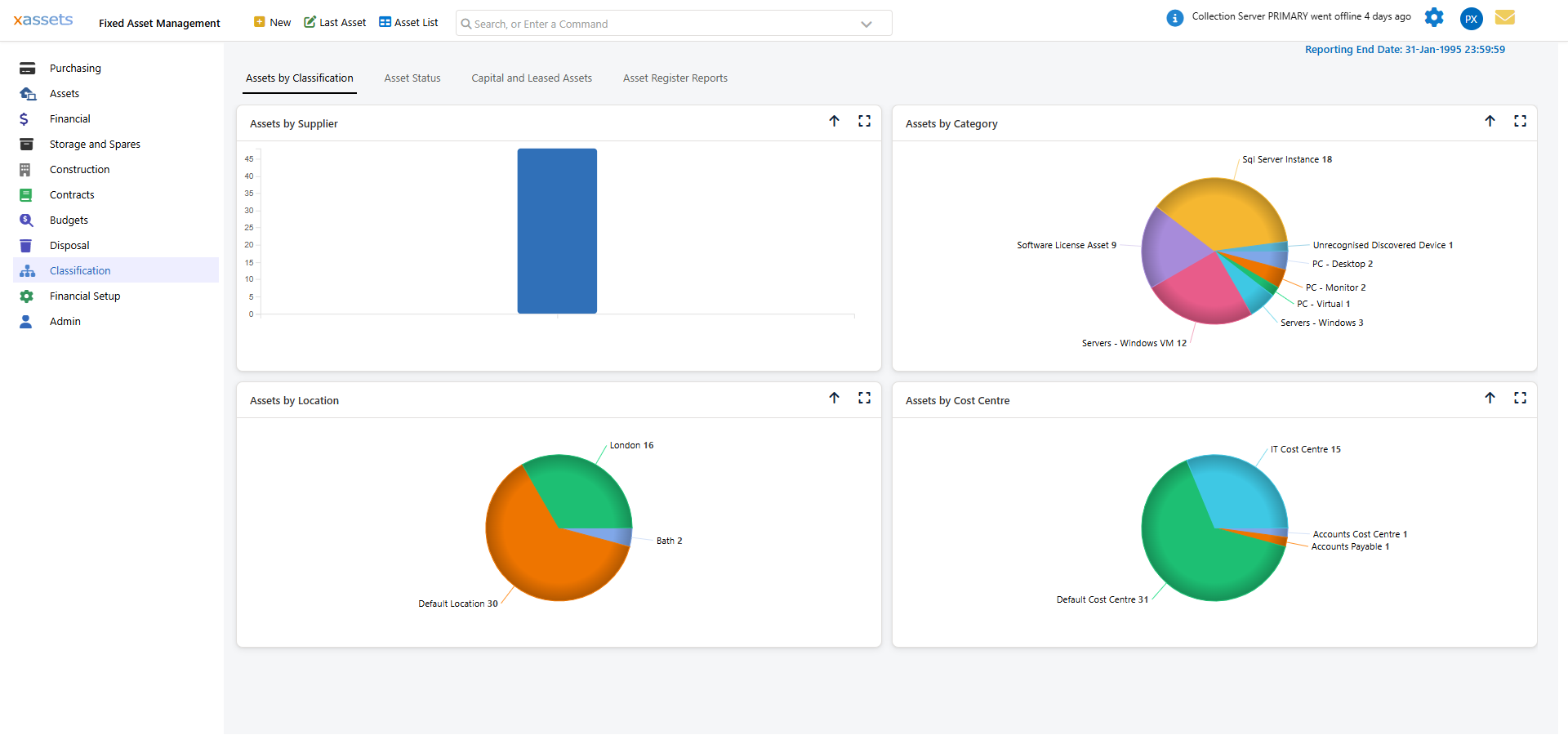
After selecting Fixed Asset Management, the module's own home dashboard loads, showing asset classification and register charts across four tabs (Assets by Classification, Asset Status, Capital and Leased Assets, Asset Register Reports):
Tip: If you work primarily with fixed assets, ask your administrator to set Fixed Asset Management as your default profile so it loads automatically when you log in.
Default Menus
The Fixed Asset Management profile provides its own left-hand navigation menu, separate from the IT Asset Management profile. Although the layout is fully configurable by an administrator, the default set of menus is:

| Menu | Purpose |
|---|---|
| Purchasing | Purchase requests, purchase orders, assets by purchase order, receiving and deploying assets, outstanding orders, and procurement settings |
| Assets | Opens Asset Search - the main asset register grid for browsing and editing assets |
| Financial | Financial and depreciation dashboard, period-end processing, and summary/asset/transaction/disposal/multi-currency reports |
| Storage and Spares | Manage spares and storage locations |
| Barcoding | Barcode scanning and label printing for assets |
| Construction | Construction-in-progress (CIP) projects |
| Contracts | Contracts linked to fixed assets |
| Budgets | Capital budgets |
| Maintenance | Asset maintenance scheduling and history |
| Service Management | Service desk items relevant to fixed assets |
| Disposal | Low specification assets, assets due for disposal, disposed assets, and disposal reports |
| Classification | Reference data - asset templates, companies, categories, cost centre/department/location/work centre hierarchies, custodians, suppliers, status codes, importance ratings, and asset relationship types |
| Financial Setup | Depreciation types, accounting periods, and other financial configuration |
| Admin | Administration functions |
The Financial Menu
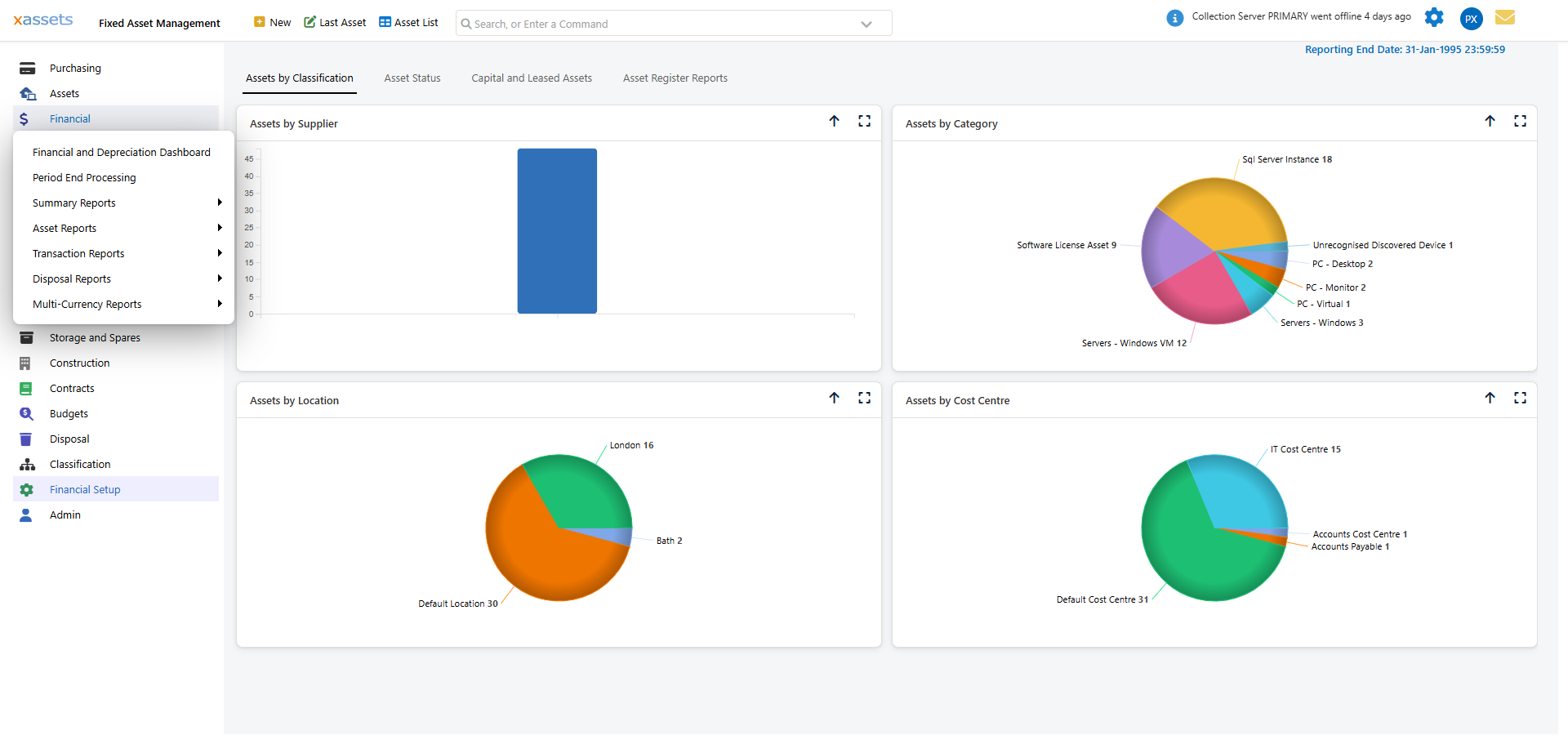
The Financial menu is the primary menu for fixed asset accounting. Click it to expand a flyout with the Financial and Depreciation Dashboard, Period End Processing, and Summary Reports, Asset Reports, Transaction Reports, Disposal Reports, and Multi-Currency Reports submenus:
The Classification Menu
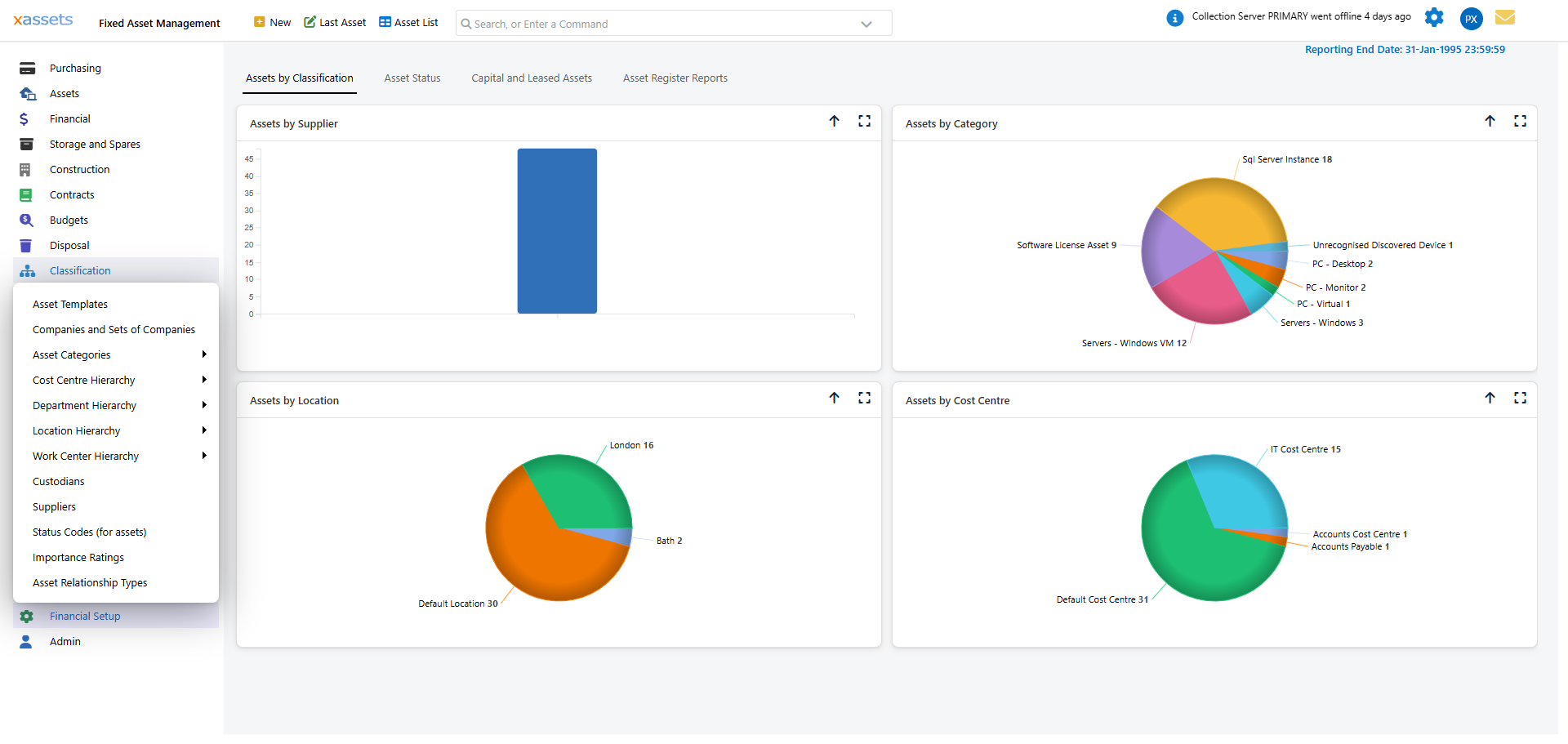
The Classification menu is used for asset classification and reference data, including Asset Templates, Companies and Sets of Companies, Asset Categories, Cost Centre/Department/Location/Work Centre Hierarchies, Custodians, Suppliers, Status Codes, Importance Ratings, and Asset Relationship Types:
Creating and managing classification data (Cost Centres, Locations, Custodians, etc.) is covered in the main user guide. The Classification Menu page in this guide highlights the items most relevant to fixed asset management.
Next Steps
Once you are in the Fixed Asset Management profile:
- If you are setting up for the first time, start with Section 3 - Financial Setup to configure books, depreciation types, and accounting periods.
- If your system is already configured, use Assets to browse your asset register, or the Financial menu to run period-end processing.
Related Articles
- Fixed Asset Management Introduction - Introduction to the fixed asset management module
- Asset Register - Viewing and managing the asset register
- Classification Menu - The classification menu and category structure
- Profiles - Configuring profiles for different functional areas
- Financial Asset Information - Financial data stored against assets