Classification Menu
The Classification menu is where reference data lives - cost centres, custodians, suppliers, status codes, and locations. This data underpins financial reporting, depreciation rules, and journal production. Most of this reference data is shared across all xAssets profiles, but this page covers it from the Fixed Asset Management perspective.
Prerequisites
- You must be in the Fixed Asset Management profile (see Fixed Asset Management Profile).
Opening the Classification Menu
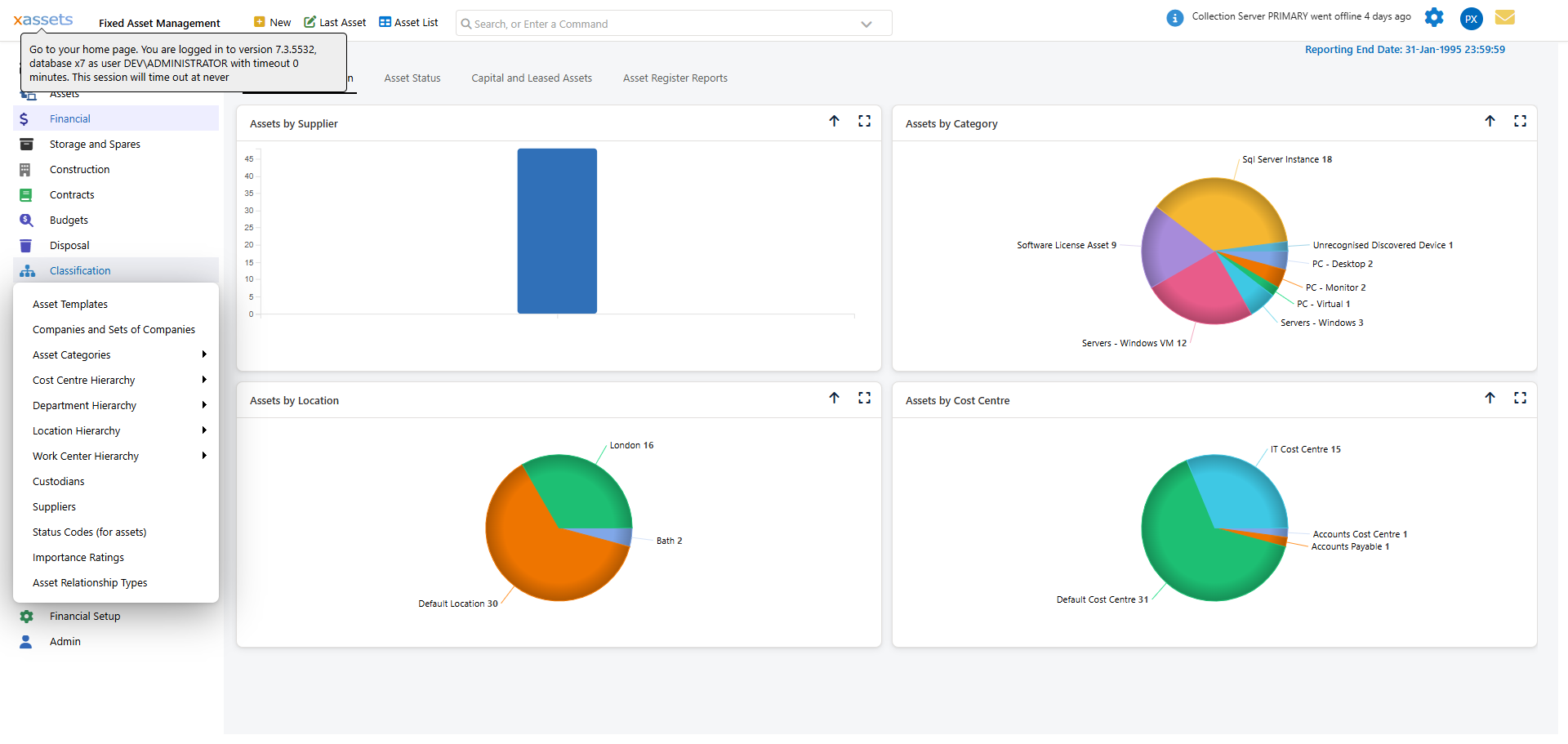
Click Classification in the left-hand navigation to open the flyout. From here you can reach Asset Templates, Companies and Sets of Companies, Asset Categories, Cost Centre Hierarchy, Department Hierarchy, Location Hierarchy, Work Center Hierarchy, Custodians, Suppliers, Status Codes (for assets), Importance Ratings, and Asset Relationship Types:
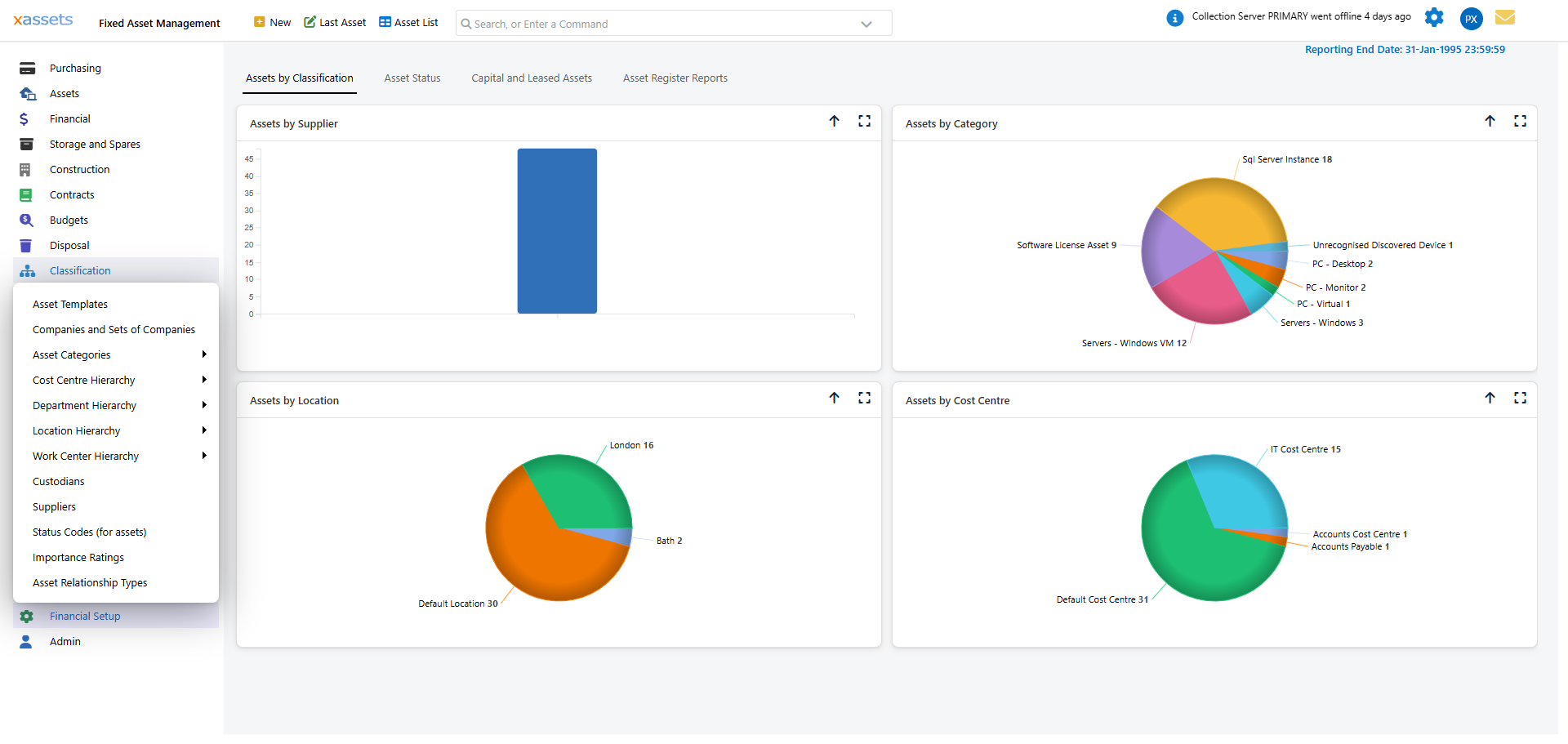
The sections below cover the items most relevant to fixed asset management: cost centres, custodians, suppliers, status codes, and locations.
Cost Centres
Cost centres are used for financial reporting and determine how depreciation charges and other costs are allocated. They can be organised into a hierarchy that reflects your organisation's structure.
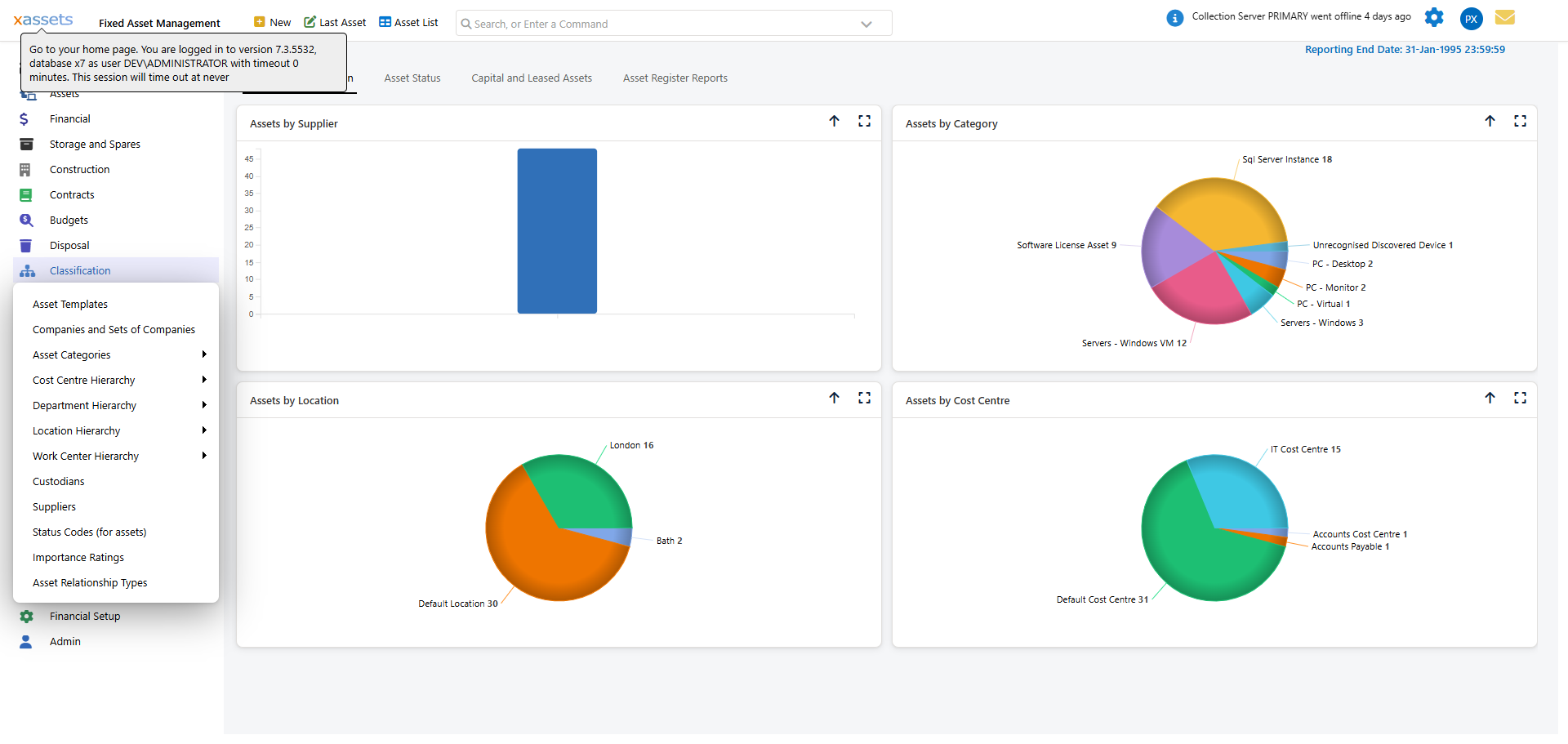
Click Classification > Cost Centre Hierarchy to open the Cost Centre lookup, which shows the hierarchy as a tree:
To create a new cost centre:
- Open the Cost Centre Hierarchy lookup as above.
- Click New.
- Enter the Cost Centre Code and Cost Centre Name (both required).
- Optionally set Based At Location, Cost Centre Type, and Parent Cost Centre to place it in the hierarchy.
- Click Save, then OK.
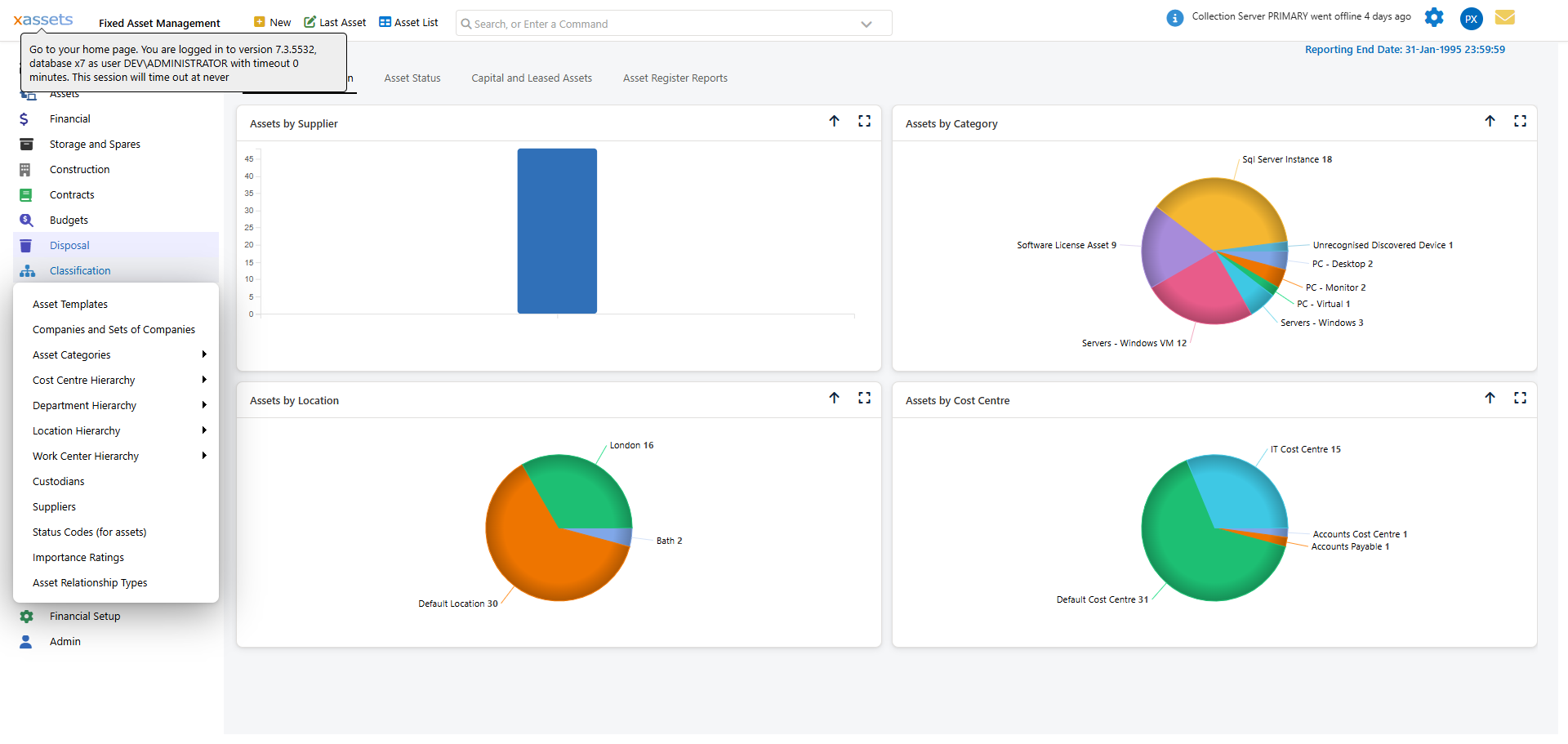
Once created, assign a cost centre to an asset from the asset's Edit Asset screen - the Cost Centre field sits alongside Company, Department, Custodian and Location under the Organization section.
Tip: Cost centres affect how depreciation is reported. If you change an asset's cost centre mid-year, the depreciation charge for that asset will appear under the new cost centre from the next period onward. Historical transactions retain the cost centre that was in effect when they were posted.
Financial Significance of Cost Centres
Cost centres flow through to:
- Period-end depreciation reports - Depreciation by Cost Centre reports group charges by cost centre, making it easy to see which parts of the organisation are incurring depreciation expense.
- Journal entries - If your journal transformation includes cost centre dimensions, the cost centre on each asset determines the accounting entry allocation.
- Budget tracking - Budget entries can be split by cost centre (see Budgets).
Custodians
Custodians represent the people responsible for assets. Every user in xAssets can be linked to a custodian record, which enables features like "My Assets" queries and asset check-out.
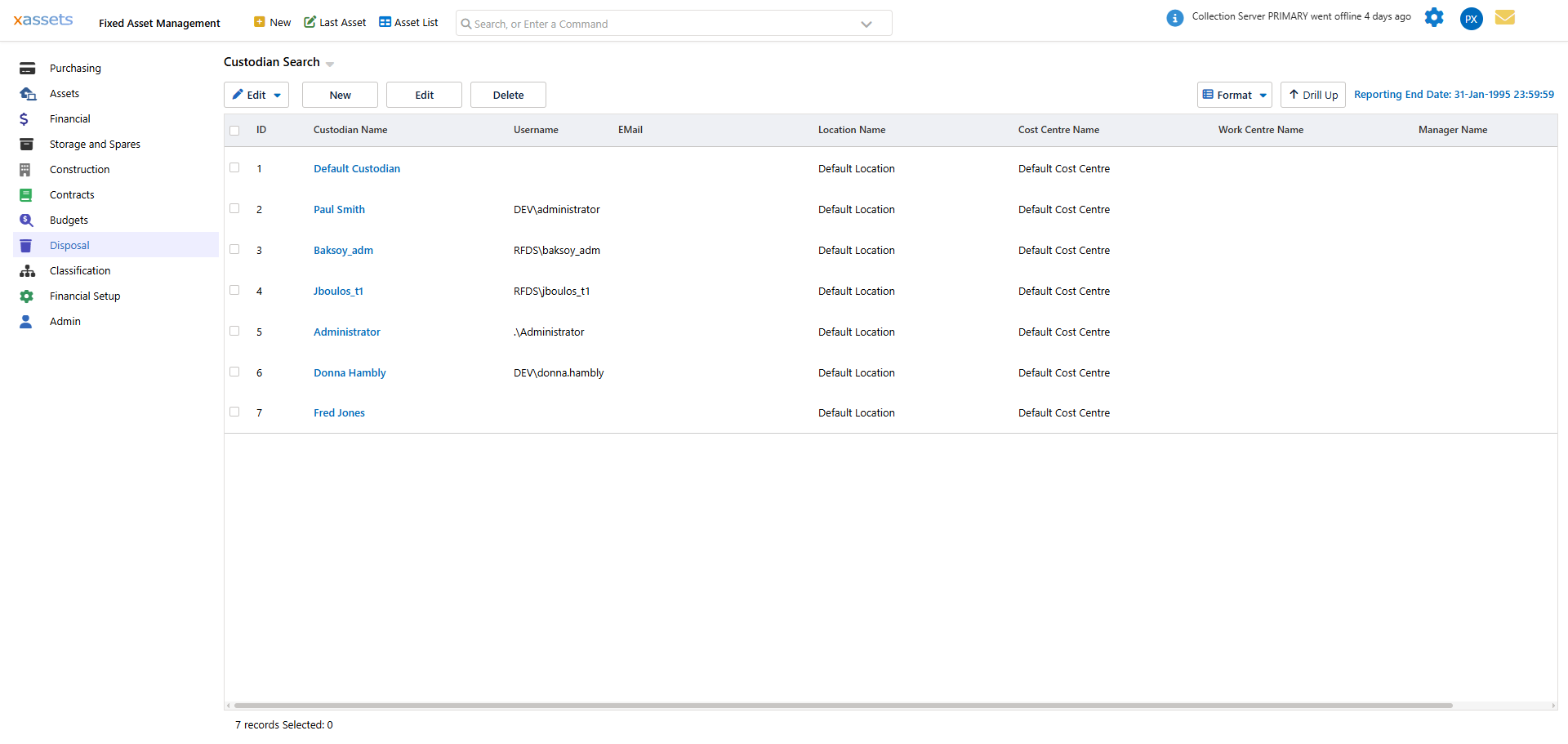
Click Classification > Custodians to open the Lookup Custodian window, which lists existing custodians (Administrator, Default Custodian, and any people you have added):
To create a new custodian:
- Open Classification > Custodians.
- Click New.
- Enter the Custodian Name and Status (both required) and a Username if the custodian will log in.
- Optionally set Based At Location, Manager Custodian, Reports To Cost Centre, Work Center, Department, and contact details.
- Click Save, then OK.
Suppliers
Click Classification > Suppliers to open the Lookup Supplier window, which lists existing suppliers and lets you add new ones:
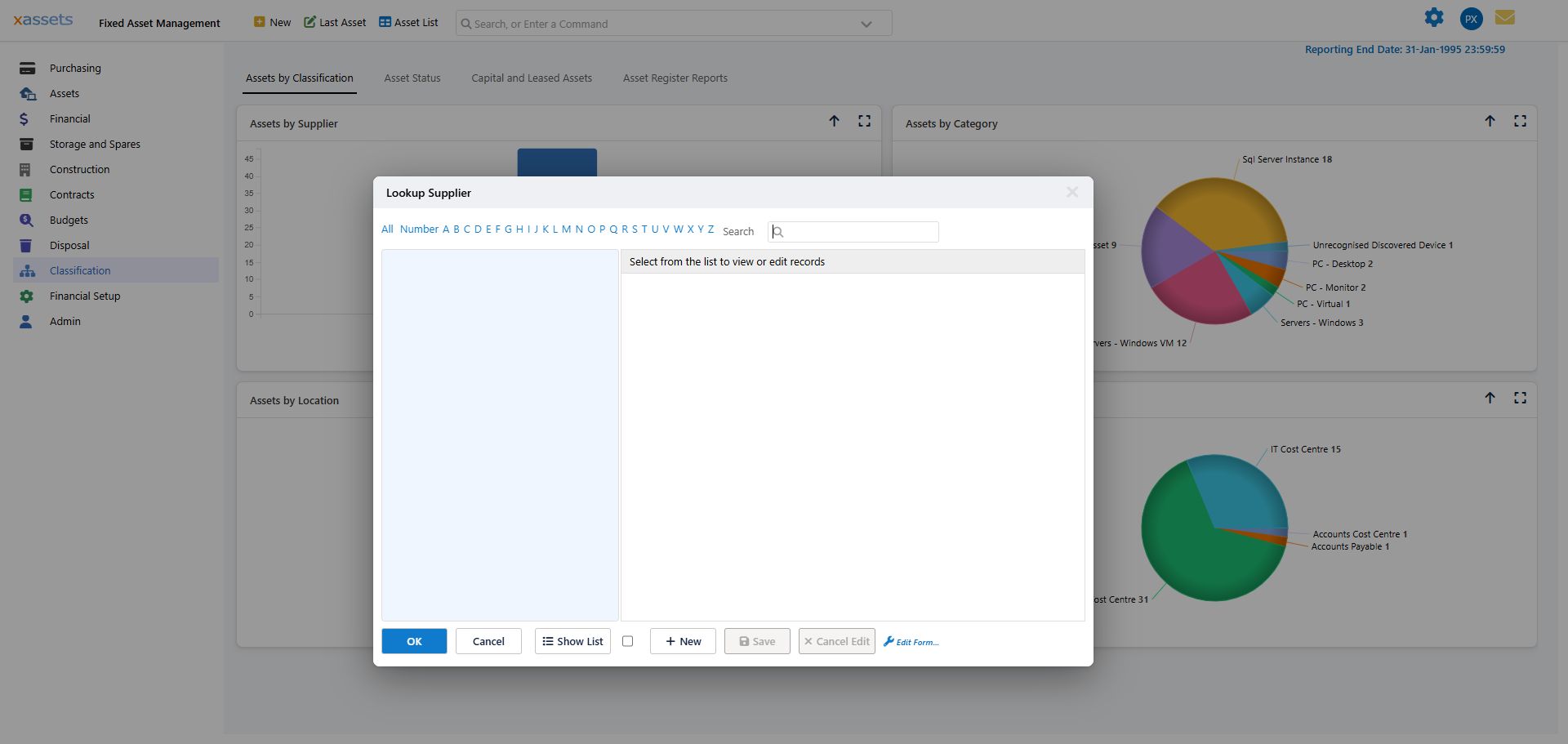
Supplier records are linked to purchase orders and asset records, providing a trail from procurement to the asset register.
Status Codes
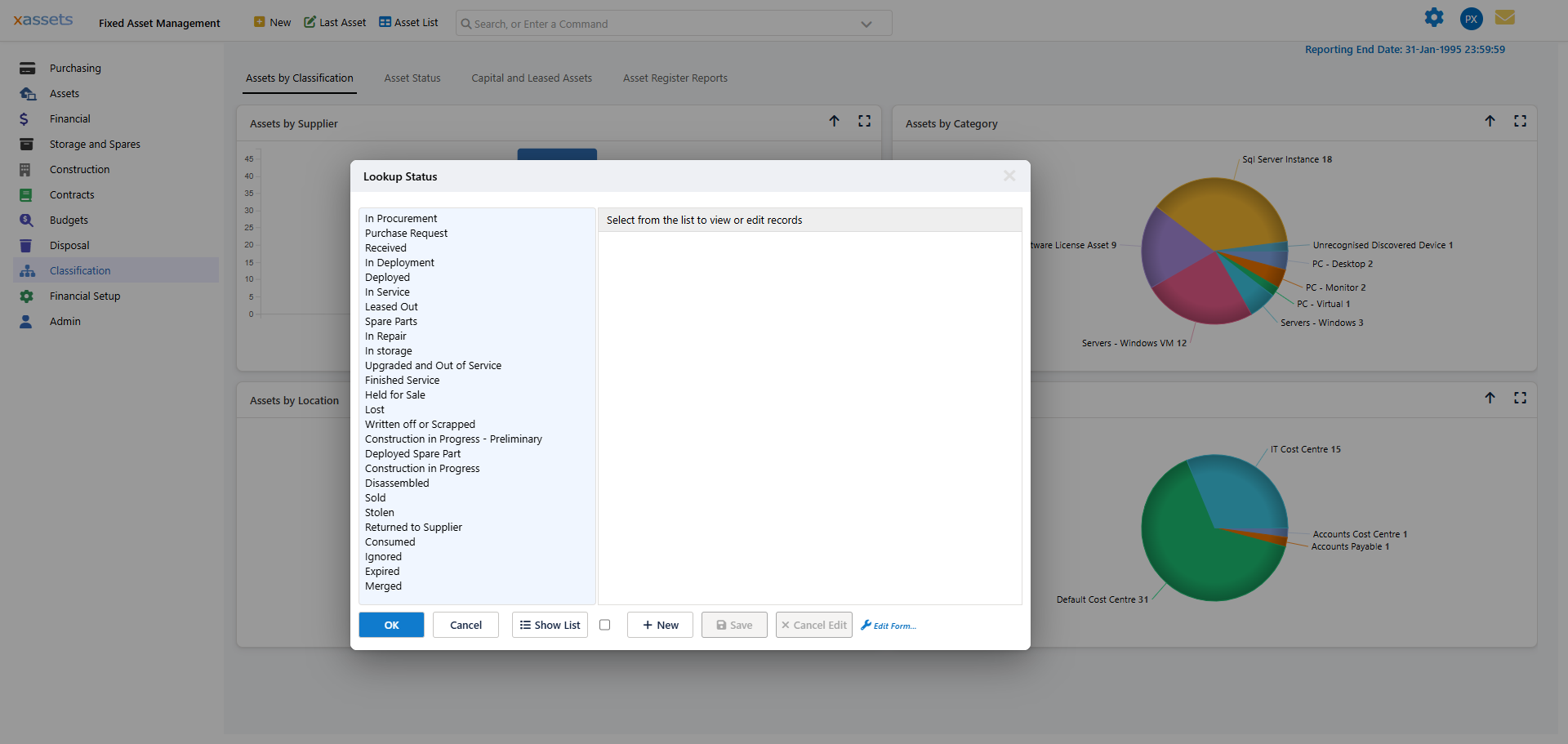
Status codes track where an asset is in its lifecycle. The out-of-the-box list includes statuses such as In Procurement, Purchase Request, Received, In Deployment, Deployed, In Service, Leased Out, Spare Parts, In Repair, In Storage, Held for Sale, Written off or Scrapped, Sold, Stolen, Returned to Supplier, and Expired, among others.
Click Classification > Status Codes (for assets) to open the Lookup Status window:
Warning: A "Disposed"-type status is typically set automatically by the disposal process (see Disposal). Manually changing an asset's status does not create the financial transactions that a proper disposal would - always use the disposal workflow for financial accuracy.
Location Hierarchy
Locations can be organised into a hierarchy that reflects your physical site structure - for example a site with multiple floors. Click Classification > Location Hierarchy to open the Lookup Location window and manage them:
Locations are used for:
- Asset register reports - Viewing assets grouped by site
- Insurance - Establishing the value of assets at each location for insurance purposes
- Audit - Supporting physical verification of assets at specific sites
Related Articles
- Asset Register - Browsing assets by category, location, custodian, or supplier
- Assigning Depreciation Types to Categories - How categories link to depreciation rules
- Multi Company Environments - Managing companies and company sets